

Received 郵件頭鏈就是投遞路徑
每臺處理郵件的伺服器都會在最前面加入自己的 Received 頭,因此郵件頭鏈要從下往上讀,最早的一跳位於末尾。郵件頭分析器會將其反轉為時間順序,只有這樣才能看懂延遲。
每條 Received 頭上的時間戳記都能顯示郵件停留的位置。兩跳之間相隔 12 小時,表示郵件曾在佇列中等待,而不是網路問題;郵件頭分析器會立即呈現這段延遲。
粘貼原始郵件頭區塊,這款免費郵件頭分析器會顯示 SPF、DKIM、DMARC 判定、完整投遞路徑與所有關鍵欄位。直接在瀏覽器中免費線上解析郵件頭,不會將任何郵件頭文字上傳至其他地方。
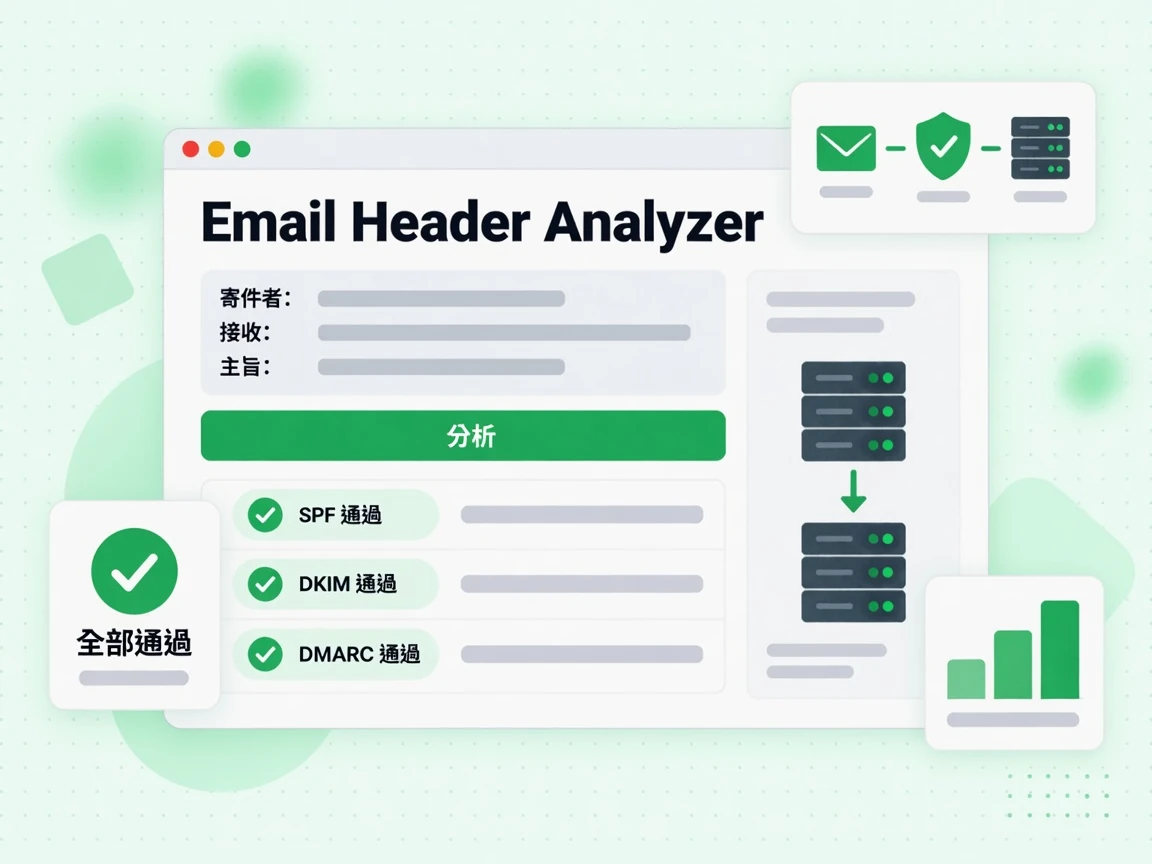
每封郵件都由兩部分組成:你看到的正文(文字、圖片和 HTML),以及位於正文之上的技術性郵件頭。郵件頭記錄了郵件完整的傳遞路徑、認證結果、垃圾郵件評分,以及發件人、收件人、主題和時間戳等後設資料。多數郵件客戶端在正常檢視中會隱藏郵件頭,但它們始終存在,可以透過郵件客戶端的“顯示原始郵件”或“檢視郵件頭”選項展開。
分析郵件頭是診斷投遞問題、調查可疑釣魚郵件,以及確認認證設定(SPF、DKIM、DMARC)在真實郵件上是否正常工作的最可靠方法之一。
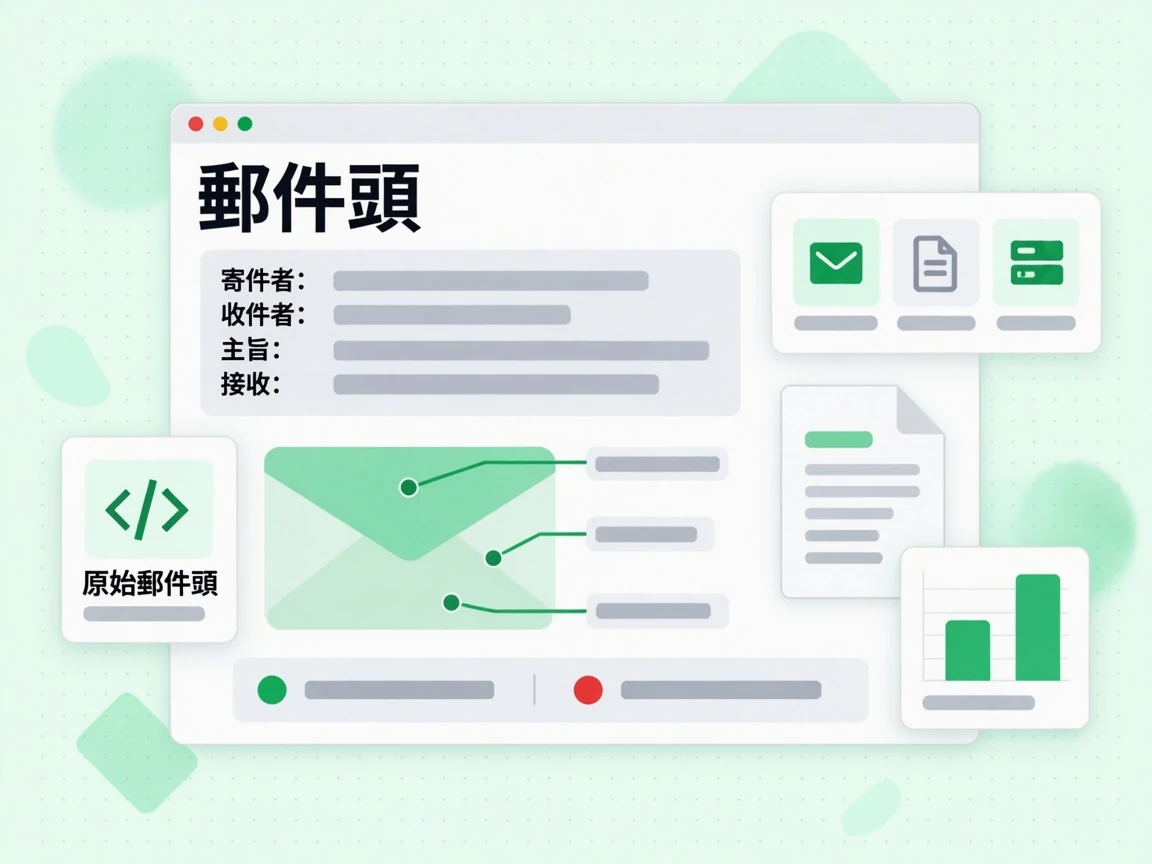
從第一行郵件頭(通常是 Delivered-To: 或 Return-Path:)一直複製到正文之前的空行。
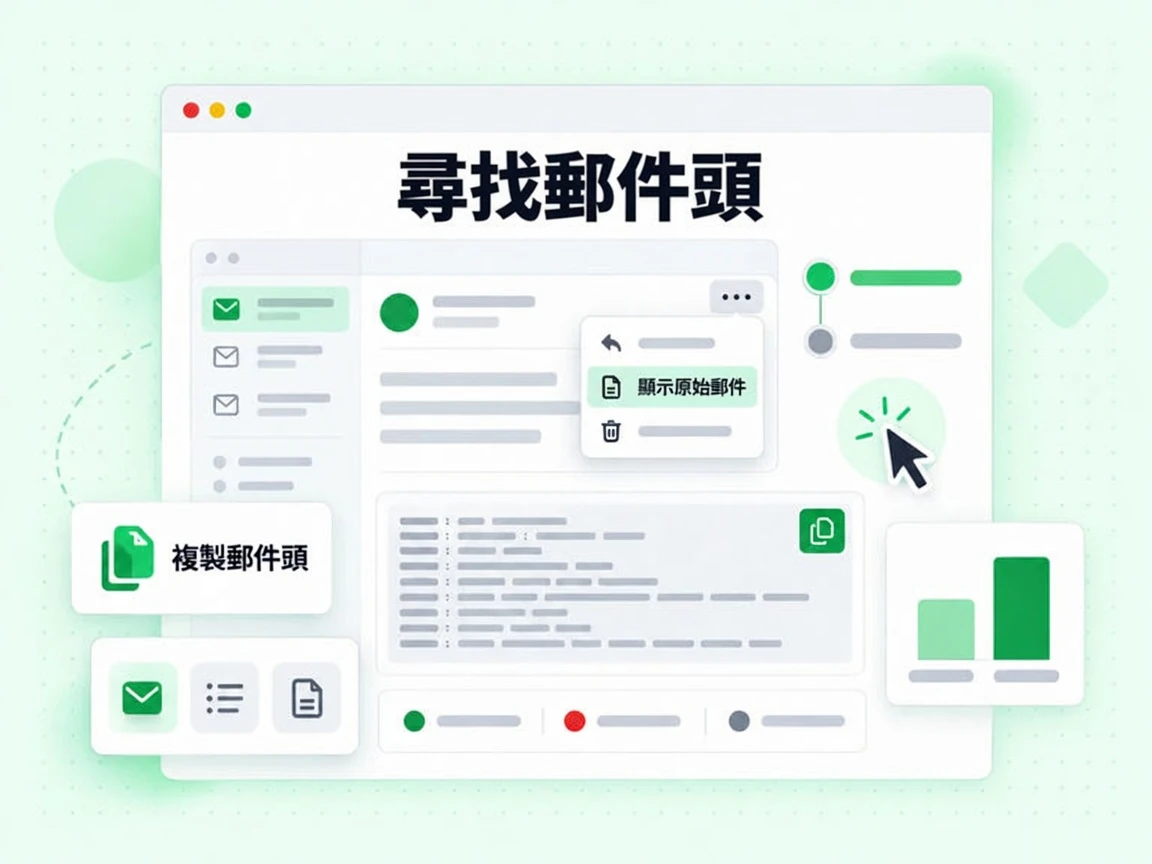
診斷投遞問題時最重要的郵件頭有:
在 Authentication-Results 郵件頭中顯示 spf=pass dkim=pass dmarc=pass 的郵件,進入收件箱的機會最大。這裡出現任何失敗都應排查。SPF 失敗通常說明傳送 IP 不在你的 SPF 記錄中。DKIM 失敗可能意味著簽名缺失、已過期,或 DNS 中的公鑰與簽名所用的私鑰不匹配。DMARC 失敗意味著 SPF 和 DKIM 都沒有與 From 域名對齊。
郵件頭分析能告訴你某封具體郵件發生了什麼。要在傳送前預防問題,請對名單使用郵箱驗證,並用我們的 SPF、DKIM、DMARC 生成器檢查認證配置。名單很大時,批次驗證和驗證 API 可以把檢查接入你的工作流程。
郵件頭包含什麼
每封郵件都帶有收件人看不到的郵件頭區塊。免費郵件頭分析器會解析這些內容,提取真正能說明郵件經歷的欄位。
每臺處理郵件的伺服器都會在最前面加入自己的 Received 頭,因此郵件頭鏈要從下往上讀,最早的一跳位於末尾。郵件頭分析器會將其反轉為時間順序,只有這樣才能看懂延遲。
每條 Received 頭上的時間戳記都能顯示郵件停留的位置。兩跳之間相隔 12 小時,表示郵件曾在佇列中等待,而不是網路問題;郵件頭分析器會立即呈現這段延遲。
接收伺服器會把自己的結論寫入該郵件頭。免費郵件頭分析器讀取的是這些已有判定,而不是重新執行檢查,因為真正決定郵件投遞結果的是接收方的判定。
這是診斷仿冒與送達率問題最有用的一個郵件頭。三項判定集中在一個郵件頭中,分析器會將它們分開,避免把 DKIM 通過誤認為 DMARC 通過。
Return-Path 頭是 SPF 授權的信封發件人,From 頭則是收件人看到的地址。當兩者不一致時,DMARC 對齊會判斷這是合法轉發還是仿冒。
郵件標頭分析器將兩個標頭欄位並排顯示,讓您一眼發現不一致;直接閱讀原始郵件標頭則可能需要幾分鐘。
Message-ID 頭是郵件的唯一標識,也是服務商支援團隊會索取的資訊。Date 頭只是發件方聲明的時間,並非實際投遞時間;Received 郵件頭鏈才記錄真實過程。
接收方加入過濾評分時,可能會出現 X-Spam-Status 等郵件頭。郵件頭分析器會呈現接收系統實際寫入的任何相關郵件頭。
解讀判定
免費郵件頭分析器在 Authentication-Results 頭中顯示的結果,幾乎都可歸入以下四種組合。
認證與對齊全部通過。如果郵件仍進入垃圾郵件匣,原因就不是認證,應檢查內容、信譽與投訴記錄。
這就是郵件頭分析器中正常郵件頭的樣子。值得分析一次自己發出的郵件,熟悉這類結果的結構。
這是轉發郵件的典型特徵。轉發會改寫投遞 IP,導致 SPF 失敗;DKIM 簽名則會完整保留並維持 DMARC 對齊。
這不是問題。若郵件頭分析器將這種組合標為失敗,反而會誤導你。
郵件通常在傳輸中被修改過,例如郵件列表加上頁尾,或安全裝置改寫連結。此時簽名不再與正文相符。
SPF 仍保持對齊,因此投遞正常。如果每次發送都出現這種情況,值得用免費郵件頭分析器進一步調查。
SPF 和 DKIM 都沒有產生對齊的通過結果。在強制執行策略下,郵件會被隔離或直接拒絕。
查看郵件頭分析器提取的 Authentication-Results 頭,找出失敗的機制,再修復發件方的相應記錄。
使用場景
郵件頭分析器能回答其他工具無法回答的問題,而且依據的是你已經擁有的郵件頭。
從下往上讀取 Received 郵件頭鏈,檢查時間戳記之間的間隔。時間突然跳變的那一跳就是讓郵件進入佇列的位置,只有郵件頭會記錄它。
其他資訊無法說明這段過程。你這端的投遞日誌只記錄到交接為止,郵件頭則記錄後續旅程。
對比 Return-Path 頭與 From 頭,再查看 DMARC 判定。這兩項郵件頭檢查能在不到一分鐘內判斷大多數可疑郵件。
免費郵件頭分析器只分析已經到達的這封郵件。對於發件地址本身,請使用 此郵箱是否可信 來確認背後是否有正常運作的郵箱。
向其他服務商的帳戶發送郵件,再從收到的副本中免費線上解析郵件頭。接收方自己的郵件頭判定比任何預測都更有用。
如果郵件頭分析器顯示認證全部通過,問題就在內容或信譽,而不是設定。
服務商在著手調查前,會先索取 Message-ID 頭。郵件頭分析器會直接提取該欄位,無需你在原始文字中捲動查找。
請從郵件頭分析器中完整複製,包括尖括號。
限制
郵件頭是事件記錄,不是預測,也不是身分證明。
發件人寫入的任何郵件頭都可以偽造。只有你信任的伺服器加入的 Received 頭才可靠,因此應從接收端開始向上讀取郵件頭鏈。
免費郵件頭分析器會顯示完整鏈路,但仍需由你判斷郵件頭中的信任邊界從哪裡開始。
郵件頭分析器讀取的是一封已經到達的郵件。郵件頭無法判斷你的 SPF 記錄是否符合 10 次查詢上限,也無法判斷 DMARC 策略是否設定正確。
這些問題應使用發件方檢查器,而不是郵件頭分析器——郵件頭只能證明一封郵件發生了什麼,無法說明你的整體設定。
大型郵箱服務商很少在郵件頭中解釋郵件為何進入垃圾郵件匣。郵件頭中沒有解釋,並不代表什麼都沒發生。
服務商提供的 Postmaster 工具是查看這一層資訊的唯一途徑。
解析郵件頭只能說明一封已送達郵件的情況。列表中的地址是否存在,是郵件頭無法回答的另一個問題。
為此,請使用 郵箱驗證器;郵件頭乾淨與收件地址失效完全可能同時存在。
參考資料
郵件頭語法由 IETF 定義,免費郵件頭分析器旁的相關工具則涵蓋發件方檢查。
IETF 的 RFC 5322 定義了每款郵件頭分析器都會解析的欄位語法,包括 Received、From 和 Message-ID。
Authentication-Results 由 RFC 8601 單獨定義,因此郵件頭分析器會將其作為獨立區塊處理。
郵件頭顯示的是接收方的判定。 SPF 檢查器 和 DMARC 檢查器會說明你自己的記錄設定能否通過認證。
免費線上解析郵件頭可以了解已經發生的情況;使用這些工具則能改變下一次的結果。
認證只完成了一半工作。 批量郵箱驗證 可以移除會損害發件信譽的失效地址,無論你的郵件頭多麼乾淨。
免費郵件頭分析器與經過驗證的列表,分別解決同一送達率問題的一半。
不會。郵件頭分析器完全在你的瀏覽器中執行。你粘貼的郵件頭文字絕不會離開當前頁面,因此無需帳戶即可免費線上解析郵件頭,也不必擔心郵件頭包含的內容。
打開郵件,點選三點選單並選擇「顯示原始郵件」。複製該頁面頂部的郵件頭區塊,再粘貼到郵件頭分析器中。Outlook 將同一畫面稱為「郵件詳細資訊」,郵件頭分析器支援這兩種格式。
通常沒有。這是轉發郵件的典型特徵:轉發會改寫投遞 IP,導致 SPF 失敗;DKIM 簽名則會保留下來並維持 DMARC 對齊。若免費郵件頭分析器將其標為失敗,反而會誤導你。
每臺處理郵件的伺服器都會在最前面加入自己的 Received 頭。郵件頭鏈要從下往上讀,最早的一跳位於末尾。郵件頭分析器會將郵件頭反轉為時間順序,讓你看清郵件究竟在哪裡等待過。
它是郵件的唯一標識,也是服務商支援團隊首先會索取的資訊。郵件頭分析器會直接提取它,無需你在原始郵件頭文字中捲動查找。
DMARC 失敗表示 SPF 和 DKIM 都沒有產生對齊的通過結果。查看郵件頭分析器提取的 Authentication-Results 頭,確定失敗的機制,再用 SPF 或 DMARC 檢查器修復發件方的相應記錄。
除付費 AI 功能外,另有 19 項免費工具,全部無需帳號。
郵件工具
郵件送達率測試會向專屬測試信箱寄出一封真實郵件,免費測試郵件能否進入收件箱,並分別評估認證、DNS、垃圾郵件過濾器、黑名單、郵件標頭與內容六個層面,逐條列出未通過的規則。報告呈現 SPF、DKIM 與 DMARC 對齊、MX 與 PTR 記錄及圖文比例,結果頁快取 7 天,並可下載完整 PDF 報告。
寄件者或訊息診斷——非地址探索。
郵件工具
郵件退信率計算器用發送數與退信數算出總退信率,再拆分硬退信與軟退信,並對照低於 2%、2% 至 5%、超過 5% 的公開閾值。硬退信率是郵箱服務商決定是否限流的關鍵,軟退信多為背景雜訊,退信率持續上升的趨勢比單次數字更重要,超過 10% 時發件信譽已受損,頁面也會顯示超出部分是硬退信還是軟退信,並據此決定清理方向。
郵件工具
電子郵件反查從地址回推網域與組織、郵件路由、本地部分模式及公開個人資料,並把推斷明確標為推斷。公司網域能指出所屬組織,個人網頁信箱通常只回傳服務商與模式;陌生聯絡人與清理 CRM 時,可先確認地址背後是公司還是共用信箱。免費版只回傳實際可觀察的訊號,並說明查不到資料的原因,也無法證明目前所有者身分。
郵箱驗證工具
電子郵件驗證器會檢查語法、MX 記錄,再對收件伺服器進行 SMTP 信箱探測,並標記一次性、角色與 Catch-all 地址。每個 IP 每 24 小時可免費完整檢查 20 次,無需註冊或信用卡;批量驗證可上傳 CSV,或改用 API 接入自動化流程,超過配額的用量改扣帳戶積分,完整結果會標示風險。
收件者證據——非寄件者或 DNS 設定。
免費工具
DNS 查詢直接向權威名稱伺服器解析 A、AAAA、MX、TXT、NS、CNAME 與 SOA 記錄,並顯示各自 TTL,不讀取快取。處理郵件時可同時查看 MX 與存放 SPF、DMARC 的 TXT,工具只回報原始值,不判斷設定是否正確;若看到舊值,多半是 TTL 尚未到期,查詢失敗時會顯示查詢內容。
網域或基礎架構證據——非信箱存在證明。
郵箱驗證工具
郵箱列表清洗會對 CSV 或 Excel 的每一行執行去重、語法、網域、MX 與即時 SMTP 探測,並保留每筆結果的原因,讓硬退信地址在寄送前被抑制。免費演示可處理最多 20 個郵箱,去重在計費前完成,註冊後可批量上傳且不限行數與檔案大小;未通過的檢查會保留原因,匯出檔也保留原始欄位,供後續查核。