



Over 60% of emails are now opened on mobile devices. If your emails don't work well on smartphones, you're losing the majority of your audience. This guide covers everything you need to know about creating emails that look great and perform well on mobile devices.
The Mobile Email Reality
Understanding the mobile landscape.
Mobile Email Statistics
The Numbers:
- 60-70% of emails opened on mobile
- 75% of users delete emails that don't display well on mobile
- Mobile open rates continue to grow year-over-year
- Tablets account for additional 10-15% of opens
The Implication: Mobile isn't optional—it's the primary way people read email.
How Mobile Changes Everything
Screen Size:
- Average smartphone: 375-428px wide
- Desktop email: Often 600px or wider
- Content must adapt dramatically
Reading Behavior:
- Scanning, not reading
- Shorter attention spans
- One-handed use
- Interrupted sessions
Context:
- Reading on the go
- Various lighting conditions
- Quick decisions
- Competing distractions
Mobile Email Clients
iOS Mail (iPhone/iPad):
- Largest mobile email client
- Good CSS support
- Dark mode support
- Preview text visible
Gmail App (Android/iOS):
- Large market share
- Limited CSS support
- Clips long emails
- Strips some styles
Samsung Mail:
- Significant Android share
- Good rendering
- Dark mode variations
Outlook Mobile:
- Growing business use
- Decent CSS support
- Different from desktop Outlook
Mobile-First Email Design
Designing for mobile as the primary experience.
Mobile-First Philosophy
The Approach: Design for mobile first, then enhance for desktop—not the other way around.
Why Mobile-First:
- Majority of opens are mobile
- Forces simplicity and clarity
- Desktop adaptation is easier
- Better user experience for most readers
Single-Column Layout
Why Single Column:
- Works on all screen sizes
- No complex responsive code needed
- Clear visual hierarchy
- Easy to read and scan
Implementation:
┌─────────────────┐
│     Header      │
├─────────────────┤
│                 │
│   Main Image    │
│                 │
├─────────────────┤
│                 │
│   Body Copy     │
│                 │
├─────────────────┤
│   CTA Button    │
├─────────────────┤
│     Footer      │
└─────────────────┘
Content Width
Recommended Width:
- Email container: 600px maximum
- Content area: 550-580px
- Mobile view: Full width (with padding)
Why 600px:
- Standard for email clients
- Works on most desktop displays
- Easy math for responsive breakpoints
Padding and Spacing
Mobile Padding:
- Edge padding: 15-20px minimum
- Section spacing: 20-30px
- Prevents content touching edges
- Creates visual breathing room
Touch Spacing:
- Space between tappable elements: 10px minimum
- Prevents accidental taps
- Improves user experience
Typography for Mobile
Making text readable on small screens.
Font Sizes
Minimum Readable Sizes:
| Element | Minimum | Recommended |
|---|---|---|
| Body text | 14px | 16px |
| Headlines | 22px | 24-28px |
| Subheads | 18px | 20px |
| Small text | 12px | 14px |
| CTAs | 14px | 16px |
Why Larger:
- Small screens need larger text
- Reading distance varies
- Prevents zooming
- Accessibility compliance
Line Length
Optimal Line Length:
- 50-75 characters per line
- Too wide: Hard to track
- Too narrow: Choppy reading
On Mobile: Full-width text with proper padding naturally creates good line length.
Line Height
Spacing for Readability:
- Body text: 1.4-1.6 × font size
- Headlines: 1.2-1.3 × font size
- Improves scannability
- Reduces reading fatigue
Font Selection
Mobile-Safe Fonts:
- System fonts (San Francisco, Roboto)
- Web-safe fallbacks (Arial, Georgia)
- Avoid decorative fonts for body
Font Stacks:
font-family: -apple-system, BlinkMacSystemFont,
             'Segoe UI', Roboto, 'Helvetica Neue',
             Arial, sans-serif;
Touch-Friendly Design
Designing for fingers, not cursors. Learn more best practices in our comprehensive email marketing guide.
Touch Target Sizes
Minimum Tap Target:
- Apple guideline: 44×44px
- Google guideline: 48×48dp
- Practical minimum: 44×44px
Why It Matters:
- Fingers are less precise than cursors
- Small targets cause frustration
- Misclicks damage experience
Button Design
Mobile-Optimized Buttons:
- Full width or nearly full width
- Height: 44px minimum, 50-56px better
- Clear visual feedback
- Adequate spacing from other elements
Button Spacing:
┌─────────────────────┐
│                     │
│   [Shop Now →]      │  ← 44px+ height
│                     │
└─────────────────────┘
      ↕ 10px+ spacing
┌─────────────────────┐
│                     │
│   [Learn More]      │
│                     │
└─────────────────────┘
Link Spacing
Text Links:
- Space between links: 10px minimum
- Prevents wrong link taps
- Consider link length
Link Lists:
• First link item
  ↕ spacing
• Second link item
  ↕ spacing
• Third link item
Interactive Elements
Forms on Mobile:
- Large input fields
- Appropriate input types (email, tel, number)
- Clear labels
- Visible error states
Note: Forms in email have limited support. Link to mobile-optimized web forms instead.
Responsive Email Design
Making emails adapt to screen size.
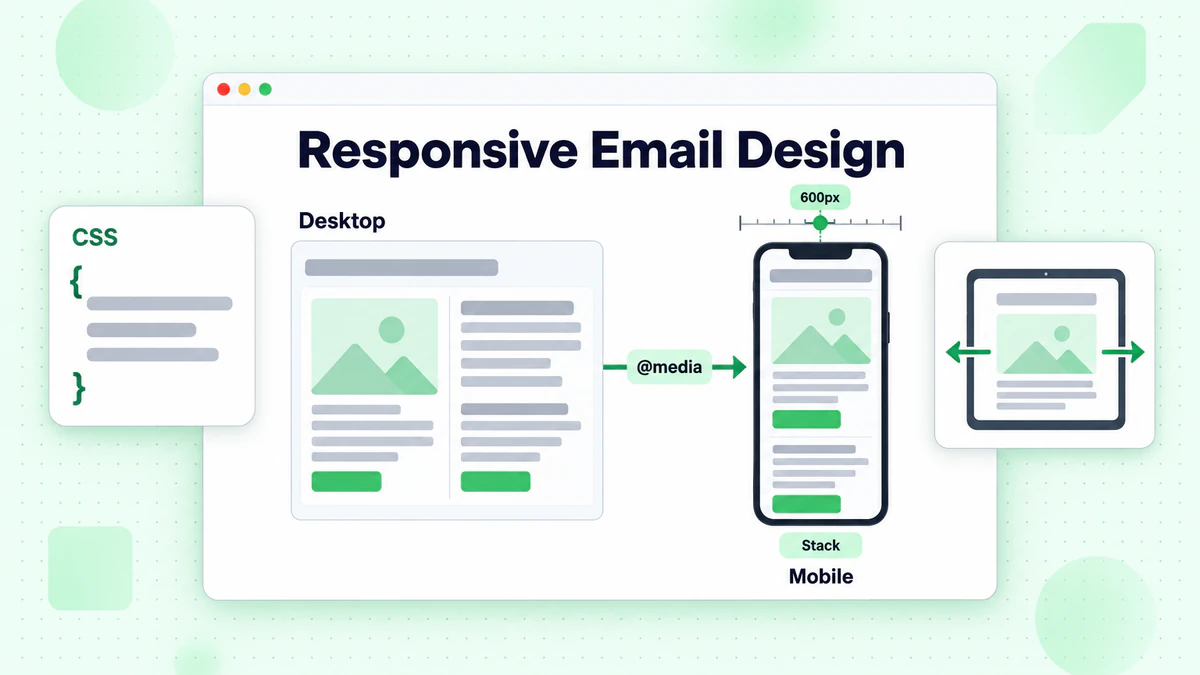
Media Queries Basics
What They Do: Apply different styles based on screen characteristics.
Basic Syntax:
@media screen and (max-width: 600px) {
  /* Styles for mobile */
  .container { width: 100% !important; }
  .content { padding: 20px !important; }
}
Common Responsive Techniques
Stack Columns: Side-by-side on desktop → Stacked on mobile
@media (max-width: 600px) {
  .column {
    width: 100% !important;
    display: block !important;
  }
}
Resize Images:
@media (max-width: 600px) {
  img {
    width: 100% !important;
    height: auto !important;
  }
}
Increase Font Size:
@media (max-width: 600px) {
  .body-text {
    font-size: 16px !important;
    line-height: 24px !important;
  }
}
Responsive Limitations
Email Client Support:
- Gmail (web): Strips
<style>blocks - Gmail App: Limited media query support
- Outlook: Minimal responsive support
Workaround: Hybrid/Spongy Method: Use CSS that works without media queries as baseline.
Hybrid Email Design
What It Is: Design that's fluid and adapts without media queries.
Key Techniques:
max-widthfor containers- Percentage widths
display: inline-blockfor columns- Ghost tables for Outlook
Example:
<!--[if mso]>
<table width="600"><tr><td>
<![endif]-->
<div style="max-width: 600px; margin: 0 auto;">
  <!-- Content -->
</div>
<!--[if mso]>
</td></tr></table>
<![endif]-->
Images for Mobile
Optimizing visual content.
Image Sizing
Max Width: Set images to scale with container:
<img style="max-width: 100%; height: auto;"
     width="600" src="image.jpg">
Retina Displays:
- Use 2× resolution images
- Display at 1× size
- File size vs. quality tradeoff
Image File Size
Performance Matters:
- Large images = slow loading
- Slow loading = abandonment
- Mobile networks vary in speed
Guidelines:
- Total email: Under 1MB
- Individual images: Under 200KB
- Compress aggressively
- Use appropriate format
Image Formats
JPEG: Photos, complex images PNG: Graphics, logos, transparency GIF: Simple animations WebP: Modern format, limited email support
Alt Text Importance
Why Critical for Mobile:
- Images often blocked by default
- Describes content without images
- Accessibility requirement
- Can be styled in many clients
Alt Text Tips:
- Describe the image content
- Include key information
- Keep concise but informative
- For decorative: alt=""
Mobile Email Content Strategy
Content approaches for mobile readers.
Scannable Content
How Mobile Users Read:
- Scan quickly for relevance
- Read headlines and subheads
- Look at images
- Decide whether to engage
- Maybe read body text
Optimize For Scanning:
- Clear headline hierarchy
- Bold key phrases
- Bullet points
- Short paragraphs
- Visual breaks
Content Prioritization
Inverted Pyramid: Most important information first.
┌─────────────────────┐
│  Most Important     │  ← Lead with key message
│  (Headline + Hook)  │
├─────────────────────┤
│   Important         │  ← Supporting details
│   (Key Benefits)    │
├─────────────────────┤
│     Details         │  ← Additional info
│   (Supporting)      │
├─────────────────────┤
│      CTA           │  ← Clear action
└─────────────────────┘
Mobile-Friendly Length
Shorter Is Usually Better:
- Get to the point quickly
- Respect limited attention
- Remove unnecessary content
When Longer Works:
- Detailed product information
- Educational content (tablet readers)
- Highly engaged audiences
Preview Text Optimization
The Preview: Text that appears after subject line in inbox.
On Mobile:
- Often more visible than desktop
- Can determine open decisions
- Should extend subject line appeal
Best Practices:
- 40-90 characters visible
- Complement subject line
- Include call to action
- Don't repeat subject
Testing Mobile Emails
Ensuring mobile compatibility.
Testing Checklist
Visual Testing:
- [ ] Renders correctly on iOS Mail
- [ ] Renders correctly on Gmail App
- [ ] Renders correctly on Android default
- [ ] Images scale properly
- [ ] Text is readable without zooming
- [ ] Buttons are tap-friendly
Functional Testing:
- [ ] All links work
- [ ] Links go to mobile-friendly pages
- [ ] Phone numbers are clickable
- [ ] Email addresses are clickable
Testing Methods
Real Devices: Best method—test on actual phones and tablets.
Email Testing Tools:
- Litmus
- Email on Acid
- Provides previews across clients
Email Client Simulators: Some ESPs offer built-in previews.
For comprehensive testing strategies, see our email testing and optimization guide.
Common Mobile Issues
Issue: Text Too Small
- Symptom: Users pinch to zoom
- Fix: Increase font sizes
Issue: Buttons Too Small
- Symptom: Misclicks, frustration
- Fix: Larger buttons, more spacing
Issue: Images Not Scaling
- Symptom: Horizontal scroll required
- Fix: max-width: 100%
Issue: Content Overflow
- Symptom: Horizontal scroll
- Fix: Check widths, use percentages
Dark Mode Considerations
Adapting for dark mode users.
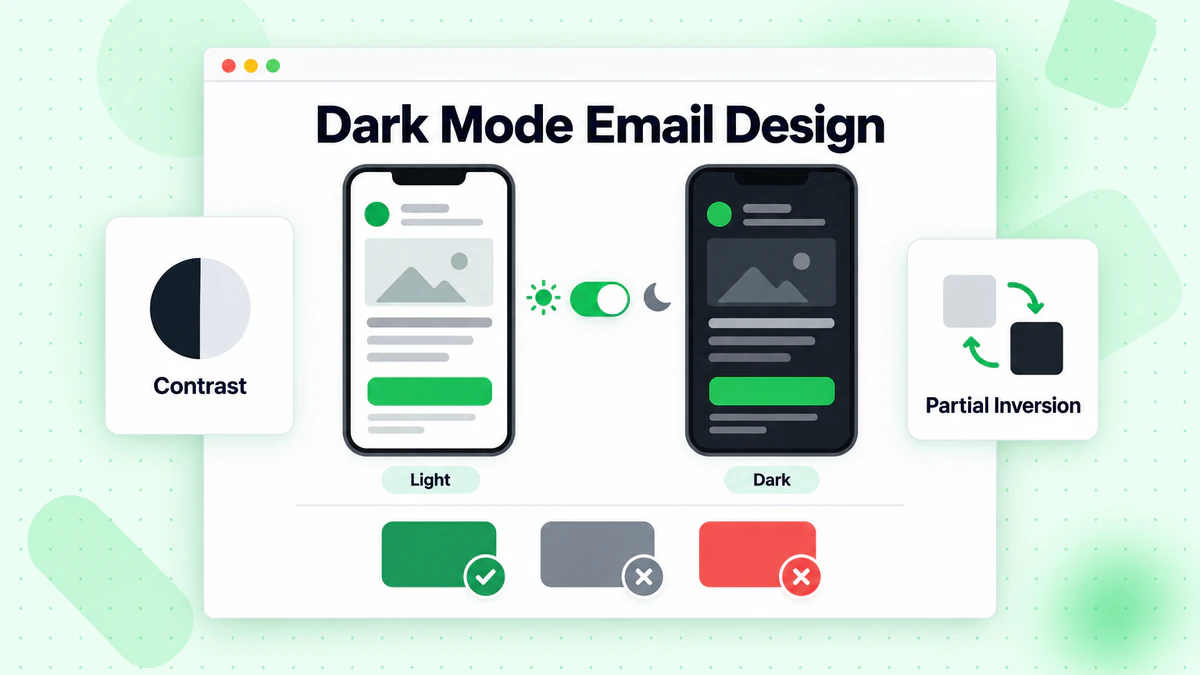
Dark Mode Prevalence
Usage:
- Over 80% of users use dark mode at least sometimes
- Many use it exclusively
- Both iOS and Android have system-wide dark mode
How Dark Mode Affects Email
Automatic Inversion: Some email clients automatically invert colors.
Partial Inversion: Light backgrounds become dark, dark text becomes light.
No Inversion: Some clients don't change email styling.
Dark Mode Design Tips
Logo Considerations:
- Provide versions for light and dark
- Add border/stroke to dark logos
- Test on dark backgrounds
Color Choices:
- Avoid pure black (#000000)
- Avoid pure white (#FFFFFF)
- Use slightly off colors that work both ways
Background Colors:
- If you set a light background, it may stay light
- If transparent, client controls background
- Consider which you prefer
Dark Mode CSS
Targeting Dark Mode:
@media (prefers-color-scheme: dark) {
  .body-content {
    background-color: #1a1a1a !important;
    color: #ffffff !important;
  }
}
Support: Limited in email clients, but growing.
Mobile Email Accessibility
Making emails work for everyone.
Why Accessibility Matters
The Reality:
- Millions use screen readers
- Many have visual impairments
- Mobile users in challenging conditions
- Good accessibility = good UX for all
Mobile Accessibility Basics
Semantic HTML:
- Use proper heading hierarchy
- Tables for data, not layout (when possible)
- Meaningful link text
Color Contrast:
- Minimum 4.5:1 for normal text
- Minimum 3:1 for large text
- Test with contrast checkers
Alt Text:
- Describe all meaningful images
- Empty alt for decorative images
- Include key information
Screen Reader Considerations
How Screen Readers Work on Mobile:
- Read content linearly
- Announce element types
- Navigate by headings, links
Optimize By:
- Logical reading order
- Descriptive headings
- Meaningful link text (not "click here")
- Content makes sense without images
Mobile Email Performance
Speed and efficiency for mobile.
Loading Speed Matters
Mobile Realities:
- Varying network speeds
- Data caps
- Impatient users
- Background app switching
Optimizing Performance
Image Optimization:
- Compress all images
- Use appropriate dimensions
- Consider lazy loading for web views
Code Efficiency:
- Minimize HTML
- Remove unnecessary tags
- Clean, efficient CSS
Total Email Size:
- Keep under 102KB (Gmail clipping)
- Ideally under 80KB
- Monitor file size
Above the Fold
On Mobile: "Above the fold" is very small—maybe 300-400px.
Prioritize:
- Key message visible immediately
- CTA accessible quickly
- No scrolling for main point
Mobile Email Checklist
Design
- [ ] Single column layout (or properly responsive)
- [ ] 600px max width
- [ ] Adequate padding (15-20px edges)
- [ ] Touch-friendly buttons (44px+ height)
- [ ] Readable font sizes (14px+ body)
Images
- [ ] Max-width: 100% applied
- [ ] File sizes optimized
- [ ] Alt text included
- [ ] Retina resolution considered
Content
- [ ] Scannable format
- [ ] Key message at top
- [ ] Clear hierarchy
- [ ] Mobile-appropriate length
Testing
- [ ] Tested on iOS Mail
- [ ] Tested on Gmail App
- [ ] Tested on Android
- [ ] Dark mode checked
- [ ] Links verified
Technical
- [ ] Total size under 102KB
- [ ] Clean, efficient code
- [ ] Responsive code working
- [ ] Fallbacks in place
Data Quality and Mobile
How list quality affects mobile performance.
Mobile Impact
Deliverability: Invalid emails hurt sender reputation, affecting delivery to all subscribers including mobile users.
Engagement Data: Clean lists give accurate mobile engagement metrics for optimization.
Testing Accuracy: Mobile A/B tests are only valid with clean data.
Mobile-Specific Verification
Considerations:
- Mobile signup forms may have more typos
- Auto-correct can create invalid addresses
- Real-time verification catches errors immediately with email verification
Use our email checker tool to verify emails at mobile signup forms and maintain email list hygiene.
Conclusion
Mobile email optimization is no longer optional—it's essential. With the majority of emails opened on mobile devices, every email you send should be designed mobile-first.
Key mobile optimization principles:
- Mobile-first design: Design for mobile, enhance for desktop
- Touch-friendly: Large buttons, adequate spacing
- Readable text: 14px minimum, clear hierarchy
- Fast loading: Optimized images, efficient code
- Test thoroughly: Real devices, multiple clients
Beautiful mobile emails only matter if they reach the inbox. Invalid emails damage deliverability for all your mobile and desktop subscribers.
Ready to ensure your mobile-optimized emails reach valid subscribers? Start with BillionVerify to verify your list and maximize mobile email performance.
BillionVerify integrates directly with HubSpot, Mailchimp, and ActiveCampaign to keep contact lists clean automatically.