


Video transcription turns the words spoken in a video into written text, usually split into lines with timestamps. To transcribe a video today, you have three options: reuse the captions the video already has, run the audio through speech recognition, or type it out by hand. For most people the fastest route is a tool that does the first two automatically: paste a video link or upload a file, get a timestamped transcript, then export it as plain text or a subtitle file. This guide covers how to transcribe a video from every common source, what to do when a video has no captions, which file format to pick, how to get accurate results, and how marketing, sales and creator teams put the text to work in newsletters, emails and outreach.
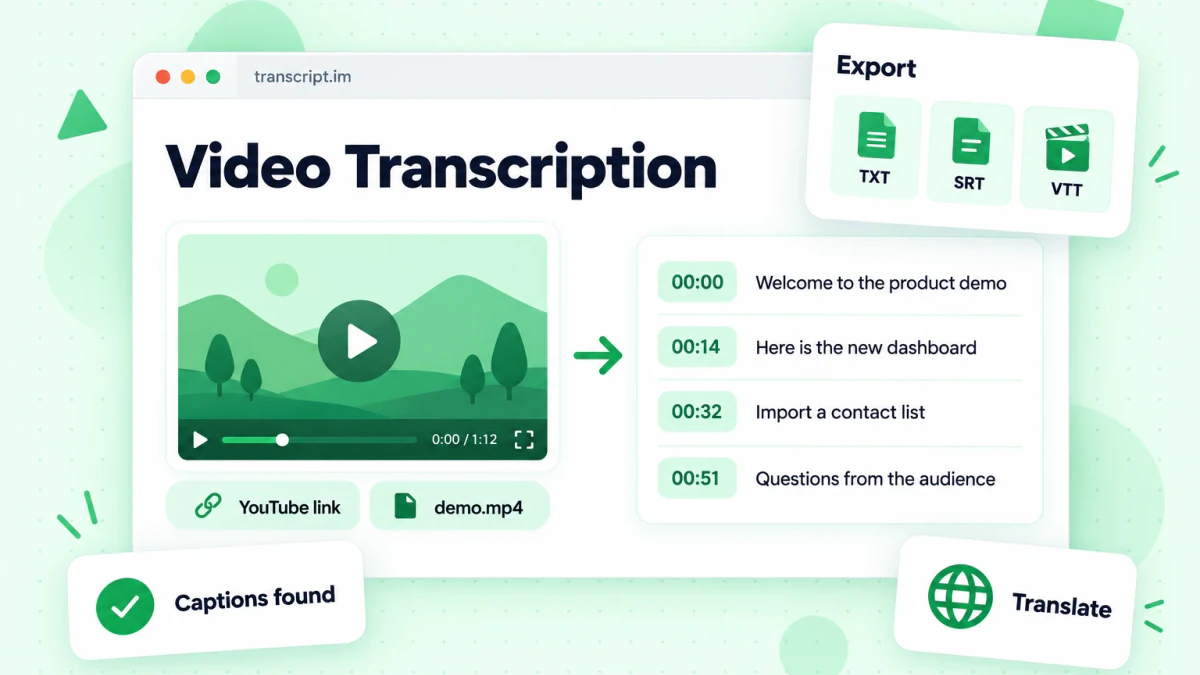
This is a guest post from the team behind transcript.im, a video to text tool, so the step-by-step sections use it as the example. The methods themselves apply whichever tool you choose.
What Video Transcription Gives You
A video transcription is a text version of what was said in a recording. Good video transcription keeps three things: the words, the order they were spoken in, and the time each line starts. The timestamps are what separate a useful transcript from a wall of text, because they let you jump back to the moment a sentence was said and check it against the recording. If you want the wider background on audio, interview and legal transcription, our guide to what transcription is covers the general practice; this article stays on video.
People often use three words as if they meant the same thing. They do not:
- Transcript: the full spoken text of a video, meant to be read, searched, copied and quoted. It can carry timestamps or not.
- Captions: a timed text track that plays over the video for viewers who cannot hear or do not have sound on. Captions are built for watching, not reading on their own.
- Subtitles: a timed text track, often in another language, shown while the video plays.
A video transcription can produce all three. The same timestamped lines can be read as a document, saved as a subtitle file for a player, or translated into another language with the times kept in place.
The other thing to understand is where the text comes from. Some videos already have a caption track written by the creator or generated by the platform. When that track exists, a transcription tool can read it directly. When it does not, the tool has to listen to the audio and convert speech to text with automatic speech recognition (ASR). transcript.im works this way: it uses existing captions first and transcribes the audio with AI when there are none, putting a timestamp on every line either way.
How to Transcribe a Video: Three Methods Compared
There are three ways to transcribe a video, and the right one depends on the source and on how accurate the result has to be.
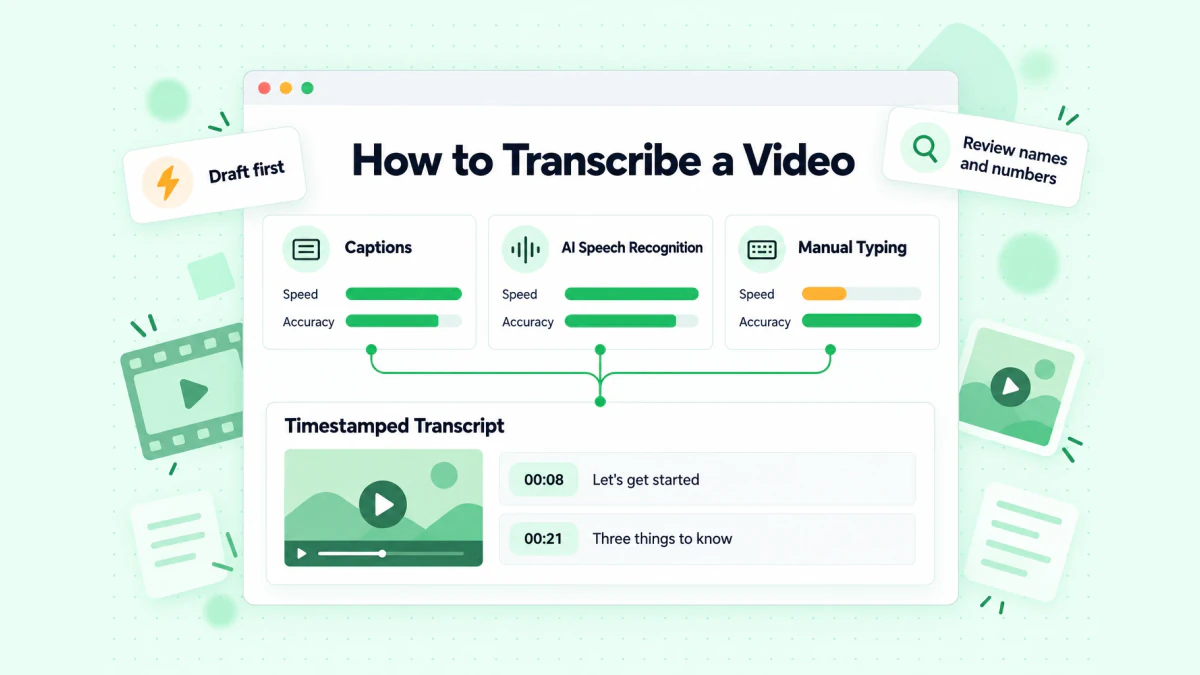
The table below shows how to transcribe a video with each method and when each one makes sense.
| Method | How it works | Best for | Main drawback |
|---|---|---|---|
| Reuse existing captions | Read the caption track the creator or platform already published | Captioned YouTube videos, your own captioned uploads | Only works when captions exist; platform auto captions can contain errors |
| AI speech recognition | A tool listens to the audio and writes the words with timestamps | Videos with no captions, uploaded files, TikTok and Instagram clips, meetings | Can mishear names, jargon and overlapping voices |
| Manual transcription | A person types what they hear while the video plays | Short legal or research quotes that must be exact | Slow: a long recording takes many times its own length to type |
In practice, most teams combine the first two and keep the third for checking. Let a tool produce the draft from captions or ASR, then spend your human time on reviewing the parts that matter: names, numbers, product terms and anything you will quote.
Video Transcription in Four Steps With a Video to Text Converter
A video to text converter handles the whole job from one input. The flow is the same for a YouTube link, a TikTok post or an MP4 on your laptop.
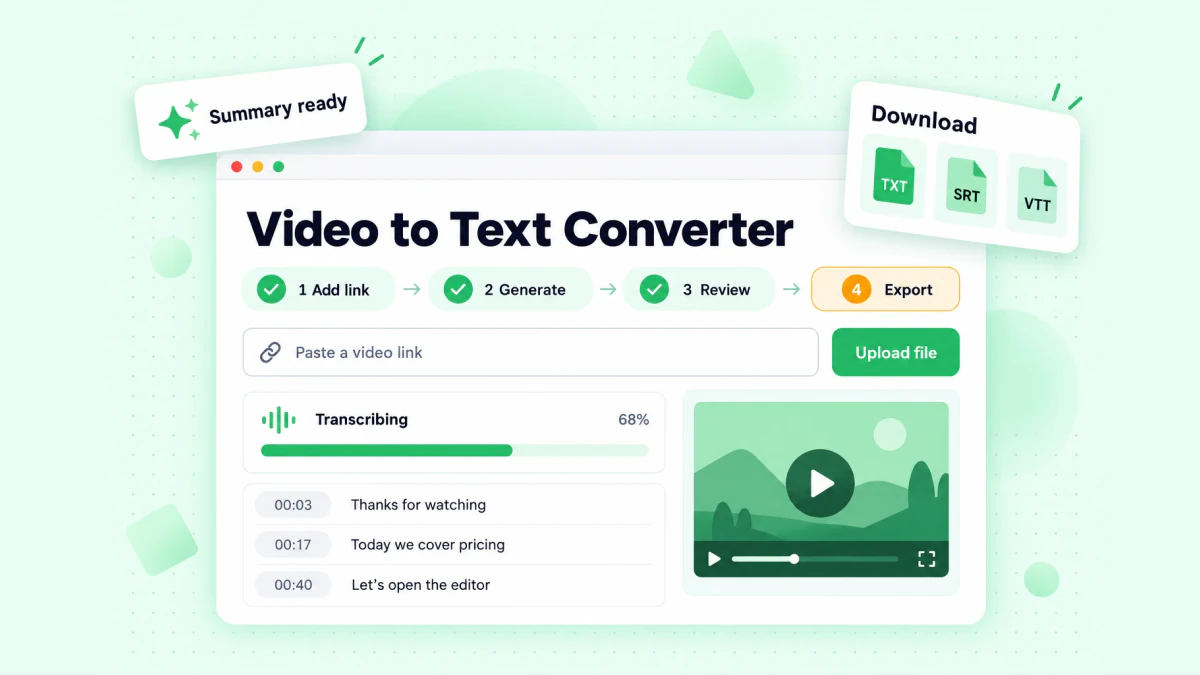
Here is how to transcribe a video with a video to text converter such as transcript.im:
- Add the video. Paste a public video link from YouTube, TikTok, Instagram, Facebook, LinkedIn or X, or upload one audio or video file from your device. There is no software to install; it runs in the browser on a laptop or a phone.
- Generate the transcript. The tool checks for a usable caption track. If there is one, it uses it; if not, it transcribes the speech with AI. The transcript language is detected automatically, or you can set it to English, Chinese, Spanish, French, German, Japanese or Korean.
- Review and search. Read the transcript, search it for a phrase, jump to a timestamp, and copy a single line or a whole passage. The Clean option can repair some recognition errors while keeping the timestamps.
- Export or reuse. Download the transcript as TXT for reading or as SRT or VTT for subtitles. You can also translate it into 12 languages with the timestamps kept, or turn it into a summary, chapters, notes, a mind map or a rewritten script.
That covers single videos. The sections below go through each source in more detail, because each platform has its own quirks.
How to Transcribe YouTube Video Links: One Video, a Playlist or a Channel
YouTube is the most common source, and it is also the one with the most options. You can transcribe one video, a whole playlist in order, or every public video on a channel.
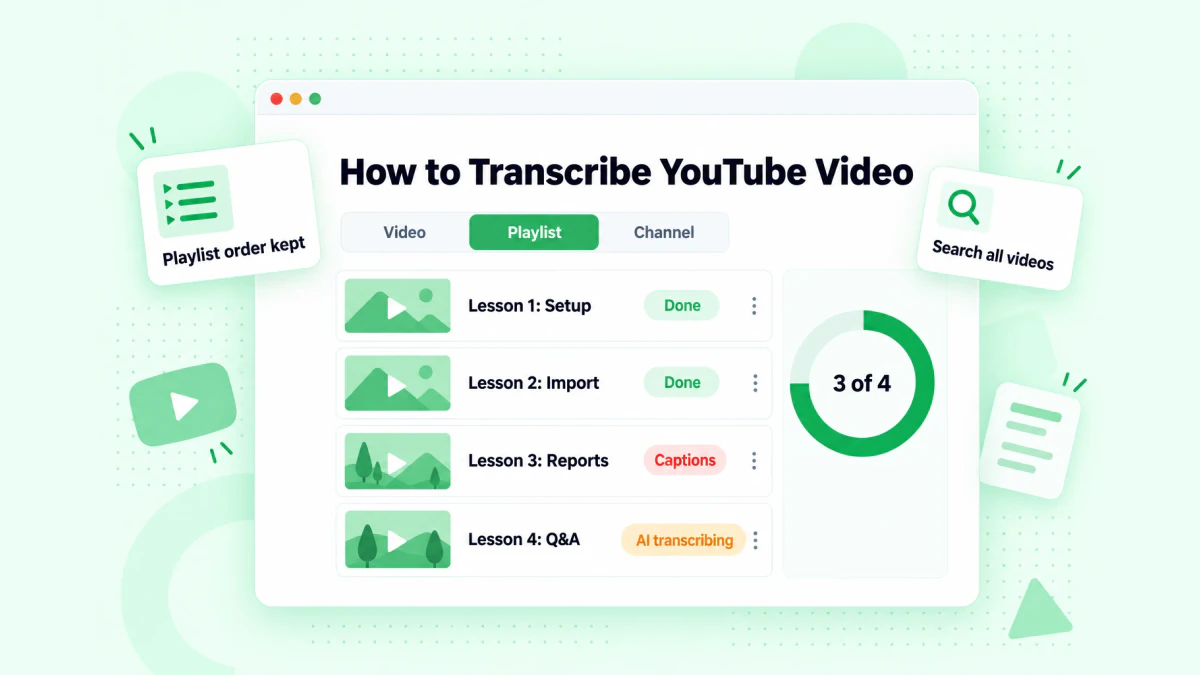
Knowing how to transcribe YouTube video content at each of these three levels saves a lot of copying and pasting, so here is each one in turn.
One YouTube video
Copy the video URL from the address bar or the Share button and paste it into a YouTube transcript generator. If the creator uploaded captions, or YouTube generated automatic captions, the tool reads them. If neither exists, it transcribes the audio. YouTube Shorts are handled like long videos.
YouTube itself has a transcript panel. On desktop, open the video description and choose the option to show the transcript. It is fine for reading along, but it only appears when the video has captions, it shows one video at a time, and it gives you no clean export. If you need the text as a file, translated, or combined with other videos, a dedicated tool is the faster path.
A note on YouTube automatic captions, because they are often the source of the text you get. YouTube's help page on automatic captioning says these captions are generated by machine learning, that quality can vary, and that they can misrepresent spoken content because of mispronunciations, accents, dialects or background noise. It also lists reasons a video may have no automatic captions at all: the audio is still being processed, the language is not supported, the sound quality is poor, there is a long silence at the start, or several speakers overlap. When any of those apply, ASR in a transcription tool fills the gap.
A YouTube playlist
A playlist is how most courses, tutorial series and webinar archives are organized. Paste the playlist URL into a YouTube playlist transcript tool and it queues every video, reads captions where they exist, transcribes the rest, and returns the transcripts in playlist order with each part labeled by its video title. You can search across the whole set, download it with one file per video, or translate the entire playlist with timestamps kept. This is the right choice when order matters, for example when you are turning a course into study notes or a lesson-by-lesson knowledge base.
A whole YouTube channel
A channel transcript covers the public videos of one channel. Paste the channel URL into a YouTube channel transcript tool and it queues the uploads and returns a labeled set you can search in one place. Marketers use this for competitive research, such as finding every time a competitor's channel mentions pricing, a feature or a customer story. Creators use it to audit their own back catalog and find old material worth reusing.
Two limits apply to every YouTube option: the videos must be public, and a live stream can only be transcribed after it has ended and a recording exists.
How to Transcribe TikTok, Instagram and Other Social Videos
Short social videos are where a lot of marketing ideas, hooks and customer language live. Transcribing them is the same paste-a-link flow, with a few differences per platform.
TikTok. Paste a public video URL into a TikTok transcript generator. It uses the creator's captions when they exist and transcribes the speech when they do not. The result is a timestamped transcript you can copy into notes, export as TXT, SRT or VTT, or translate. Text drawn onto the picture is not read, only speech.
Instagram. Instagram has no caption file to export, so an Instagram transcript tool always transcribes the voice in the Reel or feed video. Reels that are mostly music with a short voice-over give a short transcript that follows only the voice-over. Private accounts, followers-only posts and region-blocked content cannot be read.
Facebook, LinkedIn and X. Public video posts on these platforms follow the same flow: paste the link, get timestamped text. LinkedIn videos are a good source for B2B teams, because product demos, founder updates and event clips posted there often contain exactly the phrasing your buyers respond to.
For all social platforms, the same rule applies: transcribe public posts, and treat other people's content as research material, not as copy you can republish. Quoting a short line with credit is normal; republishing a full transcript of someone else's video is not.
How to Transcribe Video to Text From a File
Not every video lives on a public platform. Sales calls, customer interviews, webinar recordings, internal training and podcast video files usually sit on your laptop or in a shared drive. You can upload them directly.
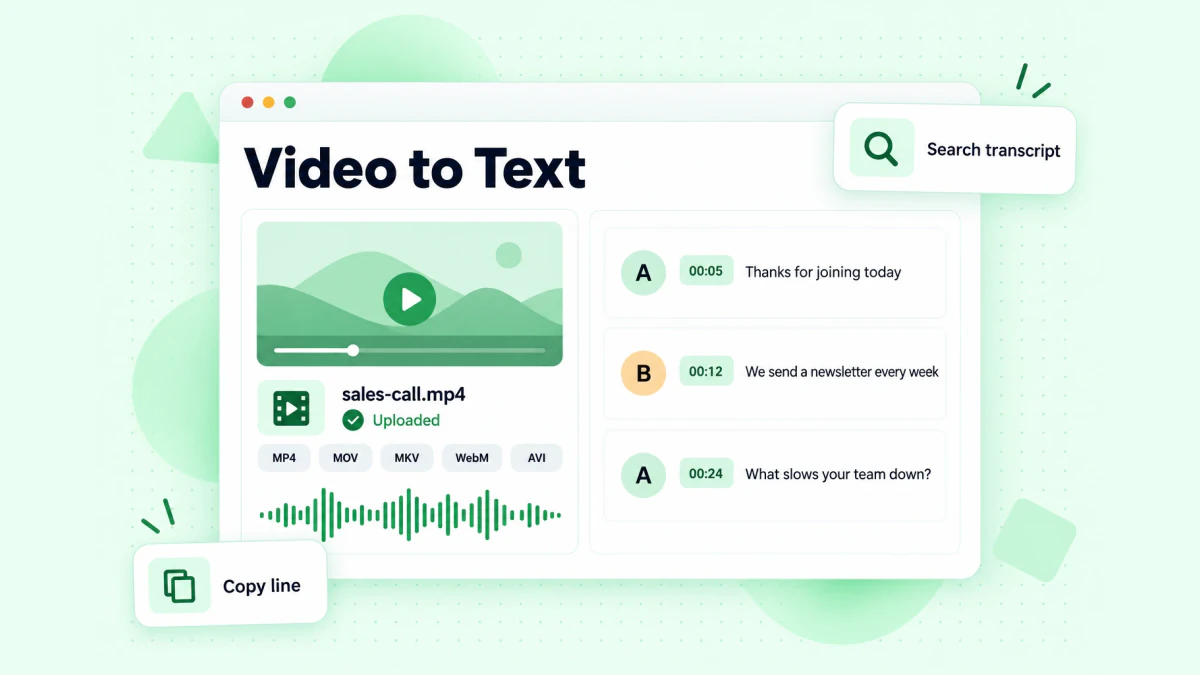
To transcribe video to text from a file, upload one audio or video file at a time in MP4 or another common format such as MOV, MKV, WebM or AVI, and the tool transcribes the audio. Uploaded files always go through speech recognition, since there is no platform caption track to read. When the transcript is ready, you search, copy, translate or export it like any other.
A few habits make file transcription go more smoothly:
- Export the cleanest audio you have. If a call was recorded on several devices, upload the one with the clearest voice, not the one with the best picture.
- Trim long silences and hold music at the start of a recording before uploading, so the transcript starts where the conversation does.
- Name files clearly, such as
2026-10-14-acme-discovery-call.mp4, so the transcript is easy to find later in a shared folder. - Get consent before recording calls and follow your company's rules on storing customer conversations. A transcript is as sensitive as the recording it came from.
How to Transcribe a Video Without Captions
A missing caption track used to mean typing. It no longer does. With speech recognition, a video without captions comes back as a complete, timestamped transcript, the same as a captioned one.
The things that make uncaptioned videos harder are the same things that make ASR harder in general: music under the voice, several people talking at once, strong accents, and specialist vocabulary. If you are transcribing a batch of uncaptioned videos, plan a little more review time for these. Read the transcript with the video open in another tab, and use the timestamps to jump straight to any line that looks wrong instead of rewatching the whole thing.
If the video is your own and you plan to publish it, it is worth adding captions to the original upload once you have a transcript. Export the transcript as SRT or VTT and upload it to the platform as a caption file. Your viewers get accurate captions, and the next time anyone transcribes the video, the tool reads your corrected track instead of guessing.
Manual Video Transcription: When It Still Makes Sense
Typing a transcript by hand is still the right call in a few narrow cases: a quote that will appear in a legal document, a research interview where every hesitation matters, or a few seconds of speech in a language your tools do not support.
If you transcribe video to text by hand, the usual workflow is:
- Play the video at reduced speed with a keyboard shortcut for pause and rewind.
- Type in short bursts, a sentence or two at a time.
- Add a timestamp at each new speaker or every 30 to 60 seconds.
- Mark anything you cannot hear clearly with a tag such as
[inaudible 03:12]rather than guessing. - Do a second pass at normal speed to catch missing words.
Even for these cases, starting from an automatic draft and correcting it is usually faster than starting from a blank page. You keep full control of the final wording, and you only type the parts the machine got wrong.
Video Transcription Formats: TXT, SRT and VTT
Once you have a video transcription, the export format decides what you can do with it. transcript.im exports three formats, and each has a clear job.
| Format | What it contains | Use it for |
|---|---|---|
| TXT | Plain text of the transcript | Reading, notes, documents, pasting into email drafts or AI assistants |
| SRT | Numbered subtitle blocks, each with a start and end time | Video editors, platform caption uploads, most desktop players |
| VTT | WebVTT text track with timing cues | Web video players and HTML5 <track> elements |
SRT comes from the SubRip program, and the SubRip format stores subtitles in sequence with their timing information in a human-readable file. It is the format most video editors and upload forms accept. A block looks like this:
1
00:00:01,000 --> 00:00:04,200
Today we're going to walk through the new onboarding flow.

2
00:00:04,200 --> 00:00:07,800
First, open the workspace switcher in the sidebar.
VTT is the web standard. MDN's WebVTT reference explains how browsers use it to show text tracks alongside a <video> element. It looks similar to SRT, starts with a WEBVTT header, and uses a dot instead of a comma before the milliseconds:
WEBVTT

00:00:01.000 --> 00:00:04.200
Today we're going to walk through the new onboarding flow.
TXT is the one you will use most for marketing and sales work, because you are going to edit, quote and rewrite the words rather than display them over a video.
A simple rule: if the text goes back onto a video, pick SRT or VTT. If it goes into a document, an email, a CRM note or an AI tool, pick TXT.
What Affects Video Transcription Accuracy
Accuracy depends far more on the source than on the tool. The main factors are:
- The caption source. Captions a creator wrote or corrected are usually precise. Platform automatic captions and ASR are good on clear speech and weaker on everything below.
- Recording quality. A close microphone in a quiet room beats a laptop mic in a conference room every time.
- Background noise and music. Music under the voice is one of the most common causes of missed words.
- Accents and dialects. Recognition is strongest on the accents it has heard most.
- Overlapping speakers. When two people talk at once, one of them usually loses.
- Names and specialist terms. Product names, company names, people's surnames and industry jargon are where most errors cluster.
- Language. Set the transcript language when you know it, especially for mixed-language recordings.
You do not need to read every word of a long transcript to trust it. Use this review checklist instead:
- Search the transcript for every product name, company name and person's name you expect, and fix the spellings.
- Check every number: prices, dates, percentages, quantities.
- Read the first and last two minutes, where introductions and calls to action usually sit.
- Jump to any line you plan to quote and listen to it once at the timestamp.
- Run a clean-up pass to repair obvious recognition errors while keeping the timestamps.
For anything you publish word for word, such as a customer quote in a case study, always confirm it against the recording.
YouTube to Text: Turning a Transcript Into Readable Copy
A raw transcript is accurate but rarely pleasant to read. Speech has false starts, filler words and sentences that run on. Turning YouTube to text you can actually publish or send takes one more step.
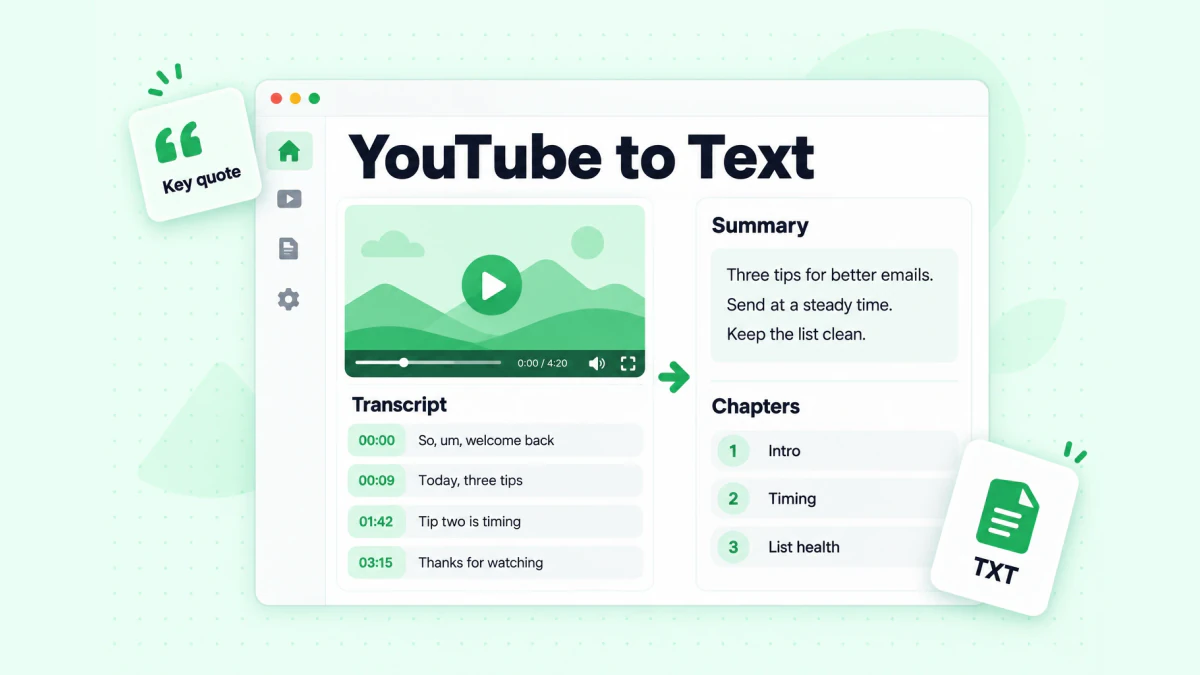
Here is a reliable way to take YouTube to text, or any other video transcript to text you can use:
- Keep the timestamped version as your master copy. You will come back to it to check quotes.
- Make a working copy without timestamps. Export TXT or copy the lines without their times.
- Generate a summary and chapters first. A summary tells you what the video is about in a few sentences; chapters show you where the sections break. Both run on the same transcript in transcript.im.
- Pull out the quotable lines. Mark the five to ten sentences that state an idea clearly. These become your headlines, hooks and pull quotes.
- Rewrite, do not just tidy. Spoken explanations are built for listening. Reorder the points, cut repetition and add headings so it reads like writing.
- Credit the source. If the video is someone else's, link to it and attribute any quotes.
If you prefer to work in an AI assistant, paste the transcript into ChatGPT, Claude, Gemini, Kimi or Manus and ask for a structured draft. You can also load several transcripts into NotebookLM as sources and ask questions across them; this guide on using NotebookLM with video transcripts walks through that workflow.
How Marketing, Sales and Creator Teams Use Video Transcription
This is where video transcription pays for itself. Most teams already have hours of recorded material: webinars, demos, customer interviews, conference talks, founder videos, podcast episodes. Almost none of it gets reused, because nobody has time to rewatch it. A transcript turns that archive into searchable, quotable text.
Newsletters
One recorded talk can feed several newsletter issues. Transcribe it, split it into its main ideas, and give each idea its own issue with a short intro, the key point, an example from the recording and a link back to the video. Readers who would never watch a 40-minute webinar will read a 400-word email about one idea from it. If you are starting from scratch, our guide on how to start a newsletter covers platforms, list building, sending schedules and turning videos and podcasts into issues.
Marketing emails and landing pages
Customer interviews and sales calls are full of the exact words buyers use to describe their problems. Those words convert better than anything a copywriter invents. Transcribe a handful of calls, search for phrases like "we were struggling with", "the reason we switched" and "what I needed was", and collect the answers in a swipe file. Use them for subject lines, email openers and landing page headlines. Product demo recordings work the same way for feature emails: the way your best salesperson explains a feature live is usually clearer than the documentation.
Sales outreach
Prospects publish a lot on video: conference talks, podcast interviews, LinkedIn clips, company webinars. Transcribe a prospect's recent talk and you have specific, recent things to reference in a first email, which is the core of cold email personalization. A line like "In your talk at the March summit you said onboarding was the biggest drag on retention" shows you did the homework in a way a generic opener cannot. Keep it short and accurate: quote one point, connect it to one thing you can help with, and check the quote against the timestamp before you send.
Before you send: keep the list clean
Transcripts make the content better, but deliverability decides whether anyone sees it. When you turn transcribed material into a newsletter or an outreach sequence, the list you send to matters as much as the words. Remove invalid, disposable and risky addresses before a campaign, especially for cold outreach and for lists that have not been mailed in a while. Email list cleaning catches the addresses that would bounce, so a well-written email built from a strong transcript actually lands in the inbox.
Blog posts and SEO content
A 30-minute talk is roughly 4,000 spoken words, which is plenty of raw material for a long article. Use the chapters as an outline, rewrite each section for reading, and embed the original video in the post. The article ranks for the written query, and the video keeps readers on the page. If you want to go the other direction and turn a written article back into a short video, an article to video tool can build one from the text.
Knowledge bases and internal training
Recorded onboarding sessions, product walkthroughs and support calls become far more useful as text. Transcribe a playlist of training videos in order, and new hires can search for "refund policy" instead of scrubbing through six recordings. Support teams can link to the exact timestamp where a process is shown. You can also load transcripts into NotebookLM as sources and ask it questions across all of them.
Books and long-form products
Creators with a back catalog of videos often have a book's worth of material without realizing it. A playlist or channel transcript gives you the raw chapters; the work is in organizing and rewriting them. Our sister guide on how to create an ebook from YouTube transcripts walks through that process with your own videos.
Video Transcription for Accessibility
Transcripts and captions are also how video reaches people who cannot hear it. The W3C Web Accessibility Initiative's page on transcripts explains the two kinds: a basic transcript is a text version of the speech and the non-speech audio needed to understand the content, while a descriptive transcript also describes the visual information. Basic transcripts are used by people who are Deaf or hard of hearing and by others who process text better than audio; descriptive transcripts are needed by people who are both Deaf and blind.
For your own published videos, that means two practical steps. First, upload accurate captions (SRT or VTT) to the video itself. Second, publish the transcript as text on the page, or link to it, so anyone can read the content without playing the video. If the video relies on visuals, such as a product demo where the speaker says "click here", add short descriptions of what is shown so the text makes sense on its own.
As a bonus, a published transcript makes the content of the video readable to search engines and to people skimming before they decide to watch.
Automating Video Transcription With an API or AI Agents
When transcription becomes a regular part of a workflow, doing it by hand in a browser stops scaling. If you transcribe every new webinar, every competitor upload or every customer call, automate it.
transcript.im offers a REST transcript API, an MCP server and agent skills. With them, your own scripts, or AI agents such as Claude, ChatGPT and Cursor, can fetch transcripts of public videos, run batches and search YouTube. A few examples of what teams build:
- A content pipeline that transcribes each new video on your channel and drops a draft blog post and newsletter outline into a shared folder.
- A competitor monitor that transcribes new uploads from a list of channels and flags mentions of pricing, features or your brand.
- A sales research step that transcribes a prospect's most recent talk and adds a two-line summary to the CRM record before a rep writes the first email.
- An agent workflow where you ask an assistant to "transcribe this playlist and list every tool mentioned," and it calls the transcription tool itself.
Whatever you automate, keep the review step for anything that leaves the building. Automatic transcripts are drafts until someone checks the names, numbers and quotes.
A Video Transcription Checklist
Use this before you start any transcription job:
- [ ] Is the video public, or is it your own file? Private posts cannot be transcribed from a link.
- [ ] Single video, playlist or channel? Pick the matching input so the output stays organized.
- [ ] Do you know the spoken language? Set it if the video mixes languages.
- [ ] Which format do you need? TXT for writing, SRT or VTT for video.
- [ ] Do you need a translation? Translate after transcribing so timestamps stay aligned.
- [ ] Which names, numbers and terms must be exact? Search and fix them first.
- [ ] Will you quote anyone? Check each quote at its timestamp and credit the source.
- [ ] Is the content going into email? Clean the recipient list before you send.
Common Video Transcription Mistakes
Treating automatic captions as final. Platform captions and ASR are a strong first draft, not a verified record. Review the parts you will use.
Throwing away the timestamps. Keep a timestamped master copy even if you only publish plain text. It is how you check a quote three months later.
Publishing a raw transcript as an article. Spoken language reads badly on a page. Rewrite it.
Transcribing one video at a time when you need a series. For courses and channels, a playlist or channel run keeps everything in order and labeled.
Republishing other people's videos as your content. Use other creators' transcripts for research, short credited quotes and personalization, not as copy.
Sending great content to a dirty list. The best email built from a transcript still fails if a large share of the addresses bounce.
Video Transcription FAQs
What is video transcription?
Video transcription is the process of turning the speech in a video into written text, usually split into timestamped lines. The result can be read as a document, searched, quoted, translated, or exported as a subtitle file. It comes either from the video's existing captions or from speech recognition when there are none.
How do I transcribe a video?
To transcribe a video, paste its link into a video to text converter or upload the file, let the tool read the captions or transcribe the audio, then review and export the transcript. For a single YouTube, TikTok or Instagram video this takes one link. For a course or a series, use a playlist or channel input so every video comes back labeled and in order.
How do I transcribe a YouTube video?
To transcribe a YouTube video, copy its URL and paste it into a transcription tool, which reads the video's captions or transcribes the audio if there are none. YouTube's own transcript panel shows text for captioned videos while you watch, but it does not export files, combine videos or translate.
Can I transcribe a video that has no captions?
Yes, video transcription works on videos without captions by using speech recognition on the audio. The result is the same timestamped transcript you would get from a captioned video. Plan extra review time for videos with music, overlapping speakers or many proper names.
What is the difference between a video to text converter and a caption file?
A video to text converter produces the spoken words as text you can read, edit and reuse, while a caption file is a timed track that displays over the video. A good converter gives you both: TXT for reading and SRT or VTT for captions.
Which format should I export a video transcription in?
Export a video transcription as TXT when you will read, edit or paste the text, and as SRT or VTT when the text goes back onto a video. SRT is the most widely accepted by editors and upload forms; VTT is the web standard for HTML5 players.
How accurate is automatic video transcription?
Automatic video transcription is very accurate on clear speech recorded close to the microphone, and less accurate with background music, overlapping voices, strong accents and specialist terms. Creator-written captions are usually more precise than automatic ones. Always check names, numbers and anything you will quote against the timestamp.
Can I transcribe a whole YouTube playlist or channel at once?
Yes. A playlist transcript queues every video in the list and returns the transcripts in playlist order, each labeled by video title. A channel transcript does the same for a channel's public videos and lets you search across all of them.
Can I transcribe TikTok and Instagram videos?
Yes, video transcription works on public TikTok and Instagram videos from their links. TikTok transcripts use the creator's captions when they exist; Instagram transcripts always come from the voice, because Instagram has no caption file. Text drawn on the screen is not part of the transcript.
How do I transcribe video to text on a phone?
To transcribe video to text on a phone, open the transcription tool in your mobile browser, paste the video link or upload the file from your camera roll, then copy or download the result. The steps match the desktop version, with no app to install.
Can I translate a video transcription?
Yes. transcript.im translates a finished transcript into 12 languages and keeps each line's timestamp, so the translated text still lines up with the original video. Translate after you have reviewed the original, so corrections carry through.
How do marketers use video transcription?
Marketers use video transcription to turn webinars, demos and customer interviews into newsletter issues, email copy, landing page headlines, blog posts and sales research. The transcript makes recorded material searchable, so the best lines can be found and reused without rewatching.
Can AI agents transcribe videos?
Yes. Through an API or an MCP server, AI agents such as Claude, ChatGPT and Cursor can request video transcription for public videos, run batches and pass the text to the next step of a workflow. transcript.im provides a REST API, an MCP server and agent skills for this.
Start With One Recording
Pick one video your team already made, such as last month's webinar, a recent demo or a strong customer interview, and transcribe it. Pull out five quotable lines, one newsletter idea and one email opener. Once you see how much is in a single recording, video transcription becomes a regular step in how you create content, not an occasional chore.