


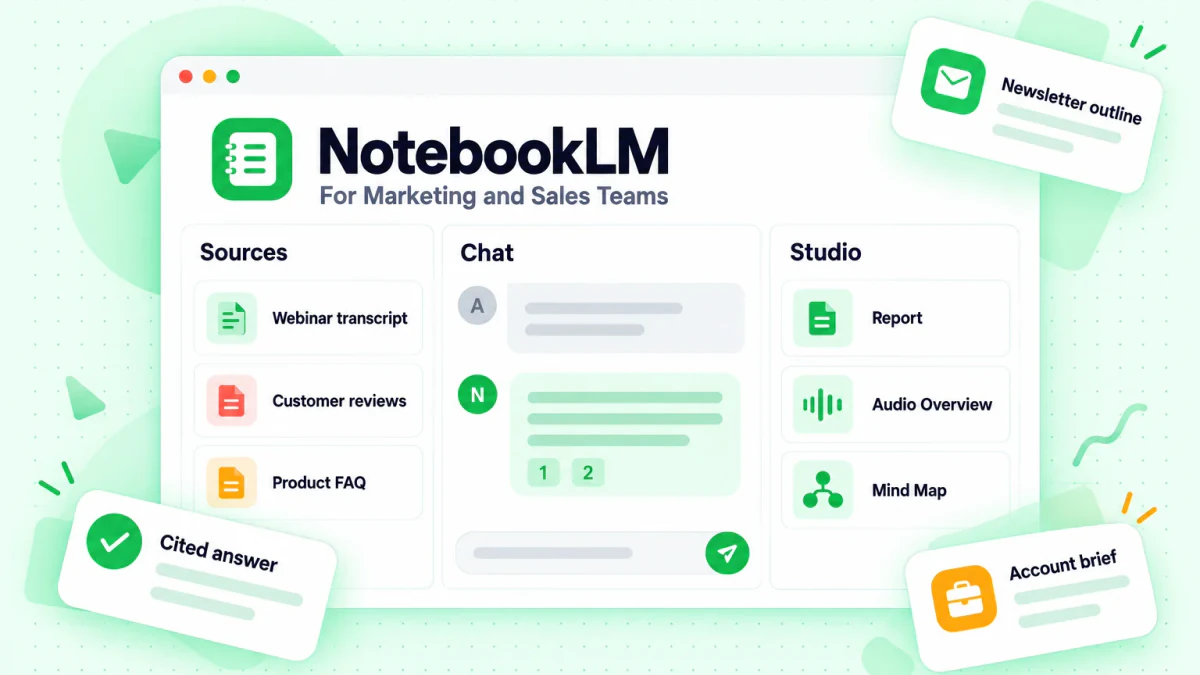
NotebookLM is Google's AI research assistant for working with your own material. You add sources such as PDFs, Google Docs, presentations, spreadsheets, websites, audio files and YouTube videos, and Google NotebookLM answers questions from those sources only, with a citation on every claim that links back to the passage it came from. It also turns the same sources into briefing documents, FAQs, data tables, mind maps, slide decks and podcast-style Audio Overviews. For marketing, email and sales teams, that makes NotebookLM a research desk: one notebook per customer segment, campaign, competitor or account, where anyone on the team can ask a question and check the answer against the cited passage.
Google renamed the product Gemini Notebook on July 16, 2026. The announcement on the Google blog calls it the same standalone product under a new name, so existing notebooks and shared links kept working. Most people still search for it as NotebookLM, so this guide uses that name.
This guide is written for people who sell and market for a living. It covers what Google NotebookLM is, how the NotebookLM AI works under the hood, how to set up a team notebook, and the NotebookLM use cases that pay off for marketers and sales reps: customer research, competitor research, campaign briefs, newsletters, outreach emails and sales enablement. If you want a product review with a closer look at limits and video, read this full NotebookLM review on the transcript.im blog.
What Is NotebookLM?
What is NotebookLM, in one sentence? NotebookLM is a notebook with a language model that reads only what you put in it. Google's help center describes it as an AI-powered research assistant that lets you chat with your sources and get grounded answers with clear inline citations. The product started as Project Tailwind at Google I/O 2023, and the Wikipedia entry for Gemini Notebook covers its history from there.
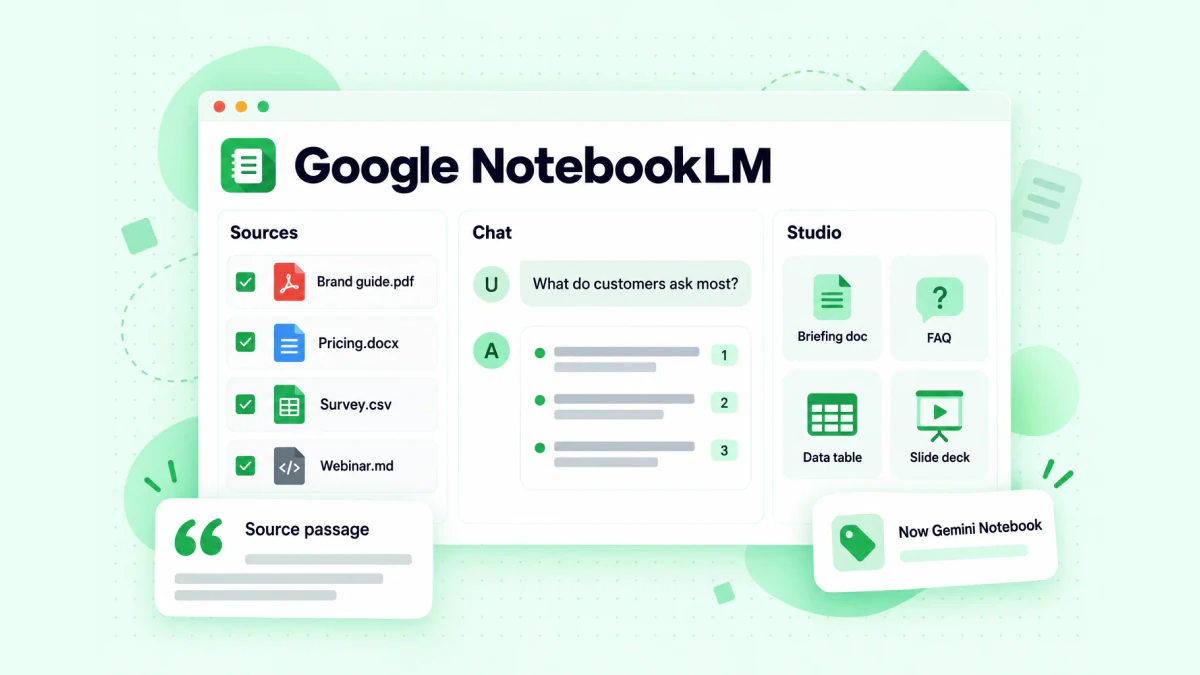
Google NotebookLM is built around four pieces, and every workflow in this guide uses them:
- Notebook. A project container with its own sources, chat and generated outputs. Each notebook is independent: NotebookLM cannot read across two notebooks at the same time, so the way you split notebooks decides what the AI can see.
- Source. One item you add, such as a PDF, a Google Doc, a pasted block of text, a web page, an audio file or a YouTube video. A source is a copy of the original, or an auto-synced version for Google Drive files.
- Chat. Questions and answers grounded in the selected sources. Hover over a citation to see the quoted text, or click it to jump to the passage in context.
- Studio. The panel that turns sources into formats: Audio Overviews, Video Overviews, mind maps, reports (briefing document, FAQ, study guide or a custom report), data tables, flashcards, quizzes, slide decks and infographics.
What makes Google NotebookLM different from a general chatbot is the boundary. When you ask ChatGPT, Claude or Gemini a question about your customers, the answer draws on whatever the model learned elsewhere. When you ask NotebookLM, it answers from the interviews, reviews and call notes you uploaded, and it shows you which line supports each claim. For a marketer writing a campaign brief, or a sales rep checking what a case study actually says, that difference is the whole point.
NotebookLM supports more than 80 languages and is available in the browser in a long list of countries, plus mobile apps with a smaller feature set. You need a personal Google account, or a work or school Google account where your admin has turned it on.
How NotebookLM AI Works
NotebookLM AI works in two steps every time you ask a question. First it retrieves the passages from your sources that are most relevant to the question. Then it writes an answer from those passages and attaches a numbered citation to each claim. Google's help page explains that when a notebook holds many sources, NotebookLM looks for the most relevant information first, which is why a specific question gets a better answer than a vague one.
This design is often called retrieval-augmented generation, and it has three practical consequences for a team:
- The answer can only be as good as the sources. If your notebook holds last year's pricing sheet, NotebookLM will quote last year's prices faithfully. It does not judge which source is current unless you tell it.
- Missing information stays missing. If the fact is not in the notebook, the chat may say it cannot answer instead of guessing. Google notes that chat responses only use data from your sources, and that creative requests such as rewriting a story can come back with "can't answer this question." That is a feature when you need facts, and a limit when you want polished copy.
- Citations make answers checkable, not correct. NotebookLM can flatten a disagreement between two sources, skip an exception, or summarize a detail slightly wrong while still pointing at the right paragraph. Open the citation before a claim goes into an email, an ad or a sales deck.
The NotebookLM AI also does a few things before you ask anything. When you add sources, the chat panel shows a generated summary of all of them, and each source gets its own source guide with an auto-generated summary. Once a notebook holds five or more sources, NotebookLM can auto-label and group them by topic, which helps when a research notebook grows past a few dozen files.
Newer chat features go beyond your sources. Google's help center describes agentic actions in chat, including searching the web, running code and creating downloadable files such as charts, PDFs, Word documents, spreadsheets and presentations. The Add sources dialog also has a search box that can find new sources on the web or in your Workspace files from a research question. Treat anything that came from the open web like any other source: check where it came from before you rely on it.
What You Can Add as NotebookLM Sources
NotebookLM sources cover most of what a marketing or sales team already has lying around. According to Google's help page on adding sources, you can add:
| Source type | Notes for marketing and sales teams |
|---|---|
| PDF, Word (docx), text, Markdown, CSV, PowerPoint (pptx) and ePub files | Brand guides, case studies, analyst reports, survey exports, old decks |
| Google Docs, Slides (up to 100 slides) and Sheets (up to 100,000 tokens) | Drive files sync automatically every few minutes |
| Web URLs | Only the text of the page is imported; images, embedded videos and paywalled pages are not |
| Copied and pasted text, and notes | Call notes, CRM exports, reply threads with personal details removed |
| Audio files such as MP3 and WAV | Recorded calls and podcasts, transcribed when you import them |
| Images | Screenshots and ad creatives, with some image types working better than others |
| YouTube URLs of public videos | Only the caption text is imported, with conditions covered later |
| Purchased Play Books ebooks and Gemini chats | Useful for reading lists and for ideas you already worked through in Gemini |
Each source can hold up to 500,000 words, or up to 200 MB for an uploaded file, and a free notebook holds up to 50 sources. Paid Google AI plans and eligible Workspace editions raise the usage limits. Google changes plan details from time to time, so check the current Gemini Notebook plans page before you buy, and read this guide on whether NotebookLM is free for a breakdown of what the free tier covers.
A few source rules catch teams out:
- Google Drive files stay in sync. If someone edits the pricing doc in Drive, the notebook picks up the change. If someone deletes the file or removes your access, the source becomes inaccessible but still counts toward the limit.
- Footnotes and comments are not imported from Google files, so review notes left as comments on a draft will not reach the notebook.
- Web pages lose their pictures. A competitor's pricing page imports as text only, so a pricing table built as an image will not be in the source.
- Upload only what you have the right to use. Google's own tip is to avoid uploading documents you do not have rights to, and your company's data rules still apply.
How to Use NotebookLM: Set Up a Team Notebook in Six Steps
How to use NotebookLM well comes down to how you build the notebook. A notebook with eight clear, current sources gives sharper answers than one stuffed with 50 loosely related links. Here is a setup that works for a campaign, a segment or a key account.
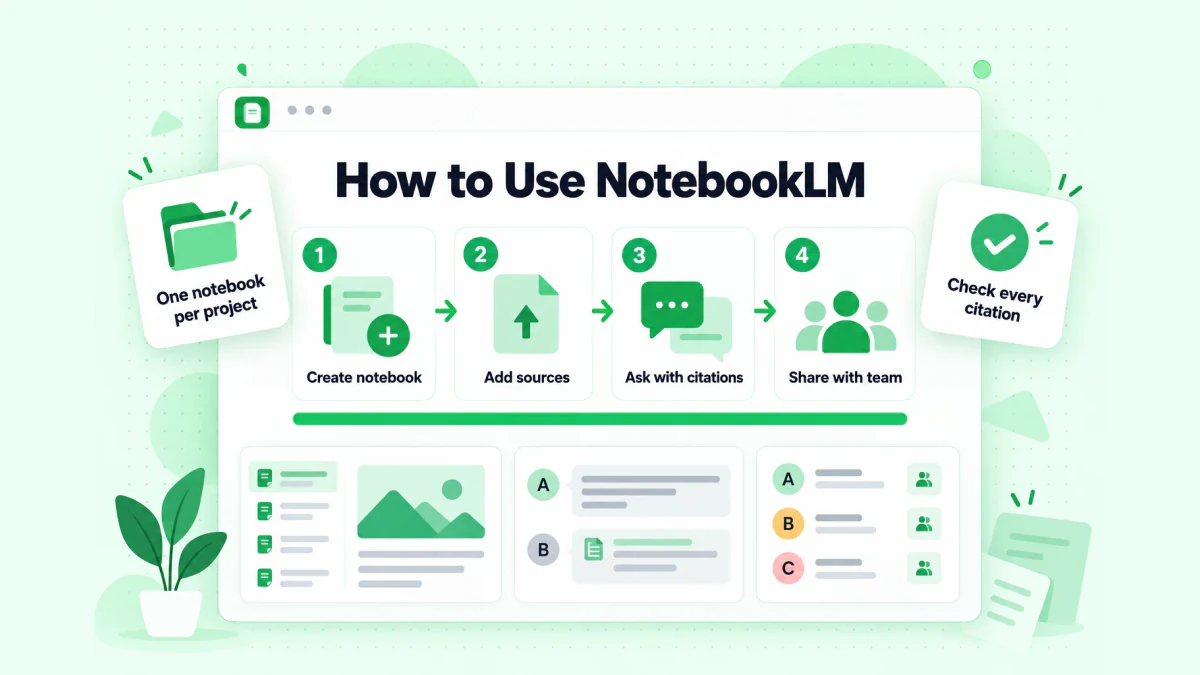
- Create one notebook per question you keep asking. Good scopes for a commercial team are "Mid-market agencies segment," "Q1 product launch campaign," "Competitor: Acme," or "Account: Northwind." Because each notebook is independent, a tight scope keeps answers focused and leaves room under the 50-source cap.
- Add the sources that define the scope. For a segment notebook, that might be ten customer interviews, a survey export, a page of review quotes, two win-loss reports and the current positioning doc. Name every file so a citation tells you what it is at a glance: "2026-09 interview - ops lead - agency" beats "Recording 14."
- Put the date in the name of anything that ages. Pricing, packaging, competitor claims and roadmaps go stale. "Pricing FAQ - updated 2026-10" lets you ask NotebookLM to prefer newer sources and lets a reader spot an old one in a citation.
- Ask specific questions and select the right sources. You can tick sources on and off in the Sources panel to narrow a question to one document or widen it to the whole notebook. "What do agency customers say about onboarding, with quotes?" works better than "summarize everything."
- Configure the chat for the job. In Configure Chat you can choose a conversational style, Default, Learning Guide or Custom, and a response length. A custom style such as "Answer as a product marketer writing for sales reps" keeps every answer in the same register for the whole team.
- Save what matters and share the notebook. Save a good chat response to a note, and the note keeps its tables and clickable citations. Then share the notebook so the rest of the team asks questions against the same sources instead of forwarding summaries of summaries.
Those six steps cover most of how to use NotebookLM day to day. The sections below apply them to specific jobs.
NotebookLM Use Cases for Marketing, Email and Sales Teams
The best NotebookLM use cases for commercial teams share one pattern: the team already has the material, and the slow part is reading, sorting and checking it. This table maps the common jobs to the sources they need and what comes back.
| Use case | Typical sources | What you get |
|---|---|---|
| Customer research | Interview transcripts, survey CSV, reviews, support tickets | Pain points with quotes, segments, the words customers use |
| Competitor research | Competitor web pages, webinar transcripts, analyst notes | Positioning comparison, claims to answer, gaps |
| Campaign briefs | Positioning doc, research notes, past campaign results | A cited brief per campaign, a messaging map |
| Content repurposing | Webinar, podcast and YouTube transcripts | Blog outlines, newsletter topics, quote lists |
| Newsletters and email campaigns | Product updates, customer stories, past issues | Issue outlines with sources, fact-checked claims |
| Sales enablement | Case studies, battlecards, objection guides, call notes | A searchable sales library, answer drafts with citations |
| Account research | Prospect web pages, public talks, annual reports | An account brief and talking points before a call |
| Outreach emails | Account brief, case studies, the prospect's own words | Personalized first lines grounded in real facts |
Most teams start with one or two of these and grow from there. The next sections cover NotebookLM for marketing first, then email campaigns, then NotebookLM for sales.
NotebookLM for Marketing: Research, Briefs and Messaging
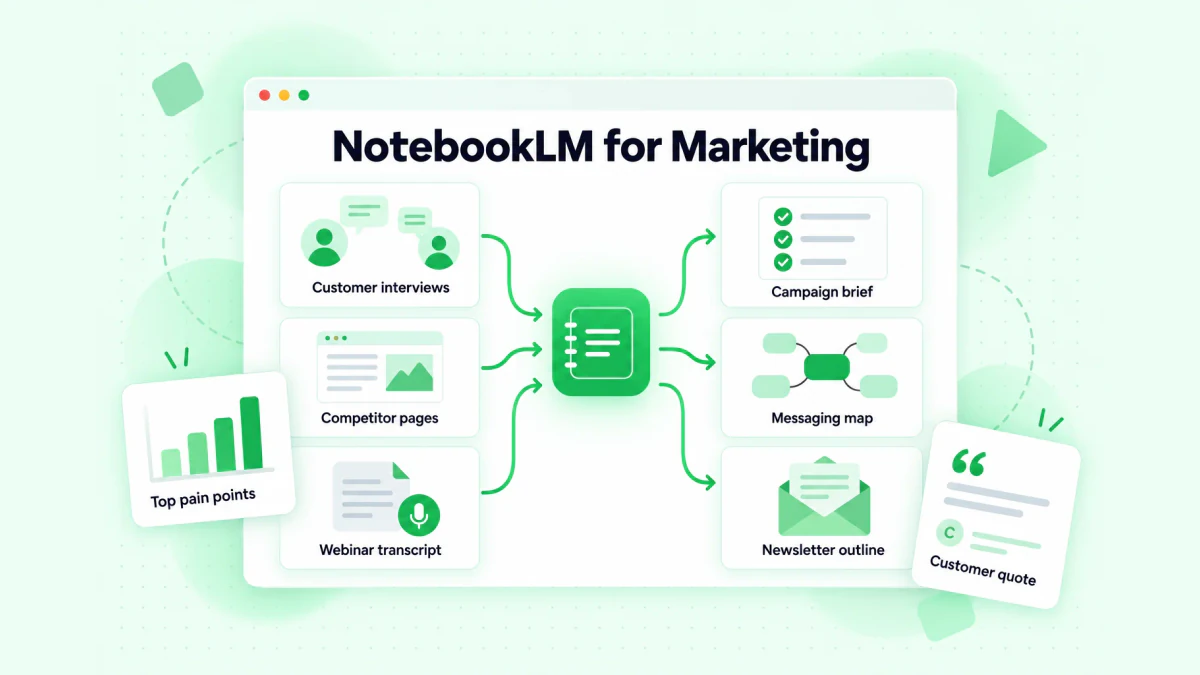
NotebookLM for marketing is strongest at the research end of a campaign, where a marketer has to read far more than they will ever write. Here are the jobs where it saves the most time.
Customer research you can quote
Put ten to twenty customer interviews, a survey export and a page of review quotes into one notebook. Then ask:
- "What are the five problems customers describe most often? Quote two customers for each."
- "Which words do customers use for this problem that we never use on our website?"
- "Group these interviews by company size and say how the top problem changes between groups."
The answers come with citations, so you can open each quote and copy the exact wording into your messaging doc. Real customer language makes better headlines, subject lines and ad copy than anything invented in a brainstorm. If your interviews are recorded calls, add the audio directly, or turn the video files into text first with a video to text tool so the transcripts keep their timestamps and you can jump back to the moment a customer said it.
Competitor research without the tab overload
A competitor notebook can hold their homepage, pricing page, feature pages, a few webinar transcripts and your own win-loss notes. Ask "How does each competitor describe the problem, in their own words?" or "Which claims appear on Competitor A's site but not on ours?" Remember that a competitor's site imports as text only, so check pricing tables that are images by hand, and date every source, because competitor pages change without notice.
Campaign briefs grounded in evidence
Once the research is in, ask for a briefing document from the Studio panel, or write a custom report prompt such as "Write a campaign brief for a launch aimed at agency owners: audience, problem, promise, three proof points with sources, objections, and the call to action." A report can be exported to Google Docs, and any data tables inside it export to Google Sheets, so the brief lands where the rest of the team works. Exported files do not sync back to the notebook, and sharing permissions do not carry over, so share the Doc separately.
A messaging map and a data table
The mind map in Studio is a quick way to see how your sources cluster: problems, outcomes, objections and proof. The data table is even more useful for marketers. Describe the rows and columns you want, for example "one row per interview: company size, main problem, current tool, quote," and NotebookLM fills the table from your sources, with citations on a second tab when you export it to Sheets. That turns a pile of interviews into a sheet you can filter and count.
Content repurposing
A single webinar can feed a month of content. Add the transcript, then ask for the five strongest points with timestamps, the questions the audience asked, and a blog outline built only from what was said. NotebookLM gives you the structure and the quotes. You still write the post, because NotebookLM is built to answer from sources, not to write long-form copy in your brand voice.
Turn Webinars, YouTube Videos and Podcasts Into NotebookLM Sources
A lot of the best material a marketing team has is spoken: webinar recordings, conference talks, podcast episodes, product demos, customer video testimonials and competitors' YouTube channels. Getting that material into NotebookLM is where most teams hit a wall.
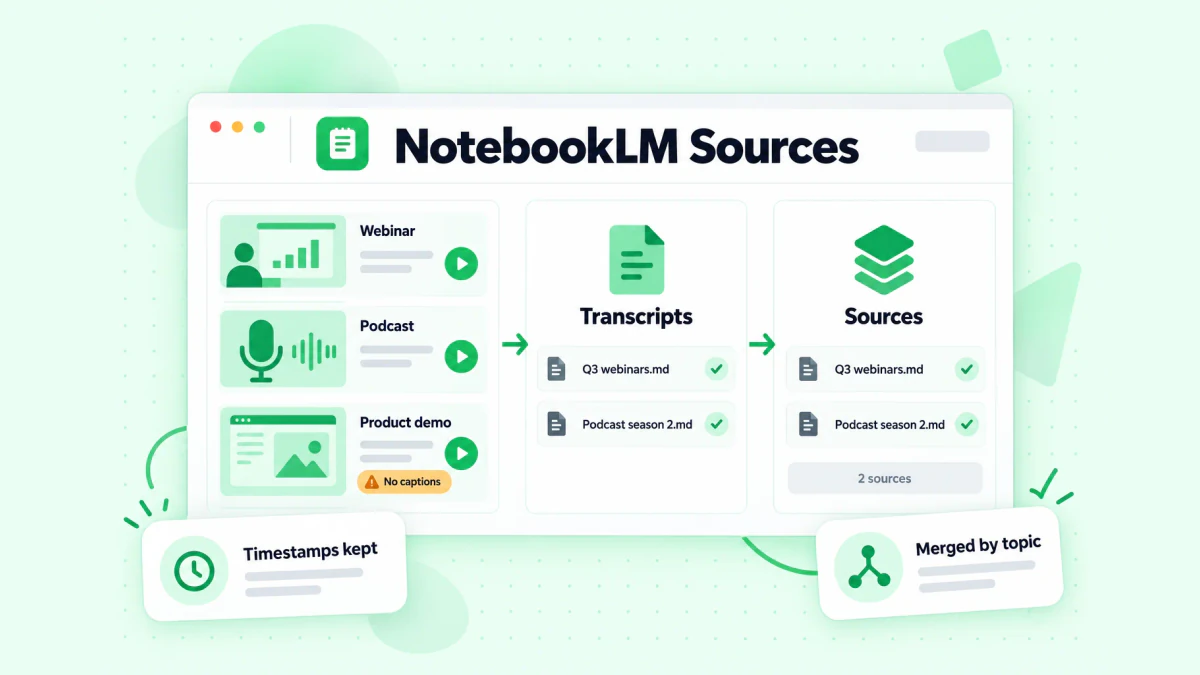
NotebookLM can import a YouTube link, but Google's help page sets clear conditions:
- Only public videos with captions are supported, either uploaded by the creator or auto-generated by YouTube.
- Only the text transcript is imported. Slides, on-screen text, charts and product UI shown in the video are not part of the source.
- Recent uploads may fail. Videos uploaded less than 72 hours earlier may not be available yet, and videos without speech are not supported.
- One link is one source. There is no import for a whole playlist or channel, so a 40-episode webinar series uses 40 of the 50 sources in a free notebook.
- Sources can disappear. If a video is deleted or made private, the source is removed from the notebook within 30 days.
In practice, the error teams see most is some version of "transcript not available," and NotebookLM has no option to transcribe the audio instead. That rules out a lot of useful video: product demos from smaller channels, unlisted webinar recordings, customer testimonial clips and many non-English videos. This guide on how to add YouTube videos to NotebookLM covers every import error and its fix.
The workaround is to bring the text yourself. transcript.im turns a video link into a timestamped transcript: it reads the creator's caption track when one exists and transcribes the audio with AI when it does not, so a video NotebookLM rejects still becomes text. It works on YouTube, TikTok, Instagram, LinkedIn and X links as well as uploaded files, and exports TXT, SRT, VTT, Markdown or JSON. For a whole series, the YouTube playlist transcript tool takes one playlist link and returns a transcript for every video, and the YouTube channel transcript tool does the same for a channel's public uploads, each transcript labelled with its video title.
Then fit the set to the notebook:
- Export Markdown or plain text. Markdown keeps each video title as a heading, which gives NotebookLM clear boundaries and gives you readable citations.
- Merge by topic. One source can hold 500,000 words, and a one-hour webinar produces roughly 8,000 to 10,000 words of transcript, so a whole quarter of webinars fits in one file. Name it "Q3 webinars.md" and keep each title as a heading inside.
- Spot-check names and numbers. Captions and AI transcription both mishear product names and company names. Fix them in the file before NotebookLM starts citing the wrong spelling.
- Ask across the whole set. "Which webinars mention onboarding, and what did customers ask about it?" now gets an answer across every episode, and the timestamps in the text lead you back to the exact moment in the recording.
If your team wants the same transcripts inside its own tools or AI agents, the transcript API returns the same timestamped text for a link, a playlist or a channel. For a deeper look at methods, formats and accuracy, read this guide to video transcription.
Only use recordings you own or have permission to use, and remember that a transcript records speech only. If a demo shows a feature without narrating it, neither the transcript nor the notebook will have it.
Draft Newsletters and Email Campaigns From Your Sources
Email teams get two things from NotebookLM: a faster path from raw material to an issue outline, and a fact-check before anything goes out. A product update, a customer story and a webinar recap are all easier to write when every claim already has a source.
A workflow for a weekly or monthly newsletter:
- Keep a running notebook for the newsletter. Add product release notes, the customer stories marketing approved, webinar transcripts, and your past issues so NotebookLM knows what you already covered.
- Ask for an outline, not an issue. "Propose an outline for this month's issue for agency owners: one lead story, two short updates and one tip, each with its source. Skip anything covered in the last three issues."
- Pull the facts and quotes. "List every number in the release notes for the new feature, with the source passage." Copy the numbers into your draft from the citations, not from memory.
- Write the issue in your editor. NotebookLM's summaries tend to sound flat, and the chat may decline creative rewriting. Draft the issue yourself, or with your usual writing assistant, using the outline and facts as input.
- Fact-check the finished draft. Paste the draft as a new source and ask, "Show the source passage for each claim and number in the draft. Mark any claim with no support." That is a fast first pass before a human review.
If you are building a list from scratch, this guide on how to start a newsletter covers platforms, sign-up forms and a sending schedule.
Content quality is half the job, list quality is the other half
NotebookLM can make an issue accurate. It cannot make it arrive. Deliverability depends on the list you send to: invalid addresses cause hard bounces, old addresses turn into spam traps, and a high bounce rate tells mailbox providers your list is not well kept. Before a campaign goes to an imported list, an event sign-up sheet or a list you have not mailed in months, clean your email list by removing invalid, disposable and risky addresses. BillionVerify checks each address's syntax, domain and mailbox, and flags catch-all and role addresses so you can decide how to treat them, which keeps the well-researched issue you wrote out of the bounce report.
NotebookLM for Sales: Account Research, Enablement and Outreach
NotebookLM for sales works best as a shared memory for the team: one place where a rep can ask what a case study says, how to answer an objection, or what a prospect said in a public talk, and get an answer they can check.
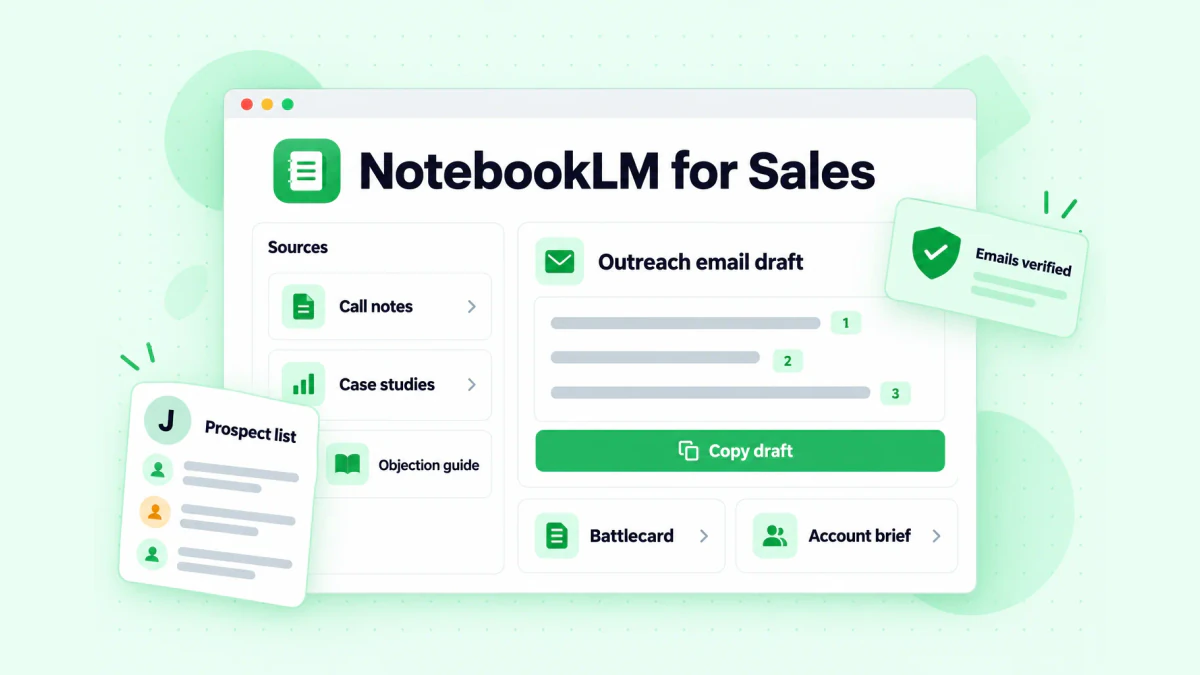
A sales enablement library that answers questions
Put your case studies, battlecards, objection guide, pricing FAQ, security answers and product one-pagers into one notebook and share it with the team. New reps can ask "Which case study fits a 50-person agency that uses HubSpot?" or "How do we answer 'we already have a tool for that'?" and get an answer with the source attached. Keep the notebook current: date every document, remove superseded ones, and re-add the pricing FAQ whenever it changes, because NotebookLM will quote whatever is there.
Account research before a call
For a key account, create a notebook with the prospect's public website, a recent annual report or press release, transcripts of talks or podcast interviews their leaders gave, and your own call notes. Ask:
- "What are this company's stated priorities for the next year? Quote the source."
- "What problems did their head of marketing describe in this interview?"
- "Which of our case studies matches their industry and size most closely?"
The output is an account brief you can read in five minutes before a call, with every point traceable to a source. Talks and podcasts are often the richest material, so this is another place where a transcript of the video beats the caption-only YouTube import.
Outreach emails grounded in real facts
Personalization works when it is specific and true. NotebookLM helps with the true part. With an account notebook open, ask for three possible opening lines that reference something the prospect actually said or published, each with its citation, and a short note on which case study supports the offer. Then write the email yourself. A first line that quotes a real priority, checked against its source, reads very differently from a generic compliment. For more on structure and examples, see this guide to cold email personalization.
Two guardrails matter here. First, keep personal data out of shared notebooks unless your company's policy allows it, and strip private details from call notes before you upload them. Second, research does not fix a bad list. Before a sequence starts, verify the addresses in it. A sales team that sends carefully researched emails to addresses that bounce hurts its sending domain and loses the replies it earned. BillionVerify verifies addresses one at a time, in bulk files or through its API, so reps can check a list before it goes into the sequencer.
Audio Overviews, Video Overviews and Reports for Teams
The Studio panel is where NotebookLM turns research into formats people will actually consume. Three of them are useful for commercial teams.
Audio Overviews. An Audio Overview is a discussion between AI hosts about your sources. Google lists four formats: Deep Dive, a lively two-host conversation and the default; The Brief, a single speaker who covers the key takeaways in under two minutes; The Critique, where two hosts give constructive feedback on material like a draft or a plan; and The Debate, a formal back-and-forth on the topic. You can pick a language, a length and a prompt that focuses on specific topics. A Brief on a new competitor notebook is an easy way to get a whole sales team up to speed on a commute. Google notes that Audio Overviews, including voices, are AI-generated and may contain inaccuracies, so treat them as orientation, not as the record. An interactive mode, currently English only, lets you join the conversation and ask the hosts a question.
Video Overviews. Video Overviews turn sources into narrated slides. They work for internal briefings and onboarding. If you need a customer-facing piece rather than an internal recap, an explainer video tool such as Potto gives you more control over the script and the visuals for a product or campaign video.
Reports and slide decks. Reports cover briefing documents, FAQs, study guides and custom reports, and they export to Google Docs. The slide deck option gives a first draft of a presentation built from your sources. For a sales kickoff or a quarterly campaign review, a briefing document plus a deck from the same notebook is a fast starting point, and every point in them traces back to a source.
You can view the prompt behind any generated Audio Overview, Video Overview, report or quiz from the menu next to it, which helps a team reuse a format that worked.
Sharing NotebookLM and Keeping Team Data Safe
A notebook is most useful when the whole team asks questions against the same sources. Google NotebookLM notebooks can be shared with teammates, and other people with access can use the Studio outputs, such as an Audio Overview, from the notebook. A few rules shape how teams share:
- Public link sharing is for consumer accounts only. Google states that making a notebook public, open to anyone with the link, is currently disabled for Workspace Enterprise and Education accounts. Inside a company, share with named people or groups.
- Edit access controls generation. You need edit access to a notebook to generate or delete an Audio Overview, and only owners and editors can make generated audio public.
- Chat history is private to you. Each person's chat history in a shared notebook is kept private, so save useful answers as notes if the team should see them.
- Admins decide access on work accounts. On a work or school Google account, your admin has to turn on access before you can use it.
On data use, Google states that the content in NotebookLM is not used to directly train its foundation models unless you choose to send feedback, and that feedback may be reviewed by trained reviewers. For Google Workspace and Workspace for Education users, Google states that uploads, queries and responses are not reviewed by human reviewers and are not used to train AI models, even when you send feedback. Work accounts on a qualifying Workspace edition fall under Google's business terms. Google's Gemini Notebook for business page describes how it fits into Workspace. None of that replaces your own policy: keep customer personal data, contract terms and anything regulated out of a notebook unless your company allows it.
NotebookLM Prompts for Marketing and Sales Teams
Good prompts for NotebookLM are specific questions about a specific set of sources. Here are prompts you can paste into the chat. Replace the bracketed parts with your own details, and select only the sources that matter for the question.
For customer research, with interviews and survey answers selected:
List the five problems customers describe most often. For each one, quote two customers and say how many sources mention it.
For competitor research, with competitor pages selected:
Compare how [Competitor A] and [Competitor B] describe the problem they solve. Use their own words, and cite each claim.
For a campaign brief, with research and positioning sources selected:
Write a campaign brief for [audience]: the problem, the promise, three proof points with sources, likely objections, and the call to action.
For a data table, in the Studio panel:
One row per interview: company size, role, main problem, current tool, and the strongest quote.
For a newsletter outline, with release notes, stories and past issues selected:
Propose an outline for this month's newsletter for [audience]: one lead story, two short updates and one tip, each with its source. Skip anything covered in the past three issues.
For a fact-check, with the draft and its sources selected:
Show the source passage for every claim and number in the draft. Mark any claim that none of the sources support.
For sales enablement, with case studies and the objection guide selected:
A prospect says "[objection]." Give the answer from our objection guide and the case study that best supports it, with citations.
For account research, with the prospect's public sources selected:
Summarize this company's stated priorities, the problems its leaders describe, and three facts I could reference in a first email. Cite each one.
Two habits make every prompt better: ask for citations even when the answer seems obvious, and click at least one before you use the answer. A cited answer takes seconds to check. An uncited one can end up in front of a customer.
NotebookLM Limits and Mistakes to Avoid
Google NotebookLM is a strong research tool with predictable weak spots. Knowing them in advance saves a team from the most common mistakes.
- It trusts your sources. An outdated pricing sheet or a competitor claim that changed last month will be quoted faithfully. Date your sources and remove old ones.
- It sees text, not pictures. Web pages lose their images, YouTube imports lose the screen, and pricing tables built as images disappear. Check visual information by hand.
- One link, one source. Video series and long reading lists hit the 50-source cap on the free tier quickly. Merge related material into fewer, larger files.
- It is not a copywriter. Summaries read flat and the chat can decline creative rewriting. Use NotebookLM for structure, facts and quotes, and write the copy yourself.
- Usage is capped by plan. Google describes compute-based usage limits that refresh over time, with higher limits on paid plans. A heavy research day can hit them, and Studio shows the expected cost before you generate.
- Grounded is not the same as correct. Read the cited passage before a number, a quote or a claim goes into an email, an ad or a deck.
- Notebooks do not talk to each other. If an answer needs both the competitor notebook and the customer notebook, copy the relevant sources into one place.
NotebookLM vs ChatGPT, Claude and Gemini for Marketing Work
Teams often ask whether they need NotebookLM if they already pay for ChatGPT, Claude or the Gemini app. The answer depends on the job.
| Job | NotebookLM | General AI assistants (ChatGPT, Claude, Gemini) |
|---|---|---|
| Answer from a fixed set of documents with citations | Built for it | Possible with uploaded files, but not the core design |
| Share one research set with a whole team | Shared notebooks | Varies by product and plan |
| Draft long copy in a brand voice | Weak; can decline creative requests | Strong |
| Turn research into audio, slides or a data table | Studio panel | Varies |
| Brainstorm from general knowledge | Not the point | Strong |
Many teams use both. NotebookLM holds the research and answers "what do our sources say?", and a general assistant helps draft the copy from the outline and quotes NotebookLM produced. Since the rename, Google NotebookLM notebooks can also be created and used inside the Gemini app, which makes that handoff shorter for Google-based teams. For writers and authors, the same split applies to books, and this guide covers what NotebookLM is used for in a book project.
FAQs
What is NotebookLM? NotebookLM is Google's AI research assistant that answers questions from the sources you add, such as PDFs, Google Docs, websites, audio and YouTube videos, with a citation on each claim. It also turns those sources into reports, data tables, mind maps and Audio Overviews. Google renamed it Gemini Notebook on July 16, 2026.
Is Google NotebookLM the same as Gemini Notebook? Yes, Google NotebookLM and Gemini Notebook are the same product. Google renamed it on July 16, 2026 and kept existing notebooks and shared links working, and notebooks can now also be created in the Gemini app.
How do marketing teams use NotebookLM? Marketing teams use NotebookLM for customer research, competitor research, campaign briefs, messaging maps and content repurposing. The common pattern is to put interviews, reviews, survey exports and webinar transcripts into one notebook, ask specific questions, and take the cited answers into a brief or a draft.
Can NotebookLM write marketing emails or newsletters? NotebookLM can outline an issue, pull facts and quotes, and fact-check a draft against its sources, but it is not built to write polished copy, and the chat may decline creative rewriting. Most teams write the email themselves from NotebookLM's outline, then verify the list before sending so the campaign actually reaches inboxes.
How do sales teams use NotebookLM? Sales teams use NotebookLM as a shared enablement library for case studies, battlecards and objection guides, and as an account research notebook before calls. Reps ask questions, get answers with citations, and use verified facts in personalized outreach.
Can NotebookLM import YouTube videos and webinars? NotebookLM imports public YouTube videos that have captions, and it reads only the caption text, one video per source. For videos without captions, unlisted webinars or whole playlists and channels, transcribe the videos first with a tool such as transcript.im and add the transcripts as text sources.
How many sources can a NotebookLM notebook hold? A free NotebookLM notebook holds up to 50 sources, each up to 500,000 words or 200 MB for an uploaded file. Paid Google AI plans and eligible Workspace editions raise usage limits, so check Google's current plans page before you upgrade.
Is NotebookLM safe for company data? NotebookLM does not use notebook content to directly train Google's foundation models unless you send feedback, according to Google. For Workspace and Workspace for Education accounts, Google states that uploads, queries and responses are not reviewed by humans or used to train AI models. Follow your company's data policy before adding customer or regulated data.
The Bottom Line
NotebookLM is one of the most useful AI tools a marketing or sales team can adopt, because it stays inside your material and shows its work. How to use NotebookLM well fits in one line: build one notebook per segment, campaign, competitor or account, name and date every source, ask specific questions, and click the citations. Get spoken material in as clean transcripts rather than relying on caption-only video imports. Then carry the same care to the last step: write in your own voice, and verify the list before the email goes out.