



Cold email deliverability determines whether your carefully crafted outreach actually reaches prospects' inboxes or disappears into spam folders. While messaging and targeting matter, none of it matters if your emails never arrive. This guide covers the technical foundations of cold email deliverability—from DNS authentication records to SMTP configuration—with step-by-step instructions you can implement today.
Understanding Cold Email Deliverability
Cold email deliverability refers to your ability to successfully deliver emails to recipients who haven't opted into your communications. It's inherently more challenging than marketing email deliverability because you lack prior engagement signals and recipient consent.
Why Cold Email Deliverability Is Harder
Several factors make cold outreach more deliverability-sensitive:
No Prior Relationship: ISPs like Gmail and Outlook favor senders with established engagement histories. Cold emails start with zero trust.
Lower Engagement Rates: Cold emails typically see 20-30% open rates versus 40-50% for opt-in lists. Lower engagement signals potential spam to ISPs.
Higher Risk of Complaints: Recipients are more likely to mark unsolicited emails as spam, damaging your sender reputation.
Stricter Scrutiny: Email providers apply more aggressive filtering to emails sent to addresses that haven't previously engaged with your domain.
The Technical Triangle of Deliverability
Cold email success rests on three technical pillars:
- Domain Authentication: SPF, DKIM, and DMARC records that prove your identity
- Sender Reputation: Your domain and IP's track record with ISPs
- List Quality: Verified, valid email addresses that don't bounce
Master all three, and you'll consistently reach inboxes. Neglect any one, and your campaigns will struggle.
DNS Authentication: The Foundation of Deliverability
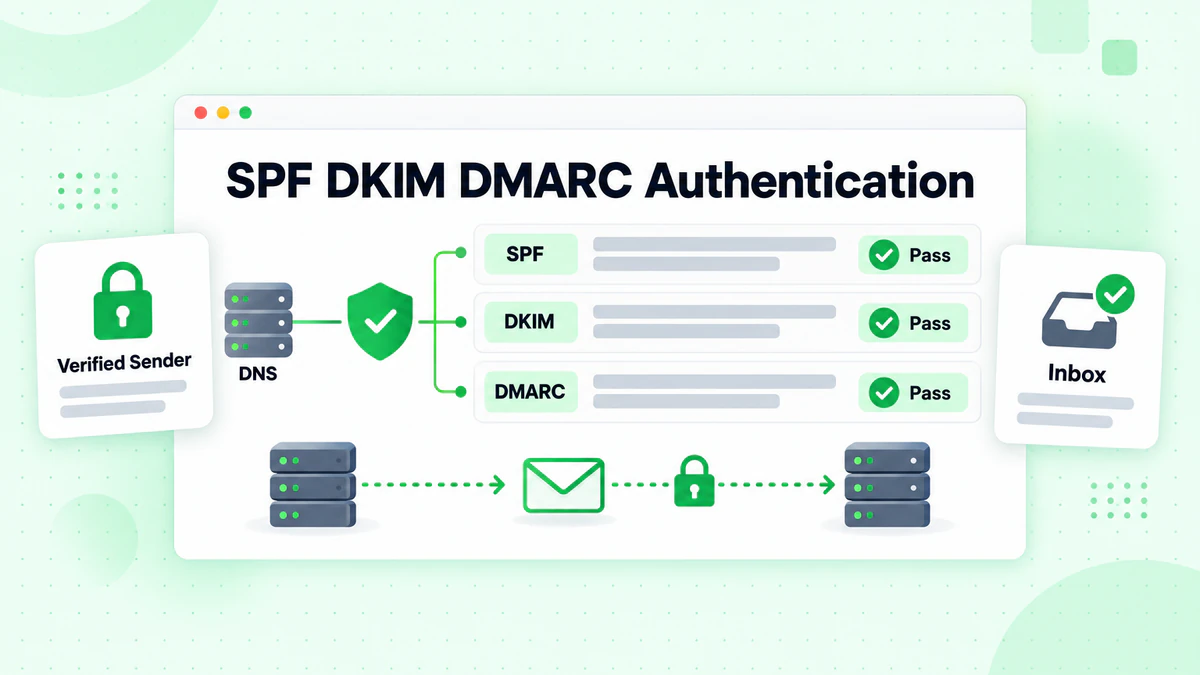
Email authentication through DNS records is non-negotiable for cold outreach. These records prove to receiving servers that you're authorized to send email from your domain and that your messages haven't been tampered with.
SPF (Sender Policy Framework)
SPF specifies which mail servers are authorized to send email on behalf of your domain. When a receiving server gets an email from your domain, it checks your SPF record to verify the sending server is legitimate.
How SPF Works
- You publish an SPF record in your domain's DNS
- Receiving server receives an email claiming to be from your domain
- Server queries your DNS for the SPF record
- Server checks if the sending IP is authorized in your SPF record
- If authorized, the email passes SPF; if not, it may be rejected or flagged
Setting Up SPF: Step-by-Step
Step 1: Identify Your Sending Sources
List every service that sends email from your domain:
- Your email provider (Google Workspace, Microsoft 365)
- Cold email tools (Instantly, Smartlead, Lemlist)
- CRM systems (Salesforce, HubSpot)
- Transactional email services (SendGrid, Mailgun)
Step 2: Build Your SPF Record
SPF records use specific syntax. Here's the structure:
v=spf1 [mechanisms] [modifier]
Common mechanisms:
include:- Authorizes another domain's SPF recordip4:- Authorizes a specific IPv4 address or rangeip6:- Authorizes a specific IPv6 address or rangea- Authorizes your domain's A record IPmx- Authorizes your domain's mail server IPs
Step 3: Example SPF Records
For Google Workspace only:
v=spf1 include:_spf.google.com ~all
For Google Workspace + Instantly:
v=spf1 include:_spf.google.com include:sendgrid.net ~all
For Microsoft 365 + multiple services:
v=spf1 include:spf.protection.outlook.com include:sendgrid.net include:servers.mcsv.net ~all
Step 4: Add the DNS Record
- Log into your domain registrar or DNS provider
- Navigate to DNS management
- Add a new TXT record:
- Host/Name:
@or leave blank (represents your root domain) - Type: TXT
- Value: Your SPF record string
- TTL: 3600 (1 hour) or default
- Host/Name:
Step 5: Verify Your SPF Record
Use these tools to verify:
- MXToolbox SPF Lookup: mxtoolbox.com/spf.aspx
- Google Admin Toolbox: toolbox.googleapps.com/apps/checkmx/
SPF Best Practices
Use ~all (Soft Fail): Start with soft fail rather than -all (hard fail). This marks unauthorized emails as suspicious rather than rejecting them outright, reducing the risk of legitimate emails being blocked during setup.
Stay Under 10 DNS Lookups: SPF records have a 10-lookup limit. Each include: statement counts as one lookup. Exceeding this limit causes SPF to fail.
To check your lookup count:
dig +short TXT yourdomain.com | grep spf
Consolidate When Possible: If you're hitting the lookup limit, consider:
- Using IP addresses directly instead of
include:statements - SPF flattening services that resolve includes to IPs
- Removing unused sending services
DKIM (DomainKeys Identified Mail)
DKIM adds a cryptographic signature to your emails, proving they haven't been modified in transit and that they genuinely originated from your domain.
How DKIM Works
- Your mail server generates a public/private key pair
- The private key stays on your server; the public key goes in DNS
- When sending email, your server signs the message with the private key
- The receiving server retrieves your public key from DNS
- The server verifies the signature matches the email content
- If valid, the email passes DKIM authentication
Setting Up DKIM: Step-by-Step
Step 1: Generate DKIM Keys
Most email providers generate DKIM keys automatically. Here's where to find them:
Google Workspace:
- Go to Admin Console → Apps → Google Workspace → Gmail
- Click "Authenticate email"
- Select your domain and click "Generate new record"
- Choose 2048-bit key length (recommended)
- Copy the generated TXT record value
Microsoft 365:
- Go to Microsoft 365 Defender portal
- Navigate to Email & Collaboration → Policies → Threat policies
- Select DKIM under Rules
- Choose your domain and click "Create DKIM keys"
- Copy the CNAME records provided
Step 2: Add DKIM Records to DNS
For Google Workspace (TXT record):
- Host/Name:
google._domainkey - Type: TXT
- Value: The long string provided by Google (starts with
v=DKIM1;)
For Microsoft 365 (CNAME records):
Host: selector1._domainkey
Type: CNAME
Value: selector1-yourdomain-com._domainkey.yourdomain.onmicrosoft.com

Host: selector2._domainkey
Type: CNAME
Value: selector2-yourdomain-com._domainkey.yourdomain.onmicrosoft.com
Step 3: Enable DKIM Signing
After adding DNS records, return to your email provider and enable DKIM:
Google Workspace: Click "Start authentication" after DNS propagation
Microsoft 365: Toggle DKIM signing to "Enabled" for your domain
Step 4: Verify DKIM Setup
Send a test email to mail-tester.com or use MXToolbox's DKIM lookup:
mxtoolbox.com/dkim.aspx
Enter your domain and selector (e.g., google for Google Workspace).
DKIM Best Practices
Use 2048-bit Keys: Stronger encryption provides better security. Some older systems require 1024-bit, but 2048 is now standard.
Rotate Keys Annually: Generate new DKIM keys yearly. Keep the old key active for 48-72 hours after adding the new one to allow in-flight emails to verify.
Set Up DKIM for Each Sending Service: Every platform that sends email on your behalf needs its own DKIM record. This includes:
- Your primary email provider
- Cold email tools
- Marketing automation platforms
- CRM systems
DMARC (Domain-based Message Authentication, Reporting, and Conformance)
DMARC ties SPF and DKIM together and tells receiving servers what to do when authentication fails. It also provides visibility into email authentication through reports.
How DMARC Works
- You publish a DMARC policy in DNS
- Receiving server checks if an email passes SPF or DKIM (or both)
- Server also checks "alignment"—whether the domains match
- Based on your policy, the server handles failed emails accordingly
- Receiving servers send you reports about authentication results
DMARC Alignment Explained
DMARC requires "alignment" between:
- SPF Alignment: The "envelope from" domain matches the "header from" domain
- DKIM Alignment: The DKIM signature domain matches the "header from" domain
An email passes DMARC if either SPF or DKIM passes AND is aligned.
Setting Up DMARC: Step-by-Step
Step 1: Start with a Monitoring Policy
Begin with p=none to collect data without affecting delivery:
v=DMARC1; p=none; rua=mailto:dmarc-reports@yourdomain.com; pct=100
This tells receiving servers to:
- Send aggregate reports to your specified email
- Take no action on failed emails (just monitor)
- Apply to 100% of emails
Step 2: Add the DMARC DNS Record
- Host/Name:
_dmarc - Type: TXT
- Value: Your DMARC record
- TTL: 3600
Step 3: Monitor Reports
DMARC aggregate reports are XML files. Use free tools to parse them:
- DMARC Analyzer (dmarcanalyzer.com)
- Postmark DMARC (dmarc.postmarkapp.com)
- URIports (uriports.com)
Step 4: Gradually Strengthen Your Policy
After 2-4 weeks of monitoring with p=none, if reports show good authentication:
Move to quarantine (sends failed emails to spam):
v=DMARC1; p=quarantine; rua=mailto:dmarc-reports@yourdomain.com; pct=25
Start with pct=25 (25% of failed emails quarantined), then increase gradually.
Eventually move to reject (blocks failed emails):
v=DMARC1; p=reject; rua=mailto:dmarc-reports@yourdomain.com; pct=100
DMARC Record Options Explained
| Tag | Description | Example |
|---|---|---|
v | Version (required) | v=DMARC1 |
p | Policy for domain (required) | p=none, p=quarantine, p=reject |
sp | Policy for subdomains | sp=reject |
pct | Percentage to apply policy | pct=100 |
rua | Aggregate report email | rua=mailto:reports@domain.com |
ruf | Forensic report email | ruf=mailto:forensic@domain.com |
adkim | DKIM alignment mode | adkim=r (relaxed) or adkim=s (strict) |
aspf | SPF alignment mode | aspf=r (relaxed) or aspf=s (strict) |
Complete DMARC Example
A production-ready DMARC record:
v=DMARC1; p=reject; sp=reject; adkim=s; aspf=s; pct=100; rua=mailto:dmarc@yourdomain.com; ruf=mailto:dmarc-forensics@yourdomain.com
This strictly enforces authentication for both your domain and subdomains.
SMTP Configuration for Cold Email
Proper SMTP setup is crucial for cold email deliverability. This section covers server configuration, connection settings, and best practices.
Understanding SMTP for Cold outreach
SMTP (Simple Mail Transfer Protocol) is how email travels from your server to the recipient's server. For cold email, your SMTP configuration affects:
- Connection Security: TLS encryption status
- Authentication: How you prove identity to the server
- Rate Limits: How many emails you can send per hour/day
- IP Reputation: The sending server's trust level with ISPs
SMTP Server Options for Cold Email
Option 1: Email Provider SMTP (Google Workspace, Microsoft 365)
Pros:
- High initial reputation
- Easy setup
- Built-in authentication
Cons:
- Strict sending limits (500/day for Workspace, 10,000/day for M365)
- Shared reputation with other users
- Not designed for high-volume outreach
SMTP Settings for Google Workspace:
Server: smtp.gmail.com
Port: 587 (TLS) or 465 (SSL)
Username: your-email@yourdomain.com
Password: App-specific password (with 2FA enabled)
Authentication: Yes
Encryption: TLS/STARTTLS
SMTP Settings for Microsoft 365:
Server: smtp.office365.com
Port: 587
Username: your-email@yourdomain.com
Password: Your account password (or app password)
Authentication: Yes
Encryption: STARTTLS
Option 2: Transactional Email Services (SendGrid, Mailgun, Postmark)
Pros:
- Higher sending limits
- Dedicated IP options
- Better deliverability tools
- Detailed analytics
Cons:
- May require warming
- Additional cost
- Need to configure authentication separately
Example SendGrid SMTP Settings:
Server: smtp.sendgrid.net
Port: 587 (TLS) or 465 (SSL)
Username: apikey
Password: Your SendGrid API key
Authentication: Yes
Encryption: TLS
Option 3: Cold Email Platforms (Instantly, Smartlead, Lemlist)
Pros:
- Built specifically for cold outreach
- Automatic warm-up features
- Inbox rotation
- Deliverability monitoring
Cons:
- Monthly subscription cost
- Less control over infrastructure
- Dependent on platform's IP pool
SMTP Port Selection Guide
| Port | Protocol | Encryption | Best For |
|---|---|---|---|
| 25 | SMTP | None (not recommended) | Server-to-server relay |
| 465 | SMTPS | Implicit SSL/TLS | Legacy systems |
| 587 | SMTP | STARTTLS (upgrades to TLS) | Most modern applications |
| 2525 | SMTP | STARTTLS | Backup when 587 is blocked |
Recommended: Use port 587 with STARTTLS for most cold email applications.
Configuring SMTP in Cold Email Tools
Instantly Setup:
- Go to Email Accounts → Add Account
- Select "SMTP/IMAP"
- Enter your SMTP settings:
- Host: Your SMTP server
- Port: 587
- Username: Your email address
- Password: Your password or app password
- Enter IMAP settings for inbox monitoring
- Save and test connection
Lemlist Setup:
- Navigate to Settings → Email Providers
- Click "Add a new email account"
- Choose "Custom SMTP"
- Fill in SMTP details
- Configure IMAP for tracking replies
- Run connection test
SMTP Authentication Methods
LOGIN/PLAIN: Username and password authentication. Most common for cold email tools.
OAuth 2.0: Token-based authentication. More secure, required by some providers (Gmail API).
CRAM-MD5: Challenge-response authentication. Less common, offers password protection.
For cold email, LOGIN over TLS is typically sufficient and widely supported.
Domain Setup for Cold Outreach
Using the right domain structure protects your main brand while maximizing deliverability.
The Dedicated Domain Strategy
Never send cold emails from your primary business domain. A deliverability issue could affect all your legitimate email, including customer communications.
Recommended Structure:
- Primary domain: company.com (for business email, marketing)
- Cold outreach domain: getcompany.com, trycompany.com, or company.io
Choosing an Outreach Domain
Good outreach domains:
- Include your brand name for recognition
- Use common TLDs (.com, .io, .co)
- Are easy to spell and pronounce
- Aren't already flagged or blacklisted
Check domain history before purchasing:
- MXToolbox blacklist check
- DomainTools WHOIS history
- Archive.org for previous use
Setting Up a New Outreach Domain
Step 1: Register the Domain
Use a reputable registrar (Namecheap, Cloudflare, Google Domains).
Step 2: Set Up Email Hosting
Create mailboxes on the new domain:
- Use Google Workspace or Microsoft 365
- Create 2-5 mailboxes per domain
- Use realistic names (firstname@domain.com)
Step 3: Configure DNS Records
Add these records to your new domain:
MX Records (for receiving email):
Priority: 1
Host: @
Value: ASPMX.L.GOOGLE.COM (for Google Workspace)
SPF Record:
Type: TXT
Host: @
Value: v=spf1 include:_spf.google.com ~all
DKIM Record: Follow provider instructions as detailed above.
DMARC Record:
Type: TXT
Host: _dmarc
Value: v=DMARC1; p=none; rua=mailto:dmarc@yourdomain.com
Step 4: Create a Basic Website
A domain without a website looks suspicious. Create a simple landing page:
- Company description
- Contact information
- Link to main website
- Professional design
Multiple Mailbox Strategy
Use multiple mailboxes across multiple domains to scale while protecting deliverability:
Per-Mailbox Limits:
- Google Workspace: 500 emails/day (2,000 with good reputation)
- Microsoft 365: 10,000 emails/day
- Recommended cold sending: 50-100/day per mailbox
Scaling Example:
- 3 domains × 3 mailboxes each = 9 sending accounts
- 9 accounts × 75 emails/day = 675 emails/day capacity
- Rotate across accounts to distribute volume
Domain Warming: Building Sender Reputation
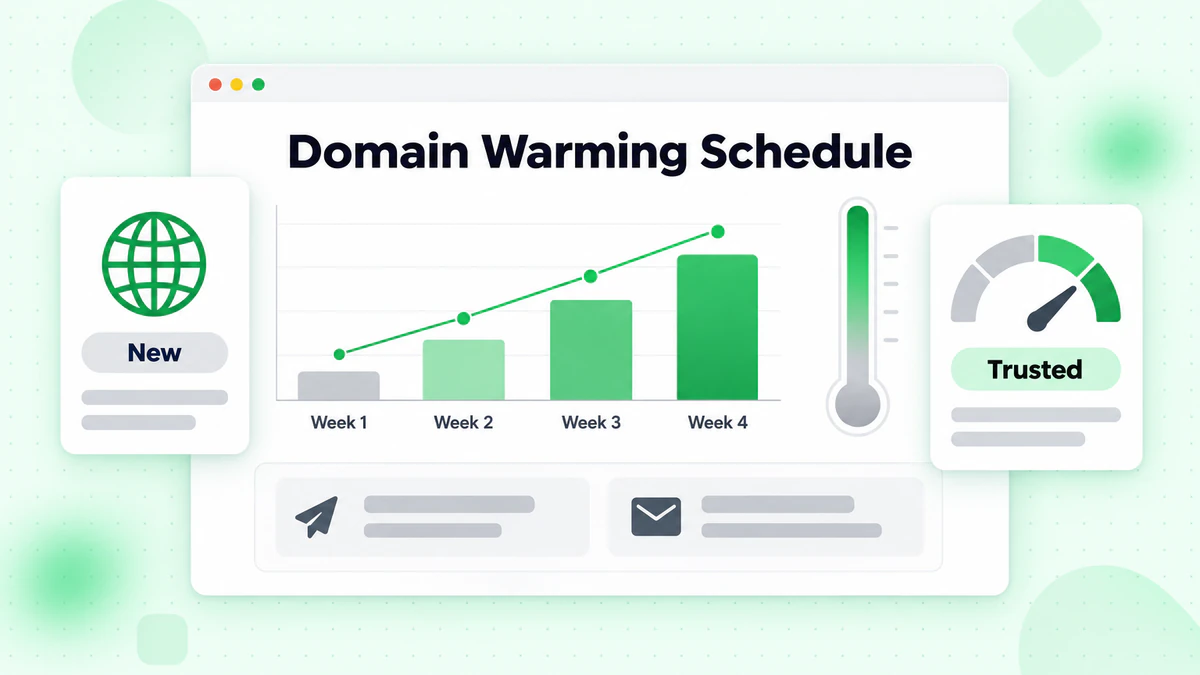
New domains have no reputation—ISPs don't trust them. Warming builds trust gradually before scaling cold outreach.
Why Warming Matters
Sending 500 cold emails from a brand-new domain immediately flags spam filters. ISPs expect:
- Gradual volume increases
- Normal engagement patterns
- Two-way email conversations
- Mix of sending and receiving
Manual Warming Process
Week 1: Establish Normal Activity
- Send 5-10 personal emails daily to colleagues/friends
- Ensure recipients open and reply
- Join email lists and newsletters (creates incoming email)
Week 2: Increase Engagement
- Send 15-20 emails daily
- Focus on getting genuine replies
- Start sending to a few known business contacts
Week 3: Light Cold Outreach
- Begin with 20-30 cold emails daily
- Target highly relevant, likely-to-engage prospects
- Continue personal emails alongside
Week 4: Scale Carefully
- Increase to 50-75 cold emails daily
- Monitor bounce rates and spam complaints
- Adjust based on engagement metrics
Automated Warming Tools
Several platforms automate the warming process:
Instantly Warm-Up: Joins a network of real inboxes that exchange emails with your account, generating opens, clicks, and replies.
Warmup Inbox: Similar network-based warming with reputation scoring.
Lemwarm: Lemlist's warming feature that moves your emails from spam to inbox across the network.
Warming Best Practices
Continue After Launch: Keep warming running even during active campaigns. The engagement from warm-up emails helps offset lower cold email engagement.
Monitor Inbox Placement: Use GlockApps or similar tools to test whether emails reach Gmail, Outlook, and Yahoo inboxes.
Watch Bounce Rates: If bounces exceed 5%, pause and investigate. High bounces during warming can permanently damage reputation.
Before sending any cold emails, verify your prospect list to ensure you're only sending to valid addresses.
List Quality: The Make-or-Break Factor
Even perfect DNS configuration won't save you from a bad list. Email list quality is the biggest determinant of cold email success.
The True Cost of Invalid Emails
Sending to invalid addresses causes cascading problems:
Hard Bounces: Signal to ISPs that you're not following best practices. Rates above 2% trigger spam filters.
Spam Traps: Recycled invalid addresses become traps. Hitting one can blacklist your domain immediately.
Wasted Sending Capacity: Invalid emails consume your daily quota without any chance of success.
Damaged Reputation: Each bounce chips away at your sender score, making future emails more likely to hit spam.
Email Verification Process
Before every cold email campaign:
Step 1: Run Your List Through BillionVerify
Upload your prospect list to BillionVerify for comprehensive verification:
- Syntax validation
- Domain existence check
- MX record verification
- Mailbox existence confirmation
- Spam trap detection
- Catch-all identification
Step 2: Segment Results
Organize verified emails by risk level:
- Valid: Safe to send
- Risky: Catch-all or accept-all domains—send cautiously
- Invalid: Never send—remove from list
Step 3: Remove High-Risk Addresses
Besides invalid emails, remove:
- Role-based addresses (info@, sales@, support@)
- Disposable email domains
- Known spam trap patterns
- Previously bounced addresses
Ongoing List Hygiene
Email list hygiene isn't a one-time task:
Monthly Verification: Re-verify active prospect lists. Addresses decay at 2-3% monthly.
Bounce Processing: Immediately remove any addresses that bounce from future campaigns.
Engagement Cleaning: After multiple non-responses, consider removing or re-verifying unengaged contacts.
Monitoring Deliverability Health
Proactive monitoring catches problems before they tank your campaigns.
Key Metrics to Track
Bounce Rate: Percentage of emails that fail to deliver.
- Target: Under 2%
- Warning: 3-5%
- Critical: Above 5%
Spam Complaint Rate: Recipients marking emails as spam.
- Target: Under 0.1%
- Warning: 0.1-0.3%
- Critical: Above 0.3%
Inbox Placement Rate: Percentage reaching the inbox vs. spam folder.
- Target: Above 95%
- Warning: 80-95%
- Critical: Below 80%
Open Rate: While affected by content, sudden drops suggest deliverability issues.
- Expected for cold email: 20-40%
- Deliverability concern: Below 15%
Deliverability Monitoring Tools
GlockApps: Tests inbox placement across major providers. Sends test emails to seed addresses at Gmail, Outlook, Yahoo, and others, then reports where they landed.
MXToolbox: Free tools for checking blacklists, DNS records, and email headers.
Google Postmaster Tools: Free insights into Gmail deliverability, including domain reputation and authentication status.
Microsoft SNDS: Similar insights for Outlook and Hotmail deliverability.
Warning Signs and Responses
| Warning Sign | Possible Cause | Response |
|---|---|---|
| Open rate drops 50%+ | Spam filtering | Check inbox placement, pause sending |
| Bounce rate spikes | List quality issue | Re-verify list, remove invalids |
| Spam complaints increase | Poor targeting or content | Review messaging, improve segmentation |
| Blacklist notification | Reputation damage | Request delisting, reduce volume |
| Gmail shows spam folder | Domain reputation issue | Slow down, improve engagement |
Recovery Protocol
If deliverability degrades significantly:
- Immediately reduce volume by 50-75%
- Re-verify your entire list using BillionVerify
- Remove all bounced and complained addresses
- Check blacklist status and request removal if listed
- Review DNS authentication for any misconfigurations
- Resume slowly with only your most engaged segments
- Monitor closely as you scale back up
For detailed troubleshooting steps, see our email bounce rate reduction guide.
Advanced Deliverability Techniques
Once you've mastered the basics, these advanced tactics further improve inbox placement.
Inbox Rotation
Spread sending across multiple mailboxes to:
- Stay under per-mailbox limits
- Distribute reputation risk
- Maintain natural sending patterns
Most cold email platforms support automatic rotation. Configure to:
- Randomize which mailbox sends each email
- Balance load across all accounts
- Pause mailboxes that show warning signs
Send Time Optimization
When you send affects deliverability:
Avoid Burst Sending: Don't send 500 emails in 5 minutes. Spread throughout the day to mimic human behavior.
Match Recipient Time Zones: Sending at 3 AM recipient time looks automated and gets lower engagement.
Test Different Windows: Track engagement by send time. Many find Tuesday-Thursday, 9-11 AM recipient time works best.
Content Optimization for Deliverability
Certain content patterns trigger spam filters:
Avoid:
- ALL CAPS text
- Excessive exclamation marks!!!
- Spam trigger words (free, guarantee, act now)
- Too many links
- Large images with little text
- Attachments in first email
Include:
- Plain text alternative
- Proper text-to-link ratio
- Natural language patterns
- Clear sender identification
Reply Handling
How you handle replies affects reputation:
Respond Quickly: Fast response times signal legitimacy to ISPs.
Handle Unsubscribes Immediately: Never email someone who asked to stop.
Manage Out-of-Office Replies: Don't count auto-replies as engagement.
Conclusion: Building Sustainable Cold Email Deliverability
Cold email deliverability requires ongoing attention to technical fundamentals. Master these core principles:
Authentication Is Non-Negotiable: Properly configured SPF, DKIM, and DMARC records are the foundation. Without them, your emails will struggle regardless of content quality.
Reputation Takes Time to Build: New domains need patient warming. Rushing volume destroys deliverability faster than careful scaling builds it.
List Quality Trumps Volume: One hundred verified emails outperform one thousand unverified addresses. Always verify your email list before sending.
Monitor Proactively: Catch problems early through consistent metric tracking and inbox placement testing.
Technical Setup Checklist:
- [ ] SPF record published and verified
- [ ] DKIM keys generated and DNS records added
- [ ] DMARC policy published (start with p=none)
- [ ] Dedicated outreach domain registered
- [ ] Email hosting configured on outreach domain
- [ ] Domain warmed for 2-4 weeks
- [ ] Prospect list verified through BillionVerify
- [ ] Deliverability monitoring tools configured
The difference between cold emails that reach inboxes and those that disappear into spam often comes down to these technical foundations. Invest the time to set up properly, maintain list hygiene, and monitor health—and your cold outreach will consistently reach the people you're trying to connect with.
Ready to ensure your cold email campaigns reach their targets? Start by verifying your prospect list to eliminate bounces and protect your sender reputation.