



You hit Send, close the tab, and move on. Then you glance back at Gmail and the message is still sitting in Outbox. No error. No bounce. No clue whether it's about to send or whether it's dead in the queue.
That's why this problem is so frustrating. Gmail often fails without notice. A stuck message can come from a weak connection, a file that's too large, a local sync glitch, or a deeper issue like expired authentication in a third-party client. If you keep retrying random fixes, you usually waste time and sometimes make the queue worse.
There's a better way to diagnose it. Start with the obvious, then move into the hidden causes most guides skip. That includes OAuth token failures and malformed email content, both of which can leave perfectly ordinary-looking messages trapped in the outbox.
Why Is My Email Stuck in the Gmail Outbox
If you're searching for answers about emails stuck in Outbox Gmail, the first thing to know is that the issue usually isn't random. Most stuck messages fall into a few recognizable patterns. Once you identify the pattern, the fix gets much faster.
The four failure patterns that matter
The first bucket is connectivity. Gmail needs stable server communication to release messages from the queue. Spotty Wi-Fi, weak mobile data, switching between networks, or a laptop waking from sleep can interrupt that handoff.
The second is attachment size. Email servers typically cap attachments at 20 to 25 MB, and trying to send something larger is one of the top three causes of outbox failures, accounting for 90% of cases where emails remain stuck according to this analysis of emails stuck in the outbox. That's a common reason one stuck message blocks every message behind it.
The third is local app or browser trouble. Gmail may look connected while the app cache is corrupted, the browser session is stale, or an offline setting is interfering with sync. These issues feel random because the interface often keeps working while send operations stall.
The fourth is authentication failure, especially in third-party clients. This is the one many people miss. Gmail may accept your login session for reading mail, while sending fails because the client's stored permission is old, revoked, or no longer valid.
Practical rule: Don't start by clearing everything. First decide whether the message is blocked by connection, content, client state, or authentication.
For marketers and sales teams, there's another wrinkle. If your sends are already under stress from spam filtering or reputation issues, it helps to understand how Gmail categorizes suspicious delivery behavior. BillionVerify's guide to Gmail mail delivery subsystem spam issues is useful context when a stuck send turns into a deliverability problem.
A quick way to tell which bucket you're in
Use this quick diagnostic table before you start changing settings:
| Symptom | Most likely cause | First check |
|---|---|---|
| Message stalls only on weak Wi-Fi or mobile | Connectivity problem | Change networks and retry |
| Message with file attached won't leave Outbox | Attachment limit | Remove file and resend |
| Gmail web looks normal but mail won't send | Browser or offline glitch | Check Offline Mail and test another browser |
| Outlook, Spark, or Apple Mail won't send but Gmail web does | Authentication issue | Reconnect the Google account |
That simple sort saves time. If the symptom points to the wrong category, you can burn half an hour clearing cache when the actual problem is a revoked token.
Quick Fixes for Gmail on Web and Desktop Clients
You click Send from your laptop, the inbox keeps refreshing, and that one message just sits there in Outbox. On web and desktop clients, the cause is often local state, browser behavior, or message formatting. It is not always a bad connection.
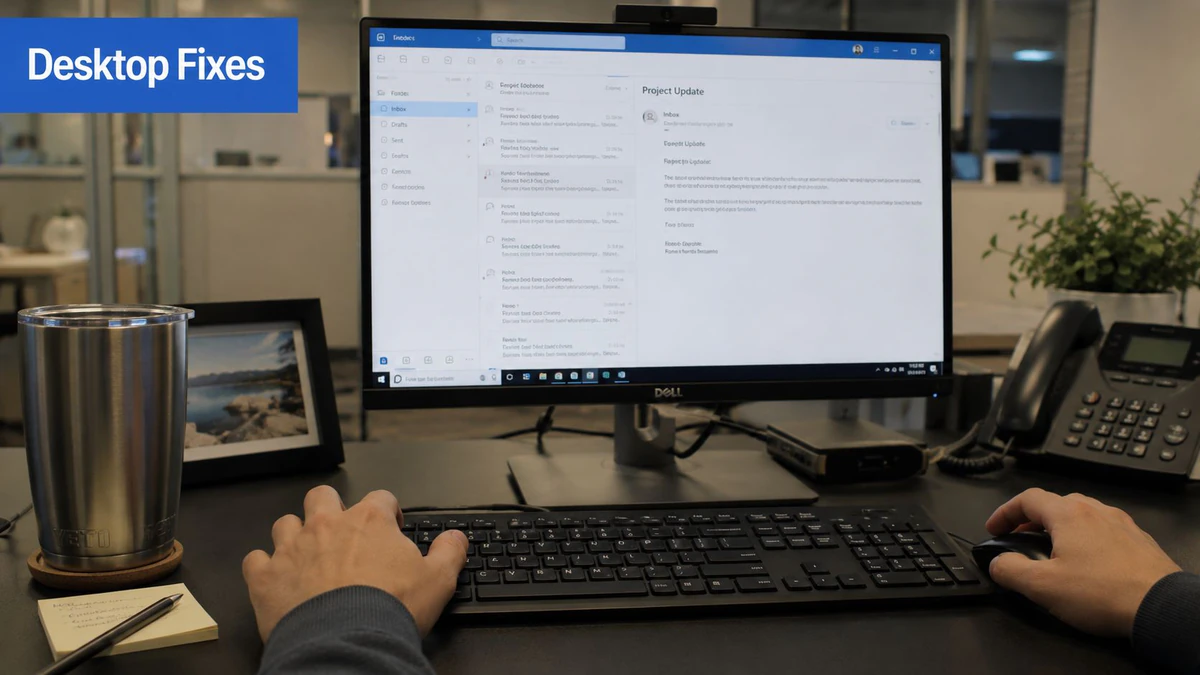
Turn off Offline Mail first
Start with Gmail's own queueing feature. If Offline Mail is enabled, Gmail can hold messages locally and keep retrying in the background long after the original browser session changed.
Use this order:
- Open Gmail in your browser.
- Click the gear icon, then See all settings.
- Open the Offline tab.
- If Enable offline mail is checked, turn it off.
- Save changes.
- Refresh Gmail.
- Send a short plain-text test message to yourself.
If that test sends immediately, the account is usually fine. The issue was the browser's local mail store, not Gmail delivery.
A related pattern shows up in Outlook, Apple Mail, Spark, and other desktop clients. You can still read old mail because sync worked earlier, but sending fails because the app is working from stale local data or an expired permission state. Before changing account settings, send the same test from Gmail web. That one check tells you whether the blockage is in the client or in the message.
Remove the attachment, then check the message format
Large files are still one of the fastest ways to jam an outbox. Gmail has a 25 MB attachment limit, and encoded attachments can end up larger in transit than they looked on disk. A file that seems close to the limit can still fail once the client packages it for sending.
Do this instead:
- Open the stuck draft.
- Remove the attachment.
- Send the same message without the file.
- If it sends, upload the file to Google Drive or another cloud service and resend with a link.
This is also where a lot of guides stop too early. I have seen desktop clients hold mail because of malformed MIME parts, broken inline images, or signatures pasted in from Word or a CRM tool. If removing the attachment does not help, strip the message down further. Delete the signature, remove embedded images, switch to plain text, and resend a clean version. If the plain version goes through, the problem is message construction, not Gmail itself.
If your team recently changed aliases, send-as identities, or verification settings, desktop clients can look broken when the actual issue is identity mismatch. This explanation of Gmail address change and verification challenges is useful when the From address is part of the failure.
Here's a walkthrough if you want to visually compare the web settings and queue behavior before changing anything else:
Test the browser before blaming the account
Browser issues can block sending even when Gmail looks normal. Extensions, cached session data, and corrupted local storage are common culprits.
Run these checks in order:
- Open an incognito window and sign in to Gmail.
- Send a plain-text test with no signature and no attachment.
- Try a second browser such as Chrome, Edge, Firefox, or Safari.
- Sign out of Gmail, then sign back in.
- Disable browser extensions that modify page content, privacy settings, or scripts.
- Clear site data for mail.google.com if the problem appears only in one browser.
If Gmail web sends cleanly but your desktop app still will not, shift your attention to the client. Re-add the Google account instead of repeatedly editing the same profile. That refreshes the token set and fixes many silent send failures caused by expired OAuth permissions. If you are troubleshooting mail apps across phones and desktops at the same time, this guide on how to configure email on iOS and Android can help you confirm the account is set up consistently across devices.
Solving Stuck Emails on Android and iOS Devices
Mobile Gmail has its own failure pattern. The app can display your inbox normally while queued messages sit unsent because sync is stuck, background data is restricted, or the local app state is corrupted.
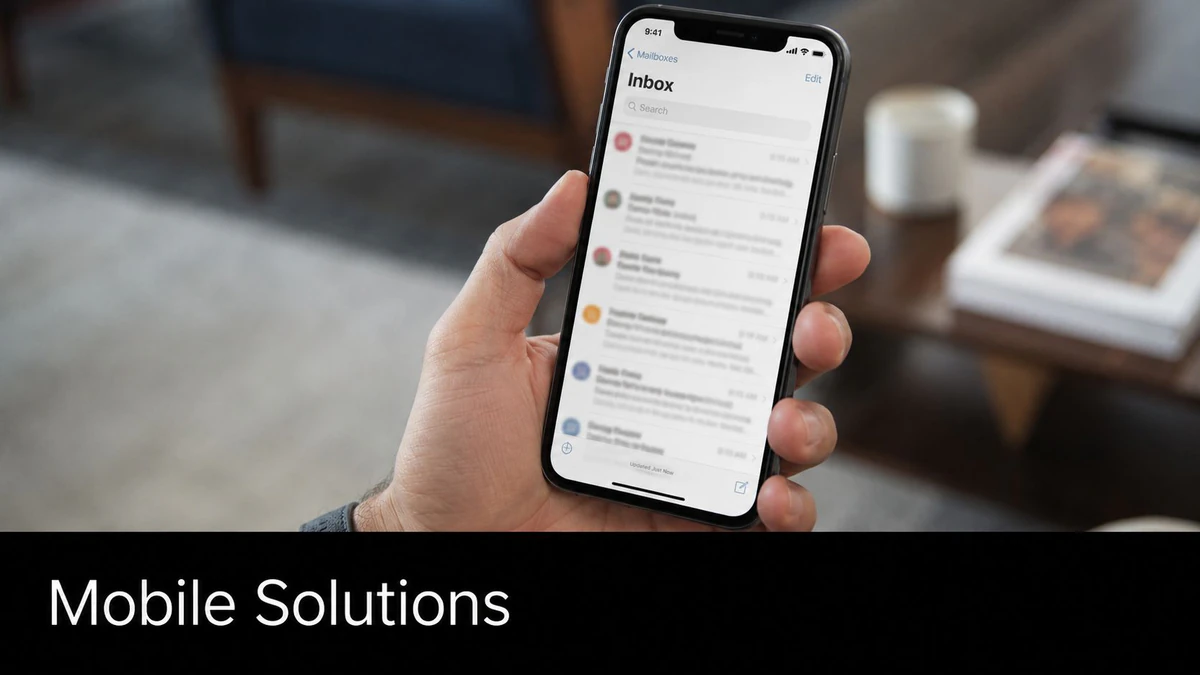
Reset Gmail sync on mobile
For the Gmail app, the most reliable fix is still the simplest one. Go to Settings > Data Usage, toggle Sync Gmail off, restart the device, then turn sync back on. That method resolves 99% of queued email cases and is especially effective on Android when paired with clearing the app cache, according to GMass's Gmail queued troubleshooting guide.
On Android, do it in this order:
- Open Gmail.
- Tap your profile image, then Settings.
- Select the affected account.
- Open Data Usage.
- Turn Sync Gmail off.
- Restart the phone.
- Go back and turn Sync Gmail on.
- If the queue remains, open Android app settings for Gmail and clear cache.
On iPhone or iPad, the Gmail app doesn't always expose the same system behavior as Android, but the same principle applies. Toggle sync-related settings in the app, force close Gmail, restart the device, and reopen the app before retrying the send.
The inbox loading doesn't prove send is healthy. Mobile mail can read from cached state while send remains blocked.
If you're also juggling account setup across native and third-party apps, this step-by-step guide on how to configure email on iOS and Android is a useful reference for checking whether the account was added cleanly in the first place.
Check the permissions that quietly block sending
On phones, background restrictions often cause the weirdest behavior. Gmail can draft, queue, and appear normal, but the app can't complete the send when it's pushed into the background.
Check these settings on Android:
- Allow background data usage. If this is off, Gmail may not release queued mail reliably.
- Allow app while Data Saver on. This matters when mobile data saving is active.
- Battery optimization exceptions. Aggressive battery controls can pause Gmail at the wrong moment.
For mobile-heavy teams, that matters more than most desktop-focused guides admit. If you send while moving between office Wi-Fi, home Wi-Fi, and LTE, small network interruptions create a lot of queue edge cases. That's one reason mobile email optimization deserves attention beyond just design and rendering.
A separate but related issue is bad recipient data. BillionVerify is a professional email verification service built to solve one problem: bad email data costs businesses money. It won't fix a local sync glitch, but it can help rule out address-quality problems when users confuse delivery failure with send failure.
When to reinstall or re-add the account
If sync reset and permission checks don't work, remove the Gmail account from the app or device and add it again. Use that step carefully if the device stores mail offline, but it's often the cleanest way to flush corrupted local state.
On iOS, I usually prefer re-adding the account before reinstalling the whole app. On Android, clearing cache and storage often comes first. Same goal, different path.
Advanced Troubleshooting for Third-Party Clients
You hit Send in Outlook, Spark, Thunderbird, or Apple Mail. The message sits in Outbox. Gmail on the web works fine from the same account. That pattern usually points to the client, not Gmail itself.
The failure is often quiet. Third-party apps can keep showing old mail, and they may still receive new messages, even after the permission needed for sending has expired or been revoked. I see this after Google account password changes, security reviews, two-factor updates, or long periods where the client stayed signed in without refreshing its token properly.
Why Outlook, Spark, Thunderbird, and Apple Mail can fail without warning
Silent authentication problems are one of the most missed causes of stuck mail in desktop clients. Instead of throwing a clear error, the app keeps queuing messages because the send session is no longer valid.
OAuth is usually the weak point. A client may hold an expired token, lose send scope after a permission change, or fail to complete Google's updated sign-in flow. Older account setups are more prone to this, especially if the mailbox was added years ago and never reauthorized cleanly.
There is a second failure path that gets overlooked even more often. Some clients build malformed messages before they ever leave the Outbox. Rich signatures, calendar plug-ins, CRM add-ins, and copied HTML can produce MIME structure or encoding problems that Gmail rejects before the app gives you a useful explanation. The draft looks normal. The outbound message does not.
If web Gmail sends and a third-party client does not, test authentication first. If authentication is clean, test message construction next.
How to force a clean re-authentication
Do a full reset of the account connection, not a quick password retry inside the app.
- Remove the affected Google account from the mail client.
- Quit the client fully.
- Open your Google Account security settings in a browser and review connected apps.
- Revoke access for that mail client if it still appears there.
- Reopen the client and add the Google account again using Google's current sign-in window.
- Approve every requested permission, especially mail send access.
- Send a plain-text test message with no signature and no attachment.
If that test sends, the auth layer was the issue. Add back signatures, plug-ins, shared mailbox settings, and custom send rules one at a time until the failure returns.
If the plain-text test still sticks, check the outgoing account details the client stored locally. In Apple Mail and Thunderbird, I have seen Gmail accounts keep stale SMTP settings or cached credentials even after a password update. Outlook can also hold onto broken profile data longer than users expect. At that point, creating a new mail profile is often faster than trying to repair the old one.
Check for message construction problems, not just account problems
A broken draft can queue forever in some clients.
Run this test sequence:
- Create a brand-new message. Do not reuse the stuck draft.
- Use a short subject and one line of plain text.
- Remove the signature completely.
- Send to your own Gmail address first.
- If that works, retry with the original attachment but keep the body plain.
- If it fails only after adding formatting, rebuild the message from scratch.
MIME and encoding issues typically emerge. I see these most with copied content from Word, web pages, AI writing tools, and signature generators. Hidden HTML, odd character encoding, and malformed inline images can all break the send process before the client surfaces a clear error.
For teams working through layered send failures, this guide to email deliverability troubleshooting across account, client, and message levels is useful for separating a client auth problem from a malformed-message problem.
From Fixing to Preventing Proactive Email Health
A stuck email is annoying once. A pattern of stuck emails usually points to a maintenance problem.
The prevention work is less about one magic setting and more about reducing the quiet failure points that build up over time. In practice, that means keeping three things clean: your client authentication, your message construction, and your recipient data.
Silent failures usually start before you hit send
File size gets blamed too often because it is easy to see. The harder cases are the ones Gmail or the mail client does not explain well. I regularly see stuck messages caused by expired OAuth permissions in third-party clients, broken local account caches after a password change, and malformed HTML inside drafts that looked fine in the composer.
Those issues are easy to miss because the message can sit in Outbox without a clear error. The fix is prevention by routine:
- Reconnect Gmail accounts in Outlook, Apple Mail, Thunderbird, or other third-party clients after password changes or Google security updates.
- Avoid reusing old drafts for important sends, especially drafts that have been edited across devices.
- Keep signatures simple. Large banners, pasted tables, and copied snippets from web builders create avoidable MIME problems.
- Standardize templates across the team so one person is not sending from a clean HTML block while another is pasting from Word or an AI tool.
- Test new templates in plain text first, then add formatting back in stages.
This matters most for teams that send from mixed environments. A message built in one app, edited in another, then sent through a third-party client has more chances to break at the encoding level.
Prevention also means separating send problems from data problems
An outbox issue happens before delivery. Bad recipient data creates a different class of failure after the message leaves. Both feel like "email problems," which is why teams often troubleshoot the wrong layer.
BillionVerify fits on the recipient-data side of that process. If a team is trying to reduce bounced mail and clean up list quality, it helps validate addresses before sending. That does not fix a broken Gmail draft or stale OAuth token, but it does remove another source of avoidable failure and makes troubleshooting cleaner.
If you want to tighten the full sending workflow after the outbox issue is resolved, this guide on how to improve email deliverability is a useful next step.
A healthy outbox is usually the result of boring discipline. Refresh client permissions before they expire, rebuild questionable drafts instead of fighting them, and keep recipient data clean enough that delivery failures do not get mistaken for send failures.
Your Action Plan for a Clear Outbox
Use this checklist when Gmail won't send:
- On web or desktop: Check whether Offline Mail is enabled. If it is, turn it off and retry with a small plain-text test.
- If a file is attached: Remove it and send a cloud link instead.
- On mobile: Toggle Sync Gmail off, restart the device, then re-enable sync.
- If the inbox loads but sends still queue: Check background data and battery restrictions on the phone.
- If only a third-party client fails: Remove and reconnect the Google account to refresh permissions.
- If small emails still stall: Rebuild the message without copied formatting, templates, or AI-generated markup.
- For ongoing prevention: Keep recipient data clean so delivery problems don't get mistaken for send problems.
The main lesson is simple. Don't treat every stuck outbox message like the same problem. Gmail queues mail for different reasons, and the fix depends on whether the failure is local, content-related, or tied to authentication. Once you approach it that way, the issue gets much easier to solve and much easier to prevent.
If your team sends enough email that bad addresses, hidden delivery failures, and list decay keep muddying the picture, BillionVerify is worth evaluating as part of your email health workflow. It helps verify recipient addresses before you send, which makes it easier to separate true Gmail outbox issues from avoidable data-quality problems.