



Over 1 billion people worldwide live with some form of disability. When your emails aren't accessible, you're excluding a significant portion of your audience—and likely violating legal requirements. This guide covers everything you need to know about creating emails that work for everyone.
Why Email Accessibility Matters
Understanding the importance of inclusive email design.
The Numbers
Disability Statistics:
- 1.3 billion people globally have significant disabilities
- 285 million are visually impaired
- 466 million have hearing loss
- 15% of the world's population has some disability
Email Usage: People with disabilities use email just like everyone else. When emails aren't accessible, they can't engage with your content.
Legal Requirements
Key Regulations:
Americans with Disabilities Act (ADA): Requires businesses to provide accessible communications.
Section 508: Federal agencies must make electronic content accessible.
European Accessibility Act: EU requirements for accessible digital content.
AODA (Canada): Ontario's accessibility requirements for organizations.
Non-Compliance Risks:
- Legal action and lawsuits
- Fines and penalties
- Reputation damage
- Loss of customers
The Business Case
Beyond Compliance:
- Reach more customers
- Improve overall user experience
- Better engagement for everyone
- Positive brand perception
- SEO benefits (some techniques overlap)
Accessibility Benefits All Users: Many accessibility improvements help everyone:
- Clear text benefits all readers
- Good contrast helps in bright sunlight
- Logical structure improves scannability
Understanding Disabilities and Email
How different disabilities affect email consumption.
Visual Impairments
Types:
- Blindness (complete or partial)
- Low vision
- Color blindness
- Age-related vision changes
How They Read Email:
- Screen readers (JAWS, NVDA, VoiceOver)
- Screen magnifiers
- High contrast modes
- Braille displays
Challenges:
- Images without descriptions
- Poor color contrast
- Small text
- Complex layouts
- Unstructured content
Motor Impairments
Types:
- Limited hand mobility
- Tremors
- Paralysis
- Repetitive strain injuries
How They Interact:
- Keyboard navigation
- Switch devices
- Voice control
- Eye tracking
Challenges:
- Small click targets
- Time-sensitive actions
- Complex interactions
- Hover-dependent elements
Cognitive Disabilities
Types:
- Dyslexia
- ADHD
- Autism spectrum
- Memory impairments
- Learning disabilities
Challenges:
- Complex language
- Dense content
- Distracting elements
- Unclear structure
- Inconsistent design
Hearing Impairments
Less Impact on Email: Email is primarily visual, so hearing impairments have less direct impact. However:
- Video content needs captions
- Audio content needs transcripts
- Rely on visual alternatives to audio cues
Screen Reader Basics
Understanding how screen readers process email.
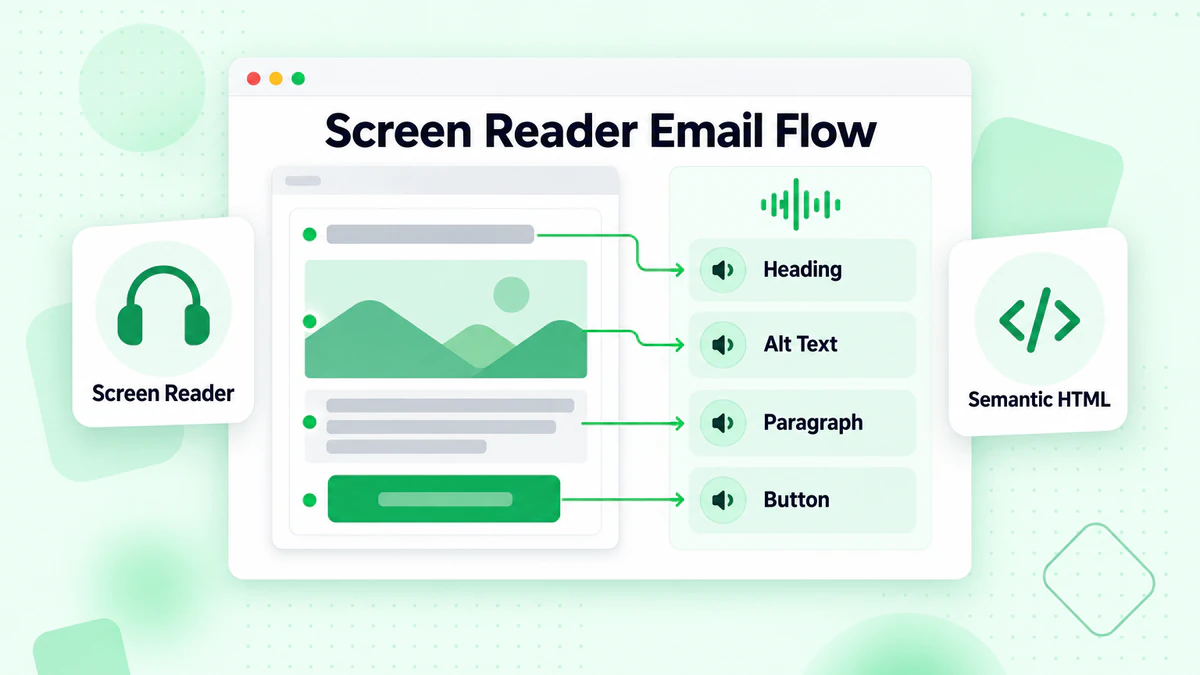
How Screen Readers Work
The Process:
- Screen reader accesses email content
- Reads HTML elements in order
- Announces element types (heading, link, image, etc.)
- Users navigate using keyboard commands
- Content is spoken aloud or sent to braille display
Popular Screen Readers:
- JAWS (Windows)
- NVDA (Windows, free)
- VoiceOver (Mac, iOS)
- TalkBack (Android)
- Narrator (Windows)
What Screen Readers Announce
For Different Elements:
Headings: "Heading level 2: Welcome to Our Newsletter"
Images: "Image: [alt text content]" or "Image" if no alt text
Links: "Link: Shop Now"
Buttons: "Button: Subscribe"
Tables: "Table with 3 columns and 5 rows"
Navigation Patterns
How Users Navigate:
- Skip by heading
- Jump between links
- Move through tables
- Navigate by landmark
Why This Matters: Your email structure determines how easily users can navigate.
Semantic HTML for Accessibility
Building accessible email structure.
Proper Heading Hierarchy
Use Headings Logically:
<h1>Main Email Title</h1>
  <h2>Section One</h2>
    <h3>Subsection</h3>
  <h2>Section Two</h2>
    <h3>Subsection</h3>
Don't Skip Levels:
- ❌ Wrong: h1 → h3 → h2
- ✅ Correct: h1 → h2 → h3
Why It Matters: Screen reader users navigate by headings. Logical hierarchy helps them understand content structure.
Semantic Elements
Use Appropriate Tags:
<p>for paragraphs<ul>and<ol>for lists<table>for data tables<strong>for important text<em>for emphasis
Avoid:
- Using
<br>for spacing (use CSS) - Empty paragraphs for space
- Tables for layout (when possible)
Language Attribute
Declare Language:
<html lang="en">
Why It Matters: Screen readers use the language attribute to pronounce text correctly.
For Multilingual Content:
<p lang="es">Hola, ¿cómo estás?</p>
Image Accessibility
Making visual content accessible.
Alt Text Essentials
What Is Alt Text: Alternative text that describes an image for those who can't see it.
<img src="product.jpg" alt="Red leather handbag with gold clasp, $199">
Alt Text Best Practices:
Be Descriptive: Describe what the image shows and why it matters.
- ❌ Bad: "Image" or "Photo"
- ❌ Bad: "img_12345.jpg"
- ✅ Good: "Customer Sarah smiling while using our app on her phone"
Be Concise: Aim for 125 characters or less when possible.
Include Important Information: If the image contains text, include that text in alt.
- Image shows "50% OFF" → alt should include "50% off sale"
Context Matters: Describe the image's purpose in that specific context.
Decorative Images
When to Use Empty Alt: For purely decorative images that add no information:
<img src="decorative-line.png" alt="">
Examples of Decorative Images:
- Separator lines
- Background patterns
- Purely aesthetic graphics
- Icons next to text that already explains them
Don't Use:
<img src="decorative.png" alt="decorative image">
This makes screen readers announce "decorative image," which is useless.
Complex Images
For Infographics and Charts: Provide full text alternative nearby.
<img src="sales-chart.png" alt="Sales chart showing growth. Full data in table below.">

<!-- Data table with actual numbers -->
<table>
  <tr><th>Month</th><th>Sales</th></tr>
  <tr><td>January</td><td>$50,000</td></tr>
  ...
</table>
Image of Text
Avoid Text in Images:
- Screen readers can't read text in images
- Text can't be resized by users
- Doesn't adapt to user preferences
When Unavoidable: Include all text in the alt attribute.
<img src="sale-banner.jpg" alt="Summer Sale: 40% off all items. Use code SUMMER40. Ends July 31.">
Color and Contrast
Ensuring visual accessibility.
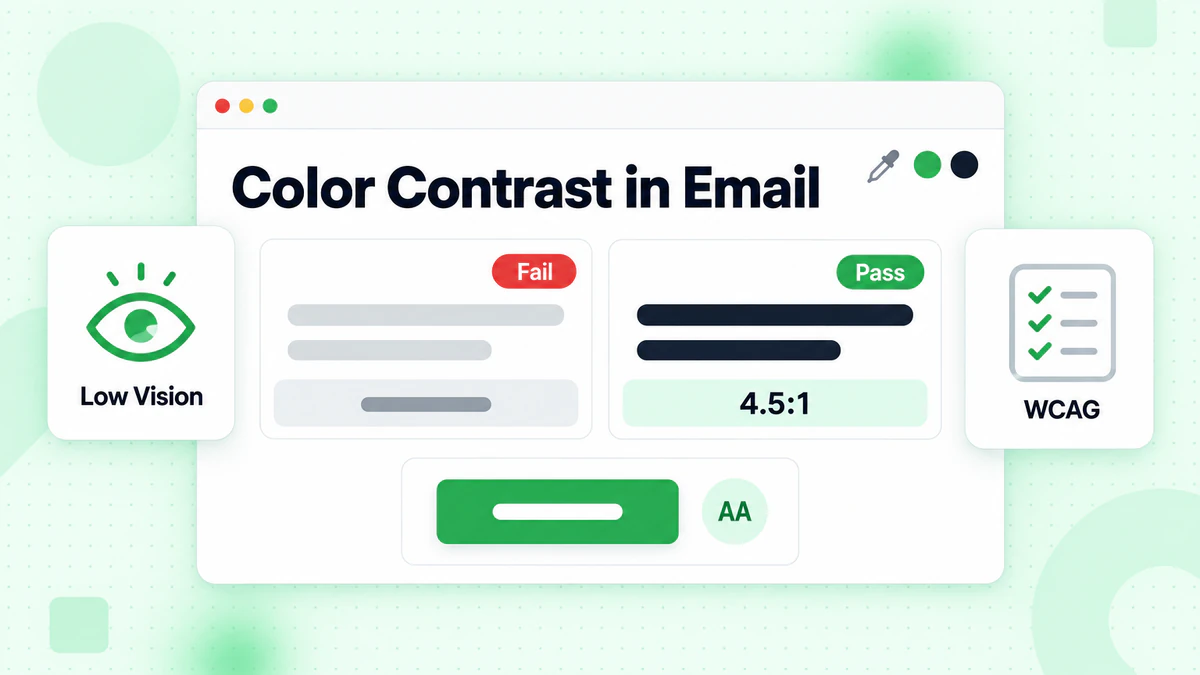
Color Contrast Requirements
WCAG Standards:
Normal Text (under 18px or 14px bold):
- AA: 4.5:1 contrast ratio minimum
- AAA: 7:1 contrast ratio (enhanced)
Large Text (18px+ or 14px+ bold):
- AA: 3:1 contrast ratio minimum
- AAA: 4.5:1 contrast ratio
Non-Text Elements (buttons, form fields):
- 3:1 contrast ratio minimum
Checking Contrast
Free Tools:
- WebAIM Contrast Checker
- Colour Contrast Analyser
- Stark (Figma plugin)
- Built-in browser dev tools
Testing Process:
- Identify text color and background color
- Enter hex values in checker
- Verify meets AA standard minimum
- Adjust colors if needed
Common Contrast Failures
Problematic Combinations:
- Light gray on white
- Yellow on white
- Light blue on white
- Orange on red
- Green on red
Better Alternatives:
- Dark gray (#333) on white (#FFF) = 12.63:1 ✅
- Dark blue (#0000AA) on white = 9.98:1 ✅
- White on dark blue (#003366) = 8.6:1 ✅
Don't Rely on Color Alone
The Problem: Color-blind users can't distinguish some colors.
Examples:
- Red/green for error/success
- Color-coded categories
- Charts with color-only legends
Solutions: Use color PLUS another indicator:
- Icons
- Text labels
- Patterns
- Shapes
Example:
<!-- Bad -->
<span style="color: red;">Error</span>

<!-- Good -->
<span style="color: red;">❌ Error: Please enter valid email</span>
Link Accessibility
Making links usable for everyone.
Descriptive Link Text
Don't Use:
- "Click here"
- "Read more"
- "Learn more"
- "Here"
Why It's a Problem: Screen reader users often navigate by links. "Click here" out of context is meaningless.
Use Instead: Descriptive text that explains where the link goes.
<!-- Bad -->
<a href="/sale">Click here</a> to see our summer sale.

<!-- Good -->
<a href="/sale">View our summer sale</a>

<!-- Also Good -->
See our <a href="/sale">summer sale with 40% off all items</a>.
Link Styling
Make Links Recognizable:
- Underlines (most reliable)
- Color change (with sufficient contrast)
- Both underline and color (best)
Don't Rely on Color Alone: Users with color blindness may not notice color-only links.
Link Size and Spacing
Touch Target Size:
- Minimum 44x44 pixels recommended
- Adequate spacing between links
- Prevents accidental clicks
Example:
<a href="/option1" style="display: inline-block; padding: 10px;">Option 1</a>
<a href="/option2" style="display: inline-block; padding: 10px;">Option 2</a>
Links That Open New Windows
Indicate External Links: Let users know when links open new windows or tabs.
<a href="https://external.com" target="_blank">
  External Site (opens in new window)
</a>
Or Use Visual Indicator:
<a href="https://external.com" target="_blank">
  External Site ↗
</a>
Table Accessibility
Making data tables accessible.
When to Use Tables
Use Tables For:
- Actual data (spreadsheet-like content)
- Comparison information
- Schedules and calendars
Don't Use Tables For:
- Layout/positioning (when avoidable)
- Creating columns (use CSS)
- Spacing content
Accessible Table Structure
Essential Elements:
<table role="presentation"> <!-- for layout tables -->

<!-- For data tables -->
<table>
  <caption>Product Comparison</caption>
  <thead>
    <tr>
      <th scope="col">Feature</th>
      <th scope="col">Basic</th>
      <th scope="col">Pro</th>
    </tr>
  </thead>
  <tbody>
    <tr>
      <th scope="row">Storage</th>
      <td>10GB</td>
      <td>100GB</td>
    </tr>
  </tbody>
</table>
Table Headers
Use <th> Elements: Mark header cells with <th>, not styled <td>.
Use Scope Attribute:
scope="col"for column headersscope="row"for row headers
Complex Tables: For complex tables with multiple header levels, use id and headers attributes.
Table Captions
Provide Context:
<table>
  <caption>Q3 2024 Sales by Region</caption>
  ...
</table>
Captions help users understand the table's purpose before diving into data.
Email Client Considerations
Accessibility across different email clients.
Email Client Limitations
Common Issues:
- Styles stripped or modified
- Limited CSS support
- Different rendering engines
- Inconsistent ARIA support
Testing Across Clients
Priority Clients:
- Apple Mail (best accessibility)
- Outlook (variable)
- Gmail (strips much CSS)
- Yahoo (limited)
Test With:
- Litmus
- Email on Acid
- Real devices with screen readers
Dark Mode Accessibility
Dark Mode Challenges:
- Color inversions
- Contrast changes
- Image backgrounds
Solutions:
- Test in dark mode
- Use transparent image backgrounds
- Ensure contrast works both ways
- Provide dark mode specific styles when possible
Content Accessibility
Writing accessible email content.
Plain Language
Write Clearly:
- Use simple words
- Short sentences
- Active voice
- Avoid jargon
Readability Goals: Aim for 8th grade reading level or below.
Example:
Before: "Utilize our comprehensive solution to optimize your workflows"
After: "Use our tool to work faster"
Structure and Formatting
Use Clear Structure:
- Headings for sections
- Bullet points for lists
- Short paragraphs
- White space
Visual Hierarchy:
- Most important info first
- Clear visual distinction
- Consistent formatting
Reading Order
Ensure Logical Order: The reading order in code should match visual order.
Test: Disable CSS and see if content still makes sense.
Avoiding Walls of Text
Break Up Content:
- Maximum 3-4 sentences per paragraph
- Use subheadings every few paragraphs
- Include visual breaks
Button and CTA Accessibility
Creating accessible calls-to-action.
Button vs. Link
Use Buttons For: Actions (submit, add to cart, sign up)
Use Links For: Navigation (go to page, read more)
Accessible Button Design
Button Requirements:
- Clear text describing action
- Sufficient size (44x44px minimum)
- High contrast
- Obvious clickable appearance
Button Text:
<!-- Bad -->
<a href="/buy">Submit</a>

<!-- Good -->
<a href="/buy">Buy Now - $49</a>
Multiple Buttons
Distinguish Actions: When multiple buttons exist, make each unique and clear.
<a href="/plan-basic">Choose Basic Plan</a>
<a href="/plan-pro">Choose Pro Plan</a>

<!-- Not -->
<a href="/plan-basic">Choose</a>
<a href="/plan-pro">Choose</a>
Forms in Email
Accessible form elements (where supported).
Form Accessibility Basics
Note: True forms have limited email support. Most "forms" link to web pages.
If Using Forms:
Labels:
<label for="email">Email Address</label>
<input type="email" id="email" name="email">
Required Fields:
<label for="email">Email Address (required)</label>
<input type="email" id="email" required aria-required="true">
Error Messages
Accessible Error Handling:
- Clear error messages
- Associated with form fields
- Not color-only indication
<label for="email">Email Address</label>
<input type="email" id="email" aria-describedby="email-error">
<span id="email-error" style="color: red;">
  ❌ Please enter a valid email address
</span>
Testing for Accessibility
Verifying your emails are accessible.
Automated Testing
Tools:
- WAVE browser extension
- axe accessibility checker
- Lighthouse (Chrome DevTools)
- Email testing platforms with accessibility features
What Automated Tests Catch:
- Missing alt text
- Color contrast issues
- Missing labels
- Heading hierarchy problems
- Language attributes
Limitations: Automated tests catch ~30% of issues. Manual testing is essential.
Manual Testing
Keyboard Testing:
- Navigate email using Tab key only
- Can you reach all interactive elements?
- Is focus visible?
- Is order logical?
Screen Reader Testing:
- Listen to email with screen reader
- Does it make sense?
- Are images properly described?
- Is structure clear?
Visual Testing:
- Zoom to 200%—is content still usable?
- Remove images—does email still work?
- Check in grayscale—is it understandable?
Testing Checklist
Before Every Send:
- [ ] All images have alt text
- [ ] Color contrast meets standards
- [ ] Headings are properly structured
- [ ] Links are descriptive
- [ ] Content is clearly organized
- [ ] Tested with screen reader
- [ ] Tested keyboard navigation
Accessibility Checklist
Structure
- [ ] Proper heading hierarchy (h1, h2, h3)
- [ ] Logical reading order
- [ ] Language attribute set
- [ ] Semantic HTML used
Images
- [ ] Alt text for all meaningful images
- [ ] Empty alt for decorative images
- [ ] Text in images has alt equivalent
- [ ] Complex images have detailed descriptions
Color and Contrast
- [ ] Text meets 4.5:1 contrast ratio
- [ ] Links are distinguishable
- [ ] Color not sole indicator
- [ ] Works in dark mode
Links and Buttons
- [ ] Descriptive link text
- [ ] Adequate touch targets (44px)
- [ ] Clear visual distinction
- [ ] External links indicated
Content
- [ ] Plain language used
- [ ] Short paragraphs
- [ ] Clear structure
- [ ] Important info first
Tables
- [ ] Header cells marked with
<th> - [ ] Scope attributes used
- [ ] Captions provided
- [ ] Simple structure preferred
Common Accessibility Mistakes
Mistake 1: Missing Alt Text
Problem: Images without alt text. Fix: Add descriptive alt to all meaningful images.
Mistake 2: "Click Here" Links
Problem: Non-descriptive link text. Fix: Use descriptive text explaining the destination.
Mistake 3: Low Contrast
Problem: Text hard to read. Fix: Ensure 4.5:1 contrast ratio minimum.
Mistake 4: Color-Only Meaning
Problem: Using only color to convey information. Fix: Add text, icons, or patterns as secondary indicators.
Mistake 5: Images of Text
Problem: Important text is in images. Fix: Use real text; include image text in alt when unavoidable.
Mistake 6: Skipped Heading Levels
Problem: h1 jumps to h3. Fix: Use logical heading hierarchy.
Mistake 7: Complex Tables
Problem: Nested or merged cells make tables hard to navigate. Fix: Simplify table structure; use simple rows and columns.
Data Quality and Accessibility
The connection between list health and accessible experiences.
Why It Matters
Valid Emails Enable:
- Consistent experience delivery
- Accurate engagement tracking
- Proper accessibility testing feedback
Invalid Addresses Mean:
- Wasted accessibility efforts
- Distorted engagement metrics
- Can't measure if accessible emails perform better
Accessibility for All Valid Subscribers
When you verify your list, you ensure that your accessibility improvements reach real people who benefit from them. Learn more about email verification best practices to maintain a healthy subscriber base.
Conclusion
Email accessibility isn't optional—it's essential for reaching your full audience and complying with legal requirements. More importantly, accessible emails provide better experiences for everyone.
Key accessibility principles:
- Use semantic structure: Proper headings, lists, and elements
- Describe images: Meaningful alt text for all non-decorative images
- Ensure contrast: 4.5:1 minimum for text
- Write descriptive links: No "click here"
- Test with assistive technology: Screen readers reveal issues you can't see
Accessible emails only matter if they reach valid inboxes. Invalid emails mean your accessibility efforts never reach the people who need them. Maintaining good email deliverability is essential for ensuring your accessible design reaches everyone.
To maximize the impact of your inclusive email design, combine accessibility best practices with email list cleaning and regular verification. Ready to ensure your accessible emails reach valid subscribers? Start with BillionVerify to verify your list and maximize the impact of your inclusive email design.
BillionVerify integrates directly with HubSpot, Mailchimp, and ActiveCampaign to keep contact lists clean automatically.