



You're usually not looking for the spam folder in Outlook until something important is missing. A client says they sent the contract. Payroll insists the invoice went out. A recruiter tells you the offer letter is already in your inbox, except it isn't. That's when Outlook gets maddening, because the answer often isn't “check Spam.” In Microsoft's world, the folder is called Junk Email, and in business setups the missing message may not be in your mailbox at all.
That naming detail matters. So does the difference between a personal Outlook mailbox and a Microsoft 365 environment with Defender quarantine sitting in the background. If you're trying to find a lost message fast, or stop your own campaigns from ending up in someone else's spam folder in Outlook, the fix depends on which layer caught the email in the first place.
Why Finding Your Spam Folder in Outlook Can Be So Tricky
The first problem is simple. Outlook usually doesn't label the folder the way people search for it. Microsoft officially calls it Junk Email, not “Spam Folder,” and that wording shows up in Outlook settings and across Outlook clients in Microsoft's own junk email filtering documentation.
That sounds minor until you're rushing. Users search for “spam,” scan the sidebar, don't see that exact label, and assume the message is gone. It gets worse if the folder is collapsed, buried lower in the mailbox tree, or hidden behind a minimal mobile interface.
Practical rule: In Outlook, start by looking for Junk Email. If you keep searching for a folder literally named “Spam,” you can miss the place Microsoft actually uses.
There's also a second layer of confusion. Personal Outlook accounts and business Microsoft 365 setups don't always behave the same way. A normal user may only need the Junk Email folder. An admin or team working through shared workflows may be dealing with a separate quarantine process that never surfaces in the local mailbox.
That's why the usual advice often feels incomplete. “Just check spam” is fine for a personal newsletter. It's not enough when a shared address, group mailbox, or external business message gets trapped elsewhere. If your problem isn't in the inbox, the answer might still be inside Outlook's filtering system. You just need to check the right layer first.
If you also troubleshoot deliverability across providers, this pattern looks familiar in Gmail too. The mechanics differ, but the missing-message panic is the same in Gmail mail delivery subsystem spam issues.
How to Find the Junk Email Folder in Any Outlook Version
A missing client email at 4:55 PM rarely means it vanished. In Outlook, it usually landed in a folder the user did not check, or in a quarantine the user cannot see at all. Start with the visible folder first so you can rule that out quickly.
Outlook for Windows
In classic Outlook for Windows and the newer Outlook app, the folder you want is usually called Junk Email. Open Mail, then check the left folder pane under the mailbox that should have received the message.
If the pane is compressed, Outlook may show icons instead of folder names. Expand the pane first. If the account itself is collapsed, expand that too. A surprising number of “missing email” cases come down to checking the right folder under the wrong mailbox.
Use this order:
- Open Mail.
- Expand the correct account in the left pane.
- Find Junk Email.
- Scan sender, subject, and date before deleting anything.
If you manage a busy mailbox, add Junk Email to Favorites so it stays visible. That saves time when a colleague says a message never arrived and you need an answer fast.
If your workflow depends on proving whether a message was opened, ignored, or filtered, tools like this guide to email tracker freeware for Outlook workflows help separate a delivery problem from a follow-up problem.
Outlook on the Web
Outlook on the web is often the fastest place to check because Microsoft exposes folder paths more clearly there than in some desktop layouts. Sign in, look at the left navigation, and find Junk Email under the mailbox you need.
If you only see the main folders, click More or expand the folder list. Then scroll. Outlook web often hides lower folders until you do.
For shared mailboxes and team inboxes, web access is also a practical check before you start changing client rules or transport settings. If the message is not in Junk Email there either, the next suspect is often Microsoft 365 quarantine rather than the local mailbox filter.
Outlook for Mac
Outlook for Mac uses a cleaner sidebar, but the path is the same. Open the mail view, select the right account, and look for Junk Email in the folder list.
Mac users with multiple accounts lose time here all the time. They check Junk under a personal account while the missing message was sent to the company mailbox. Verify the account name first, then inspect the folder.
One simple habit helps. Keep account groups expanded if you regularly switch between mailboxes.
Outlook Mobile App
On iPhone and Android, Outlook compresses everything. Tap your profile icon or menu icon, choose the account, and expand folders until you see Junk or Junk Email, depending on the app version.
Mobile works for a quick confirmation. It is not the best place to troubleshoot why the message was filtered, especially if you need to review sender reputation, tenant policies, or mailbox rules.
If you need to keep a copy of important mail somewhere safer while you troubleshoot, some teams set up Outlook email forwarding for a backup mailbox. That helps with continuity, but forwarding does not fix the underlying filter decision.
If You Still Cannot Find It
At that point, stop assuming the mail is in a normal spam folder. Business Microsoft 365 environments often catch mail in quarantine before it ever shows up in Junk Email. Users cannot always see that layer from the Outlook app, which is why “just check spam” fails so often in company setups.
Recovering Emails and Training the Outlook Filter
Finding the spam folder in Outlook is the easy part. Getting Outlook to stop making the same mistake is harder.
How to Rescue a Good Email
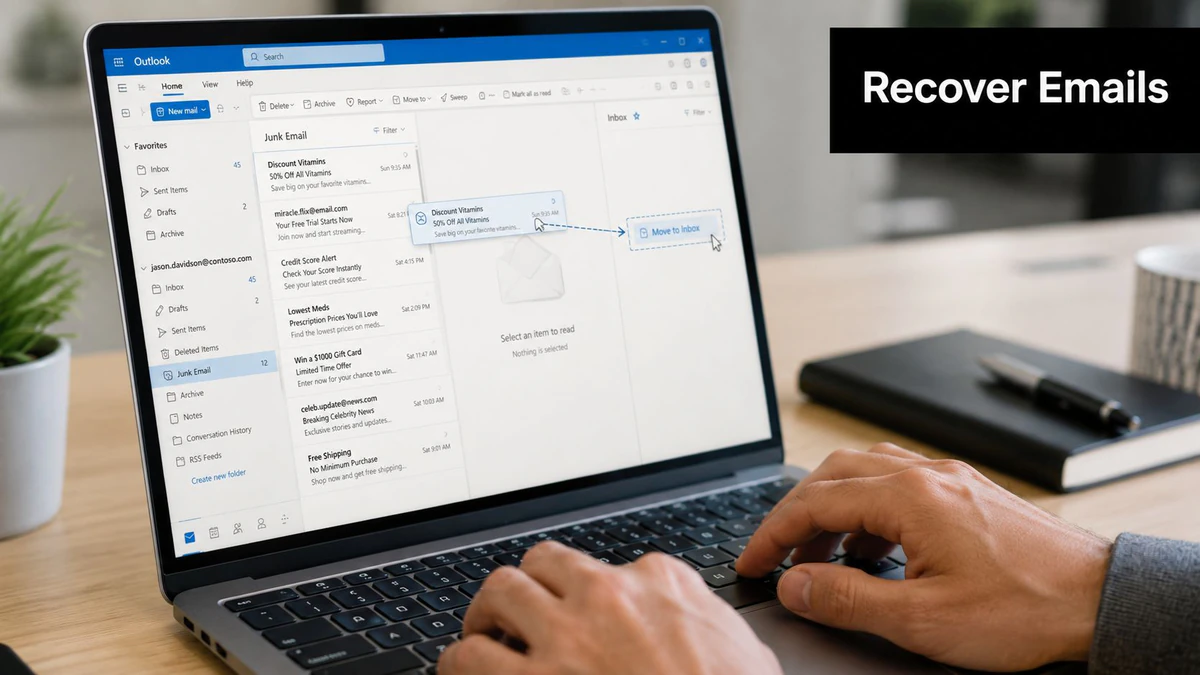
When you spot a legitimate message in Junk Email, don't just read it there and move on. Move it back to the Inbox and, where available, mark it as Not Junk or use the Report button to indicate that the message was incorrectly filtered.
That matters because Outlook uses user actions as signals. If you leave wanted mail sitting in Junk, you're not giving the system a clear correction.
Use this order:
- Move the message first so it leaves Junk and returns to the Inbox.
- Mark it as Not Junk if Outlook offers the option.
- Add the sender to contacts or safe senders when the message is important and recurring.
- Watch the next few messages from that sender instead of assuming one correction solved it.
Users have reported a severe jump in spam pressure, with one Reddit poster saying they went from averaging “1 or less spam email per week” to over “800 emails” in the spam inbox, which shows how much filtering Outlook is trying to do under load in this Outlook spam increase discussion.
Why Training Often Falls Short
A lot of tutorials oversell the idea that Outlook can be “trained” quickly. It can learn from repeated corrections, but that doesn't mean one click on Not Junk overrides every future decision.
Outlook can still filter aggressively, especially when the sender is new, the domain reputation is weak, or the message pattern looks risky. Safe Sender lists help, but they aren't a magic bypass in every real-world case. That's why sales teams and outbound marketers often feel like they're doing everything right and still see legitimate mail disappear.
Moving a message out of Junk is a correction. It isn't a permanent pardon.
For business users, this gets operational fast. If a finance mailbox or support queue depends on one sender always arriving, add process around the problem. Review Junk regularly. Put known senders in contacts. Escalate persistent misses to your admin if the mailbox is part of a broader Microsoft 365 environment.
If you route messages elsewhere for review or recordkeeping, it helps to set up Outlook email forwarding so a second system catches mail that users might otherwise miss during manual checks.
And if you're writing outreach that recipients need to notice, your copy still matters after delivery. Weak messaging won't save a misfiltered email, but strong messaging improves what happens once the message reaches the inbox. This breakdown of copywriting email examples that actually get read is useful when the issue is part filtering, part message quality.
The Admin's Guide to the Invisible Quarantine Folder
This is the part most consumer articles miss. In Microsoft 365, the spam folder in Outlook isn't always where business mail ends up.

Who This Affects
If you manage Microsoft 365 Groups, shared workflows, or externally facing group addresses, some suspicious mail may never hit a user's local Junk Email folder. Instead, Microsoft Defender can intercept it in a central quarantine.
That creates a nasty blind spot. Users check Junk. It's empty. They conclude no message arrived. Meanwhile the message is sitting in a separate security queue that standard Outlook views never show.
This catches teams that rely on shared inbound mail hardest. Marketing aliases, vendor intake addresses, operations groups, and external collaboration mailboxes can all create the same confusion if external inbound mail is enabled and Defender decides a message needs review.
If a business user says, “It's not in Inbox or Junk,” don't assume the sender failed. Check whether Defender quarantine owns that message path.
Where to Check It
For Microsoft 365 Groups with external mail enabled, suspected spam is often routed to a central Quarantine managed by Microsoft Defender, not the user's local Junk folder. Admins must access it through Microsoft Defender quarantine, a gap that comes up repeatedly in this Office 365 spam folder discussion for groups.
A practical admin workflow looks like this:
| Check | What to confirm |
|---|---|
| Recipient type | Is the destination a personal mailbox, shared mailbox, or M365 Group? |
| Message path | Did the email vanish before user mailbox delivery? |
| Quarantine review | Is the message being held in Defender instead of local Junk? |
| Release decision | Should the message be released, allowed, or escalated for policy review? |
This circumstance accounts for many "Outlook is broken" tickets. The client isn't broken. The mailbox view is incomplete for the type of object receiving the message.
When this becomes a repeating issue, don't stop at one release. Review your broader email deliverability troubleshooting process for Microsoft-heavy environments, because repeated quarantine events usually point to a sender reputation, policy, or routing pattern that needs attention.
Prevent Your Emails from Landing in Someone Else's Spam
If Outlook keeps hiding messages from you, assume it's doing the same thing to recipients of your campaigns. That's the sender-side lesson many organizations avoid for too long.
What Outlook Uses Against Senders
Outlook doesn't decide in a vacuum. It reacts to trust signals. Some are technical. Some are behavioral. Some come down to whether you keep sending to bad data and teaching mailbox providers not to trust you.
The sender mistakes that show up most often are simple:
- Dirty lists create avoidable bounces and dead-end delivery attempts.
- Disposable signups pollute segments and distort engagement.
- Weak list maintenance leaves old, low-value, or fake addresses in rotation.
- Assuming authentication alone is enough ignores the role of list quality and recipient behavior.
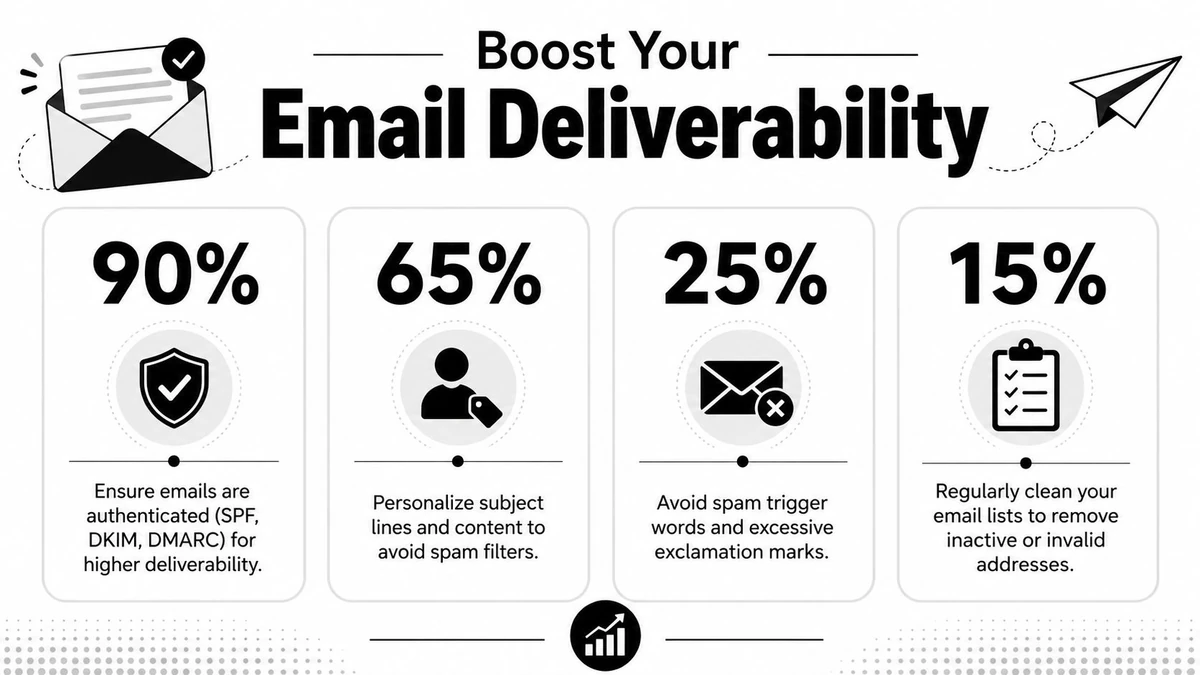
The infographic above includes extra percentages, but treat it as a visual checklist rather than a sourced benchmark. The practical point stands without made-up certainty. Clean data and disciplined sending reduce the odds that your mail gets treated like junk.
Where Verification Fits
Before a campaign goes out, verification earns its keep. If you validate mailboxes before sending, you cut obvious waste and avoid training Outlook and other providers to distrust your traffic.
A verification layer helps in three ways:
- Mailbox existence checks reduce the chance that you keep mailing addresses that won't accept delivery.
- Disposable domain screening strips out temporary signups that hurt list quality.
- Operational hygiene gives sales, marketing, and product teams cleaner inputs before they trigger outbound or lifecycle flows.
To ensure your emails don't get flagged, proactive verification is key. BillionVerify achieves 99.9% accuracy by using SMTP queries to confirm mailbox existence, while also checking a database of over 50,000 disposable domains to scrub lists of temporary addresses, as described in this BillionVerify verification overview.
BillionVerify is a professional email verification service built to solve one problem: bad email data costs businesses money. In practice, that means cleaning lists before launch, screening signups before they hit your CRM, and reducing the amount of bad traffic that drags sender reputation down.
If your team is trying to improve placement rather than just explain bad results after the fact, focus there first. Better sender reputation starts before the send button. For a broader framework, this guide on how to improve email deliverability is the right next step.
Your Action Plan for Mastering Outlook's Spam Filters
The spam folder in Outlook stops being confusing once you split the problem into three roles: user, admin, and sender.
For a regular user, the checklist is straightforward. Look for Junk Email, not “Spam.” Check the correct mailbox. Move legitimate mail out of Junk and mark it as Not Junk when available. Add important senders to contacts or safe lists if the messages matter to your job.
For an admin, the key lesson is different. Don't trust the local mailbox view as the whole truth in Microsoft 365. If group or shared-address mail is going missing, check Defender quarantine and review whether the message path bypassed the user's visible junk folder entirely.
For a marketer, SDR, or product team, the fix starts before delivery. Outlook's filtering behavior is a reminder that recipient frustration mirrors sender mistakes. Clean lists, verified addresses, and disciplined sending practices do more than reduce bounces. They lower the odds that your message ends up buried in someone else's junk workflow.
The practical version is simple:
- Users should check Junk Email consistently and correct false positives.
- Admins should investigate quarantine when local folders don't explain the miss.
- Senders should tighten list hygiene before the campaign leaves the platform.
That's how you stop treating Outlook spam filtering like random bad luck. It usually isn't random. There's almost always a layer, signal, or mailbox path behind the miss.
If Outlook filtering keeps creating delivery problems on both sides of the inbox, BillionVerify is worth evaluating as part of your list hygiene process. It verifies mailbox existence with SMTP-level checks, screens disposable addresses, and helps teams reduce the bad data that often leads to junk-folder placement in the first place.