

Chapter 1 of 6 · What Sales Navigator gives you
About this video
This video uses sample data, not real LinkedIn data. BillionVerify is not affiliated with or endorsed by LinkedIn. File verification needs a paid account.
Video transcript
What Sales Navigator gives you
Sales Navigator tells you who to reach. Here's how to get from that list to a verified address. Start with LinkedIn's own words. Sales Navigator has no CSV or XLS export for leads and accounts. Email isn't a standard field either. A lead page shows contact details if the member added them, or if your team entered them. LinkedIn explains why. So here's what you're working with. You get the person, their role, their company, and signals like a recent job change. You don't get an export, or an email for every lead.
The CRM route
With Advanced Plus, you get CRM Sync, and you can create a CRM record right from a lead page. LinkedIn passes name, title and company. Email depends on the member's settings. So expect blanks. So email takes four steps. Pick the lead in Sales Navigator. Get the address from a source you're allowed to use, like your own CRM. Verify it. Then send. We don't cover scraping here. LinkedIn's help center warns against extensions like these, and unusual activity can get your features restricted.
Spot stale addresses
Sales Navigator does help with one thing: it shows when people move. A lead page can surface a recent job change. If your CRM still holds the old work address, that mailbox may be gone. On Advanced Plus with CRM Sync, data validation goes further. When LinkedIn determines a contact has left, it writes a Not at Company flag to the record. Records update every 24 hours. Treat that flag as a reason to verify.
Verify the list
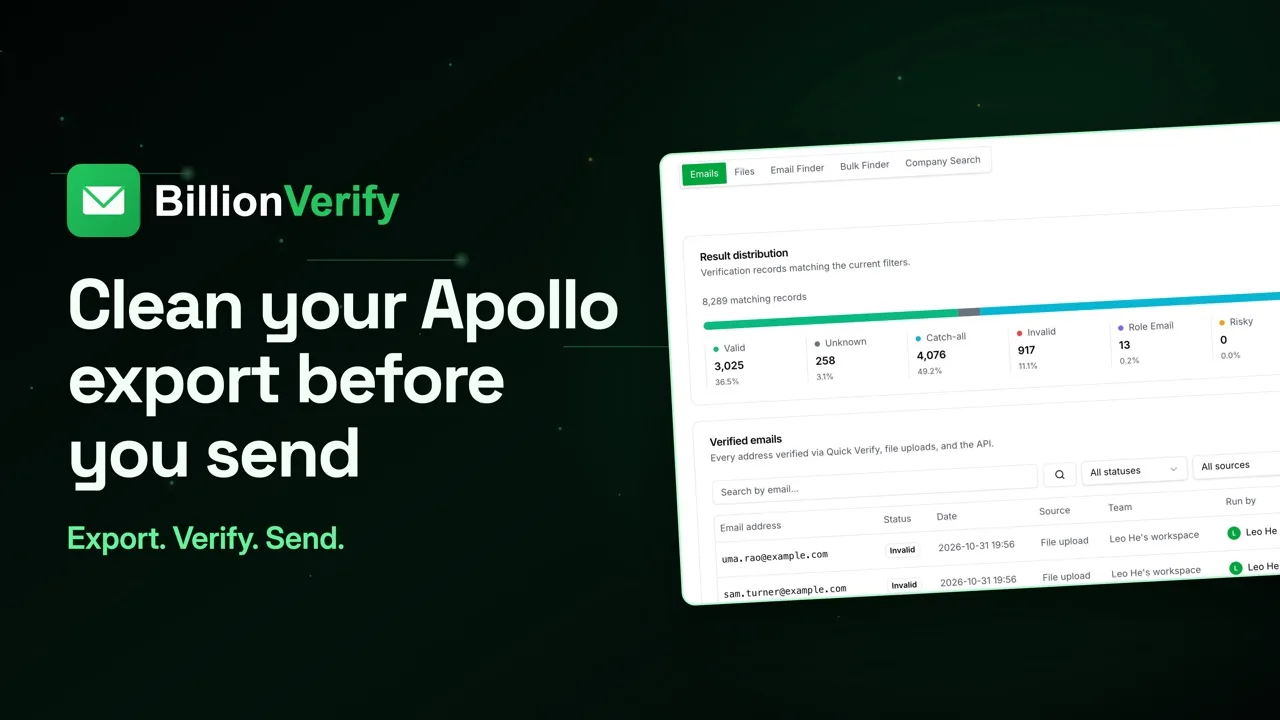
Now pull the addresses into one CSV, from your CRM or your own records. That file goes to BillionVerify before any sending tool sees it. Drop the CSV into File List Verify. It runs in the background, so you can close the tab and wait for our email. These counts come from sample lists, not LinkedIn data. Yours will look different. Pick a status, and export that group. Send to valid. Put catch-all in a small, separate batch. Write role addresses for a shared inbox. Hold back unknown. Leave out disposable. And invalid addresses can move to InMail.
When an address fails
A failed address doesn't end the lead. InMail doesn't need an email at all. Your download keeps every column you uploaded, so you can see exactly who to message. Verification runs on credits. Each result takes one, catch-all and role too. Unknown, bad syntax and disposable don't. File uploads require a paid account, which any credit purchase unlocks.
Get started free
20 free credits every day you use your account, up to 600 a month. No credit card required. Start at billionverify.com.
Featured in this video
LinkedIn Sales Navigator Email VerificationVerify emails sourced from LinkedIn Sales Navigator. It finds contacts but not emails — use a finder tool and verify all the output before any outreach.Try LinkedIn Sales Navigator Email VerificationMore in B2B Leads
All email verification videos
BillionVerify pricing
Start free, then pay for what you verify. Pick a plan or buy credits once.
billed yearly $96
Save 60%$0.0004 / per credit
All 240,000 credits arrive at once. Use them anytime.
Choose your credits
Included in every paid plan
- 240,000 credits / year
- Single email verification
- Bulk email verification
- Email Finder
- Bulk Email Finder
- Company Search
- Live SMTP mailbox check
- Real-time API + batch processing
- CSV & Excel upload support
- Comprehensive verification reports
- Workspaces and teams with spend limits
- Credits never expire
Try the AI email verification features
20 free credits every day you log in, up to 600 a month. Free AI first email verification across every feature, no credit card.
Native MCP Server integration · Catch-all reported separately · Free tier, no credit card