

LinkedIn Image Downloader: Save Every Photo in a Post
Paste a public LinkedIn post link and download its images. This LinkedIn image downloader returns every photo in the post, not just the first one. Save them one by one, as a ZIP, or as a single PDF.
- Free to use
- No login required
- Every image in the post
- Phone, tablet or computer
Paste a LinkedIn post URL to download its images
What Is a LinkedIn Image Downloader?
A LinkedIn image downloader saves the pictures from a LinkedIn post to your device. LinkedIn has no save button for post images. On a phone, a long press often does nothing. On a computer, right-click saves a small preview at best.
This tool reads the public post page and lists every image in it. You see the images first, then save one, all of them as a ZIP, or all of them as one PDF. It works for a single photo, a multi-image post, and a document post. For a document post, each page comes back as an image, and the original PDF is there too.
Many tools save only the first picture of a post. That is a problem for tutorial posts, where the steps are spread across five or ten images. Our LinkedIn image downloader keeps every image and keeps them in the order the author posted them.
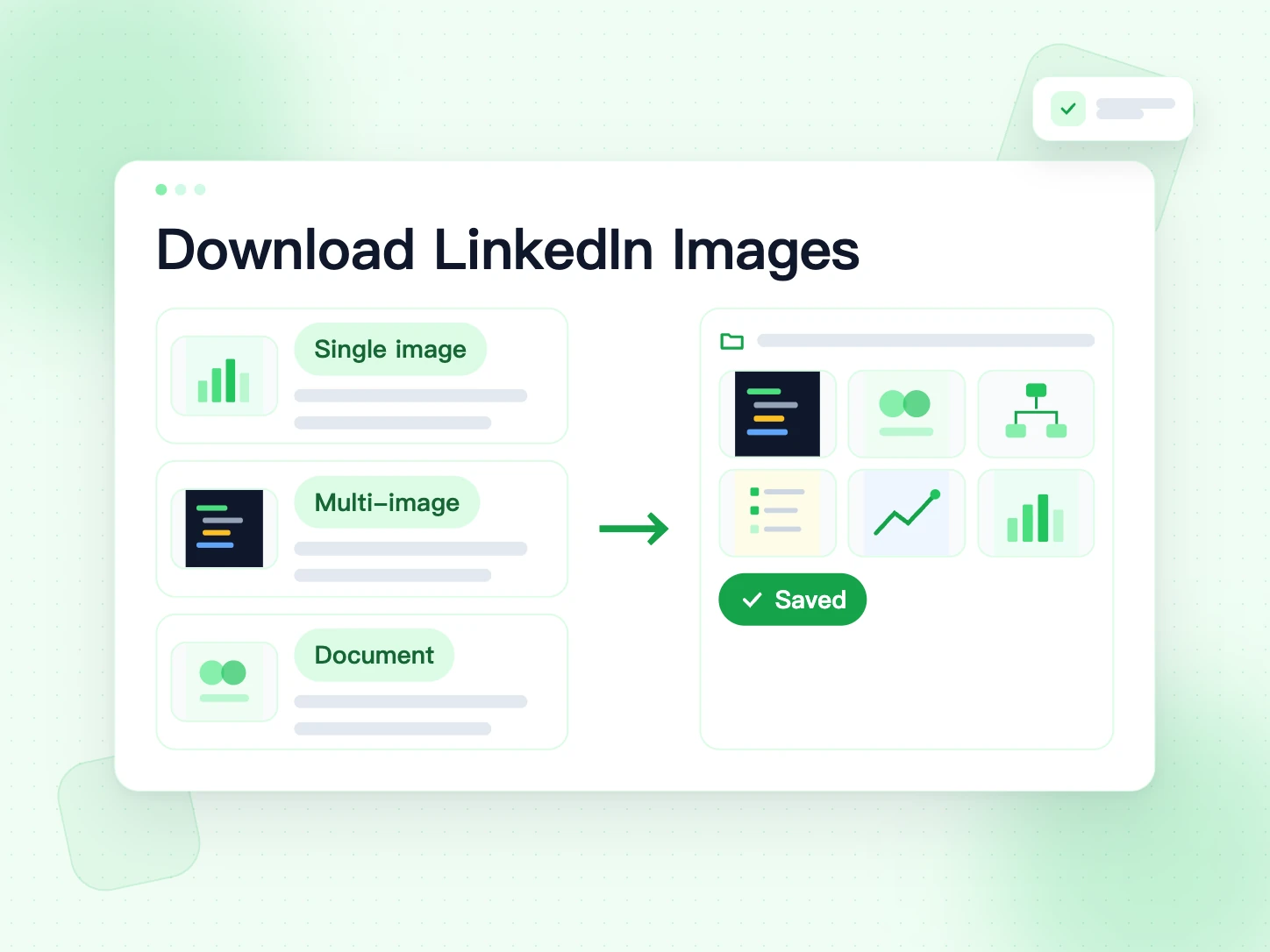
How to Download Images from LinkedIn
Four steps. No account, no extension, nothing to install.
Copy the post link
Open the post on LinkedIn. Tap the "..." menu or the Share button and choose "Copy link to post". Short lnkd.in links work too.
Paste it above
Paste the link into the box at the top of this page and press "Get Images".
Check the images
Every image in the post appears in a grid, numbered in the author's order. Make sure it is the post you wanted.
Download one or all
Press Download under any image. To save the full set, choose "Download all (ZIP)" or "Download as PDF". Each button shows its progress.
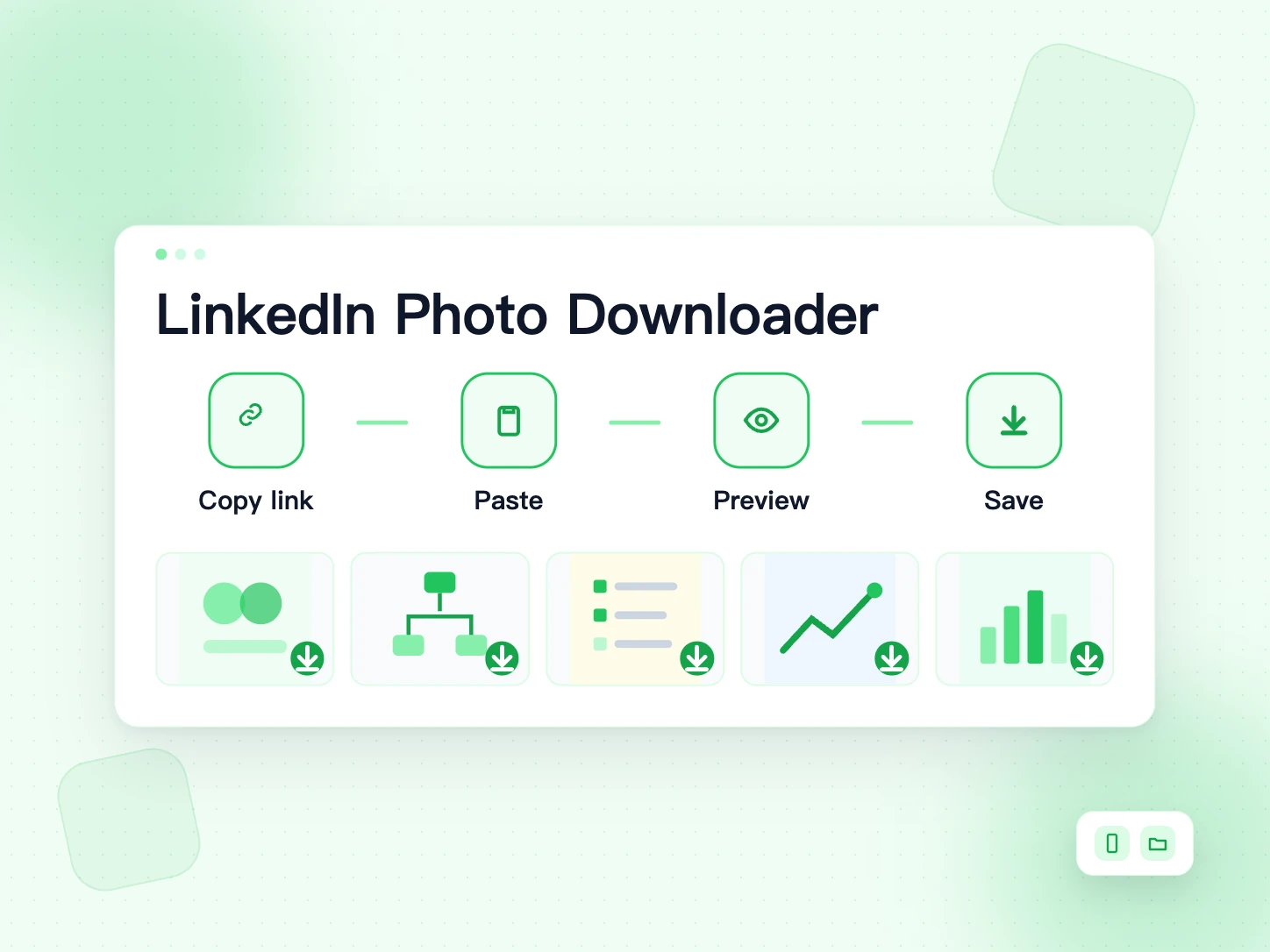
ZIP, PDF or One by One: Which Should You Pick?
All three options give you the same images. They only differ in how the files land on your device. Pick the one that fits what you will do next.
One image at a time
Use the Download button under an image when you only need one or two pictures. Each image is saved as its own file, usually a JPG. This is the quickest choice on a phone.
All images as a ZIP
Choose the ZIP when a post has many images and you want them on a computer. You get one archive with every image, numbered in the author's order. Unzip it and the files are ready to sort into folders.
All images as one PDF
Choose the PDF when you want to read the images like a booklet. Each image becomes one page, in order, at its own size. A PDF is easy to open on any phone, print, or send to a classmate in one message.
For a document post, the PDF button gives you the author's original PDF instead of a rebuilt one. LinkedIn Carousel Downloader
Why Download LinkedIn Images?
Most people save LinkedIn images to learn from them later. A few common reasons:
Keep tutorial images for study
Cheat sheets, coding tips, SQL diagrams and interview notes are often shared as image posts. Download LinkedIn images like these once and revise from your gallery, even without internet.
Build your own notes
Put the saved images into a notes app or a folder by topic. Posts get buried in the feed fast. Your folder stays where you put it.
Back up your own posts
Lost the original file of an image you posted? Download it back from the post with this LinkedIn photo downloader.
Save design references
Collect layouts, charts and infographics you like as a reference for your own work. Use them for ideas, not as your own content.
Share notes with a study group
Saved one great set of images? Send the PDF to your study group in one message. Everyone revises from the same pages, and you add the author's name and post link so the credit travels with it.
Saving LinkedIn Tutorial Images for Study
Many students follow LinkedIn for short lessons. Developers share SQL joins, Python tricks and system design diagrams. Recruiters share interview checklists. These lessons often come as a set of images, and the feed moves on within hours.
A good habit is to save the whole set as one PDF and name it by topic, for example "sql-joins.pdf". Keep one folder per subject. When exams or interviews come, you revise from your own library instead of searching LinkedIn again.
If you prefer flashcards, download the images one by one instead. Put them in a photo album or a notes app such as Notion or OneNote, and add your own notes under each one. Keep the post link with your notes so you can find the author again.
Before an exam week, go through the posts you bookmarked on LinkedIn and run each one through the LinkedIn image downloader. Ten minutes of saving gives you a folder you can read on the bus, offline, without the feed pulling you away.
Which LinkedIn Posts Work
Paste any public post link. The tool checks the post type and gives you what the post has, right on this page.
Single-image posts
One photo or graphic. You get that image.
Multi-image posts
Every image, in order. Save them one by one, as a ZIP, or as one PDF.
Document posts (PDF carousels)
Every page comes back as an image. The original PDF is one click away.
Video posts
No images to save, so you get the video instead, with a download button for each quality.
Text-only posts
No images, so you get the post text instead, ready to save as a .md file or a PDF.
Only public posts work. Posts shared with connections only, private profiles, comments and LinkedIn Learning are out of reach.
What Size Are the Downloaded Images?
You get the same image file LinkedIn serves on the public post page. We don't resize it, compress it again or add a watermark.
LinkedIn often stores a smaller copy than the one the author uploaded. So a saved image can be smaller than the original. If you need the full-size file, ask the author for it.
For reading on a phone or a laptop, that size is usually enough. Text in tutorial images stays sharp because LinkedIn keeps it readable in the feed. If you plan to print a cheat sheet on a large page, the PDF is the better choice, since each image keeps its own page and proportions.
How to Download LinkedIn Images on Android and iPhone
You don't need an app. The LinkedIn image downloader works in the browser you already use, such as Chrome or Safari.
On Android
In the LinkedIn app, tap the share arrow under the post and choose "Copy link". Open this page in Chrome, paste the link and tap "Get Images". Saved images usually go to the Downloads folder. Open the Files app or Google Photos to see them.
On iPhone
In the LinkedIn app, tap the share arrow and choose "Copy link". Open this page in Safari, paste the link and tap "Get Images". Safari may ask you to confirm each download. Saved files appear in the Files app under Downloads; from there you can save an image to Photos.
Do You Need to Log In or Install Anything?
No. The tool never asks for your LinkedIn password and never acts on your account. It only reads the public version of the post, the same page anyone can open without signing in.
You also don't need a browser extension. Everything runs on this page, so it works the same on a school computer, a work laptop or a phone.
Copyright and Credit
Images on LinkedIn belong to the people who made them. Downloading a public image is fine for personal use. What you do with it next is what matters.
Usually fine
- Saving images to study from or revise
- Downloading images from your own posts
- Keeping a private reference folder
- Reposting with the author's permission and credit
Not fine
- Reposting someone's image as your own
- Selling or using it in ads without permission
- Cropping out a watermark or the author's name
Always
- Name the author and link to the original post when you share
- Ask first if you are unsure
A simple credit line works well: "Image by Jane Doe on LinkedIn" plus a link to the post. If you share a whole set of tutorial images, credit the author once at the top and once at the end.
LinkedIn Image Downloader vs Screenshots and Right-Click
A screenshot captures your screen, not the image. You get the feed around it, the wrong size, and often a blurry crop. For a ten-image post you need ten screenshots and some editing.
Right-click works on a computer for some single images, but it often saves a small preview. It does nothing for the pages of a document post, and it is hard to use on a phone.
A LinkedIn image downloader reads the post once and gives you every image as a clean file, in order. That is why it saves time for anyone who keeps tutorials, slides or reference images.
Before You Download: A Quick Checklist
- The post is public: open the link in a private window to check.
- You copied the post link, not a profile or feed link.
- You know what you need: single files, a ZIP or one PDF.
- Your phone has some free space for the images.
- You noted the author's name and the post link for credit.
Troubleshooting
The link is not accepted
Use the link to the post itself, from "Copy link to post". A profile link or a feed link will not work.
It says the post needs a sign-in
The post is not public, or LinkedIn is asking for a login. Only posts anyone can see without logging in can be saved.
No images were found
Check that the post really has pictures. A link preview card is not an image the author posted. If the post only has a video or text, you get those instead.
The image opens in a new tab
Some browsers block direct downloads. The image then opens in a new tab. Long-press it on a phone, or right-click it on a computer, and save it.
The images belong to a different post
A repost link points to the person who shared it. If the images you get are not the ones you expected, open the original post and copy its link instead.
It says there are too many requests
The tool reads up to 20 post links a day from one connection. Each link can hold many images, so download the whole post at once. Try again the next day if you reach the limit.
Tips for Faster Downloads
- Images keep the author's order, so step 1 stays step 1.
- Rename the files after saving if you collect many posts on one topic.
- On a phone, saved images go to Downloads or Files. Move them to your gallery if you want them there.
- Posts you downloaded in this visit stay listed below the tool. Tap one to load it again.
- Saved images and PDFs open without internet, which helps on trains, in hostels and during exams.
Related Free Tools
More ways to save LinkedIn content, and a few BillionVerify tools for your outreach.
LinkedIn Image Downloader FAQs
1. What is a LinkedIn image downloader?
A LinkedIn image downloader is a tool that saves the images from a LinkedIn post to your device. You paste the post link, and it lists the post's images so you can download them.
2. Is this LinkedIn image downloader free?
Yes. The BillionVerify LinkedIn image downloader is free to use. You don't need an account, a credit card or an app.
3. Can I download all images from a multi-image post?
Yes. The tool returns every image in the post, in the author's order. Use "Download all (ZIP)" for separate files, or "Download as PDF" for one file.
4. How do I download images from a LinkedIn document post?
Paste the document post link here. Each page comes back as an image, and you can also download the original PDF.
5. Does it work as a LinkedIn photo downloader on mobile?
Yes. It runs in your phone's browser on Android and iPhone. Copy the post link from the LinkedIn app, paste it here and download.
6. Can I download images from private posts?
No. The tool can only read posts that anyone can see without logging in. Posts shared with connections only stay private.
7. Do you add a watermark?
No. We don't add a watermark or change the image. You get the same file LinkedIn shows on the public post.
8. Is it legal to download LinkedIn images?
Saving a public image for personal use is generally fine. Reposting or reusing it needs the owner's permission. Always credit the author.
9. What file format are the images?
The images keep the format LinkedIn serves, which is usually JPG. If you choose "Download as PDF", all images are put into one PDF file, one image per page.
10. How many posts can I download?
You can read up to 20 post links a day from one connection. There is no limit on the number of images inside each post.
11. Can I download images from a LinkedIn article or newsletter?
This tool is built for posts. Articles and newsletters are separate pages on LinkedIn, so they are not covered.
12. Why does the image look smaller than on LinkedIn?
On a large screen, LinkedIn may stretch the image. The file you download is the size LinkedIn stores for public viewers. We never shrink it, but LinkedIn often keeps a smaller copy than the original upload.
Met someone on LinkedIn? Reach them by email
Email Finder turns a name and a company into a verified work email. Then check your whole list before you send.
You pay only when an email is found · Unknown results are free · Credits never expire