

LinkedIn Post Downloader: Save Any Post as .md or PDF
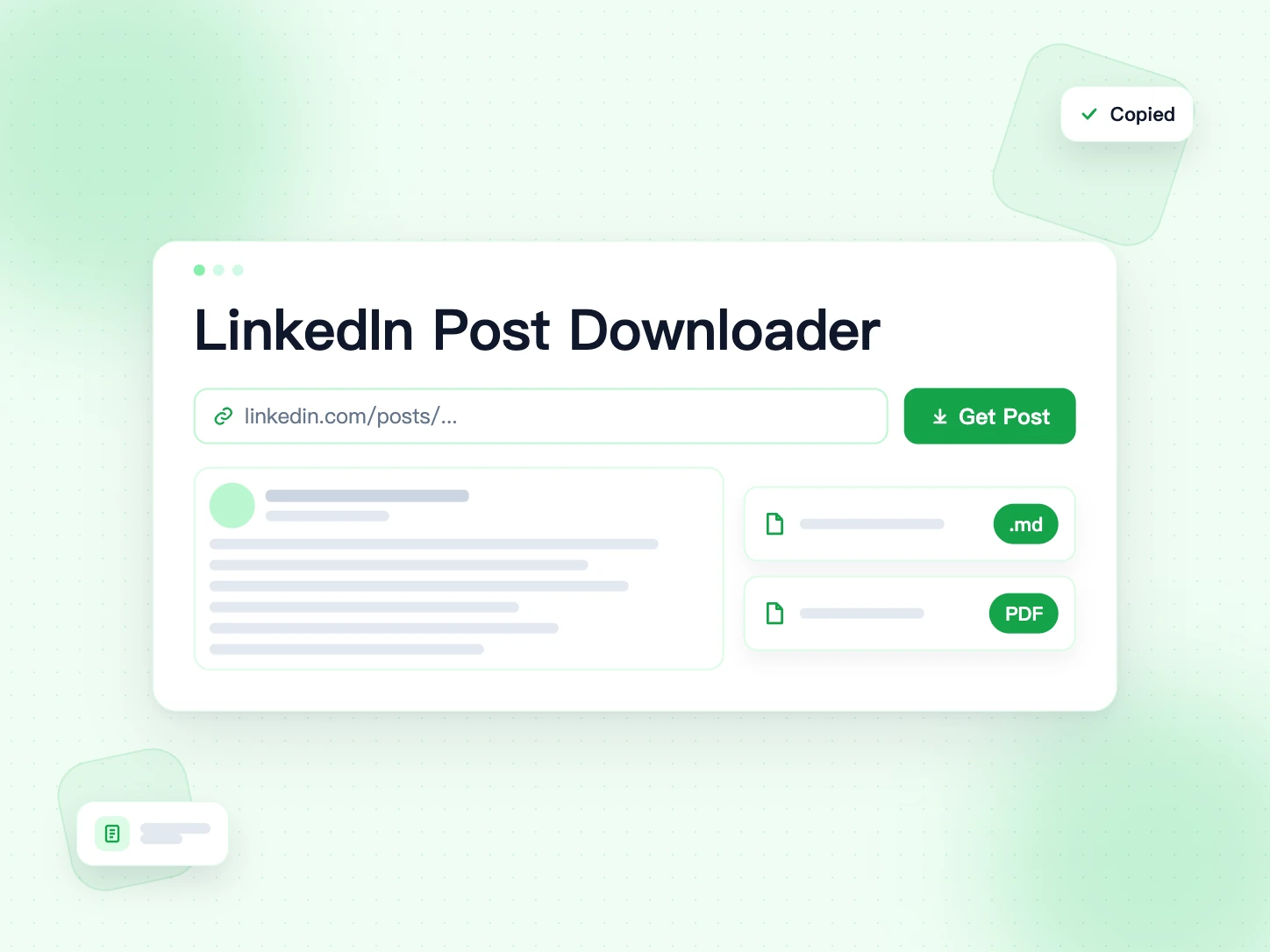
Paste a public LinkedIn post link. This LinkedIn post downloader gives you the full text, without the "see more" cut, as a Markdown file or a PDF. Images in the post come along too.
- Free to use
- No login required
- Markdown (.md) or PDF
- Copy the text in one click
Paste a LinkedIn post URL to download the post
What Does a LinkedIn Post Downloader Do?
A LinkedIn post downloader saves a post from LinkedIn to your device. LinkedIn lets you bookmark a post, but the bookmark lives inside LinkedIn. If the author edits or deletes the post, your copy is gone.
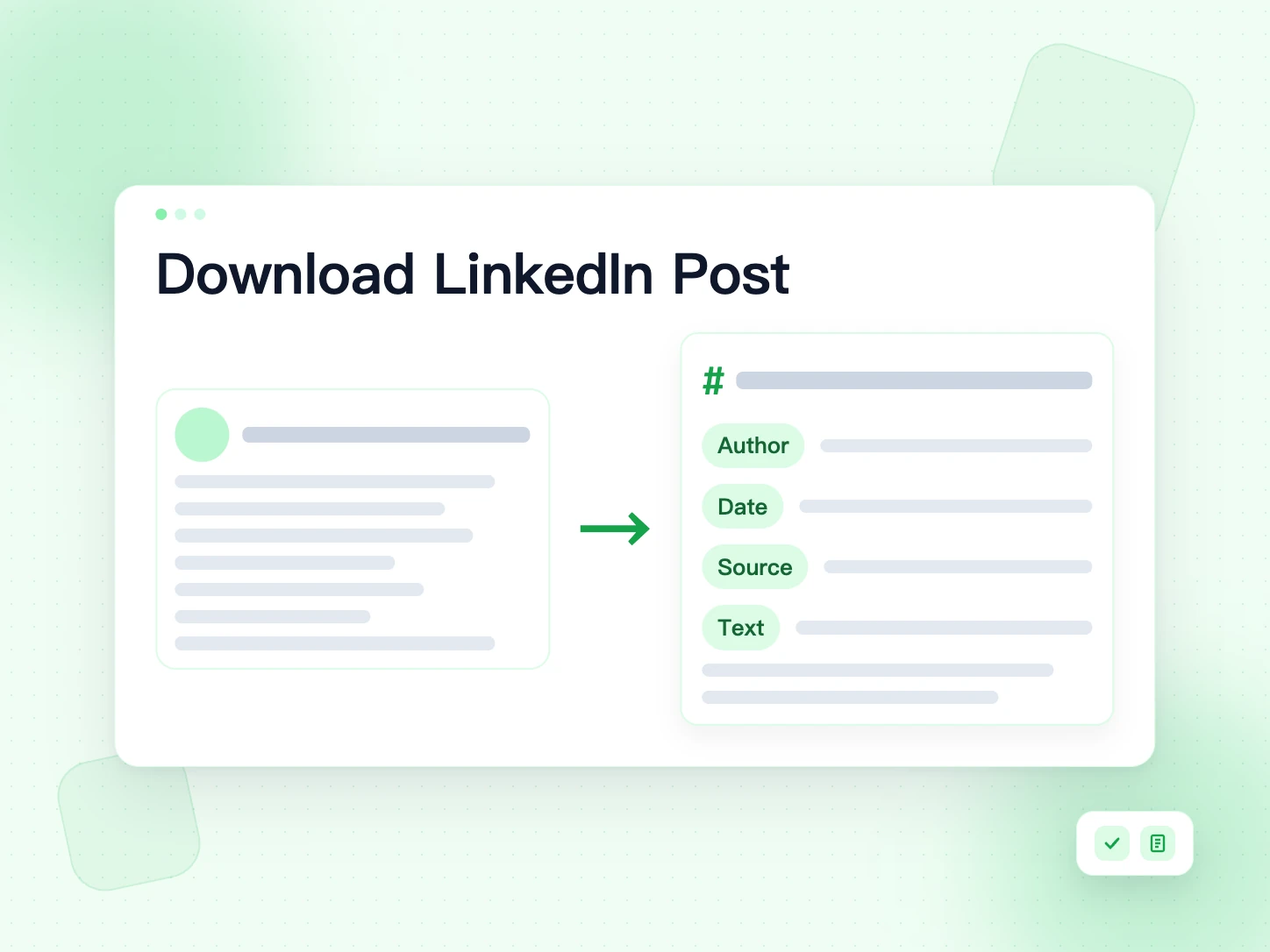
This tool reads the public post and gives you its full text. You can download the LinkedIn post as a .md file, save it as a PDF, or copy the text. Each file starts with the title, the author, the date and a link to the original post.
Posts with pictures, slides or a video work too. The text comes first. The images or the video are on the same page, ready to download.
How to Download a LinkedIn Post
Four steps, on a phone or a computer.
Copy the post link
On LinkedIn, open the post's "..." menu or the Share button and choose "Copy link to post". Short lnkd.in links work too.
Paste it above
Paste the link into the box at the top of this page and press "Get Post".
Check the preview
The full post text appears with the author and the date, so you can see it's the right post.
Download or copy
Choose "Download .md" or "Download PDF", or copy the text. Images in the post can be saved from the same page.
What's Inside the .md File
The Markdown file is plain text with a little structure. It looks like this:
# Three lessons from sending 40,000 cold emails
- **Author:** Jane Doe
- **Posted:** November 2, 2026
- **Original post:** <https://www.linkedin.com/posts/...>
Three lessons from sending 40,000 cold emails:
1. Clean the list first.
2. Write short subject lines.
## Images
Line breaks, lists and emoji stay as the author wrote them. Images are listed as links to LinkedIn's servers. LinkedIn can change or remove those links, so download the images too if you need them later.
Markdown or PDF: Which One Should You Download?
Both files hold the same post. The right one depends on what you will do with it.
Pick .md when you want to work with the text
A Markdown file is plain text. You can edit it, search it, copy a paragraph or paste it into an AI assistant. It is the best choice for notes, research and drafts. The file is tiny and opens on any device.
Pick PDF when you want a fixed copy
A PDF looks the same everywhere. Use it to print a post, attach it to an email, or keep a record that will not change. Images from the post are added as pages, so the PDF is complete on its own.
Not sure? Download both. They take a second each and cost nothing.
What the Export Includes
Every .md and PDF file starts with the same details, followed by the full post:
- Title: the headline LinkedIn shows for the post, or its first line when there is no headline.
- Author: the name of the person or page that published the post.
- Date: when the post was published, written in your language.
- Original post: the link back to the post on LinkedIn.
- Text: the complete post, with line breaks, lists, hashtags and emoji as the author wrote them.
- Images: links to each image or document page, when the post has any.
Comments, reactions and view counts are not part of the export. Links inside the post are kept as text, often in LinkedIn's short lnkd.in form.
Download a LinkedIn Post as PDF
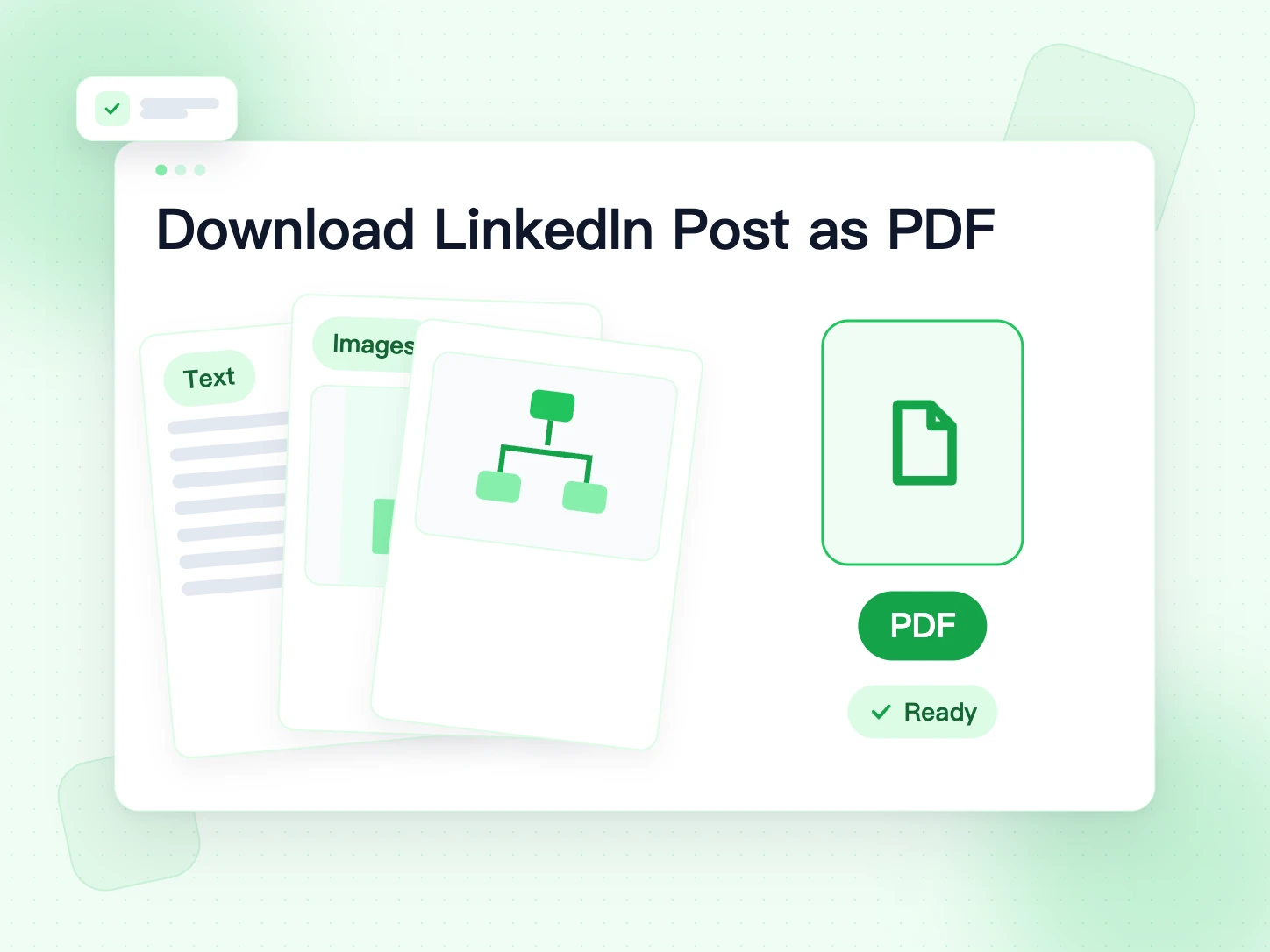
Press "Download PDF" to save the post as a document you can print or share. The PDF has the title, the author, the date, the link to the original post and the full text. If the post has images, each one follows on its own page.
Your browser draws the text with the same fonts you see on screen. Hindi, Chinese, Japanese, Korean and emoji show up as they should. The text in the PDF is an image, so use the .md file when you want to edit or search it.
Why Markdown?
A .md file is the most useful way to keep text you want to work with:
- It opens in any text editor, and in Notion, Obsidian, VS Code and Google Docs.
- You can search it, edit it and copy parts of it.
- It's easy to paste into ChatGPT, Claude or Gemini to summarize or rewrite.
- The files are tiny, so you can keep hundreds of posts in one folder.
- Plain text files will still open in twenty years, long after today's apps have changed.
Copy LinkedIn Post Text Without the "See More" Cut
Long posts are cut off after a few lines. Copying them by hand means expanding, selecting and fixing line breaks. Here you get the full text at once. Press "Copy text" and paste it anywhere, with the original line breaks kept.
Copying is also the fastest way to reuse a post in a reply, a document or a prompt. The LinkedIn post downloader keeps emoji, lists and hashtags, so what you paste looks like what the author wrote.
Import a LinkedIn Post into Notion, Obsidian and Other Notes Apps
Markdown from this LinkedIn post downloader is the format most notes apps understand. Here is how to bring a saved post in.
Notion
In Notion, choose Import, then Text & Markdown, and pick the .md file. Notion turns the heading, list and links into blocks. You can also paste the copied text straight into a page.
Obsidian
Move the .md file into your vault folder. It appears in Obsidian right away. Add a tag such as #linkedin at the top so you can find all saved posts later.
Other apps
Bear, Logseq, Typora and VS Code open .md files directly. Apps without Markdown support can still use the copied text, since the line breaks stay in place.
Keep an Archive of Your Own LinkedIn Posts
Your posts are part of your work history. They show what you know, what you built and how you think. Keeping copies helps when you update a portfolio, prepare for an interview or reuse an idea in a talk.
This LinkedIn post downloader saves one post per link, which works well for the posts you care most about. For a full history, LinkedIn's own data export in Settings can send you a file with all your posts. The two work well together: the export for everything, this tool for clean copies of your best posts.
Save each important post right after you publish it. Then an edit, a lost account or a deleted post won't take your writing with it.
Why Save LinkedIn Posts?
Feeds move fast. A post you liked today is hard to find next month.
Study notes
Career tips, interview questions and tech explainers are often posted as text. Save the LinkedIn post and revise from your own notes.
A swipe file for your writing
Keep the hooks and structures that worked. Read them again before you write your next post.
An archive of your own posts
Export LinkedIn posts you wrote, one link at a time, and keep a copy outside LinkedIn.
Quotes with a source
Each file keeps the author, the date and the original link, so you can quote and credit correctly.
Share a post with your team
Found a post your team should read? Send the PDF in a chat or attach it to a ticket. Everyone sees the same text, even people without a LinkedIn account.
Which LinkedIn Posts Work
Any public post. You always get the text, plus whatever else the post has.
Text posts
The full text as .md or PDF, or copied.
Posts with images
The text, plus every image. The PDF adds the images as pages.
Document posts
The text, plus each page as an image and the original PDF.
Video posts
The text, plus the video with a download button for each quality.
Only public posts work. Posts shared with connections only, comments, private profiles and LinkedIn Learning can't be read.
How to Quote Someone Else's LinkedIn Post
Quoting is fine when you give credit and keep it short. Use a few sentences, not the whole post. Name the author, give the date and link to the original. Don't change words in a way that changes the meaning.
If you want to share the full post, use LinkedIn's repost button or ask the author first. Many people are happy to say yes when you ask.
Emoji, Bold Text and Non-Latin Scripts
Emoji are saved as real emoji, so they show up in any app that supports them. Hindi, Chinese, Japanese, Korean, Arabic and other scripts are saved as normal text too.
Some authors fake bold or italic text with special Unicode letters, like 𝐛𝐨𝐥𝐝. Those characters are kept exactly. They look right in most apps, but search and screen readers may not read them as normal words. If you need clean text for notes, retype those words.
In the PDF, the text is drawn with the fonts on your device. If a character shows as an empty box, your device lacks a font for it. The .md file still holds the right character.
Copyright and Credit
A post belongs to the person who wrote it. Saving it for yourself is fine. Publishing it is a different matter.
Usually fine
- Saving posts to read and learn from
- Exporting your own posts
- Quoting a short part with the author's name and a link
Not fine
- Posting someone's text as your own
- Selling or republishing it without permission
Always
- Name the author and link to the original post
- Ask first if you want to reuse the whole post
LinkedIn Post Downloader vs Copy-Paste and Screenshots
Copying a post by hand means opening "see more", selecting the text and fixing the line breaks. You also lose the author, the date and the link unless you add them yourself.
A screenshot keeps the look of the post, but you can't search it, edit it or paste it into another tool. Long posts need several screenshots.
A LinkedIn post downloader gives you the full text and the post details in one file, in a second. Use the .md file for your notes and the PDF when you need a fixed copy.
Before You Download a Post: A Quick Checklist
- The post is public: open the link in a private window to check.
- You copied the post link, not a profile, comment or feed link.
- You picked the right file: .md to edit, PDF to keep or print.
- If the post has images, you also want the images or the PDF.
- You will credit the author when you quote the post.
Troubleshooting
The link is not accepted
Use the link of the post itself, from "Copy link to post". Profile, feed and search links don't work.
It says the post needs a sign-in
The post is not public, or LinkedIn is asking for a login. Only posts anyone can see without logging in can be saved.
The PDF doesn't start
Building a PDF with many images takes a few seconds. Wait for the counter to finish. If it fails, download the .md file and the images separately.
Related Free Tools
More ways to save LinkedIn content, and a few BillionVerify tools for your outreach.
LinkedIn Post Downloader FAQs
1. What is a LinkedIn post downloader?
A LinkedIn post downloader is a tool that saves a LinkedIn post to your device. This one saves the post text as a Markdown (.md) file or a PDF, with the author, the date and a link to the original.
2. Is this LinkedIn post downloader free?
Yes. The BillionVerify LinkedIn post downloader is free. You don't need an account, a credit card or an extension.
3. How do I download a LinkedIn post as a PDF?
Paste the post link above, press "Get Post", then press "Download PDF". The PDF has the post details, the full text and any images.
4. Can I download the images or the video in a post?
Yes. When a post has images, a document or a video, they appear on the same page with their own download buttons.
5. Does it get the full text of long posts?
Yes. You get the whole post, not the short version LinkedIn shows before "see more". Line breaks are kept.
6. Can I download posts from private profiles?
No. The tool can only read posts that anyone can see without logging in. Posts shared with connections only stay private.
7. Can I save comments with the post?
No. The tool saves the post itself: its text, images, document or video. Comments are not included.
8. Is it legal to download LinkedIn posts?
Saving a public post for personal use is generally fine. Republishing it needs the author's permission. Always credit the author when you quote.
9. Can I download several posts at once?
The tool works one post link at a time. You can read up to 20 post links a day from one connection. For a full archive of your own posts, use LinkedIn's data export in Settings.
10. Are links inside the post kept?
Yes. Links are kept as text in the file. LinkedIn often shortens them to lnkd.in links, which still open the original page.
11. Can I download a LinkedIn article or newsletter?
This tool is built for posts. Articles and newsletters are separate pages on LinkedIn, so they are not covered.
12. Can I open the .md file on my phone?
Yes. Any notes app or text editor can open it. On iPhone, the Files app shows a preview, and on Android most file managers do too.
Want to reach the author? Find their work email
Email Finder turns a name and a company into a verified work email. Then check your whole list before you send.
You pay only when an email is found · Unknown results are free · Credits never expire