


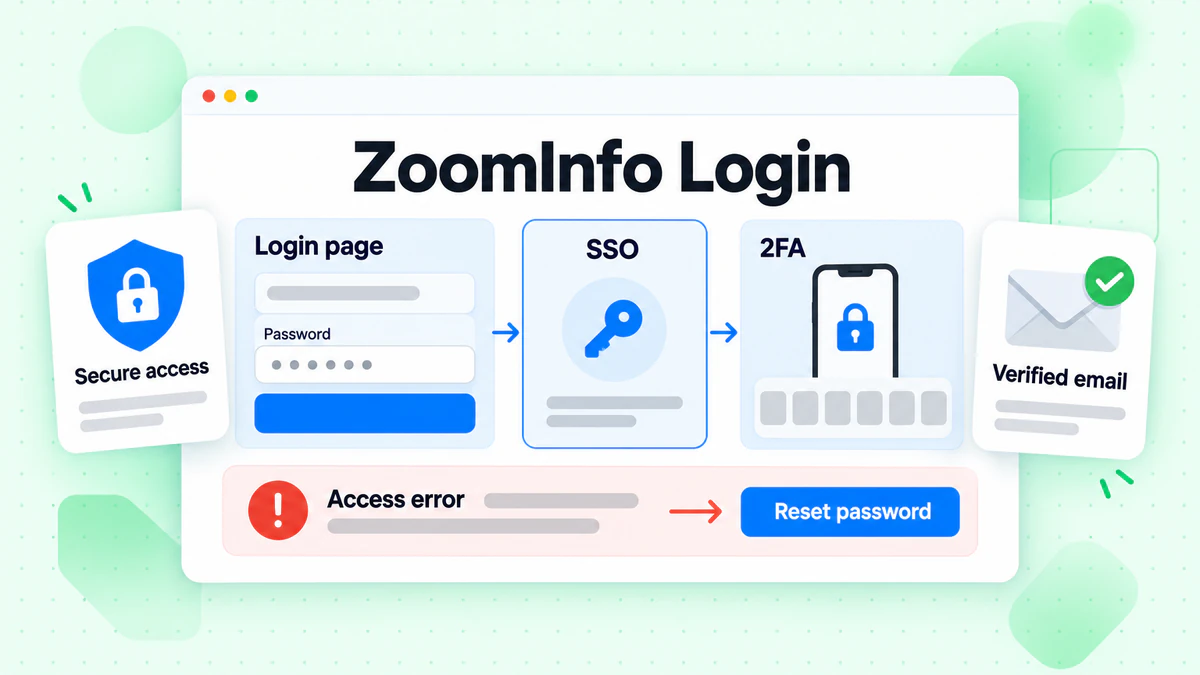
The ZoomInfo login page lives at login.zoominfo.com. From there you sign in with a username and password, with Google, with Office 365, or through your company's SSO (single sign-on). Every account also needs a second step, because ZoomInfo turns on a second verification step for every user. Many people type "Zoom Info login" with a space. It is the same login.
This guide walks through each ZoomInfo login method, the ZoomInfo SSO setup, 2FA, the official reset steps, and the fixes ZoomInfo lists for its common sign-in errors. Every fact comes from ZoomInfo's own login screen and the ZoomInfo help center, read in October 2026. We are not affiliated with ZoomInfo. BillionVerify is an email verification service, and we cover this topic because sales teams who open ZoomInfo every day read our blog too.
Key facts (checked October 2026):
- ZoomInfo users sign in at login.zoominfo.com with credentials, Google, Office 365 or SSO, per the official form.
- Every ZoomInfo account must use multifactor authentication, either an SMS code or the Google Authenticator app.
- An admin resets a user's 2FA in the ZoomInfo Admin Portal, under User Management.
- ZoomInfo SSO works with Okta or Microsoft Entra ID, and its SAML metadata file must be renewed every year.
- A user who lands on the ZoomInfo pricing screen instead of the platform has been deactivated, and only an admin can restore access.
ZoomInfo Login: The Quick Answer
Go to login.zoominfo.com. Fill in your username, which is usually the email address on your account. Type your password and click Log In. Then sign in fully with the code from your phone.
If your company uses ZoomInfo SSO, click the SSO button instead. Type your username there and follow your employer's prompts.
If none of that works, the cause is usually one of five things:
- The wrong method, such as Google when your company blocks social sign-in.
- An old password that needs a reset.
- A device clock that has drifted.
- A sign-in code that expired.
- A seat that an admin has deactivated.
Each case has its own section below.
ZoomInfo Is Not Zoom
A quick check before anything else. ZoomInfo is a B2B contact and company data platform. Zoom is a video meeting app from a different company, at zoom.us. Some people who search "zoom info login" actually want their Zoom meeting account. If you are looking for meetings and webinars, you need zoom.us, not ZoomInfo.
If you want company records, direct dials and work emails for prospecting, you are in the right place. Everything below is about the ZoomInfo platform.
Where Is the ZoomInfo Login Page?
You will find the official ZoomInfo login page at login.zoominfo.com. People reach it in several ways. Some search "www.zoominfo.com login" or "zoominfo.com login". Others use the Log In link on the main ZoomInfo site. A few type "zoominfologin" as one word. Every route ends on that one form.
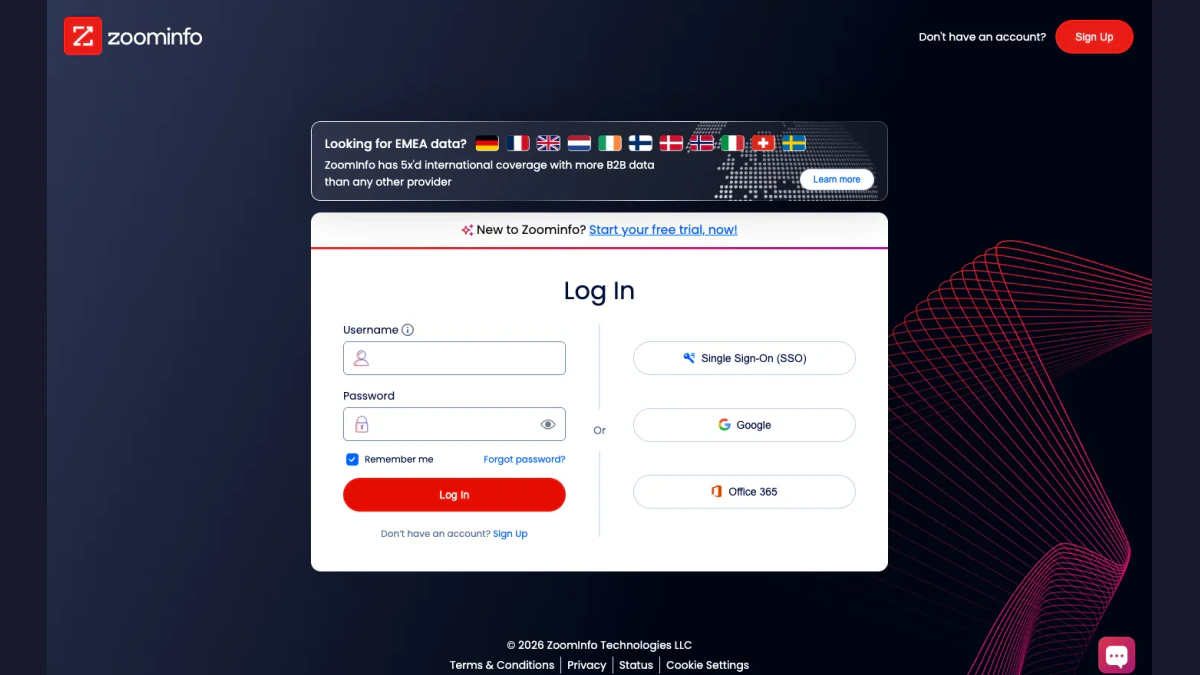
Screenshot: the ZoomInfo login page, October 2026.
The form sits on the left, with three buttons on the right. A small note under the Username field says "Username can be email on account." A Remember me box is checked by default. A Forgot password? link sits below the credentials.
The screen also carries a Sign Up link for people without an account, and a "Start your free trial, now!" banner. The footer links to ZoomInfo's terms, privacy center and status site. A chat button opens ZoomInfo's support bot.
Bookmark the ZoomInfo login page. It saves a search every morning, and it keeps you away from lookalike sites that copy the ZoomInfo form.
ZoomInfo Sign-In Methods
ZoomInfo's troubleshooting guide puts it plainly: "You can enter your email address and password or use Google, Office 365, or single sign-on (SSO) if your organization has it configured." Here is how each one works.
Username and password
This is the default route. Your username can be the email address tied to your seat. Type it, add your secret and click Log In. ZoomInfo then asks for your second factor.
Click Google if your work account runs on Google Workspace. You pick your Google profile and return to ZoomInfo signed in. Some companies switch this off. In that case ZoomInfo shows a "Social Logins Disabled" error, covered below.
Office 365
Click Office 365 if your company uses Microsoft accounts. It behaves like the Google button. Company rules can block it too.
SSO
Click SSO if your company manages access through an identity provider. The next screen asks you to "Enter username associated with your SSO." Your company's identity provider handles the rest.
Use the method your admin set up for you. Mixing them is the most common reason a ZoomInfo login fails.
ZoomInfo SSO Login
Many larger teams log in through ZoomInfo SSO. For users, the ZoomInfo SSO login takes three clicks: choose the SSO button, add your username, then approve the request with your identity provider.
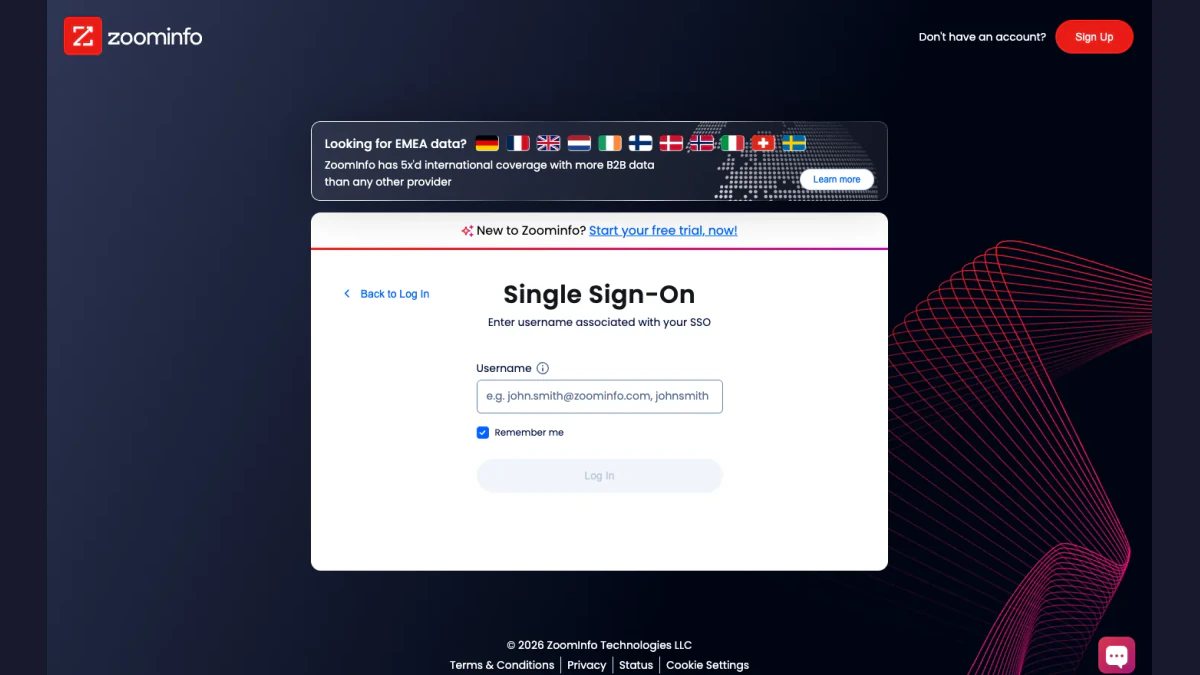
Screenshot: the ZoomInfo SSO screen, October 2026.
That screen keeps the Remember me option. A Back to Log In link returns you to the main form.
What admins set up
According to ZoomInfo's SSO overview, an admin can manage SSO "directly in the ZoomInfo Admin Portal without contacting ZoomInfo support." The key points:
- Identity providers: ZoomInfo supports Okta and Microsoft Azure, now called Entra ID.
- Setup file: the admin downloads a SAML metadata XML file from the identity provider and uploads it to the ZoomInfo Admin Portal.
- Renewal: ZoomInfo reminds the admin to renew this file every year, starting 30 days before it expires.
- Auto provisioning: with an identity provider in place, the admin can manage users through SCIM 2.0. Teams on Salesforce can instead use CRM auto provisioning, which needs no SSO connection.
When the ZoomInfo SSO login fails
ZoomInfo's advice for an "SSO Error" is short. If your company requires ZoomInfo SSO, use that button and give your username. If it is not yet configured, sign in with email and password. If the SAML file has expired, only your admin can fix it, so tell them the date it stopped working.
Two-Factor Authentication at ZoomInfo
ZoomInfo states that "to help protect your account, ZoomInfo requires multifactor authentication." The first step is your credentials. The second step proves it is really you.
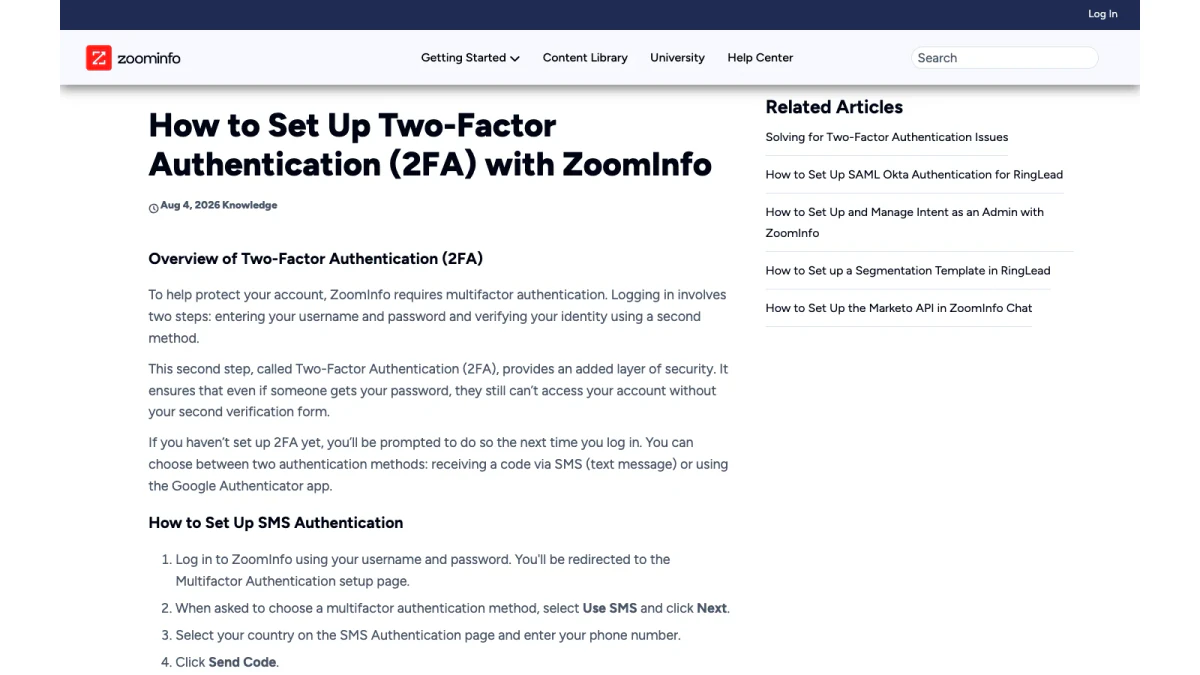
Screenshot: ZoomInfo's 2FA setup article, October 2026.
If you have not set up a second factor, ZoomInfo prompts you at your next sign-in. You choose one of two methods.
SMS codes
- Sign in as usual.
- Choose Use SMS and click Next.
- Pick your country and enter your phone number.
- Click Send Code.
- Type the code from the text message and press Verify.
Google Authenticator
- Start from the login form again.
- Choose Use Google and click Next.
- In the Google Authenticator app, tap the plus icon and choose Scan Barcode.
- Scan the QR code on your screen.
- Enter the six digits the app shows, then confirm.
Changing or resetting 2FA
You cannot reset 2FA yourself on the login screen. ZoomInfo says to contact your admin. The admin opens the ZoomInfo Admin Portal, goes to User Management, selects your user and chooses Reset 2FA. You then set up a new method at your next sign-in. If you are the admin and you are locked out yourself, ZoomInfo asks you to contact support.
Phone numbers that do not work
In the ZoomInfo help center, a two-factor troubleshooting article names an "Invalid Number" error. It appears when the phone number comes from an unsupported country or is a Voice over IP (VoIP) line. Your 2FA number "must be able to receive standard SMS text messages and cannot be a VoIP phone."
How to Reset Your ZoomInfo Password
The ZoomInfo help center lists the reset steps:
- Click Forgot password? on the ZoomInfo login page.
- Enter your username and click Next.
- Choose to get a reset code by SMS or email, then click Next.
- Enter that code and click Verify.
- Create new credentials that meet the security rules and click Save New Password.
After you save, ZoomInfo sends you back to the start. Sign in with the new details and finish the second step as usual.
If the reset email never arrives, check your Spam or Junk folder first. ZoomInfo also asks companies to safelist its domain, so strict mail filters do not hold back reset messages. More on that below.
Common ZoomInfo Login Errors and Fixes
ZoomInfo's article "Solving for ZoomInfo Login Errors" lists the messages users see most. Here is each one with the official fix.
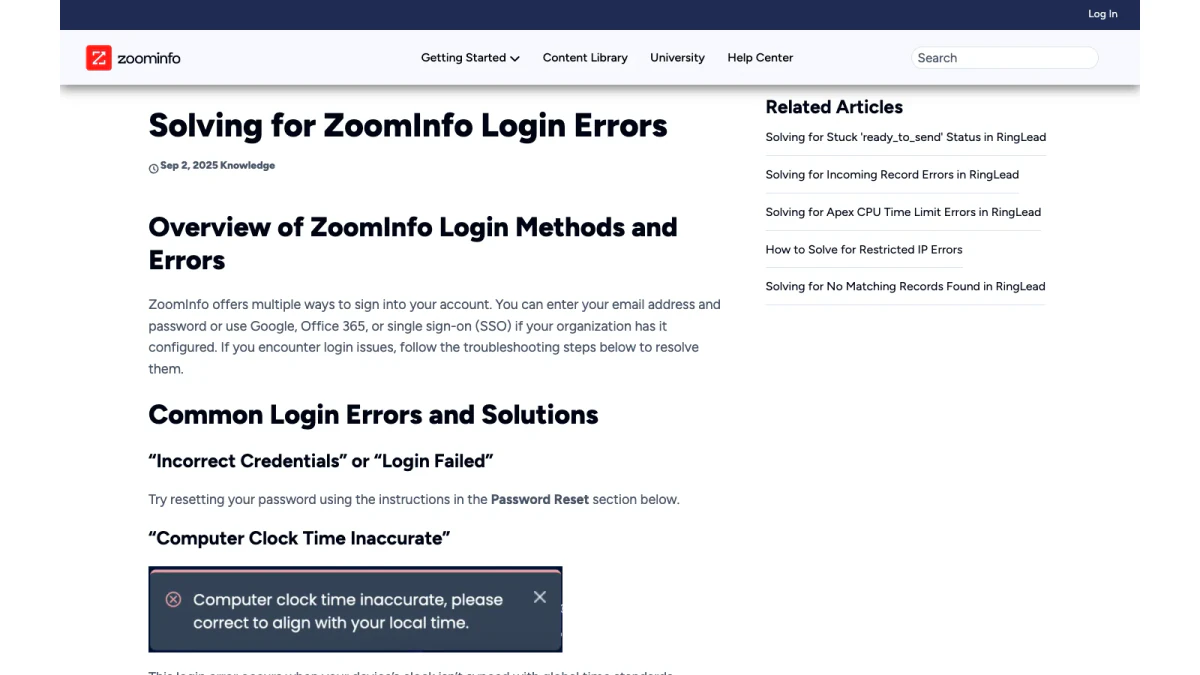
Screenshot: ZoomInfo's article on login errors, October 2026.
"Incorrect Credentials" or "Login Failed"
Reset your password with the steps above. Then sign in with the method your company uses.
"Computer Clock Time Inaccurate"
This error means your device clock is out of sync. ZoomInfo explains that sign-in uses time-sensitive tokens, so "even minor discrepancies can block your login." Turn on automatic time. On Windows, go to Settings, Time & Language, Date & time, and click Sync now. On a Mac, check "Set date and time automatically" and confirm your time zone.
"Social Logins Disabled"
Your company has turned off the Google and Office 365 buttons. Use your email address and secret instead.
"SMS Code Invalid"
Your sign-in code did not match. Click Resend Code, type the fresh digits and confirm. A wrong clock causes this error too, so check the time as well.
"Authentication Failed"
ZoomInfo asks you to email its support team at helpmenow@zoominfo.com for this one.
"SSO Error"
Use the SSO button and your username. If ZoomInfo SSO is not set up yet, fall back to the standard form.
You see the pricing screen instead of your workspace
This one surprises people. ZoomInfo says that if you land on its pricing page, "your ZoomInfo access has been deactivated." Your admin has to reactivate you. No reset will fix it.
A blank white screen
Do a hard refresh. On Windows or Linux press Ctrl + Shift + R. On a Mac press Cmd + Shift + R.
A Login Checklist in the Right Order
When the ZoomInfo login fails and you are not sure why, work through the causes from cheapest to slowest. Each step takes less than a minute.
- Confirm you are on login.zoominfo.com and not a copy.
- Confirm you picked your employer's chosen method.
- Look at the exact error text and match it to the list above.
- Sync your device clock.
- Try a hard refresh, then a private browser window.
- Reset your password.
- Look at the ZoomInfo status site.
- Ask your admin to check in the admin portal and confirm your seat is active and your second factor is intact.
- Write to ZoomInfo support with the details listed further down.
Most problems end by step four. The order matters because the later steps involve other people, and their time is slower than yours.
When the Login Problem Is Not on Your Side
Sometimes every step looks right and the ZoomInfo login still fails. ZoomInfo suggests a few checks.
Check the ZoomInfo status page
ZoomInfo runs a public status page at status.zoominfo.com. If a platform issue is listed, wait for it to clear before you change anything on your side.
Update your browser
ZoomInfo recommends Google Chrome. Open the three dots menu, go to Help, choose About Google Chrome and let it update. Then relaunch.
Allow ZoomInfo cookies
ZoomInfo's safelisting article explains a cookie rule for Chrome. Open chrome://settings/cookies, find "Sites that can always use cookies," click Add and enter [*].zoominfo.com. This lets ZoomInfo and its subdomains keep you signed in.
Safelist ZoomInfo email
Resets and alerts come by email. ZoomInfo asks your IT team to safelist the zoominfo.com domain. It also lists these sender addresses: sender@zoominfo.com, helpmenow@zoominfo.com, customersuccess@zoominfo.com, clientservices@zoominfo.com, accountinfo@zoominfo.com and dataservices@zoominfo.com. ZoomInfo notes that a safelist in Google Workspace or Microsoft 365 may not be enough when a second security tool, such as Proofpoint or Mimecast, still quarantines the message.
Signing In to the ZoomInfo Chrome Extension
The Chrome extension uses your browser session. You do not enter separate credentials. ZoomInfo's setup article gives three steps:
- Log in at login.zoominfo.com.
- Keep that tab open and visit the site where you want the extension.
- Click the ZoomInfo icon. It detects your account and shows your initials in the panel.
There are two extensions: one for ZoomInfo Sales and one for ZoomInfo Talent. A Talent license cannot use the Sales extension, and the reverse is also true. If the extension will not load, ZoomInfo says to ask your IT team whether your organization allows it.
For Admins: Managing ZoomInfo Access
Admins handle most access fixes in the ZoomInfo Admin Portal. You open the admin portal from the waffle icon at the top right of the platform. From there an admin can:
- Reset another user's 2FA under User Management.
- Configure ZoomInfo SSO with Okta or Entra ID.
- Set up auto provisioning through SCIM 2.0 or Salesforce.
- Reactivate a user who is stuck on the pricing screen.
A quick rule for teams: name at least two admins. If the only admin loses 2FA access, the fix has to go through ZoomInfo support. A second admin can also cover holidays, when a locked-out rep would otherwise wait days.
New admins should also note the SAML renewal date in a shared calendar. An expired file blocks every SSO user at once, and the reminder email can land in a mailbox nobody reads.
ZoomInfo Support and the Help Center
For login trouble you cannot solve, ZoomInfo points users to helpmenow@zoominfo.com. The ZoomInfo help center at help.zoominfo.com holds the articles quoted in this guide, from second-factor setup to sign-in errors. The login screen also has a chat bot in the corner.
When you contact ZoomInfo support, include:
- Your username.
- The exact error text, word for word.
- Which method you used.
- Your browser and device.
- When the problem started.
That detail saves a round of back-and-forth with the agent who picks up your ticket.
Spotting Fake ZoomInfo Login Emails
Any popular sign-in page attracts copycats. A fake message may say your password expired or your seat is locked. It then links to a site that looks like the ZoomInfo login page. Check three things before you click.
- The link. Hover over it. A real link points to login.zoominfo.com.
- The sender. Compare the address with the official senders listed above. A lookalike domain is a red flag.
- The request. ZoomInfo's reset flow starts from its own form. Be wary of a message that asks you to reply with a code.
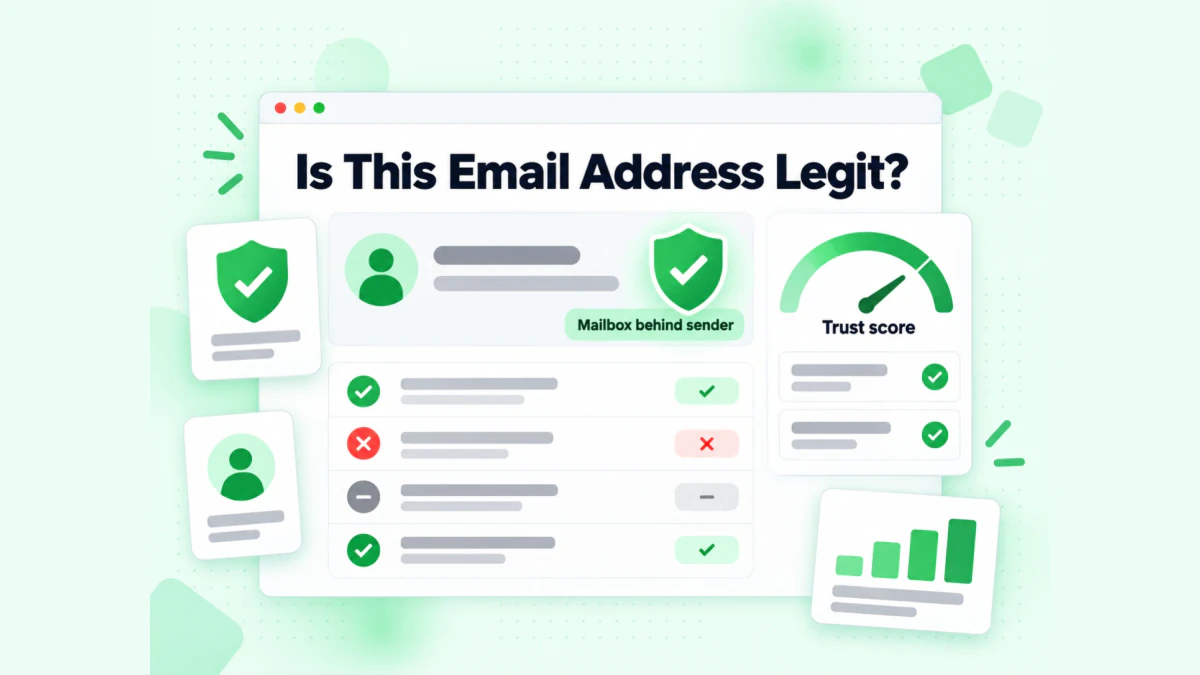
The BillionVerify "Is This Email Legit?" checker looks for a real mailbox behind a sender.
Our free Is This Email Legit? tool tests whether a real mailbox sits behind an address. For more context, our reverse email lookup reads the domain, organization, mail routing and public profiles tied to it. If the message asks you to call a number, our free phone number validator shows whether that number is valid for its country and its line type.
Keep Your ZoomInfo Account Secure
A few habits prevent most ZoomInfo login trouble:
- Use one method. Stick with the method your admin chose.
- Prefer an app for 2FA. Google Authenticator keeps working when SMS is slow.
- Keep your device clock on automatic. It prevents token errors.
- Bookmark the real address. It is the safest way in.
- Leave shared computers clean. Untick Remember me on a machine others use.
- Update your sign-in phone before you change numbers. Otherwise only an admin can let you back in.
After You Log In: Check Your Contact Data
Signing in is the start. Most people log in to ZoomInfo to find contacts and export them. One detail from ZoomInfo's own Chrome extension article matters here. When a contact is not in the ZoomInfo database, the extension can show "a likely email address based on the company's email pattern." A likely address is a guess, not a confirmed mailbox.
Before an export goes into a cold email tool, check every address. Our guide to ZoomInfo email verification explains how to clean a ZoomInfo list before outreach. For a broader look at the platform, start with our ZoomInfo guide.
FAQs
What is the ZoomInfo login page?
The ZoomInfo login page is login.zoominfo.com. Searches for "www.zoominfo.com login" and "zoominfo.com login" end there too.
How do I get into my ZoomInfo account?
To get into your ZoomInfo account, open login.zoominfo.com and use your username, Google, the Office 365 button or SSO. After that, ZoomInfo asks for a one-time code by text or from an authenticator app.
Is "Zoom Info login" the same as ZoomInfo login?
Yes, "Zoom Info login" means the ZoomInfo platform. Zoom Info with a space is a common spelling, though the Zoom video app is a separate product at zoom.us.
Does ZoomInfo require two-factor authentication?
ZoomInfo makes the extra verification step mandatory for all users. You choose text codes or Google Authenticator the first time you sign in.
How do I reset my ZoomInfo password?
You reset a forgotten ZoomInfo password from the Forgot password? link under the login fields. Type your username, pick SMS or email for the code, verify it and save new credentials.
Why do I see the ZoomInfo pricing page after I log in?
The ZoomInfo pricing screen after login means your seat was switched off, and only your company's admin can turn it back on.
What does the clock time error mean?
The clock time error means your computer's time no longer matches ZoomInfo's servers. Switch your computer to automatic time, then try again.
How does the ZoomInfo SSO login work?
The ZoomInfo SSO login starts with the SSO button. You provide your username, then approve the prompt from an identity provider such as Okta.
Who can reset my ZoomInfo 2FA?
Your company's admin can reset ZoomInfo 2FA from User Management inside the ZoomInfo Admin Portal. An admin who is locked out must ask ZoomInfo support for help.
How do I contact ZoomInfo support about a login problem?
ZoomInfo support takes login questions at helpmenow@zoominfo.com. You can also search the ZoomInfo help center or open the chat bot on the login screen.
Does the ZoomInfo Chrome extension need a separate login?
No, the ZoomInfo Chrome extension does not need its own login. Open login.zoominfo.com in one tab, sign in, and the extension picks up your session.