


The ZoomInfo Chrome extension puts ZoomInfo data on the page you already have open. Visit a LinkedIn profile, a company website or a CRM record. Click the ZoomInfo tab. A panel slides in with the person's title, firm details, email and phone. The ZoomInfo extension costs nothing to install, but only paying ZoomInfo customers see records in it.
This guide covers the ZoomInfo Chrome extension download, how to install ZoomInfo Chrome extension step by step, how to work with it, and what to do when the ZoomInfo extension is not working. Every fact comes from Google's extension store and the ZoomInfo help center, read in October 2026. We are not affiliated with ZoomInfo. BillionVerify is an email verification service. We write about ZoomInfo because sales teams who use it read our blog too.
Key facts (checked October 2026):
- The ZoomInfo Chrome extension is free to install, and its listing calls it "Free for ZoomInfo customers."
- On the Chrome Web Store, the ZoomInfo extension had 300,000 users and an average of 1.7 stars from 294 ratings.
- ZoomInfo announced a natively rebuilt version of its browser tool on July 15, 2026, and said pages now load 2 to 3 times faster.
- ZoomInfo ships separate browser tools for ZoomInfo Sales and ZoomInfo Talent, and a license for one cannot use the other, per the ZoomInfo help center.
- When a person is missing from ZoomInfo's database, the panel can show "a likely email address based on the company's email pattern," per the setup article.
ZoomInfo Chrome Extension: The Quick Answer
Here is the short version.
- Find the official ZoomInfo entry on the Chrome Web Store and press Add to Chrome.
- Pin the ZoomInfo icon from the puzzle piece menu.
- Sign in to your ZoomInfo account.
- Visit LinkedIn, a company site or your CRM.
- Press the blue "Z" tab on the right edge of the screen, or press Command + J (Mac) or Control + J (Windows).
That is all it takes to get the ZoomInfo extension running. The rest of this guide explains each step, the ZoomInfo extension settings worth changing, and the fixes ZoomInfo lists for common errors.
One warning up front. The ZoomInfo plugin needs an active ZoomInfo seat. Without one, the panel opens but stays empty.
What the ZoomInfo Extension Does
The ZoomInfo extension is a side panel. It reads the page you are on, matches the person or business against its records, and shows what it finds. You stay on the same tab.
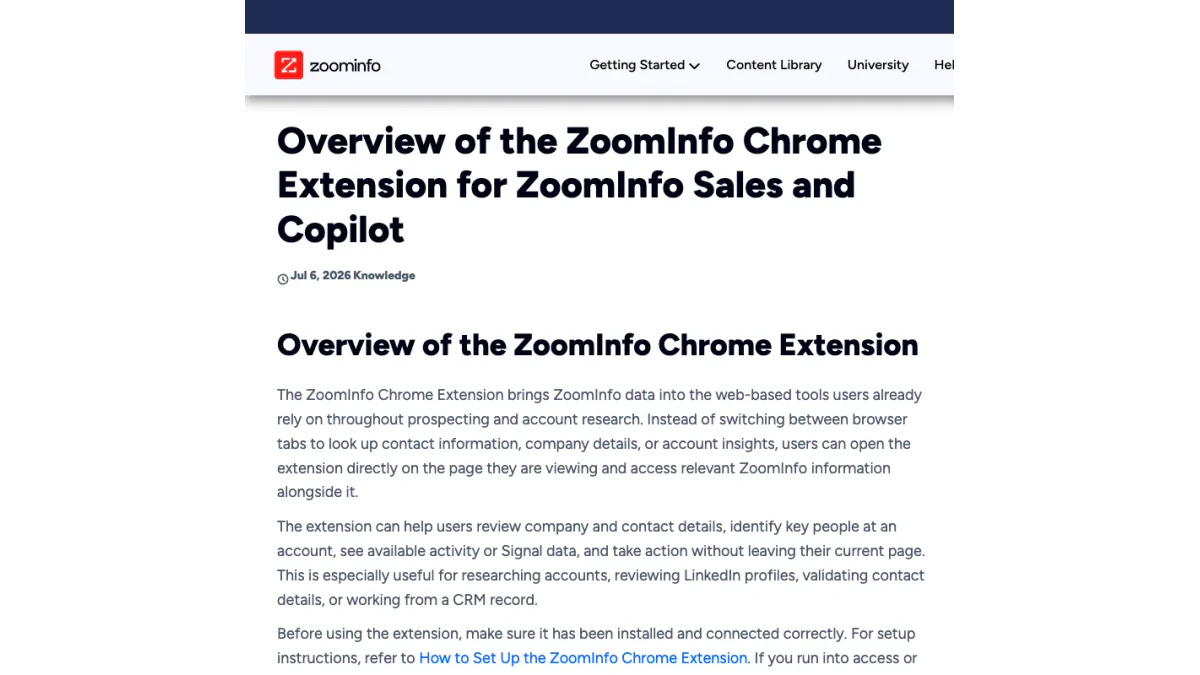
Screenshot: overview article from ZoomInfo support, Oct 2026.
The help center lists these jobs for the ZoomInfo Chrome extension:
- View people and firms. Titles, firmographics and contact info, when available.
- Research accounts in place. Account context and Signals beside what you are reading.
- Identify the right people. Find staff at a business and narrow them to the roles you sell to.
- Use Buying Groups. Surface the job titles, departments or decision makers you want to reach first.
- Review Signals and intent. See context that helps you decide which account to call this week.
- Export records. Send accounts or people to a connected CRM or to Excel.
- Track records. Add them to tags and lists.
- Start outreach. Draft a message from the panel.
The store page adds a few claims of its own. It promises "verified business emails, direct dials, and mobile numbers." It mentions an AI emailer, AI talking points and account briefs. It also says you can push records in "one click" to Salesforce, HubSpot, Outreach, Salesloft "and 10+ more" CRMs, sequencers and marketing tools.
The database behind it is large. ZoomInfo describes it as "500M+ contacts, 100M+ companies" and says it is "trusted by 35,000+ customers worldwide." Those are vendor numbers. We have not tested them.
Where the ZoomInfo extension works
ZoomInfo says the ZoomInfo Chrome extension runs on most websites. It is tuned for a few places:
- LinkedIn Sales Navigator
- Company websites
- CRM platforms
- Other pages where you research a business or a person
What you see depends on the site. On a person's profile, you get their email and phone details. On a business homepage, you get firmographics, Signals and a staff list.
The July 2026 rebuild
On July 15, 2026, ZoomInfo announced a new version of the ZoomInfo Chrome extension. The press release said it was "rebuilt natively from the ground up." ZoomInfo claimed two gains. Page loads got two to three times quicker than with the old one, ZoomInfo said. A new parsing engine reads each page more fully, which, per the release, raises the match rate. These are vendor claims. We found no independent tests.
If you tried the old version and gave up, this rebuild is the reason to try again.
Which ZoomInfo Extension Do You Need?
ZoomInfo has more than one entry in the Chrome Web Store. Pick the one that matches your license.
| Store entry | Who it is for | Users | Rating | Version |
|---|---|---|---|---|
| ZoomInfo | Sales and Copilot users | 300,000 | 1.7 (294 ratings) | 12.22.4 |
| ZoomInfo Extension for Recruiters | ZoomInfo Talent | 6,000 | 5.0 (12 ratings) | 1.1.0 |
| ZoomInfo Engage Chrome Extension | ZoomInfo Engage | 10,000 | 2.4 (18 ratings) | 1.10.12 |
Figures as listed on October 27, 2026.
The Sales version
The main entry is simply called "ZoomInfo." This is the one most people mean when they look up the ZoomInfo Chrome extension. It serves people on the Sales and Copilot plans.
The Talent version
Recruiters need a different download. ZoomInfo calls it the Chrome Extension for Talent. In the browser it carries the "Extension for Recruiters" label. It runs on LinkedIn, LinkedIn Recruiter, Indeed, company websites and ATS platforms.
ZoomInfo is strict here. Users with a Talent license cannot use the Sales version. Users with a Sales license cannot use the Talent one. If you hold both licenses, install both at the same time.
The Engage version
ZoomInfo Engage is a calling and email tool. Its own extension reads a Salesforce or ZoomInfo page and pulls people into Engage. From there you can call, send email or start a Salesflow. It is a separate product.
What about ZoomInfo ReachOut?
Some people still search for the ZoomInfo ReachOut Chrome extension. ReachOut was the name ZoomInfo used in older materials, such as a June 2018 Business Wire release about "ReachOut, ZoomInfo's Google Chrome Extension." Today the store entry is just called ZoomInfo. If an old guide tells you to install ReachOut, get the current ZoomInfo download instead.
ZoomInfo Chrome Extension Download
The only safe source for the ZoomInfo Chrome extension download is the official Chrome Web Store page. Its publisher is ZoomInfo Technologies Inc., shown with a verified badge.
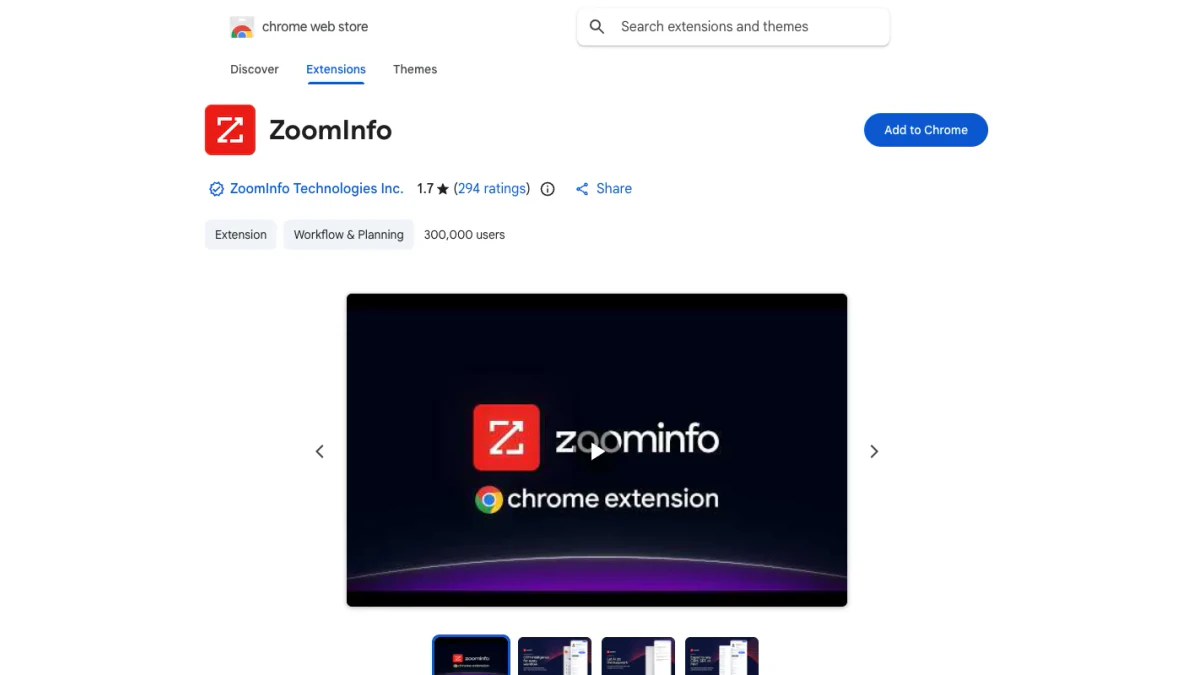
Screenshot: ZoomInfo in the extensions store, Oct 2026.
Here are the details we read on October 27, 2026:
| Field | Value |
|---|---|
| Name | ZoomInfo |
| Developer | ZoomInfo Technologies Inc. |
| Version | 12.22.4 |
| Last updated | October 23, 2026 |
| Size | 10.07MiB |
| Language | English (United States) |
| Users | 300,000 |
| Rating | 1.7 out of 5, from 294 ratings |
| Support email | helpmenow@zoominfo.com |
Two details matter before you install it.
First, it comes in English only. Inside the ZoomInfo plugin, text stays in English whatever your browser language is.
Second, the download costs nothing, but the data does. Anyone can install the ZoomInfo plugin. Only an active seat unlocks its records.
Avoid lookalike downloads
Search the store for "ZoomInfo" and you will see third-party tools with similar names. Some claim to export ZoomInfo data or pull leads from it. They are not made by ZoomInfo. Check the publisher line before you install anything. It should match the verified publisher shown above.
The same goes for sites that offer the ZoomInfo add-on as a file. Chrome installs add-ons from its own store. A ZIP from an unknown site is a risk to your browser and to your ZoomInfo account.
How to Install ZoomInfo Chrome Extension
ZoomInfo's setup article gives four steps for Chrome. Here they are, with notes from our own run through the store.
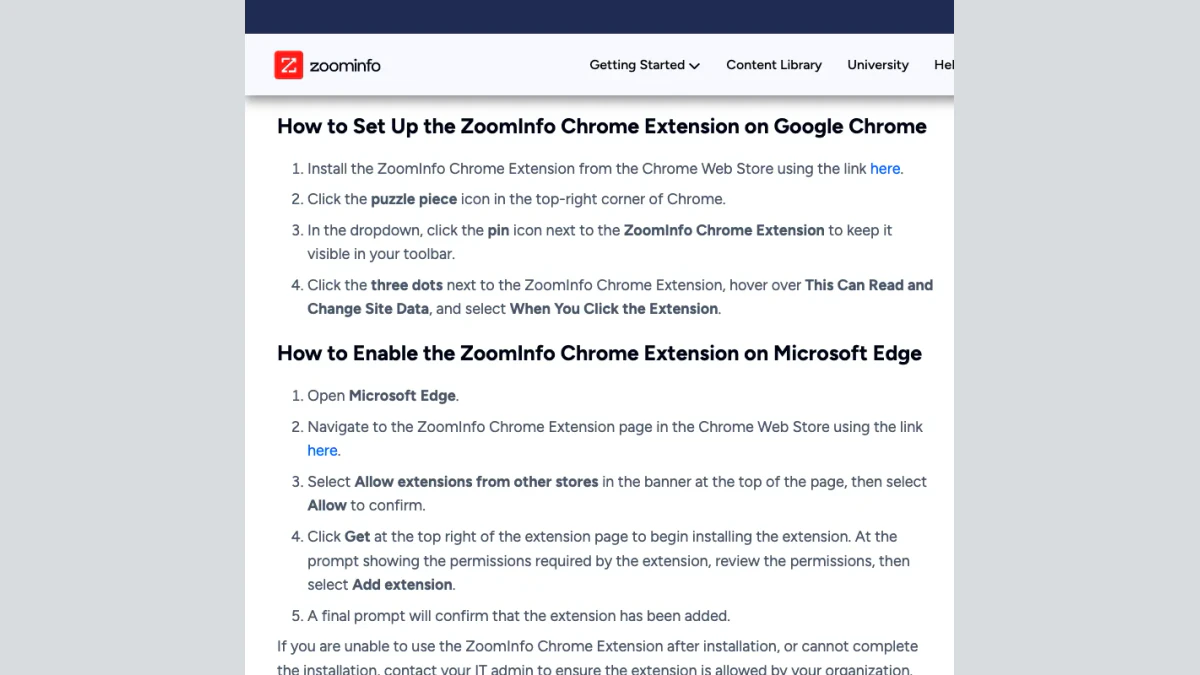
Screenshot: ZoomInfo's setup steps for Chrome and Edge, October 2026.
How to add ZoomInfo extension to Chrome
- Open the store entry. Go to the ZoomInfo download page.
- Choose Add to Chrome. A prompt lists the permissions it asks for. Read them, then confirm with Add extension.
- Pin it. Find the puzzle piece icon at the top right of the browser. Press the pin icon next to ZoomInfo. The icon now stays in your toolbar.
- Limit site access. Open the three dots next to ZoomInfo in the same menu. Hover over This Can Read and Change Site Data. Pick When You Click the Extension.
The fourth step comes straight from ZoomInfo. It keeps the ZoomInfo plugin quiet until you ask for it. It also keeps the tool off pages where you do not need it.
That is how to add ZoomInfo extension to Chrome on a personal profile. If your employer manages Chrome, the steps may look different.
Install on Microsoft Edge
Edge can run Chrome extensions. ZoomInfo gives these steps:
- Open Microsoft Edge.
- Go to the same ZoomInfo download page.
- In the banner at the top, select Allow extensions from other stores. Then confirm with Allow.
- Press Get. Review the permissions and confirm.
- Wait for the prompt that confirms the install.
After that, the ZoomInfo extension behaves in Edge as it does in Chrome. So yes, you can run the ZoomInfo extension for Chrome inside Edge.
When your employer controls the browser
Many firms manage browsers centrally. Your IT team may block extensions that are not on an approved list. In that case the install button may be greyed out, or the tool may install and then vanish.
ZoomInfo keeps its advice short. If you cannot finish the install, or it fails afterwards, ask your IT admin whether your organization allows it. The listing also points admins to Chrome Enterprise Core, which lets an admin install ZoomInfo Chrome Extension on every managed browser in one go. A blocked install can look like the ZoomInfo extension not working, but the cause is policy, not a bug.
Sign In to the ZoomInfo Extension
The ZoomInfo extension does not ask for separate credentials. It reads your browser session. So the order matters: log in to ZoomInfo in one tab first, then open the ZoomInfo plugin in another tab. When it works, your initials appear in the top-right corner of the panel.
We cover the full sign-in flow, SSO and two-factor codes in our ZoomInfo login guide. If the panel keeps asking you to log in, start there.
One detail matters for recruiters. After signing in to the Talent version, choose the ZoomInfo Talent tile, even if your account has several ZoomInfo products.
How to Use ZoomInfo Chrome Extension
Once you are signed in, the sidebar sits on the right edge of most pages. Here is how to use ZoomInfo Chrome extension features in daily prospecting.
Open the panel
You have three ways in:
- Select the blue "Z" tab on the side of the window.
- Press the keyboard shortcut: Command + J or Control + J.
- Select the pinned ZoomInfo icon in the toolbar.
An older ZoomInfo Copilot article describes the tab as a white "Z" on a red background. The current setup guide says blue. The look changed with the rebuild. The shortcut did not.
On LinkedIn
LinkedIn is where most reps use the ZoomInfo extension. Open a profile, then the sidebar. ZoomInfo matches the person to its database and shows the title, employer and any contact info it holds.
LinkedIn and ZoomInfo do not always agree. ZoomInfo explains that when someone changes their job title on LinkedIn, it can take time to validate the update. To bridge that gap, the tool can build a real-time profile from the LinkedIn page. Those profiles carry an Info icon next to the name. You manage them in the ZoomInfo extension settings.
If a person is not in ZoomInfo at all, the panel falls back to what LinkedIn shows: name, job title, current employer. It may also suggest an email address built from the firm's naming pattern. Treat that as a guess. More on that below.
Active LinkedIn users also post a lot of video. If you want to save a clip from a prospect's post for call prep, our free LinkedIn video downloader does that without an account.
On company websites
Launch the sidebar on a business homepage and you get the account view. The setup article lists Buying Signals, hiring trends and funding updates. You also see staff at that firm. Buying Groups filter the list down to the roles you sell to.
This is the fastest way to answer "who should I call here?" without leaving the site you are reading.
In your CRM
On a Salesforce or HubSpot record, the sidebar shows its version of the same account or person. You can compare fields and enrich the record in place. The export button pushes new people into the CRM.
Export records
The blue Export button sends a record to its destination. The arrow on the button changes the export type. Your choices depend on what your admin has connected. Common ones are a CRM, a sales engagement tool, or a spreadsheet.
Exports draw on the credits or limits in your contract. Check with your admin before you push a large list.
ZoomInfo extension settings to check
Select your initials in the upper right of the sidebar. You will find these ZoomInfo extension settings:
- Auto-reveal Contact. Reveals contact details automatically. Leave it off if your plan has tight credit limits.
- Search Pop-up. Turns the pop-up on or off. Refresh the page after you change it.
- Integrations. Connect, disconnect or refresh your CRM link.
Site limits sit outside the ZoomInfo extension settings, in Chrome itself. Open the puzzle piece menu, then the menu beside ZoomInfo. Hover over the site data option. Choose on click only, on specific sites, or on all sites.
Permissions and Privacy
Any sales tool reads the pages you visit. That is how it works. Still, you should know what you are agreeing to.
On its listing, ZoomInfo discloses that the tool handles:
- Personally identifiable information
- Location
- Web history
- Website content
The same section says ZoomInfo declares your data is not sold to third parties outside approved use cases. It also says the data is not used for unrelated purposes or for credit decisions.
There is a compliance claim too. The listing claims GDPR and CCPA compliance and "the industry's first proactive notice program." That is the vendor's own description.
Our practical advice matches the setup step. Set access to click-only. Then the ZoomInfo plugin reads a page only when you open it. It never sees your banking site or your personal inbox.
Why Is My ZoomInfo Extension Not Working?
Searches for "zoominfo extension not working" are common. ZoomInfo has a help article for exactly this. Its fixes fall into two groups: general browser issues and specific error messages.
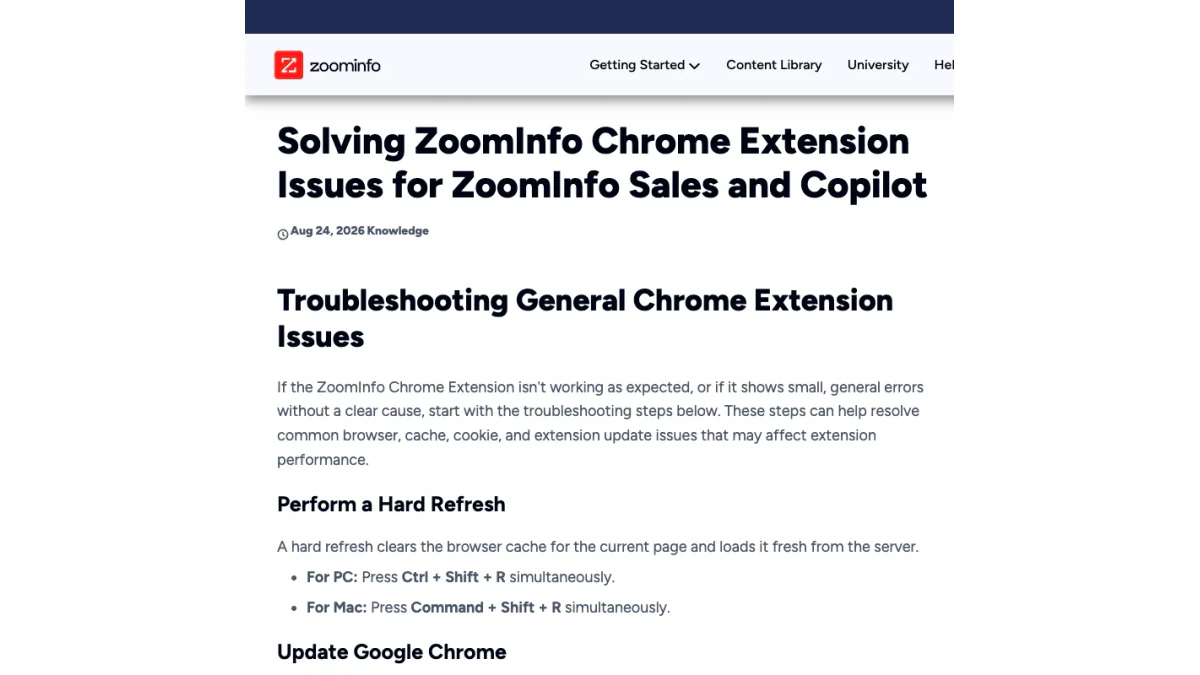
Screenshot: ZoomInfo's troubleshooting article, October 2026.
ZoomInfo Chrome extension not working: start with the basics
Try these in order. Test the ZoomInfo plugin after each one.
- Hard refresh the page. Press Ctrl + Shift + R on a PC or Command + Shift + R on a Mac. This reloads it without its cache.
- Update Chrome. Open the three-dot menu, then Settings, then About Chrome. Install any update and relaunch.
- Allow third-party cookies. Go to Settings, Privacy and Security, Third-party cookies. Select the option that allows them. ZoomInfo says the tool needs cookies to work.
- Reinstall it. Remove it, then install it again from the store. Pin it and restore the click-only access setting.
- Clear cache and cookies. From that same menu, choose Delete Browsing Data. On the Advanced tab, pick All Time. Tick Cookies and Other Site Data and Cached Images and Files. Confirm with Delete Data. You will need to sign in again afterwards.
Step 3 surprises people. Many browser profiles block those cookies by default now. If the panel loads but never recognizes your account, check this setting first.
"Your subscription has expired"
The full message reads: "Your subscription has expired. Renew your ZoomInfo plan to keep viewing contact and company data." ZoomInfo says this points to your user subscription. Your account may be inactive. Ask your ZoomInfo admin to confirm two things: that your account is active, and that you hold a ZoomInfo Sales or ZoomInfo Copilot license.
A Talent license causes a similar block in the Sales version. In that case, install the Recruiters entry instead.
"Oops... Something's Wrong"
This error usually appears inside your CRM. ZoomInfo says it can mean a broken CRM connection. To refresh it:
- Select your initials in the top-right corner.
- Choose Settings.
- Open Integrations at the top.
- If you are not connected, press Connect on the tile. If you are connected, press Disconnect, then Connect.
"Image decode fails"
This one shows up during the download, not while you work. ZoomInfo links it to an outdated browser or an active VPN. Update Chrome, turn off the VPN, and try the install again.
Still stuck?
If none of this works, the ZoomInfo extension not working may not be your fault. Check whether your IT team blocks it. Then contact ZoomInfo support at helpmenow@zoominfo.com. Include your browser version, the extension version, the exact error text, and the page you were on. That saves a round of questions.
Here is a quick map from symptom to fix:
| Symptom | Likely cause | First fix |
|---|---|---|
| Blank panel | No seat, or cookies blocked | Check your license, then allow cookies |
| Panel never opens | Site access off, or blocked by IT | Check access settings, then ask IT |
| "Your subscription has expired" | Inactive account or wrong license | Talk to your admin |
| "Oops... Something's Wrong" | Broken CRM link | Disconnect and reconnect in Integrations |
| "Image decode fails" | Old browser or VPN | Update Chrome, turn off VPN |
In short, a ZoomInfo extension not working is usually a license, cookie or access problem. A ZoomInfo Chrome extension not working after an update usually needs a reinstall.
Our guide to the ZoomInfo platform covers the wider product, including what each license includes.
What the 1.7 Rating Tells You
The main entry averages 1.7 stars across 294 ratings. That is low for a tool with 300,000 users. A star average alone does not say why. We did not survey the reviewers, so we will not guess at their reasons.
Two points from the listing are worth keeping in mind:
- The tool is free only in the sense that the download costs nothing. People without a seat can install it, but they get no data.
- It was updated on October 23, 2026, and rebuilt in July 2026. Ratings left before the rebuild describe the old version.
So read recent reviews, and judge the ZoomInfo Chrome extension against your own seat and your own browser setup.
Check Extension Emails Before You Send
The ZoomInfo extension makes it easy to grab an email and export it. If you use ZoomInfo Chrome extension data for cold email, that speed has a cost when you skip one step.
Remember the fallback described above. When ZoomInfo has no record for a person, the panel can guess an email from the firm's format. That address was never confirmed. It was built from a rule like first.last@company.com. Patterns break all the time. People go by nicknames. Firms change formats after a merger. Some people have left since the last crawl.
This matters most for work email. A work email address that looks right can still bounce. The only proof is an email check against the mail server.
If you send cold email to guessed addresses, some of them bounce. Bounces hurt your sender reputation. Enough of them push your next campaign into spam.
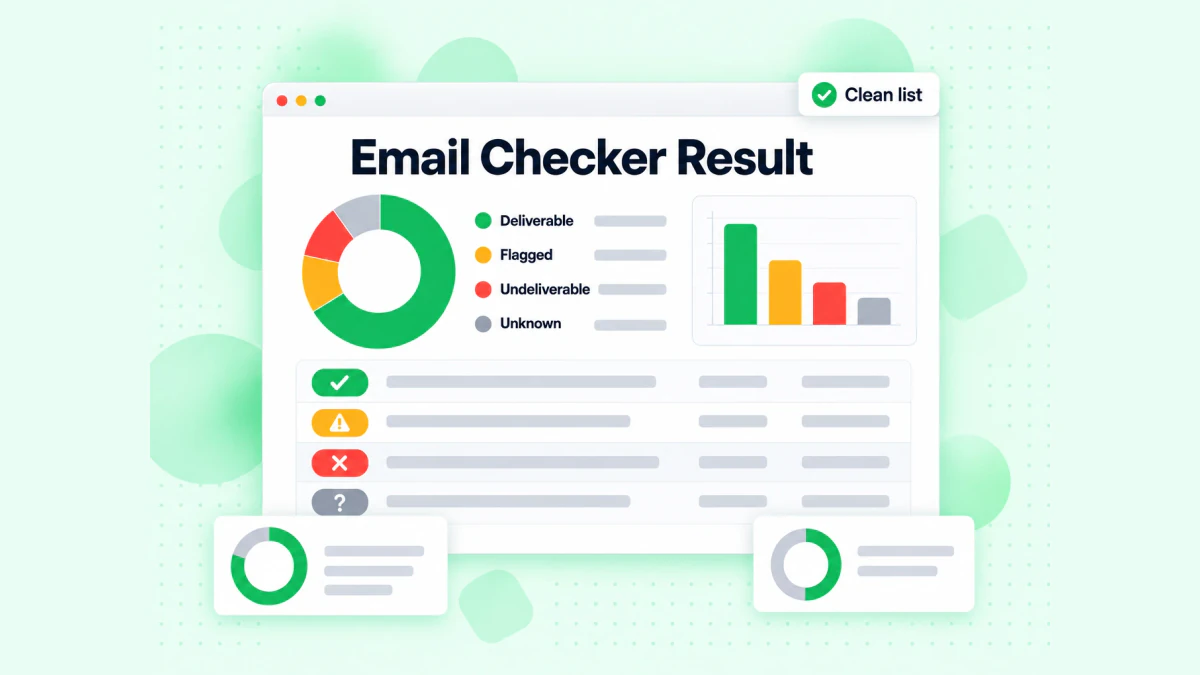
BillionVerify's email checker sorts each address into deliverable, flagged, undeliverable or unknown.
A simple routine fixes this:
- Export from the ZoomInfo extension as usual.
- Verify each email before it goes into a sequence. Our guide to ZoomInfo email verification shows how to clean a ZoomInfo export step by step.
- Keep catch-all addresses apart. A catch-all domain accepts mail for any name, so a test cannot prove the person exists. Send to those in smaller batches.
- Drop the undeliverable ones. Do not email them at all.
For a single address, our free reverse email lookup shows the domain, mail routing and public profiles tied to it. If the tool gave you a direct dial or mobile, our free phone number validator checks whether the number is valid for its country and what line type it is.
BillionVerify does not charge for unknown results. You pay for answers, not for guesses.
ZoomInfo Plugin vs Other Prospecting Tools
The ZoomInfo plugin is not the only sales extension for Chrome. Apollo.io, RocketReach and others ship their own. They follow the same idea: a side panel on LinkedIn and business sites that shows contact info.
The main differences are the data source, the price and who can use it. The ZoomInfo extension needs a paid ZoomInfo seat. Some rivals let free accounts reveal a small number of people each month. If you are comparing tools, our Apollo.io guide explains how Apollo's platform and pricing work.
Whichever one you choose, the same rule applies. A sales panel shows what a vendor has on file. An email check tells you whether the mailbox exists today.
FAQs
Is the ZoomInfo Chrome extension free?
You can download the ZoomInfo Chrome extension at no cost, but it only works for paying ZoomInfo customers. You need an active Sales or Copilot seat to see any records.
How do I install the ZoomInfo extension?
To set up the ZoomInfo extension, open its store entry, select Add to Chrome and confirm. Then pin it from the puzzle piece menu and limit its site access to clicks, as ZoomInfo's setup article advises.
Where is the ZoomInfo Chrome extension download?
You get the ZoomInfo Chrome extension download from Google's official extension store, where a verified publisher lists it as "ZoomInfo." Skip lookalike add-ons from other publishers and any site that offers it as a file.
Why is my ZoomInfo extension not working?
A ZoomInfo Chrome extension not working can usually be fixed with a hard refresh, a browser update, allowing third-party cookies, or a reinstall, per ZoomInfo's troubleshooting article. If an expired subscription message appears, check with your ZoomInfo admin whether your account is active and licensed.
How do I open the ZoomInfo extension?
The blue "Z" tab at the edge of the window opens the ZoomInfo extension, and so does Command + J on a Mac (Control + J on Windows). The pinned toolbar icon works too.
Does the ZoomInfo extension work on LinkedIn?
The ZoomInfo extension works on LinkedIn and LinkedIn Sales Navigator, according to the ZoomInfo help center. It matches the profile to its records and can create a fresh profile when LinkedIn shows newer job details.
Can I use the ZoomInfo Chrome extension in Microsoft Edge?
Edge can run the ZoomInfo Chrome extension after you accept the banner that permits extensions from outside stores. After that, press Get and confirm, as ZoomInfo's Edge steps describe.
What is the ZoomInfo ReachOut Chrome extension?
ZoomInfo ReachOut was the old name of ZoomInfo's browser extension, which ZoomInfo promoted in a 2018 release. Today's download is named plainly "ZoomInfo," and that is the one to get.
Does ZoomInfo have an extension for recruiters?
ZoomInfo offers a separate tool for recruiters, which serves ZoomInfo Talent licenses. Sales licenses cannot run it, and Talent licenses cannot run the main Sales version.
Are emails from the ZoomInfo extension verified?
ZoomInfo extension emails are not always confirmed, because the tool can fall back to a pattern-based guess when the vendor holds no record. Verify an exported list before you send cold email to it.