



Great email design isn't about being flashy—it's about making your message easy to consume and act upon. This comprehensive guide covers email design principles, technical considerations, and practical techniques to create emails that engage subscribers and drive results.
Why Email Design Matters
Design significantly impacts email performance.
The Design-Performance Connection
First Impressions: Subscribers judge your email in seconds. Poor design means instant deletion.
Readability: Good design guides readers through your message. Bad design creates confusion.
Trust: Professional design signals legitimacy. Sloppy design triggers spam suspicions.
Action: Effective design leads eyes to CTAs. Poor design buries them.
Design's Impact on Metrics
Open Rate: Preview text and preheader design influence opens.
Read Rate: Layout and typography determine whether people read or skim.
Click Rate: CTA design and placement drive clicks.
Conversion Rate: Cohesive design builds trust that supports conversion.
Email Design Fundamentals
Core principles that apply to every email.
Visual Hierarchy
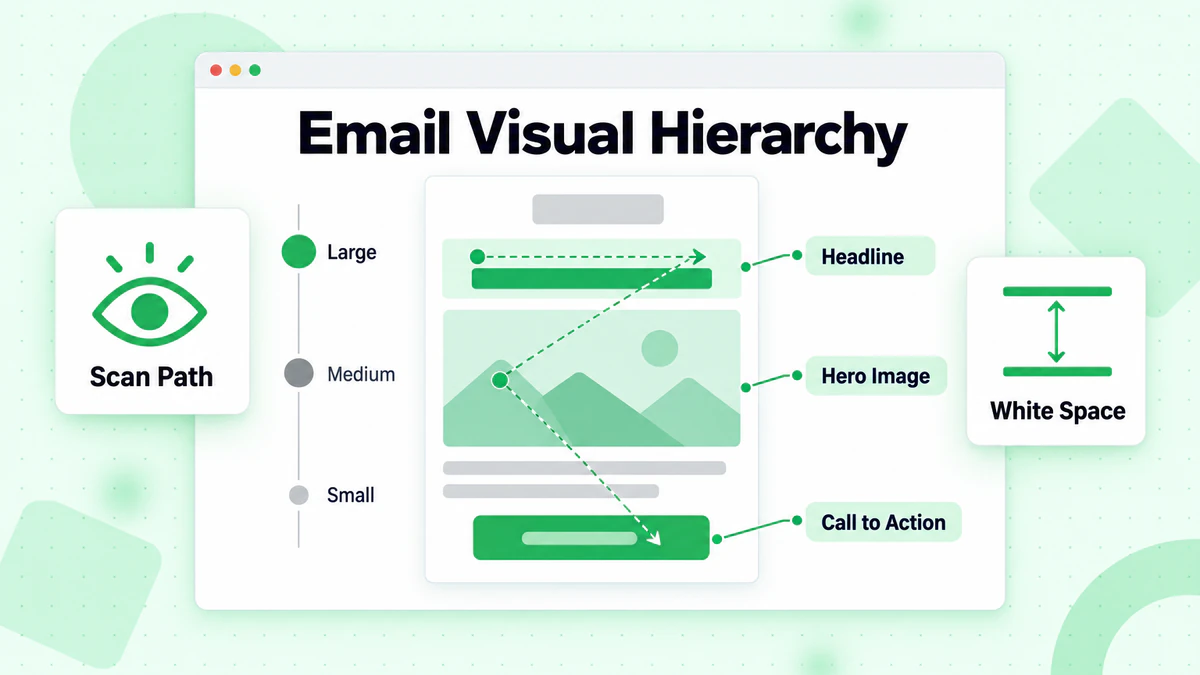
Visual hierarchy guides readers through your email in order of importance.
Creating Hierarchy:
Size: Larger elements draw attention first. Headlines should be bigger than body text.
Color: Bold or contrasting colors stand out. Use strategically for important elements.
Position: Top and center positions get seen first. Place priority content there.
White Space: Empty space around elements makes them stand out.
Contrast: High contrast between elements and backgrounds improves visibility.
Hierarchy Example:
- Logo/Header (brand recognition)
- Headline (main message)
- Supporting image (visual interest)
- Body copy (details)
- CTA button (action)
- Footer (legal/unsubscribe)
The F-Pattern and Z-Pattern
Eye-tracking research reveals how people scan emails.
F-Pattern (Text-Heavy Emails):
- Eyes scan horizontally across the top
- Then move down and scan a shorter horizontal line
- Finally scan vertically down the left side
- Place key info along these lines
Z-Pattern (Visual Emails):
- Eyes start top-left
- Move horizontally to top-right
- Diagonal to bottom-left
- Horizontal to bottom-right
- Place CTA at bottom-right of Z
Single-Column vs. Multi-Column
Layout structure affects readability and mobile experience.
Single-Column Layout:
- Best for mobile (most email opens)
- Easier to read
- Clear visual path
- Simpler to design and code
- Recommended for most emails
Multi-Column Layout:
- Can show more content
- Good for newsletters with multiple stories
- Requires responsive design
- More complex to code properly
- Risk of clutter on mobile
Best Practice: Start with single-column. Only use multi-column when content genuinely requires it and you can execute responsive design properly.
White Space
Empty space is a design element, not wasted space.
Benefits of White Space:
- Improves readability
- Creates visual breathing room
- Directs attention to key elements
- Makes emails feel less overwhelming
- Increases perceived quality
Where to Add White Space:
- Around headlines
- Between sections
- Around CTAs
- Margins and padding
- Between text and images
Typography in Email
Text styling affects readability and brand perception.
Font Selection
Web-Safe Fonts (Render everywhere):
- Arial, Helvetica (sans-serif)
- Georgia, Times New Roman (serif)
- Verdana, Tahoma (sans-serif)
- Courier New (monospace)
Web Fonts (May not render):
- Google Fonts, custom fonts
- Require fallback fonts
- Not supported in all email clients
- Use with @font-face and fallbacks
Font Recommendations:
- Headlines: Bolder, larger fonts (24-32px)
- Body: Clean, readable fonts (14-16px)
- Limit to 2 font families maximum
- Ensure fallback fonts are specified
Font Sizing
Recommended Sizes:
- Headlines: 22-32px
- Subheadlines: 18-22px
- Body copy: 14-16px
- Small text: 12-14px (minimum readable)
- CTAs: 14-18px
Mobile Considerations:
- Minimum 14px for body text on mobile
- Larger touch targets for links
- Test readability on actual devices
Line Length and Spacing
Optimal Line Length: 50-75 characters per line. Too wide = hard to track; too narrow = choppy reading.
Line Height: 1.4-1.6 times the font size. Improves readability significantly.
Paragraph Spacing: Add space between paragraphs. Dense text blocks feel overwhelming.
Text Styling
Use Sparingly:
- Bold for emphasis (don't overuse)
- Italics for quotes or subtle emphasis
- CAPS for very short phrases only
- Underlines reserved for links
Avoid:
- Multiple colors in body text
- Excessive bolding
- All caps paragraphs
- Fancy or decorative fonts for body
Color in Email Design
Strategic color use improves both aesthetics and function.
Color Psychology
Blue: Trust, reliability, professionalism Green: Growth, health, success, money Red: Urgency, excitement, passion Orange: Energy, enthusiasm, warmth Purple: Creativity, luxury, wisdom Yellow: Optimism, attention, caution
Building a Color Palette
Primary Color: Your main brand color. Use for key elements.
Secondary Color: Complementary color for variety.
Accent Color: High-contrast color for CTAs and important elements.
Neutral Colors: Grays and whites for backgrounds and text.
Limit Colors: 2-3 main colors plus neutrals. Too many colors create chaos.
Color Contrast
Accessibility Requirement: Text must have sufficient contrast against backgrounds.
WCAG Guidelines:
- Normal text: 4.5:1 contrast ratio minimum
- Large text: 3:1 contrast ratio minimum
- Use contrast checking tools
Common Mistakes:
- Light gray text on white (hard to read)
- Dark text on dark backgrounds
- Colored text on colored backgrounds
- Low contrast CTA buttons
Brand Consistency
Match Your Brand: Email colors should align with your website and brand guidelines.
Recognition: Consistent colors help subscribers instantly recognize your emails.
Professional Appearance: Cohesive color scheme looks more polished.
Images in Email
Images enhance emails but require careful handling.
Image Best Practices
File Size: Keep images under 200KB each. Large images slow loading and may be blocked.
Format Selection:
- JPEG: Photos, complex images
- PNG: Graphics, logos, transparency needed
- GIF: Simple animations, limited colors
- SVG: Not widely supported in email
Dimensions:
- Width: 600px maximum for full-width
- Retina: Consider 2x resolution for sharp display
- Responsive: Use percentage widths
Alt Text
Alt text displays when images don't load (common in email).
Write Effective Alt Text:
- Describe the image content
- Include key information from image
- Keep under 100 characters
- Make sense without the image
- Include CTA text if image is clickable
Examples:
- Good: "50% off sale - Shop now button"
- Bad: "image1.jpg"
- Bad: "" (empty)
Image-to-Text Ratio
Why It Matters: Image-heavy emails may trigger spam filters and fail when images are blocked.
Recommendations:
- Aim for 60% text, 40% images
- Never send image-only emails
- Ensure message is clear without images
- Include key text in HTML, not just images
Background Images
Use Cautiously:
- Not supported in all email clients
- Outlook has limited support
- Always have fallback background color
- Use VML for Outlook compatibility
CTA Button Design
CTAs are the most important design element. Learn comprehensive optimization strategies in our email CTA optimization guide.
Button Fundamentals
Size: Large enough to tap easily (minimum 44x44px tap target).
Color: High contrast, stands out from surroundings.
Shape: Rectangular with slightly rounded corners typically performs well.
Text: Action-oriented, specific, first-person when appropriate.
Button Best Practices
Visibility:
- Position prominently
- Surround with white space
- Use contrasting color
- Don't bury below the fold
Design Elements:
- Drop shadow adds depth
- Border defines edges
- Padding gives breathing room
- Icon can add visual interest
Mobile-Friendly:
- Full-width on mobile
- Large tap target
- Spacing from other tappable elements
Bulletproof Buttons
HTML buttons that work everywhere, including Outlook.
Technique: Use HTML/CSS that renders as button in all clients, with VML fallback for Outlook.
Benefits:
- Looks like a button in all clients
- Clickable even with images off
- Consistent appearance
- More reliable than image buttons
Mobile-First Email Design
Over 40% of emails are opened on mobile devices.
Mobile Design Principles
Single Column: Multi-column layouts break on small screens.
Large Text: Minimum 14px body text, larger headlines.
Touch-Friendly: Buttons and links at least 44x44px with spacing.
Scannable: Short paragraphs, clear hierarchy.
Fast Loading: Optimized images, minimal code.
Responsive vs. Scalable
Responsive Design: Layout changes based on screen size using media queries.
Scalable Design: Single design that works across sizes without media queries.
Hybrid: Combination approach for broad compatibility.
Recommendation: Start with mobile-first single-column design that scales, add responsive enhancements where supported.
Testing on Mobile
Must Test:
- Actual devices (not just simulators)
- Multiple screen sizes
- Portrait and landscape
- Images on and off
- Different email apps
Email Structure and Templates
Consistent structure improves recognition and efficiency.
Standard Email Anatomy
Preheader: Hidden text that appears in inbox preview.
Header: Logo, navigation links (optional).
Hero: Main visual/headline area.
Body: Primary content.
CTA: Main call-to-action.
Secondary Content: Additional offers, links (optional).
Footer: Unsubscribe, address, social links.
Template Types
Promotional Template:
- Strong hero image
- Clear offer headline
- Supporting copy
- Prominent CTA
- Simple structure
Newsletter Template:
- Multiple content sections
- Table of contents (optional)
- Clear section divisions
- Multiple CTAs
- More complex structure
Transactional Template:
- Clean, simple layout
- Key information prominent
- Clear next steps
- Minimal marketing
- Focused structure
Learn more about optimizing transactional emails.
Creating Reusable Templates
Benefits:
- Consistent branding
- Faster production
- Fewer errors
- Easier testing
- Scalable process
Template Elements to Standardize:
- Header/footer design
- Color palette
- Typography
- Button styles
- Spacing system
Dark Mode Considerations
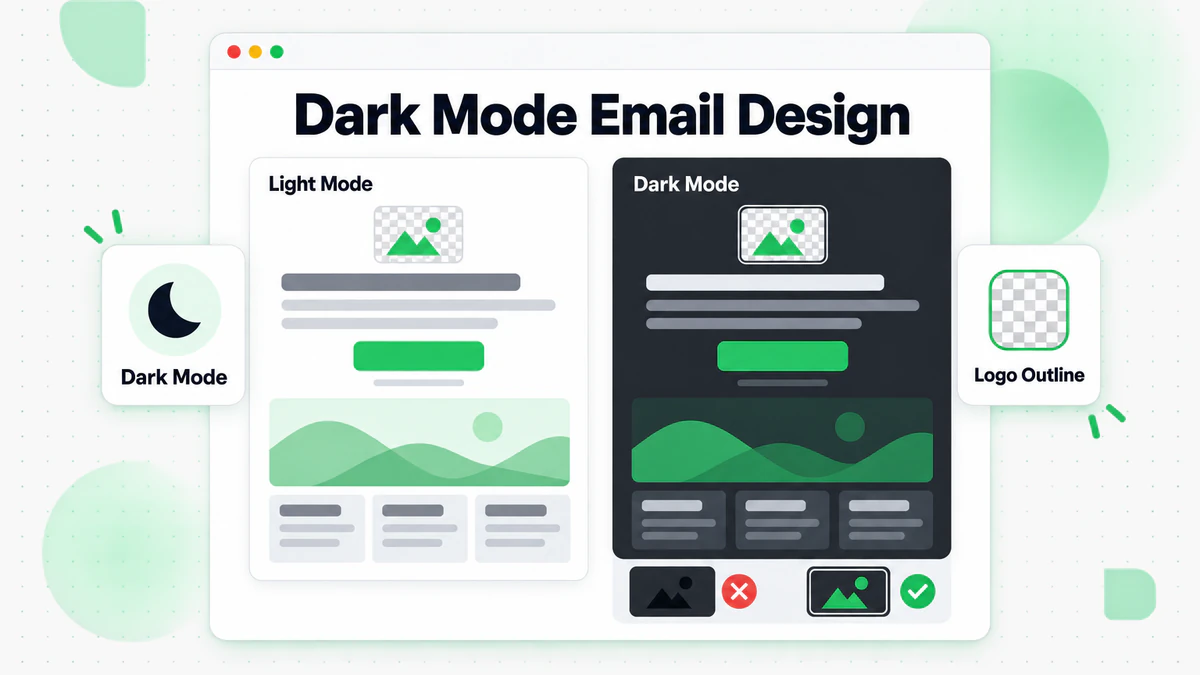
Many users view email in dark mode.
How Dark Mode Works
Two Types:
- Full Color Inversion: Light becomes dark, dark becomes light
- Partial Inversion: Only changes light backgrounds
Email Client Variation: Different clients handle dark mode differently. No single approach works everywhere.
Dark Mode Design Tips
Test in Dark Mode: Preview emails in both light and dark modes.
Transparent Backgrounds: Avoid if logo looks bad on dark backgrounds.
Logo Versions: Provide logos that work on both light and dark backgrounds.
Color Choices: Ensure colors remain visible and readable in both modes.
Avoid Pure Black/White: Slightly off-black and off-white are gentler in both modes.
Border Images: Add subtle borders to images that blend with white backgrounds.
Accessibility in Email Design
Make emails usable for everyone.
Accessibility Basics
Color Contrast: Sufficient contrast for text readability.
Font Size: Minimum readable sizes (14px body).
Alt Text: Descriptive text for all images.
Semantic Structure: Proper HTML hierarchy.
Link Text: Descriptive link text (not "click here").
Screen Reader Considerations
Reading Order: Content should make sense when read linearly.
Table Structure: Use tables for layout sparingly; add role="presentation".
Heading Hierarchy: Use proper h1, h2, h3 structure.
Skip Links: Allow jumping to main content.
Motion and Animation
Reduce Motion: Some users are sensitive to animation.
GIF Considerations: Limit animation loops, avoid flashing.
Essential Content: Don't put critical info only in animations.
Email Client Compatibility
Different email clients render HTML differently.
Major Email Clients
Desktop:
- Outlook (most challenging for rendering)
- Apple Mail (good modern support)
- Thunderbird (good support)
Webmail:
- Gmail (strips some CSS)
- Yahoo Mail (varies)
- Outlook.com (improving)
Mobile:
- iOS Mail (excellent support)
- Gmail App (varies by version)
- Samsung Mail (good support)
Common Rendering Issues
Outlook Challenges:
- No CSS background images
- Limited CSS support
- Different rendering engine
- Needs VML for some features
Gmail Challenges:
- Strips <style> block (use inline CSS)
- Removes classes with numbers
- Limited CSS support
Coding for Compatibility
Inline CSS: Most reliable approach.
Tables for Layout: Still necessary for Outlook.
Web-Safe Fonts: Use fallbacks.
Test Extensively: Use email testing tools.
Testing and Quality Assurance
Never send without testing.
Testing Checklist
Content:
- [ ] Spelling and grammar
- [ ] Links work correctly
- [ ] Personalization renders
- [ ] Dates and details accurate
Design:
- [ ] Images load properly
- [ ] Alt text in place
- [ ] Colors correct
- [ ] Fonts render correctly
- [ ] Mobile layout works
Technical:
- [ ] Links tracked properly
- [ ] Unsubscribe works
- [ ] View in browser works
- [ ] Preheader displays correctly
Testing Tools
Email Preview Services: Litmus, Email on Acid
- Preview across email clients
- Catch rendering issues
- Check spam score
- Accessibility checking
Manual Testing:
- Send test to yourself
- View on multiple devices
- Check different email clients
- Test with images disabled
Common Design Mistakes
Avoid these frequent errors.
Mistake 1: Image-Only Emails
Problem: Nothing displays when images are blocked. Fix: Balance images with HTML text.
Mistake 2: Tiny Text
Problem: Unreadable on mobile. Fix: Minimum 14px body text.
Mistake 3: Buried CTAs
Problem: Users don't find the action. Fix: Prominent placement with contrast.
Mistake 4: No Mobile Consideration
Problem: Broken layout on phones. Fix: Mobile-first design approach.
Mistake 5: Missing Alt Text
Problem: No context when images don't load. Fix: Descriptive alt text for all images.
Mistake 6: Poor Contrast
Problem: Text difficult to read. Fix: Meet WCAG contrast requirements.
Design and Deliverability
Design choices can affect inbox placement.
Spam Filter Considerations
Image-Heavy Emails: May trigger spam filters.
Broken HTML: Can signal spam.
Missing Text: Image-only emails look suspicious.
Excessive Links: Too many links raises flags.
Clean Design, Clean Code
Professional Appearance: Spam filters learn from user behavior. Well-designed emails get fewer complaints. Review our email deliverability guide for more details.
Clean HTML: Validate code, avoid errors.
Proper Structure: Follow email HTML best practices.
List Quality Connection
Even perfect design fails if emails don't reach inboxes. Use email verification to ensure your beautifully designed emails reach real subscribers. Maintain proper list hygiene for optimal results.
Quick Reference
Design Checklist
Layout:
- [ ] Single column (or properly responsive)
- [ ] Clear visual hierarchy
- [ ] Adequate white space
- [ ] Mobile-friendly structure
Typography:
- [ ] Readable font sizes (14px+ body)
- [ ] Appropriate line height
- [ ] Limited font families
- [ ] Sufficient contrast
Images:
- [ ] Optimized file sizes
- [ ] Descriptive alt text
- [ ] Good text-to-image ratio
- [ ] Works with images off
CTAs:
- [ ] Prominent placement
- [ ] High contrast
- [ ] Touch-friendly size
- [ ] Clear action text
Testing:
- [ ] Multiple email clients
- [ ] Mobile devices
- [ ] Dark mode
- [ ] Images disabled
Conclusion
Great email design serves your message and your subscribers. By following visual hierarchy principles, optimizing for mobile, ensuring accessibility, and testing thoroughly, you create emails that people want to read and act upon.
Remember these key principles:
- Mobile first: Design for the smallest screen first
- Simplicity wins: Clear beats clever
- Hierarchy matters: Guide the eye to what's important
- Test everything: What looks good in design may break in email clients
- Accessibility included: Design for all users
Beautiful emails that never reach inboxes don't generate results. Combine great design with verified email lists for maximum impact.
Ready to ensure your well-designed emails reach real subscribers? Start with BillionVerify to verify your list and maximize the ROI of your email design efforts.
Great email design delivers results only when emails reach real inboxes. BillionVerify integrates with Mailchimp, Klaviyo, and HubSpot to ensure your carefully designed campaigns reach verified recipients. See how it compares to other verification tools for deliverability protection.