



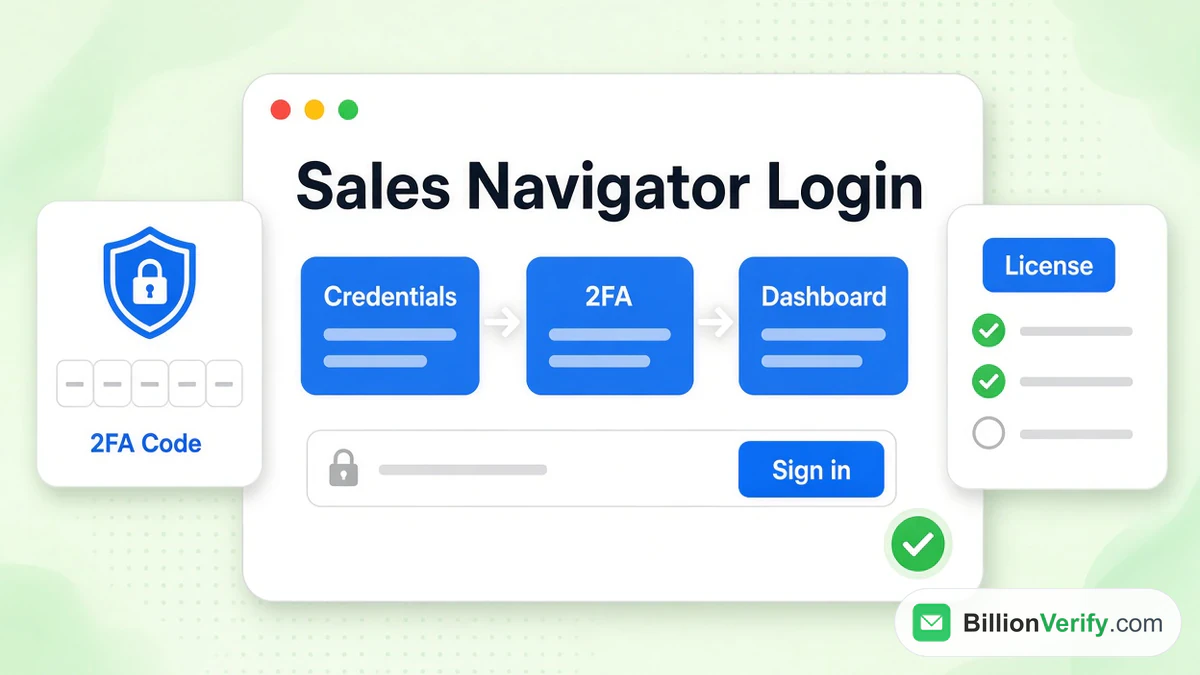
The Sales Navigator login runs on your normal LinkedIn credentials. Your email and password are the ones you already use on LinkedIn, with no extra password to remember. LinkedIn also requires two-factor authentication (2FA) before Sales Navigator will open.
This guide covers every route to the LinkedIn Sales Navigator login. It explains the first sign-in with a company license, team access through SSO, free trials and the mobile apps. It also lists the most common login problems and the official fix for each. Every fact comes from LinkedIn's own pages, checked in October 2026.
New to the tool? Our LinkedIn Sales Navigator guide explains what it does and what it costs. We are not affiliated with LinkedIn.
Key facts (checked October 2026):
- The Sales Navigator sign-in page lives at linkedin.com/sales/login and takes your normal LinkedIn credentials.
- LinkedIn makes two-step verification a condition for entering Sales Navigator.
- LinkedIn says a temporary account restriction usually clears by itself within 24 hours.
- A company seat must be activated from its invitation email before the first sign-in.
- Single sign-on for Sales Navigator comes with the Advanced Plus plan, per LinkedIn's plan comparison.
- BillionVerify checks syntax, domain, MX records and the mailbox before you email a new lead.
Sales Navigator Login: The Quick Answer
Here is the short version:
- Where: the Sales Navigator login page.
- Credentials: the email or phone tied to your LinkedIn profile, plus its password.
- Security: 2FA must be switched on.
- Company license: activate it first from the invitation email.
- Teams on SSO: your company's sign-in system adds a step.
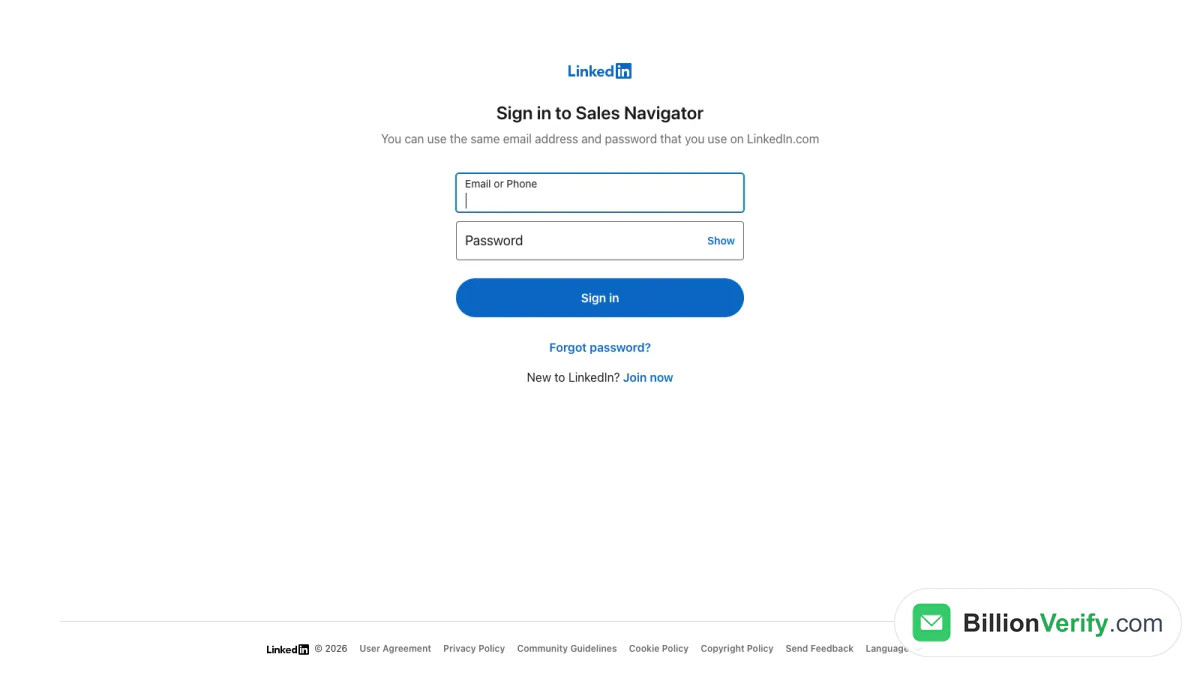
Screenshot: Sign in to Sales Navigator.
The page says it plainly: "You can use the same email address and password that you use on LinkedIn.com." Below the form sit two links. One is Forgot password. The other is Join now, for people new to LinkedIn.
Where to Find the LinkedIn Sales Navigator Login
There are three doors into Sales Navigator. All three use one LinkedIn identity.
The direct page
Open linkedin.com/sales/login. Type your credentials. Click Sign in. Bookmark it. This is the fastest Sales Navigator sign in route, and the one most people mean by "sales nav login."
From LinkedIn.com
Already using LinkedIn in another tab? Jump straight in. LinkedIn's help article Access LinkedIn Sales Navigator lists two paths. In the upper-right corner of your profile, click either:
- The For Business icon, then pick Sales Navigator from the menu.
- The Me icon, then select the Sales Navigator entry.
LinkedIn notes: "If you're already signed in to your LinkedIn account, you won't be prompted to enter your email address or password again." Sales Navigator then opens in a separate window. To return, click Me and choose Go to LinkedIn.com.
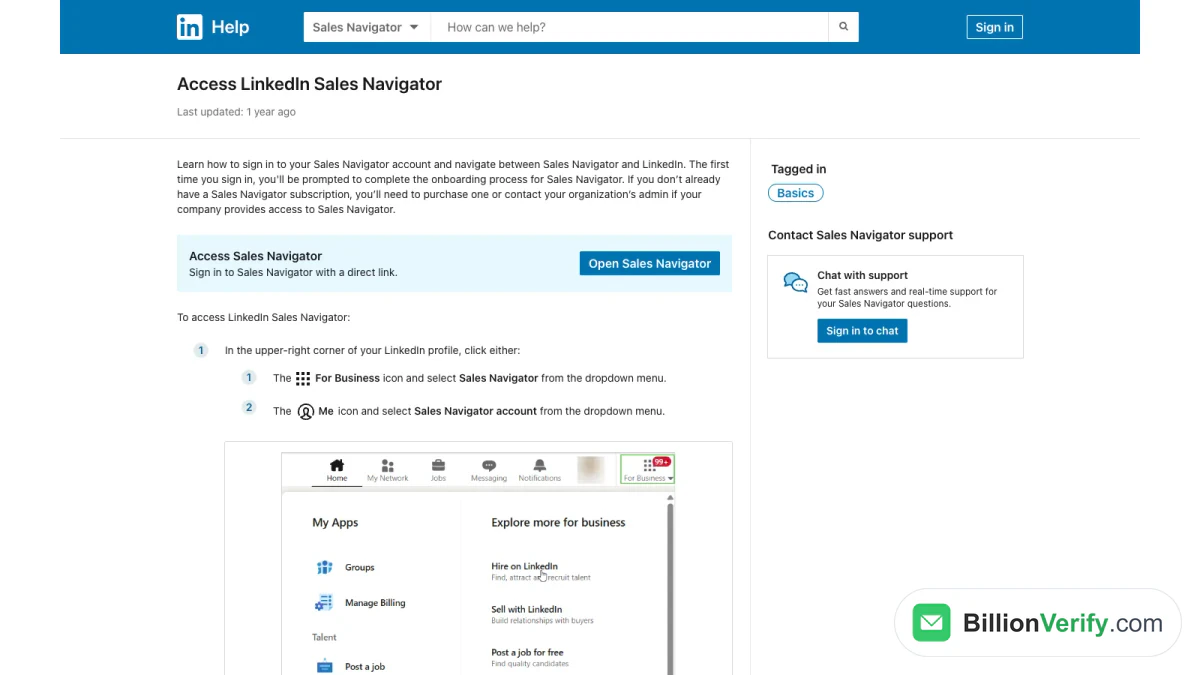
Screenshot: LinkedIn Help article on reaching Sales Navigator.
From the mobile app
Sales Navigator has its own app. On iPhone, the LinkedIn Sales Navigator app showed a 4.8 rating from about 52,000 ratings in October 2026. On Android, it is on Google Play. The app uses the same LinkedIn sign-in.
What people call it
Many users shorten the name. "LinkedIn Navigator login," "sales nav login" and "Sales Navigator LinkedIn login" all point to the same place. Whatever you type into a search bar, the sign-in itself is the same.
How to Log Into LinkedIn Sales Navigator, Step by Step
People often ask how to log into LinkedIn Sales Navigator for the first time. The steps are short.
Step 1: Open the page
Go to the sign-in page. Or use the For Business menu on LinkedIn.com.
Step 2: Enter your LinkedIn credentials
Use the email address or mobile number on your account. Then type your LinkedIn password.
Step 3: Pass 2FA
LinkedIn may ask for a code from your phone or authenticator app. Type it in to continue.
Step 4: Choose a seat if asked
LinkedIn says that if you are "assigned to multiple Sales Navigator accounts, you'll be prompted to select an account." Pick the right one. A personal plan and a company seat are separate.
Step 5: Finish onboarding
The first time, LinkedIn may walk you through a short setup. After that, the Sales Navigator homepage opens.
That is the whole flow to log into LinkedIn Sales Navigator. Most failures happen at step 2 or step 3.
2FA Is Required for Every Sales Navigator Sign In
This rule surprises many users. LinkedIn's 2FA overview says it "requires all Recruiter, Campaign Manager, and Sales Navigator users to turn on two-factor authentication through their LinkedIn.com accounts" before they can open those tools.
So turn on 2FA in your LinkedIn settings, not inside Sales Navigator. LinkedIn offers two methods:
- Text message (SMS). A code arrives by text.
- Authenticator app. An app such as Microsoft Authenticator shows the code. LinkedIn calls this the preferred method.
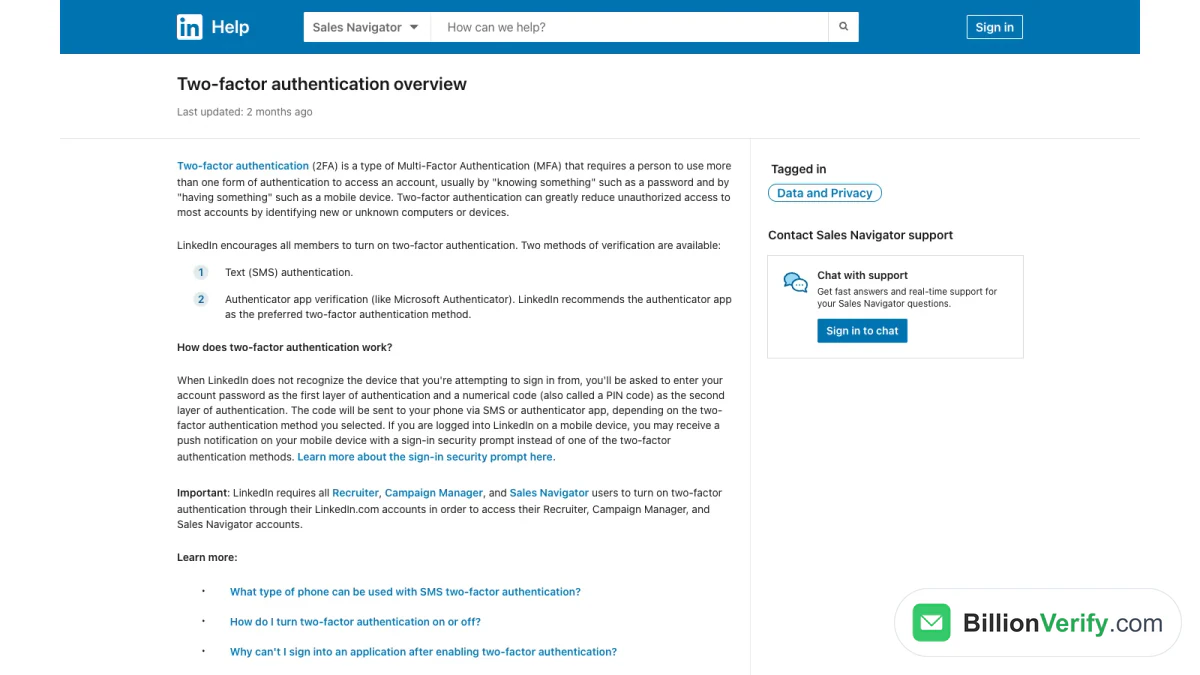
Screenshot: LinkedIn Help, "Two-factor authentication overview."
How does the code step work? When LinkedIn does not recognize your device, it asks for your password first. Then it asks for a numerical code. On a phone where LinkedIn is open, you may get a push prompt instead.
Changing phones? Move your authenticator app first. 2FA lives on your main profile, so a lost phone blocks both LinkedIn and the Sales Navigator sign in.
First Sales Navigator Login With a Company License
If your employer pays for Sales Navigator, the first sign-in works differently. LinkedIn calls it activating your license. Your admin must assign you a license first.
The steps come from LinkedIn's article Start using Sales Navigator with a company-provided subscription:
- Find the activation message in your work inbox. It comes from LinkedIn Sales Navigator (invitations@linkedin.com) or LinkedIn (messages-noreply@linkedin.com).
- Click Activate your account in that message.
- Type your LinkedIn email and password. Not on LinkedIn yet? Click Join now.
- Click Accept & Connect to link your personal profile to the company seat.
- Click Get started.
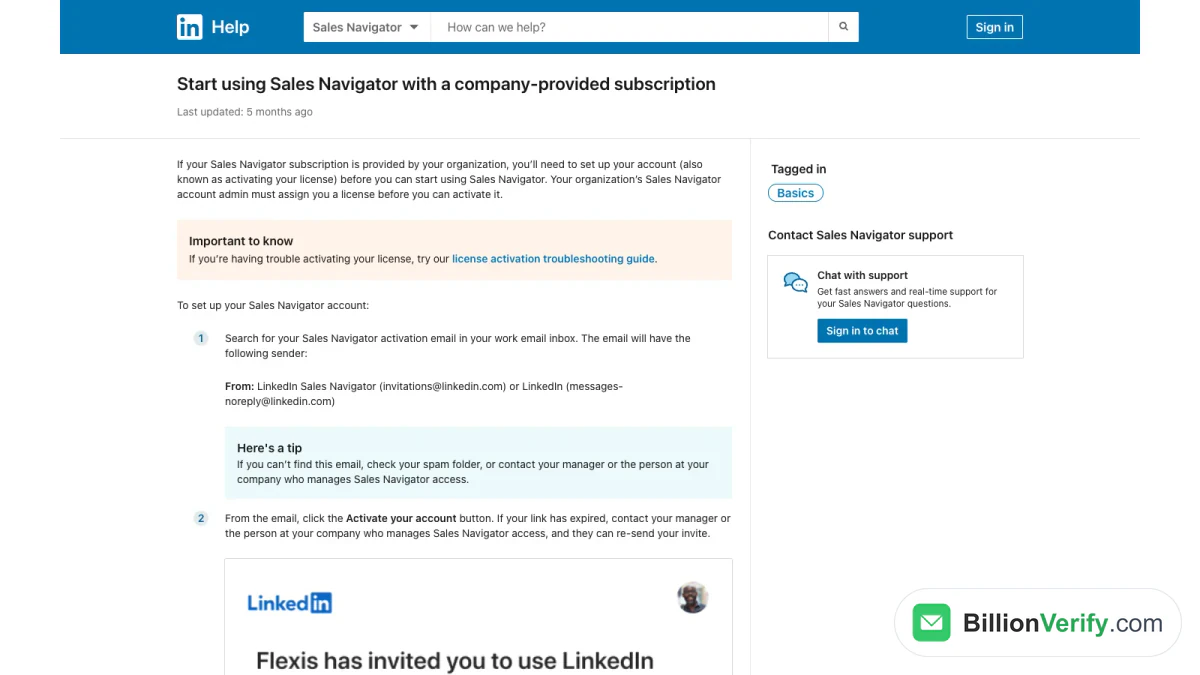
Screenshot: LinkedIn Help, company-provided subscription setup.
Can't find the invitation? LinkedIn suggests checking your spam folder. If the link has expired, your manager or Sales Navigator admin can send a new one.
The personalized setup
After that first sign-in, LinkedIn may ask a few setup questions. It asks about your primary goal, the product you sell, your ideal buyer persona and your target accounts. LinkedIn says this setup is being rolled out gradually, so you may not see it. You can change these choices later in settings.
Personal Profile or Company Seat?
Every Sales Navigator login goes through one personal profile. That profile links to a Sales Navigator seat.
LinkedIn's article on connecting your Sales Navigator account with your LinkedIn account explains why this matters:
- You get lead and account recommendations based on your network.
- Buyers see your real profile when you send InMail.
- On Advanced and Advanced Plus, TeamLink shows warm paths through your teammates' networks.
Not on LinkedIn yet? LinkedIn says you will need to create a profile the first time you access Sales Navigator.
On a company seat, admins can see some usage data. LinkedIn notes you can opt out of LinkedIn.com activity tracking in your Sales Navigator settings. Want to change which profile is linked? LinkedIn says to contact its support team.
Enterprise SSO for Sales Navigator Login
Larger teams often sign in through single sign-on (SSO). In LinkedIn's plan comparison, "Enterprise (SSO/EDI)" is included with Advanced Plus. On Advanced, it is available "if purchased through a sales representative." Core does not include it.
With SSO, your company's identity provider runs part of the sign-in. Problems at this step go to your IT team, not to LinkedIn support. LinkedIn's SSO certification renewal note names providers such as Microsoft Entra ID, Okta and OneLogin.
What You See After the Sales Navigator Sign In
Your plan decides what opens after you sign in. LinkedIn's plan table lists these differences:
| Feature | Core | Advanced | Advanced Plus |
|---|---|---|---|
| Users | Single | Multiple | Multiple |
| InMail credits per month | 50 | 50 | 50 |
| Saved leads and accounts | 10,000 | 10,000 | 10,000 |
| Shared lists and saved searches | No | Yes | Yes |
| Buyer Intent signals | No | Yes | Yes |
| TeamLink | No | Yes | Yes |
| Enterprise SSO | No | Via sales rep | Yes |
| CRM sync both ways | No | No | Yes |
Is a feature missing once the Sales Navigator login succeeds? Check your plan. It may not be a login problem at all.
Sales Navigator Sign In During a Free Trial
A free trial uses the same sign-in. LinkedIn's article Start a Sales Navigator free trial adds a few rules:
- Not every member qualifies, and a valid payment method is required.
- Certain features may be more limited than on a paid plan.
- If you don't cancel before the trial ends, it continues as a paid subscription.
- If you cancel the trial, you "immediately lose access to trial features."
So a trial you cancelled can look like a broken Sales Navigator sign in. The account still exists. The trial features are simply gone.
No Sales Navigator Plan Yet?
A LinkedIn profile alone does not open Sales Navigator. LinkedIn's access article is direct about it: "If you don't already have a Sales Navigator subscription, you'll need to purchase one or contact your organization's admin if your company provides access to Sales Navigator."
So before you troubleshoot a sales nav login, check three things:
- Do you pay for it yourself? Then you need a Core plan, an Advanced plan or an active trial.
- Does your employer pay? Then your admin must assign you a seat and send an invitation.
- Did a trial end? Then the trial features are gone until you buy a plan.
Our Sales Navigator overview compares the plans and their prices. Once a plan is active, the Sales Navigator sign in works with your usual LinkedIn credentials.
Sales Navigator Sign In and LinkedIn Premium
Sales Navigator and LinkedIn Premium are separate products. Yet they overlap. LinkedIn notes that "Sales Navigator subscriptions include several LinkedIn Premium account features."
What does that mean for the LinkedIn Navigator login? Two practical points:
- You still sign in once, with one LinkedIn identity. There is no second Premium login.
- Some Premium features show up on LinkedIn.com while your Sales Navigator plan is active.
If you hold both a Premium plan and Sales Navigator, check your billing settings. You may be paying twice for overlapping features. LinkedIn's help center explains how to downgrade a Premium plan.
Sales Navigator Sign In Tips for Teams
Team seats add a few moving parts. These habits keep the LinkedIn Navigator login smooth for everyone:
- Send invitations from the admin console only. Users should never share one seat.
- Ask new reps to turn on 2FA before day one. It saves a support ticket on their first morning.
- Keep the activation sender on your allow list. Mail filters sometimes hold messages from invitations@linkedin.com.
- Use SSO if you have it. One company sign-in is easier to manage than many passwords.
- Remove seats when people leave. An unused seat still costs money.
- Test the flow yourself. Sign out, then run the Sales Navigator login the way a new rep would. Fix any step that feels unclear.
- Name the admin. Reps who are locked out need a person to ask, not just a ticket queue.
Admins who manage seats can find guidance in LinkedIn's Sales Navigator admin guide.
Why Your Sales Navigator Login Fails
Most login problems have a simple cause. Here are the common ones, with LinkedIn's fix.
You used the wrong profile
Sales Navigator is tied to one profile. If you have two, you may sign in to the wrong one. Sign out of LinkedIn, then sign in with the profile your admin invited.
2FA is off
Sales Navigator needs it. Turn it on in your LinkedIn settings, then retry.
Your license is not active yet
A company seat only works after activation. Look for the invitation. If it expired, ask your admin to resend it.
You have more than one seat
LinkedIn will ask you to choose. Pick the seat you need.
You forgot your password
Use Forgot password on the sign-in screen. The steps are below.
Your trial ended or was cancelled
Trial features stop when a cancelled trial ends. Buy a plan to keep using them.
Your account is temporarily restricted
LinkedIn may limit features after unusual activity. Its article on Sales Navigator usage, limitations, and restrictions says temporary restrictions "are generally lifted automatically after a 24-hour period."
How to Reset the Password
The password for the LinkedIn Navigator login is your LinkedIn password, so reset it on LinkedIn. The Reset your password article lists the flow:
- Select Forgot password.
- Type the email or phone on your profile.
- Enter the authentication code LinkedIn sends.
- Choose a new password.
You may be asked for a 2FA code too. LinkedIn sends a confirmation message after the change. The code "is valid for a limited time," so use it quickly.
No Access to Your Email or Phone
Lost access to the inbox and phone on your account? LinkedIn can still help. Its article No access to email address describes an identity check:
- Select Forgot password and enter your old details.
- On the code screen, click Can't access this email?
- Scan the QR code shown on a desktop screen.
- Add a new address for your account.
- Upload an image of a valid government ID.
LinkedIn then reviews the request and contacts you. It asks for the ID "to ensure that only you regain access to your account."
Sales Navigator LinkedIn Login on Mobile
The mobile apps use the same profile, and the same 2FA rule applies. If you switch devices, transfer the authenticator app before you wipe the old one. That keeps your LinkedIn Navigator login working on the road.
Contact Sales Navigator Support
Still stuck? LinkedIn's contact support article explains your options.
- Chat: sign in to the Sales Navigator Help Center, scroll to the bottom of an article and click Start chat. You need an active Sales Navigator plan.
- Inside Sales Navigator: click the Help icon in the upper-right corner and choose Chat with support.
- Can't get in at all: log in on LinkedIn.com, open its Help Center and click Contact us.
Company users can also ask their Sales Navigator admin. The admin can check seat assignment and resend invites.
Before you open a ticket, note the exact error text and when it appeared. Add a screenshot if you can. Support can trace the problem faster with those details.
Keep Your Seat Safe
A smooth sign-in depends on a healthy account. LinkedIn suggests a few habits to avoid restrictions:
- Personalize InMail. If recipients mark your message as spam, your account could get restricted.
- Add context to connection requests. Explain how you know the person.
- Remove scraping extensions. LinkedIn asks users to remove browser extensions that scrape profile data or cause a high number of profile views.
Watch for fake invitations too. Real activation messages come from invitations@linkedin.com or messages-noreply@linkedin.com. If a message asks you to sign in through another domain, don't click. Type the LinkedIn Navigator login address yourself instead.
After You Log In: From Leads to Emails
Once the LinkedIn Sales Navigator login works, the real work starts. You save leads, follow accounts and send InMail.
LinkedIn describes InMail as a way to "contact anyone on LinkedIn without an introduction or their contact information." Sales Navigator does not hand you addresses. Many teams add them from other tools, then run outreach by email too.
Before you send, check every address. An old or guessed one bounces, and bounces hurt your sender reputation. Our guide to verifying Sales Navigator leads shows the workflow.
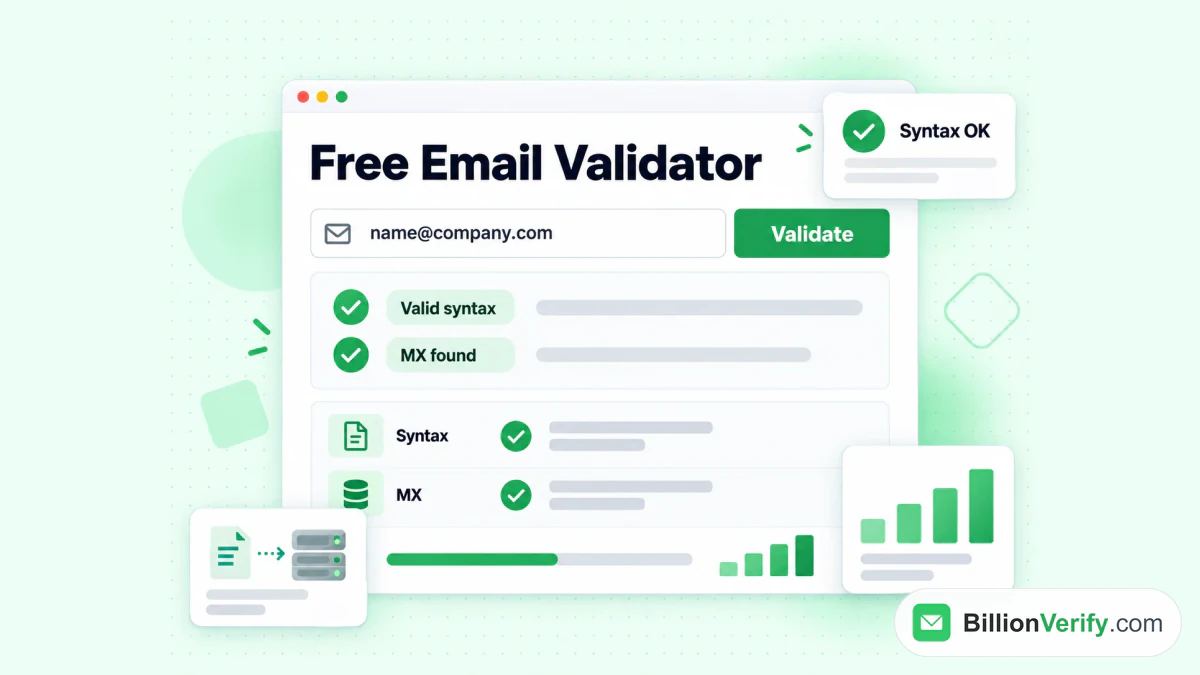
BillionVerify's free email validator runs a syntax and MX check on one address.
Two free checks help before you write:
- Our reverse email lookup reads the domain, organization, mail routing and public profile signals behind an address.
- Our phone number validator checks whether a number is valid for its country and shows its line type.
Leads also post on LinkedIn. Their videos show what they care about. Our free LinkedIn video downloader downloads the video from any public LinkedIn post, so you can study it later.
Sales Navigator Login Checklist
Use this list when a sign-in fails:
| Check | What to do |
|---|---|
| Right page | Use the direct sign-in page |
| Right profile | Use the profile your seat is linked to |
| 2FA | Turn it on in LinkedIn settings |
| License | Activate it from the invitation |
| Several seats | Pick the correct one when prompted |
| Password | Use Forgot password |
| Trial | Confirm the trial is still running |
| Restriction | Wait 24 hours, then contact support |
| SSO | Ask your IT team |
FAQs
Where do I find the Sales Navigator login?
The Sales Navigator login sits at linkedin.com/sales/login. Use your LinkedIn credentials there.
Is the LinkedIn Sales Navigator login different from LinkedIn?
No, the LinkedIn Sales Navigator login takes the same email and password as LinkedIn. Nothing extra is needed.
How do I log into LinkedIn Sales Navigator from my profile?
You reach LinkedIn Sales Navigator from your profile by clicking the For Business icon or the Me menu on LinkedIn.com. If LinkedIn is already open, you will not need your password again.
Why does Sales Navigator ask for 2FA?
LinkedIn makes 2FA mandatory for every Sales Navigator user. Without it, Sales Navigator stays locked.
Why can't I log into LinkedIn Sales Navigator with my company license?
A LinkedIn Sales Navigator company license may not be active yet. Open the invitation from invitations@linkedin.com, choose the activation button, then sign in and accept the connection.
How do I reset the password for Sales Navigator?
To reset a Sales Navigator password, reset your LinkedIn password. Use Forgot password, enter your email or phone, and type the code LinkedIn sends.
Is there a Sales Navigator app?
Yes, LinkedIn Sales Navigator has a mobile app for iPhone and Android. They use your normal LinkedIn credentials.
What is the LinkedIn Navigator login?
LinkedIn Navigator login is a short name for the Sales Navigator sign in. A LinkedIn Navigator login or sales nav login opens the same page.
Can I use Sales Navigator without a LinkedIn profile?
No, Sales Navigator needs a LinkedIn profile. LinkedIn asks new users to create one when they first open Sales Navigator.
How long does a Sales Navigator restriction last?
LinkedIn says restrictions on Sales Navigator usually clear on their own within a day. Contact support if one lasts longer.
Does cancelling a free trial lock me out?
Ending a trial of LinkedIn Sales Navigator removes its features right away. LinkedIn also says you can't start another free trial for at least 12 months.
Can my admin fix my Sales Navigator login?
An admin can fix part of a Sales Navigator login problem. An admin can assign your seat and resend an expired invitation. Password resets and 2FA settings stay with you, on your own LinkedIn profile.
Watch: How to Validate a Phone Number: Free Phone Number Validator
Watch: How to Download LinkedIn Videos: LinkedIn Video Downloader