



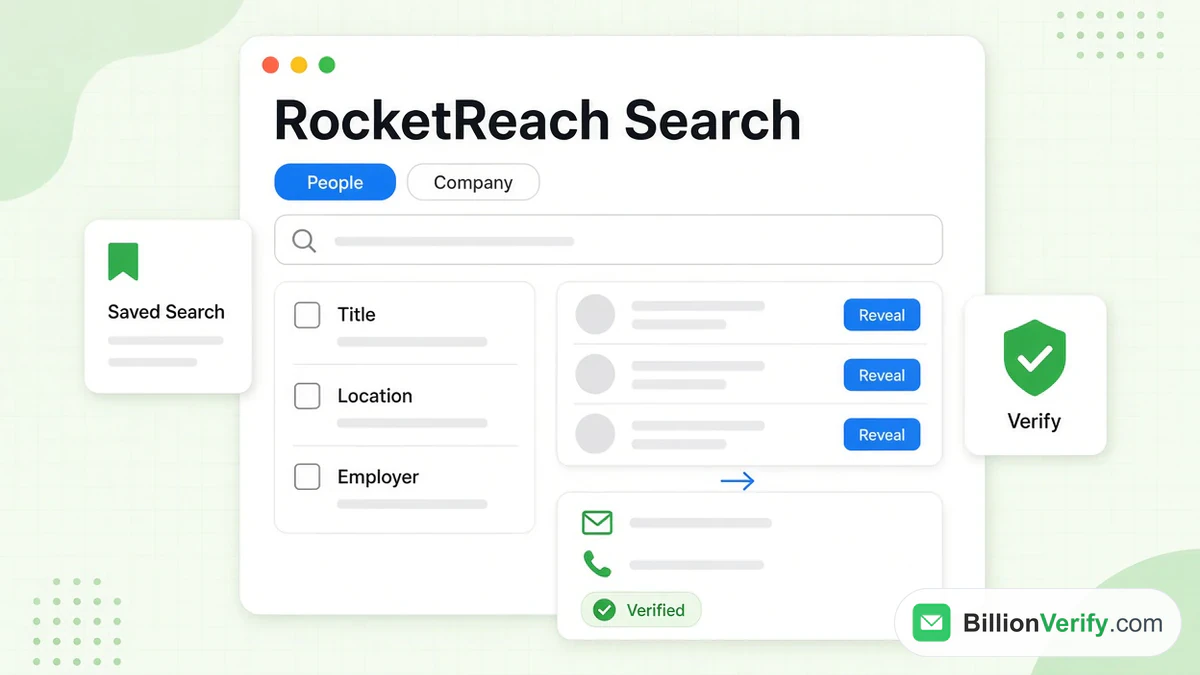
RocketReach search is how you find people and companies inside RocketReach. You type a name, a firm or a job title. Filters narrow the list. Then a lookup reveals the contact details you need. Some people type it as one word, "Rocketsearch."
This guide explains each part of a RocketReach search. It covers people and company modes, the main filters and saved searches. It also covers the browser extension and what each lookup costs. Every product fact comes from RocketReach's own pages, read in October 2026. We link to each source.
We are not affiliated with RocketReach. BillionVerify checks whether an address exists and accepts mail. Near the end, we show how to verify those addresses before you write.
For a full overview of the company, start with our guide to what RocketReach is.
Key facts (checked October 2026):
- RocketReach search finds people and firms first; contact details unlock one record at a time.
- RocketReach gives each new free account five lookups without a card.
- A RocketReach lookup that returns nothing does not use up a credit, per RocketReach.
- The RocketReach Chrome extension works on LinkedIn and company websites as you browse.
- RocketReach says it predicts and checks emails in real time on each lookup.
- BillionVerify flags disposable and role inboxes, such as info@, when it checks an address.
What Is RocketReach Search?
RocketReach search is the prospecting screen of the platform. It finds profiles that match what you know. Each profile can then be opened to show emails and phones.
RocketReach describes it on its advanced search page: "Need python developers, C-level executives who recently switched roles, or investors around the globe? We can find that."
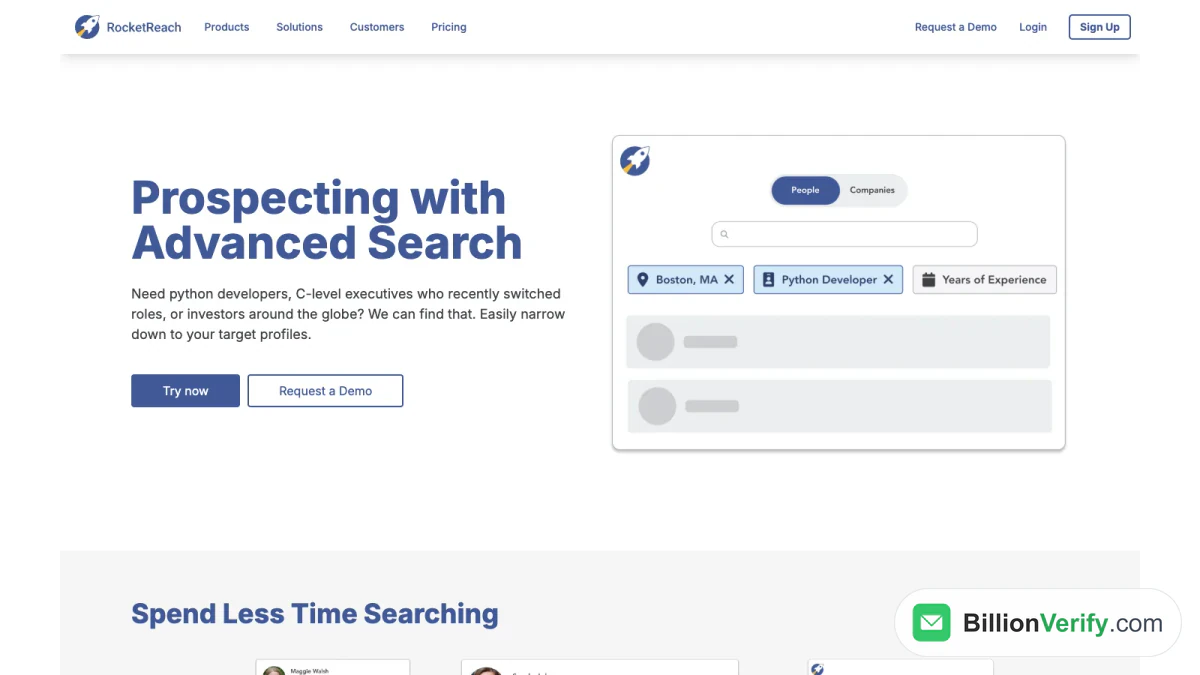
Screenshot: Prospecting with Advanced Search on rocketreach.co.
The pool is large. The RocketReach products page lists "700M+ verified professional profiles." Its database page counts more than 60 million firms.
People mode and company mode
A RocketReach search has two modes. The first finds individuals. The second finds firms. The illustration on that page shows both tabs side by side.
Pick the people tab for a known person. Choose the company tab when only the employer is known.
Is "Rocketsearch" the same thing?
Yes. Rocketsearch is just a joined spelling. It is not a separate product. There is also no tool named Rocket Outreach. Anyone typing that usually wants RocketReach's sequences.
How to Run a RocketReach Search, Step by Step
Most tasks follow the same five steps.
Step 1: Open the search
Sign in on rocketreach.co and open the search. A free account works for a first try.
Step 2: Choose a mode
Select the people tab for a person. Select the company tab for a firm. You can switch whenever you like.
Step 3: Enter what you know
Type a full name, an employer, a job title or a domain. Lead with the strongest clue. A name plus an employer beats a name alone.
Step 4: Add filters
Narrow the list. Location, title and headcount cut the results fast. We cover each filter below.
Step 5: Reveal the details
Open the closest match. A lookup shows that profile's contact details. This step uses a credit, as the pricing section explains.
Build a Search Plan Before You Start
Ten minutes of planning saves many credits later. Answer these questions first.
- Who buys? Write the job titles that sign off on your product.
- Where do they work? List the industries, firm sizes and regions that fit.
- Who should you skip? Note current customers, partners and competitors.
- How many contacts per firm? Two or three is usually enough for a first touch.
- Which channel? Decide whether you need emails, phones or both.
Turn the answers into filters. Your first RocketReach profile search should return a few hundred people, not tens of thousands. If the list is huge, add another filter. If it is tiny, remove the narrowest one.
Keep the plan in a shared document. Teammates can then run the same RocketReach profile search and get the same list. That stops two reps from contacting one buyer.
RocketReach Search Filters
Filters turn a broad RocketReach search into a short list. RocketReach calls this "faceted search." It "lets you use multiple filters at once."
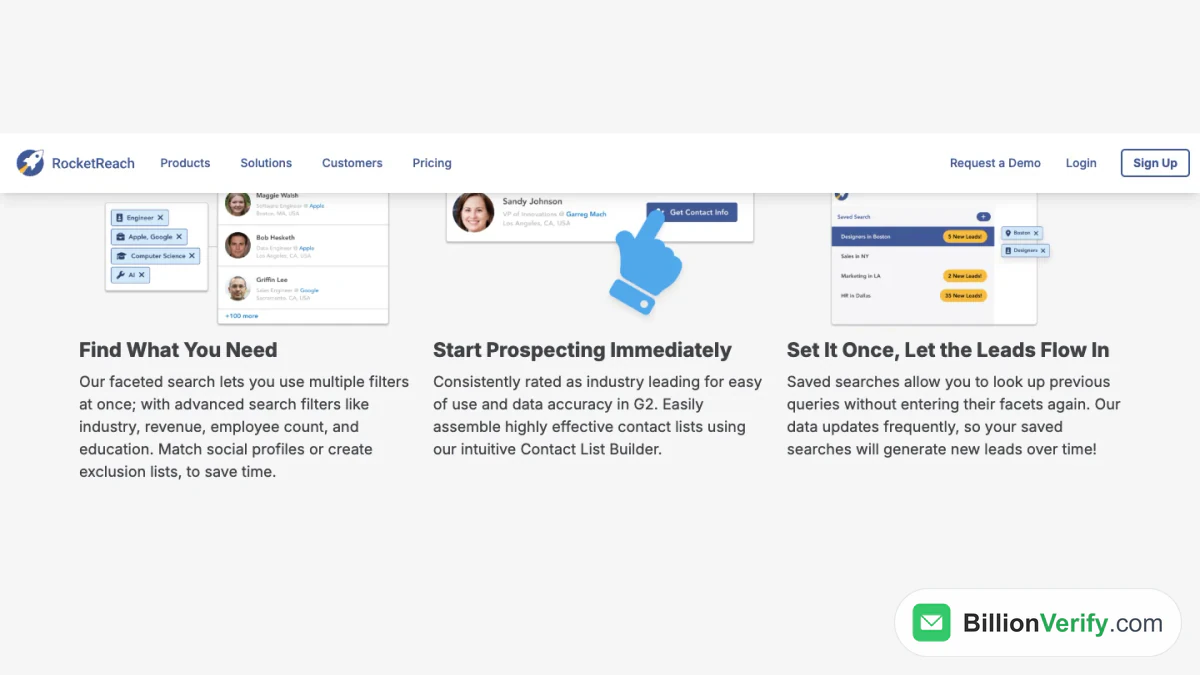
Screenshot: faceted search, list building and saved queries on rocketreach.co.
The filters below come from RocketReach's own feature pages.
Location
Search by city, region or country. Location is the quickest way to split people who share a name.
Job title and seniority
Filter by role and level. RocketReach gives "C-level executives" as one example.
Revenue and headcount
RocketReach lists "revenue" and "employee count" among its advanced filters. Use them to match your ideal customer.
Industry
Pick one or more industries. RocketReach also runs a separate offer for healthcare professionals.
Skills and technologies
RocketReach says you can narrow results by "skill sets, technologies used," and more.
Education
Its advanced search page names "education" too. That helps when you recruit from certain schools.
Job changes
A new role is a strong buying signal. RocketReach lets you filter for people who changed jobs recently.
Social profiles and exclusions
You can also "match social profiles or create exclusion lists, to save time." Exclusions keep current customers out of a fresh list.
RocketReach Profile Search vs Profile Lookup
A RocketReach profile search and a RocketReach profile lookup are two separate steps.
- RocketReach profile search: lists matching people. You see names, roles and employers.
- RocketReach profile lookup: reveals the details for one person. This is the paid step.
Browsing results costs nothing. Revealing contact details does. In RocketReach's words, "a lookup is used if we find and verify email or phone, otherwise it is refunded."
So keep the search wide while you explore. Spend credits only on clear matches.
How to Find a Person Email With RocketReach
Most users open RocketReach for a person email. Here is how that works.
Work and personal addresses
RocketReach returns both kinds where it has them. A work address suits a sales pitch. A personal address suits recruiting. Choose whichever fits your reason for writing.
How RocketReach builds an address
RocketReach explains its method on its contact database page: "every time a user does a lookup we run email prediction + verification steps in real time."
Prediction matters here. Many companies follow a pattern, such as first.last at the domain. Our guide to email format explains how those patterns work.
The RocketReach find email path
The RocketReach find email route is short. Enter a name, add the employer, then open the result. A RocketReach find email query with both clues returns fewer wrong people than a bare name.
When nothing turns up
Some people keep a low profile online. If nothing verified turns up, RocketReach refunds the credit. Try another spelling or the firm's main domain before you stop.
Professional Profile Search Tips
A sharp professional profile search saves credits. These habits help.
- Start with the employer. A firm plus a role is often more precise than a name.
- Add a region early. It removes most same-name results.
- Use job changes. New hires often review tools in their first months.
- Exclude customers. An exclusion list stops wasted outreach.
- Read titles twice. A "Head of Growth" may own marketing at one firm and sales at another.
- Save the query. Rerun a RocketReach professional profile search next week without retyping it.
A RocketReach professional profile search works best when you know your buyer. Write down the ideal role, firm size and region first. Then build the query from that note.
Saved Searches, Lists and Autopilot
Prospecting rarely ends with a single query. RocketReach adds three features for repeat work.
Saved queries
"Saved searches allow you to look up previous queries without entering their facets again," RocketReach says. Because its data "updates frequently," a saved query can surface new leads over time.
Contact lists
You can collect results in a list. RocketReach calls this its "Contact List Builder." Lists feed exports, CRM syncs and email sequences.
Autopilot
RocketReach Autopilot can "build and update your prospect lists automatically." You pick "daily, weekly, or monthly updates."
The RocketReach Contact Finder in Your Browser
You do not always start from the main screen. The RocketReach contact finder also runs inside Chrome.
RocketReach calls its extension "the easiest way to look up contact and company information, while you're searching." Its products page adds that it pulls "verified emails, direct dials, and firmographic data from social networking or company sites in seconds."
Open the RocketReach contact finder when you already have a profile or a company website on screen. It saves copying names into a new tab. For teams that live in a browser, the RocketReach contact finder is often the main entry point.
RocketReach Search for Sales Teams
Sales teams use RocketReach search to build prospect lists. A typical flow looks like this.
- Define the target account list by industry, headcount and region.
- Run a company query to confirm the firms exist and fit.
- Move to the people tab and filter by role and seniority.
- Reveal details only for the decision makers.
- Push the contacts to a CRM or a sequence.
Account-based teams flip the order. They start from a fixed list of target firms. Then they map the buying group inside each one.
Either way, the RocketReach contact finder helps during research. A rep reading a company site can pull a contact without leaving the page.
RocketReach Search for Recruiters
Recruiters use the same screen with different filters. Skills, education and past employers matter more than revenue.
- Skills: match candidates to the stack in a job ad.
- Education: target graduates of a specific program.
- Job changes: spot people who may be open to a move soon.
- Personal addresses: reach candidates outside their current employer's inbox.
A personal person email is often the right channel for a candidate. Writing to a work inbox about a new job can feel awkward. It may also break company rules.
RocketReach Search vs a Google Search
A plain web search can find some contact data for free. So why pay for RocketReach?
| Need | RocketReach | |
|---|---|---|
| Public bio or news | Strong | Limited |
| Work email | Rare | Core feature |
| Direct dial | Rare | Core feature |
| Filters by role and firm size | No | Yes |
| Lists and exports | No | Yes |
A web search is best for context. Read a person's latest post or interview first. Use RocketReach search when you need verified details at scale. Many teams use both, in that order.
Common RocketReach Search Mistakes
These mistakes waste credits or send email to the wrong person.
- Searching by name only. Common names return hundreds of results.
- Skipping location. Two people with the same name may work in the same industry.
- Trusting an old export. Data ages fast once it leaves the platform.
- Revealing everyone on a list. Reveal only the people who match your buyer.
- Sending without checks. One bad batch can hurt your domain.
How to Read RocketReach Search Results
Each row in a RocketReach profile search shows a short card. Read it before you spend a credit.
Name and current role
Check that the title matches your buyer. A title alone can mislead, so read it with the employer.
Employer and location
Confirm the firm and the city. Many people share a name. The pair of employer and city rarely repeats.
Past roles
Earlier jobs help you confirm identity. They also give you a hook for a first message.
Which details are on file
Before a RocketReach profile lookup, the card hints at what is available. You may see that a work email, a personal email or a phone exists. Reveal only what you plan to use.
Signals
RocketReach Insights adds "news, buyer intent, and tech stack" signals. A funding round or a new tool can be a good reason to write now.
Three RocketReach Search Examples
These examples show how filters and lookups fit together.
Example 1: a marketing lead at a SaaS firm
You sell analytics software to mid-size SaaS companies. Start in company mode. Filter by industry and headcount. Save the firms that fit. Then switch to people mode. Filter those firms by marketing titles at director level and above. Reveal two or three people per firm, not ten.
Example 2: a backend engineer for a startup
You are hiring. Start in people mode. Filter by skills such as Python and Go. Add a region and a band for years of experience. Prefer personal addresses for outreach. This RocketReach professional profile search may return hundreds of people, so add an education or past-employer filter to shorten it.
Example 3: one vendor contact you already know
You met someone at an event but lost the card. Enter the name and the employer. Open the single RocketReach profile search result that matches the city. Run one RocketReach profile lookup. Then verify the address before you write.
In every example, the order is the same. Search wide, filter hard, reveal little, verify everything.
Where RocketReach Search Data Comes From
Every result traces back to the RocketReach database. Its sources include "licensed datasets, publicly available information, human-verified data, data sharing cooperative, and proprietary data sources and email algorithms."
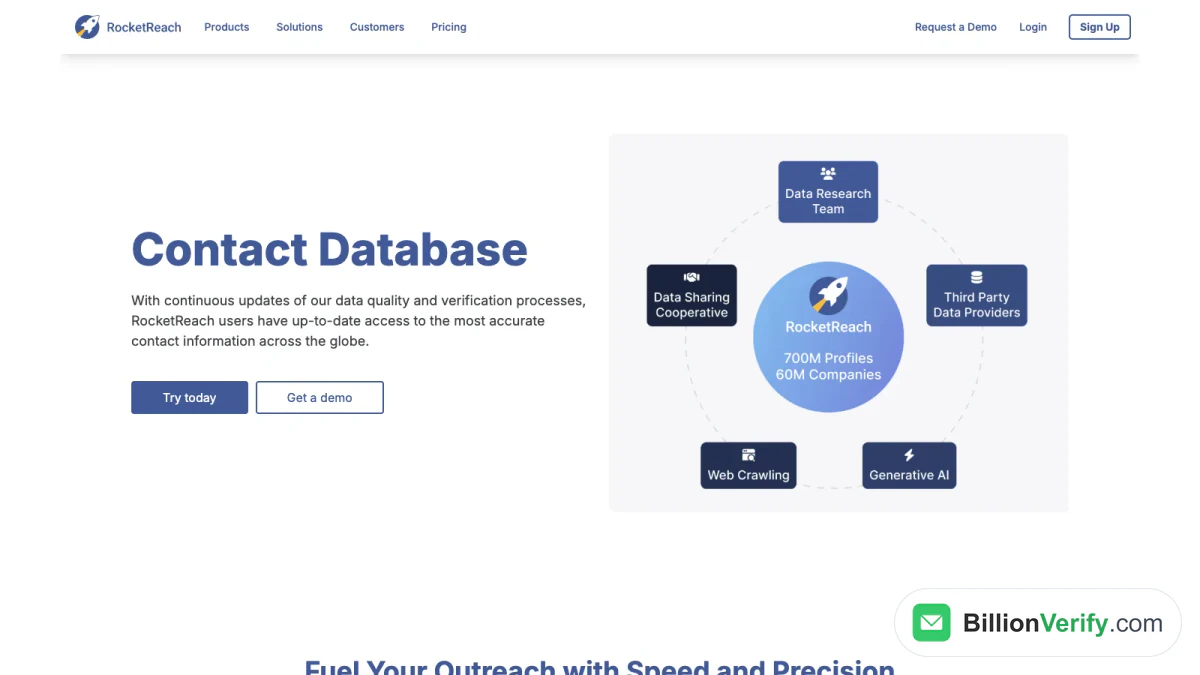
Screenshot: Contact Database sources on rocketreach.co.
RocketReach adds that its "person + company data is continually refreshed and verified throughout the day, every day." Our RocketReach overview covers the sources and the privacy policy in more depth.
How Many Searches Can You Run?
Browsing is not where the limits sit. Limits apply to lookups and exports.
Free accounts
"Free accounts have access to 5 free lookups with no credit card required," per RocketReach. That is enough to test a few real prospects.
Paid plans
On October 14, 2026, the RocketReach pricing page listed three self-serve plans billed yearly. Essentials cost $399 a year. Pro cost $899 a year. Ultimate cost $1,699 a year. Annual plans list unlimited lookups. Monthly billing caps lookups at 100, 250 or 1,000 a month. Exports have yearly caps on every plan.
Refunds on empty results
A lookup that comes back empty is refunded. That lowers the cost of a wide RocketReach search.
Prices change. Check the pricing page before you buy.
Search Results Are a Starting Point
A RocketReach search gives you a strong lead. It is not proof that an inbox works today.
People change jobs often. A work address can close the week someone leaves. Some domains accept every address, so a server check cannot confirm one mailbox. Those are catch-all domains.
RocketReach runs its own checks at lookup time. Still, weeks can pass between a lookup and your send. Lists also sit in CRMs for months. Check addresses again before each campaign.
From a RocketReach Search to a Safe First Email
Bounces hurt your sender reputation. A few can push your next campaign into spam. So verify every person email from your results before you send.
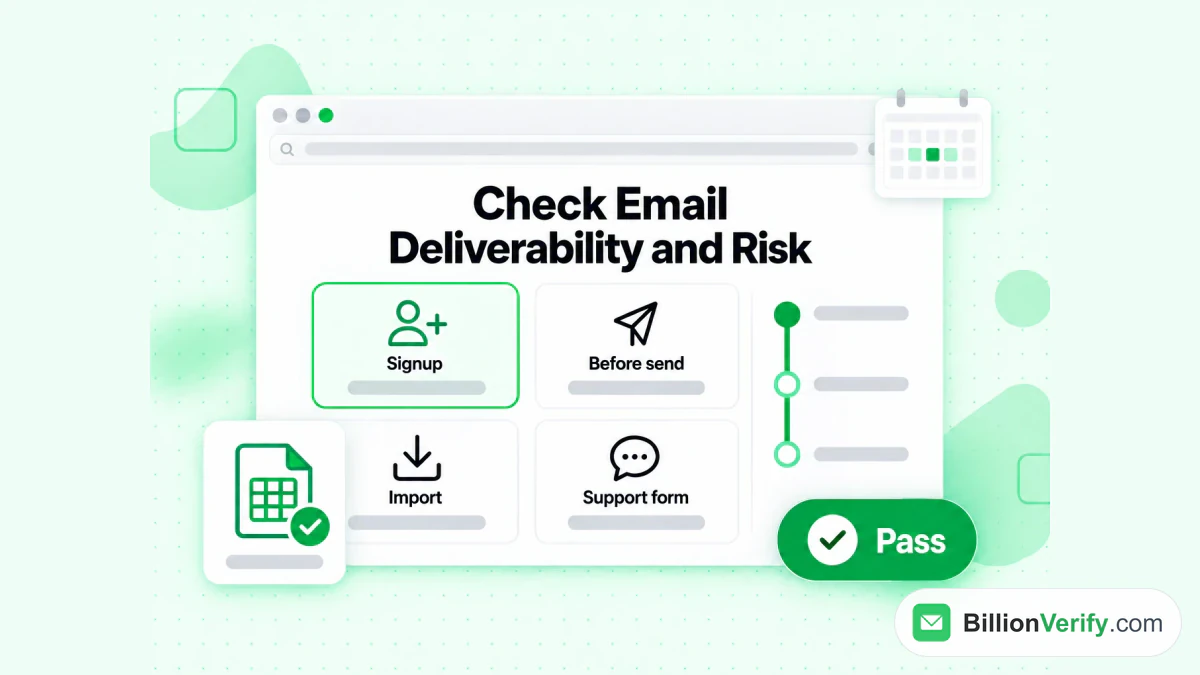
BillionVerify checks deliverability and risk at signup, before a send, on import and on support forms.
BillionVerify runs syntax, domain and MX checks, then an SMTP mailbox check. It reports catch-all, disposable and role addresses as their own results. We never count a catch-all as valid.
You get 20 free credits each day you use your account, up to 600 a month. They never expire, and no credit card is needed. A valid or invalid result uses one credit. Unknown results are free. A re-check within 24 hours is free too.
For lists exported from RocketReach, see our page on RocketReach email verification. It covers the export and upload steps.
Check the phone number too
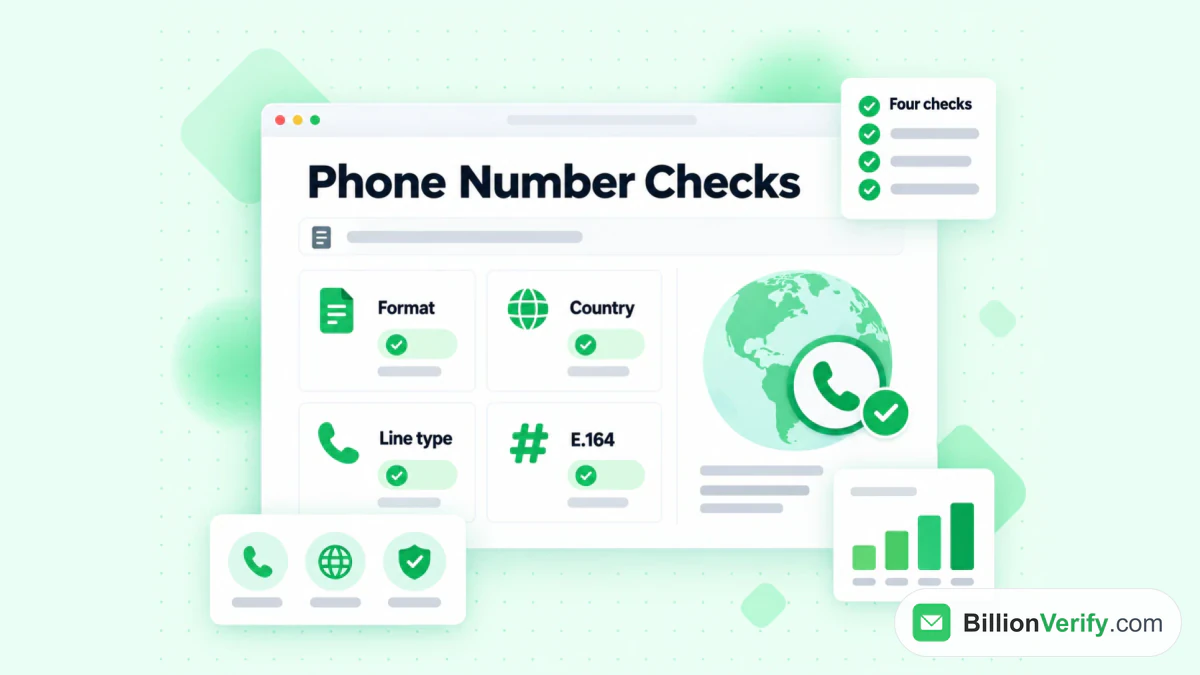
The BillionVerify phone validator checks format, country, line type and E.164.
Your results may include direct dials. Our free phone number validator shows whether a number is valid for its country. It also reports the line type and the E.164 format. It allows 20 free checks per IP each day, with no signup.
Check who owns an inbox
Sometimes you hold an address but no name. Our free reverse email lookup reads the domain, organisation, mail routing and any public profile. It uses public signals only and labels guesses as guesses.
Keep Your Search Data Fresh
A list built today starts aging tomorrow. Plan a refresh cycle.
- Rerun saved queries monthly. New hires and new firms appear in the results.
- Re-verify before each send. An address that passed last quarter may bounce now.
- Drop stale records. If a contact has not opened anything in six months, retire it.
Fresh lists cost less to work. They also keep complaint and bounce rates low, which protects every future campaign from your domain.
Search Responsibly
These results describe real people. Treat that data with care.
- Give a clear reason. Explain why you are reaching out in the first line.
- Respect opt-outs. Remove anyone who asks, and keep them off future lists.
- Follow email law. CAN-SPAM in the US and GDPR in the EU set rules for commercial email.
- Keep lists lean. Delete contacts you no longer need.
People can also ask RocketReach to remove their profile. Its privacy policy explains how.
FAQs
What is RocketReach search?
RocketReach search is where you find prospects inside RocketReach. You look for people or firms by name, title, employer or filter. Then you reveal emails and phones for the profiles you choose.
Is Rocketsearch the same as RocketReach search?
Yes, Rocketsearch is a one-word spelling of RocketReach search, the same feature, not a separate product.
Is RocketReach search free?
Browsing RocketReach search results is free. Revealing contact data uses credits. New free accounts get five of them without a card.
What filters does RocketReach search have?
The main RocketReach search filters cover industry, revenue, headcount, education, skills, technologies and recent job moves. You can stack several in one query.
What is the difference between a profile search and a lookup?
Listing matches in a RocketReach profile search costs nothing. The second unlocks one person's details and spends a credit.
Am I charged when a lookup finds nothing?
No, RocketReach returns the credit when a lookup comes back empty.
Can I search RocketReach from LinkedIn or a company site?
Yes, RocketReach works on those pages too. The Chrome extension runs while you browse and pulls contact and firm details from the page you are on.
How do I get a person email from RocketReach?
To get a person's email from RocketReach, type their full name plus the company, pick the closest result, then unlock it. Run the address through an email verifier before your first message.
Why should I verify an address from RocketReach?
Checking each RocketReach address matters because records age. Inboxes close when people move on. A quick check before sending keeps bounces low and protects your domain.
Watch: How to Validate a Phone Number: Free Phone Number Validator