



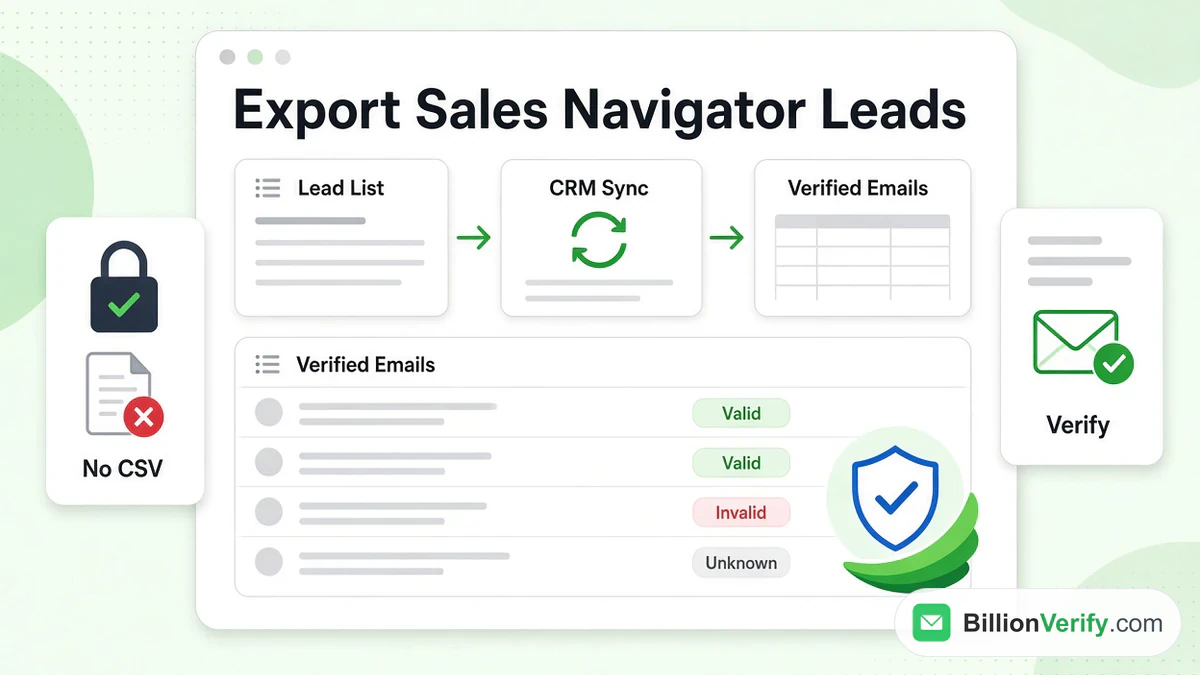
Many sellers want to export leads from LinkedIn Sales Navigator into a spreadsheet or a CRM. The short answer: LinkedIn does not offer a CSV or Excel download for leads. The official route is CRM Sync, and it needs the Advanced Plus plan. This guide explains every way to get Sales Navigator leads out of LinkedIn, what LinkedIn allows, where email addresses come from, and how to check every address before outreach.
Every LinkedIn fact here comes from LinkedIn's own help center and User Agreement, read in October 2026. We link to each page so you can check the current wording. We are not affiliated with LinkedIn. BillionVerify is an email verification service. New to the tool itself? Start with our guide to LinkedIn Sales Navigator.
Key facts (checked October 2026):
- LinkedIn says Sales Navigator does not offer an option to export leads or accounts into a CSV or XLS file.
- Only the top Sales Navigator tier can push leads into a CRM, per LinkedIn.
- Sales Navigator updates synced records once per day, per LinkedIn's Help Center.
- Sales Navigator caps each lead list at 1,000 leads and all saved leads at 10,000.
- Scraping tools break LinkedIn's terms and can get an account restricted.
- BillionVerify reports catch-all domains as their own result instead of marking them valid.
Can You Export Leads From LinkedIn Sales Navigator?
No, not as a file. LinkedIn's help article on export options says it plainly:
"LinkedIn currently doesn't offer the option to export account and lead information from Sales Navigator into a CSV or XLS file."
The same article adds that "alternative solutions are available if you're using the Sales Navigator Advanced Plus plan." Those solutions are sync, Embedded Profiles and lead creation in your CRM. Each one is covered below.
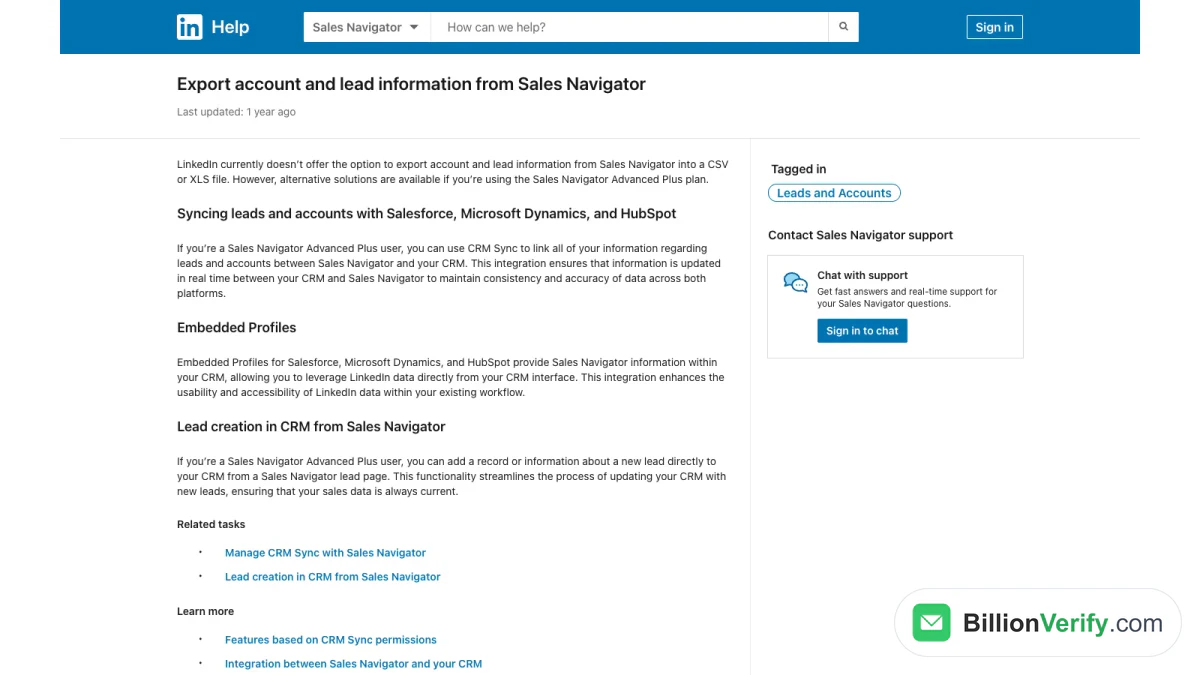
Screenshot: LinkedIn's answer on file exports.
So when a guide promises a one-click Sales Navigator export leads button, check the source. It is either describing a CRM feature or a third-party tool. LinkedIn itself has no such button.
Why LinkedIn blocks a file export
LinkedIn does not give one single reason on that page. Its other policies point the same way. Member data stays on the platform, and access runs through approved integrations. We cover those rules in the section on scraper tools. Lists exported from Gmaps Extractor need the same check before you send; see Gmaps Extractor email verification.
What this means by plan
| Plan | File export | CRM Sync | Shared lead lists |
|---|---|---|---|
| Core | No | No | No |
| Advanced | No | No | Yes |
| Advanced Plus | No | Yes | Yes |
The table follows LinkedIn's help pages on CRM integration and list sharing. Plans and prices change, so confirm on the compare plans page before you buy.
What LinkedIn Offers Instead of an Export
LinkedIn offers three official ways to move lead data into other systems. All three depend on your plan and your CRM.
CRM Sync
CRM Sync links Sales Navigator with your CRM. LinkedIn's article on integration between Sales Navigator and your CRM says it is "only available for Sales Navigator Advanced Plus users."
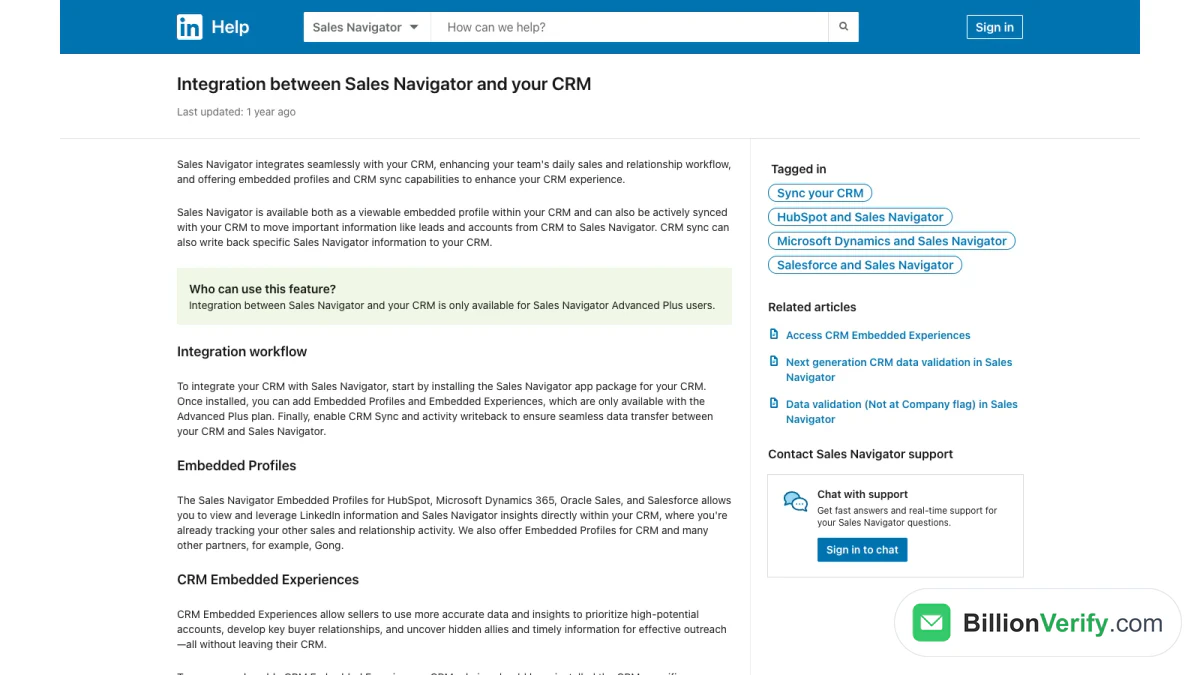
Screenshot: LinkedIn's page on CRM integration.
Key facts from that page:
- Supported CRMs for full sync: HubSpot, Microsoft Dynamics, Oracle Sales and Salesforce.
- What it imports: accounts and contacts from the CRM into Sales Navigator.
- What it writes back: "select data from Sales Navigator" to your CRM, if you turn on activity writeback.
- Setup: install the Sales Navigator app package for your CRM, then enable sync.
LinkedIn's sync management guide adds two limits. You can sync "one instance of Salesforce per Sales Navigator contract." And "data is synced daily, once per day."
Embedded Profiles
Embedded Profiles show Sales Navigator information inside your CRM. You see the LinkedIn profile next to the CRM record. The data stays on LinkedIn's side. It is a view, not a copy you can move elsewhere.
Lead creation from a lead page
With lead creation in CRM, you add a new lead record from a Sales Navigator lead page. LinkedIn limits it to "Salesforce and Microsoft Dynamics 365 Sales users who are on Sales Navigator Advanced Plus edition." CRM Sync must be on.
The steps, per LinkedIn:
- Open a lead page from search results or a lead list.
- Click Add to CRM, then Add new lead.
- Sign in to your CRM when asked.
- Fill in the required fields, starting with first and last name.
This is the closest thing to a Sales Navigator export leads feature. It moves one lead at a time, through your CRM.
Shared lead lists
Lists can also move between people, not systems. LinkedIn's list sharing FAQs say Advanced and Advanced Plus users "can share custom lists with other Sales Navigator users at their company." You grant Can View or Can Edit access. The list stays inside Sales Navigator.
How to Build a Lead List Before You Export
Every export route starts with a clean list. Build it inside Sales Navigator first.
Save leads
LinkedIn's article on viewing and saving leads sets the limits: "You can save up to 1,000 leads in each list and 10,000 total leads."
You can save a lead from search results, from a lead page or from a company's account page. Saved leads then surface updates on your Sales Navigator homepage.
Organize lead lists
LinkedIn's guide to custom lists explains where lists live. To view a lead list, "click Leads from the top navigation bar, and then click the Lead lists tab." Account lists sit under Accounts.
A few habits keep lists useful:
- One list per campaign. Mixed lists lead to mixed messages.
- Name lists by goal and date. For example, "Q4 SaaS CFOs, October."
- Prune old leads. People change jobs, and a stale list hurts every step after it.
- Stay under the caps. Keep each list well below the 1,000-lead limit so you have room to add.
Export LinkedIn Sales Navigator list data the official way
With the top plan and sync on, saved leads can reach your sales system. The broad path:
- An admin installs LinkedIn's package in the sales system.
- The admin opens Admin Settings in Sales Navigator and connects the CRM.
- Sync and writeback settings are turned on.
- Records appear in the CRM after the daily sync.
From there, you work with the records in that system. If it supports report exports, that is where a spreadsheet comes from. The export happens there, not in Sales Navigator.
How to Export Leads From LinkedIn Sales Navigator: Every Option Compared
There are four ways people try to export leads from LinkedIn Sales Navigator. Only some of them follow LinkedIn's rules.
| Option | Plan needed | Gets emails? | Within LinkedIn's rules? |
|---|---|---|---|
| CRM Sync | Highest plan | Only what the CRM already holds | Yes |
| Add leads to CRM | Highest plan, Salesforce or Dynamics | No | Yes |
| Shared lead lists | Advanced and above | No | Yes |
| Third-party scraper | Any | Sometimes, by guessing | No |
Read the table from the top. The first three options keep leads inside approved systems. The last one copies data off LinkedIn's pages, which LinkedIn bans.
Export leads from LinkedIn Sales Navigator with sync
This is the main official route to export leads from LinkedIn Sales Navigator. Your admin sets it up once. After that, saved leads and their activity reach your sales system each day.
Export a LinkedIn Sales Navigator list to a colleague
If you only need to hand a list to a teammate, share it. Advanced users can share lists with view-only or edit rights. Nothing leaves LinkedIn.
LinkedIn Sales Navigator export leads CSV: why it is missing
A LinkedIn Sales Navigator export leads CSV file is the most common request. There is no such option. Lists stay in Sales Navigator, and records move only through sync.
Export leads from LinkedIn Sales Navigator for a whole team
Teams have one more option. A manager can build the master list, share it with Can Edit access, and let each seller work their part. When the company upgrades, the same lists feed the official sync. Nothing needs to be rebuilt.
How to export LinkedIn Sales Navigator leads as a solo seller
Solo sellers on Core have no sync and no list sharing. The practical path is manual. Save leads, reach them on LinkedIn, and add the ones who reply to your own contact sheet by hand. It is slower, but it keeps your seat safe. A simple sheet with name, company, role, source and date is enough. Note where each lead came from, so you can answer if someone asks. Add the email only after the person shares it or you verify it.
LinkedIn Sales Navigator Export to Excel
People often ask for a LinkedIn Sales Navigator export to Excel. Sales Navigator has no Excel button. The help article quoted above rules out both CSV and XLS files.
So any Excel sheet of Sales Navigator leads came from one of three places:
- Your sales system, after the official sync.
- Manual notes you typed yourself.
- A third-party tool that copies what it sees on screen.
The first two follow LinkedIn's rules. The third one usually does not. The next section explains why.
LinkedIn Sales Navigator Scraper Tools: The Rules
Search results are full of LinkedIn Sales Navigator scraper add-ons, browser extensions and Python scripts. Before you install one, read what LinkedIn says about them.
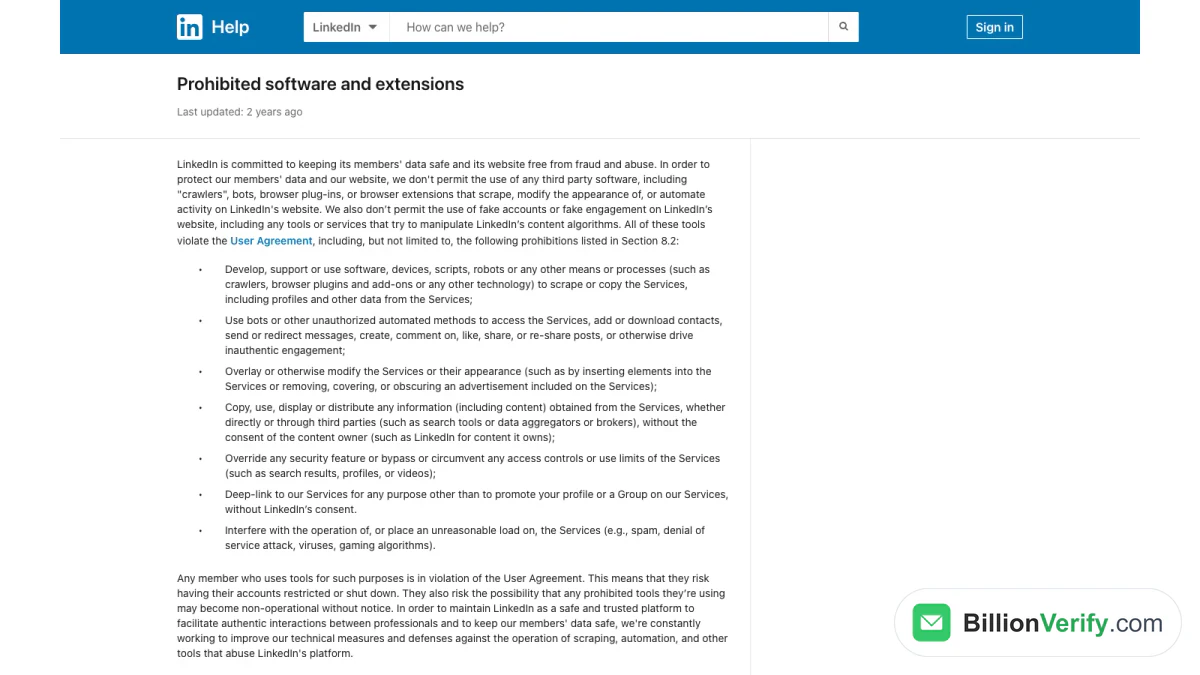
Screenshot: LinkedIn's prohibited software page.
What the User Agreement says
LinkedIn's User Agreement, section 8.2, lists what members agree not to do. It includes:
"Develop, support or use software, devices, scripts, robots or any other means or processes (such as crawlers, browser plugins and add-ons or any other technology) to scrape or copy the Services, including profiles and other data from the Services."
The same list also bans attempts to "bypass or circumvent any access controls or use limits of the Services (such as search results, profiles, or videos)."
What the help center says
LinkedIn's page on prohibited software and extensions says LinkedIn doesn't "permit the use of any third party software, including 'crawlers', bots, browser plug-ins, or browser extensions that scrape, modify the appearance of, or automate activity on LinkedIn's website."
It also spells out the risk. Members who use such tools "risk having their accounts restricted or shut down," and the tools "may become non-operational without notice."
What happens to accounts
LinkedIn's article on automated activity says third-party software that automates tasks "could potentially export or scrape data from LinkedIn." It calls this "a violation of LinkedIn's User Agreement" and notes it "may be a violation of privacy legislation in specific jurisdictions."
So a LinkedIn Sales Navigator scraper puts two things at risk: the seat you pay for, and your compliance with privacy law. We don't recommend any scraping tool here.
Python scripts and email extractors
The same rules cover a LinkedIn Sales Navigator scraper in Python or any LinkedIn Sales Navigator email extractor. The method does not matter. Code, plug-in or script, it is still automated copying of LinkedIn data.
Does LinkedIn Sales Navigator Provide Email Addresses?
Usually not. Sales Navigator is built for finding and messaging people on LinkedIn. It is not an email database.
LinkedIn's article on lead pages lists what the top of a lead page shows. That includes "contact information (if the member has added it)." The same article adds that this contact data "could be a result of the member's selected privacy settings," entered manually by you or your team, or pulled from your CRM.
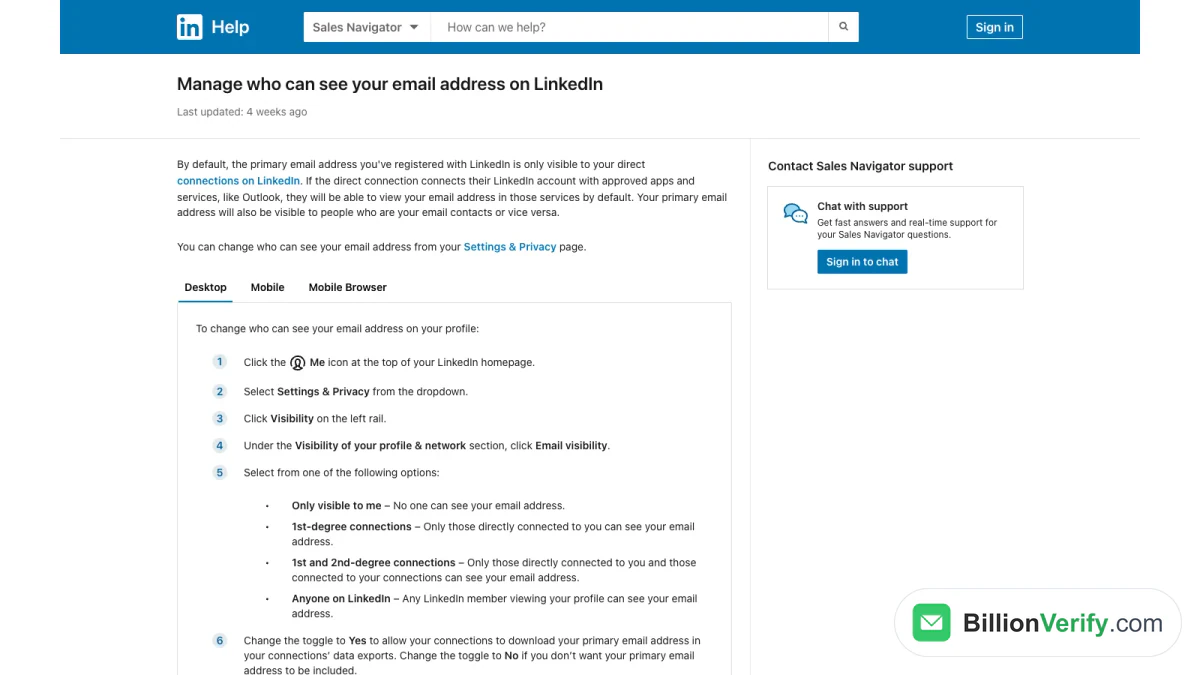
Screenshot: LinkedIn's email visibility settings.
Most members keep their email private. LinkedIn's page on email visibility says "by default, the primary email address you've registered with LinkedIn is only visible to your direct connections." Members can change that to "Only visible to me," first-degree connections, second-degree connections or anyone.
So for most Sales Navigator leads, you will see no email at all. Messaging inside LinkedIn is the built-in way to reach them.
How to Get Emails From LinkedIn Sales Navigator Leads
You can still reach a lead by email. You just need a source outside Sales Navigator, and a check before you send.
Ask in an InMail
The cleanest source is the person. Send an InMail, start a conversation, and ask for the best email if the talk moves forward. InMail credits come with every plan, and our hub article explains how they work.
Use your CRM records
If the lead is already a customer or contact, the email may sit in your CRM. With sync turned on, LinkedIn can match that record to the lead page.
Check public company sources
Many people list a work email on their company website, in a press release or on a conference page. Those are public, and you can cite where you found them.
Use a business contact data provider
Many teams use a B2B contact data provider. Those tools work outside LinkedIn and have their own data sources and terms. Read their terms and privacy notices before you upload anything.
Guess from the company format
If you know the company's format, such as first.last@company.com, you can build a likely address. A guess is only a starting point. It needs a check first.
Verify Every Email Before You Send
Whatever the source, an email you did not get from the person may be wrong. People change jobs. Domains change. Some companies accept mail for any name, so a wrong guess looks fine until nobody replies.
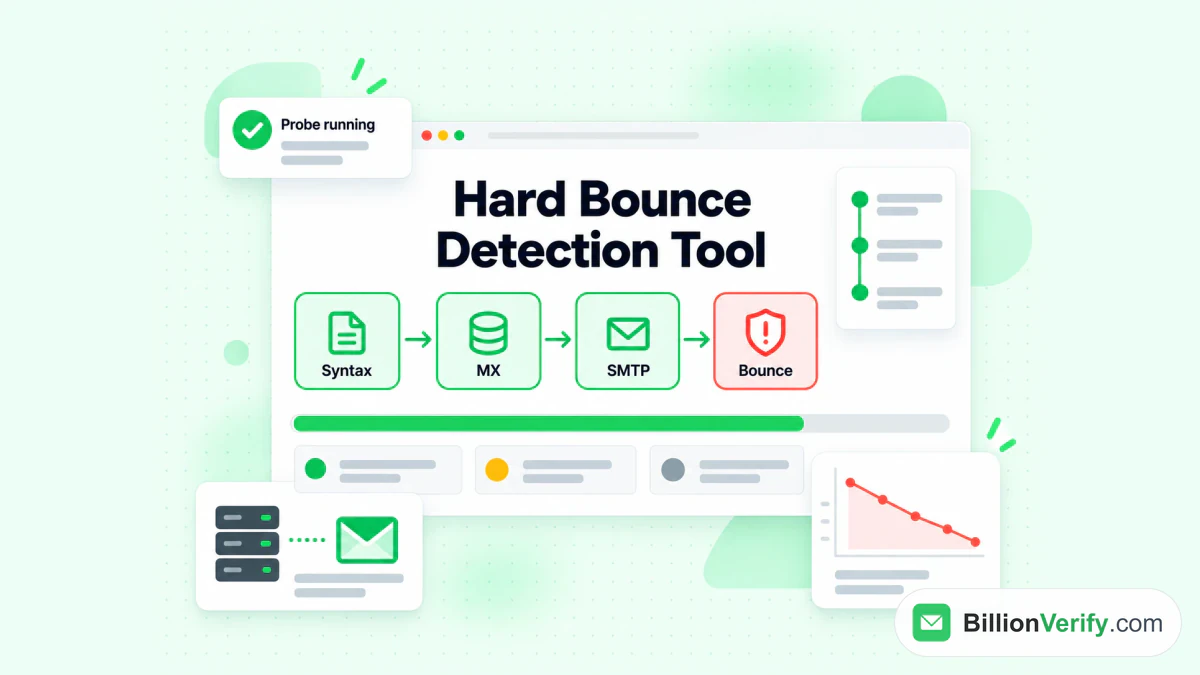
BillionVerify's bounce checker flags addresses that would hard bounce before a campaign goes out.
Sending to bad addresses has a cost. Bounces hurt your sender reputation. A damaged reputation pushes even good emails into spam.
BillionVerify checks an address ahead of outreach:
- Syntax: is the address written correctly?
- Domain and MX records: does the domain accept mail?
- SMTP mailbox: does the server accept this mailbox?
- Catch-all: does the domain accept every address? We report catch-all on its own, never as valid.
- Disposable and role addresses: is it a throwaway inbox or a shared one like info@?
Our page on LinkedIn Sales Navigator email verification walks through checking emails gathered for Sales Navigator leads. For a single address, the free bounce email checker tells you whether it will hard bounce, with a live SMTP probe and no signup.
Two more free tools help with lead research:
- Our reverse email lookup shows the domain, organisation, mail routing and any public profile behind an address. It uses public signals only.
- Our phone number validator checks whether a number is valid for its country, reports the line type and formats it in E.164.
Each tool gives 20 free checks per IP every day. On a paid account, a valid or invalid result uses one credit. Unknown results are free, and a re-check within 24 hours is free too.
Warm Up Leads Before the First Email
Email works better when the lead already knows your name. Sales Navigator helps you see what leads post and share. You can comment, react and share useful content of your own.
Studying how other sellers present ideas helps. If a peer posts a strong product video, our free LinkedIn video downloader saves the video from any public LinkedIn post, so you can review it later. Then build your own post, and follow up with the leads who engage.
Common Mistakes When Moving Sales Navigator Leads
- Trusting a CSV export button that is not LinkedIn's. LinkedIn's help center says no such export exists.
- Running a scraper on a paid seat. The prohibited software page warns of restricted or shut-down accounts.
- Assuming every lead has an email. Most members limit email visibility to direct connections.
- Mailing guessed addresses. A guess without a check is a bounce waiting to happen.
- Letting lists go stale. Saved leads change jobs. Refresh lists before each campaign.
- Skipping the official sync. Once available, it keeps one source of truth for every record.
Export Leads From LinkedIn Sales Navigator: A Quick Plan
Here is a simple plan that stays within LinkedIn's rules:
- Build focused lead lists inside Sales Navigator.
- If your plan includes it, turn on sync and export leads to your sales system.
- Reach leads first through InMail and engagement on LinkedIn.
- Collect emails from consent, your CRM or public company sources.
- Verify every address before it enters a sequence.
- Send, track replies, and keep the CRM up to date.
Need to sign in first? See our guide to the Sales Navigator login. Still testing the tool? Read about the LinkedIn Sales Navigator free trial and what happens when it ends.
FAQs
Can you export leads from LinkedIn Sales Navigator?
Leads can leave Sales Navigator, but not as a file. On the highest plan, the official sync moves leads to a supported system instead, so you can export leads through your CRM.
How do I export leads from LinkedIn Sales Navigator to my CRM?
To export LinkedIn Sales Navigator leads to a CRM, use the official sync on the highest plan. LinkedIn supports four systems for full sync. An admin installs the app package and turns on sync. Data syncs once per day.
Is there a LinkedIn Sales Navigator export to Excel?
No, Sales Navigator has no Excel export. A spreadsheet of leads normally comes from a report in your sales system, after you export leads there through sync.
How do I export a lead list from LinkedIn Sales Navigator?
A Sales Navigator lead list cannot be downloaded as a file. On Advanced plans you can share a list with colleagues inside Sales Navigator, or sync it on the highest plan.
Does LinkedIn Sales Navigator provide email addresses?
Sales Navigator rarely provides email addresses. A lead page shows contact information only "if the member has added it." By default, a member's email is visible only to direct connections.
How do I get emails from LinkedIn Sales Navigator leads?
To get a Sales Navigator lead's email, ask the lead through InMail, check your CRM, or use public company sources. If you build an address from a company format, verify it first.
Is a LinkedIn Sales Navigator scraper allowed?
No, LinkedIn does not allow scrapers. LinkedIn's User Agreement bans software that copies profiles and other data from LinkedIn. Accounts that use it risk being restricted or shut down.
How many leads can I save in Sales Navigator?
LinkedIn caps each list at 1,000 saved leads. The overall cap is 10,000, which is plenty for most sellers.
Should I verify emails before emailing Sales Navigator leads?
Yes, verify before emailing Sales Navigator leads. Emails from any outside source can be outdated or guessed. Verifying first keeps bounces down and protects your sender reputation.
Can I download Sales Navigator leads as a CSV?
No, Sales Navigator has no CSV download for leads or accounts. Use the official sync to export leads, or keep notes by hand.
What is the safest way to export leads from LinkedIn Sales Navigator?
The safest way to export leads from LinkedIn Sales Navigator is the official integration. It sends records to an approved CRM through a LinkedIn connection, so your seat and your data stay safe.
Watch: How to Validate a Phone Number: Free Phone Number Validator
Watch: How to Verify GMaps Extractor Emails Before You Send
Read next: LinkedIn Premium vs Sales Navigator: Which Plan to Pick